RAW, ZIP, or ZSTD: Backup File Formats
Quick answer
- RAW – max speed, no compression, takes up a lot of space
- ZIP – saves space, slow compression
- ZSTD – optimal balance: fast compression, saves space
- MultiDrive supports all three backup file formats with hash calculation.
Imagine you're creating a full system backup of your drive into one big file. The only question is how that disk backup file gets saved – as-is, or "compressed" to take up less space.
Compression is just like what your computer does when you zip up a folder before emailing it. The data's still there, it's just been reorganized to take up fewer bytes on disk. When you restore the backup, everything gets unpacked back to normal.
That's basically what a backup file format is. The format you choose affects how fast the backup runs, how much storage it uses, and how quickly you can restore your system backup if something goes wrong.
In this article
- Backup File Formats Explained
- Performance Benchmarks
- Full Backup Storage Efficiency
- Feature-by-Feature Comparison Table
- Which Backup File Format Should You Choose
- Split Backups and File Size Limits
- Hash Verification and Data Integrity
- Frequently Asked Questions
Backup File Formats Explained
RAW – "as-is"
Your drive gets copied byte by byte, including empty space. Fast, straightforward, and reliable.
- No compression. Data is written exactly as it appears on disk.
- 1:1 sector mapping. Each byte in the backup file corresponds to a byte on drive.
- Maximum speed. No CPU overhead from compression algorithms.
Downside: the backup file is the same size as your drive. 500GB drive → 500GB backup. If your drive is large, you'll need a lot of storage space.
ZIP – "compressed"
Data gets compressed before saving – like a regular ZIP archive you'd use to send files by email.
- Data compression. Reduces backup file size by 40-70%.
- Standard ZIP format. Compatible with ZIP extraction tools.
- Space efficient: A 500GB drive might create a 200-300GB backup.
- Split support. Easily split into multiple smaller backup files.
Downside: backups can take twice as long as RAW. On fast NVMe drives, ZIP can be 3 times slower, because compression becomes the bottleneck, not the drive itself.
ZSTD – "modern compressed"
ZSTD, short for Zstandard, is a new compression algorithm developed by Meta (Facebook) and released in 2016. Optimizes speed-to-compression ratio.
- Data compression. Reduces backup file size by 35–68%.
- Space efficient. A 500GB drive might create a 210–290GB backup.
- Fast decompression. Restoring a ZSTD backup is significantly quicker than ZIP.
Performance Benchmarks
Performance depends on your hardware, but here are representative benchmarks from testing on modern Windows systems.
Backup speed
| Scenario | RAW | ZIP | ZSTD |
|---|---|---|---|
| 500GB HDD (50% full) | 45 min | 85 min | 52 min |
| 1TB SSD (70% full) | 28 min | 65 min | 35 min |
| 256GB NVMe SSD (80% full) | 6 min | 18 min | 9 min |
| 2TB HDD (mostly empty) | 90 min | 75 min | 68 min |
Note: Empty sectors compress efficiently; on mostly-empty drives, ZIP and ZSTD may outperform RAW.
On fast NVMe drives, the gap between ZIP and ZSTD is most noticeable, compression becomes the bottleneck, not the drive, and ZSTD's faster algorithm makes a real difference.
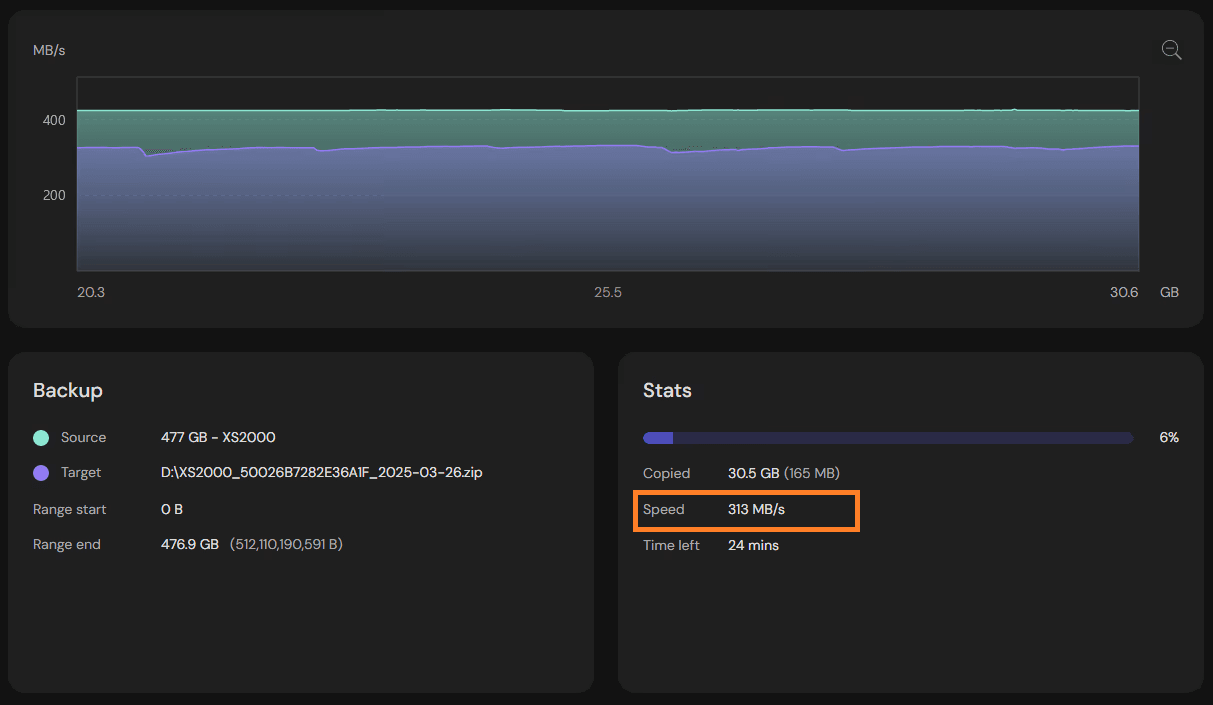
In MultiDrive, you can track your current backup speed in the 'Stats'.
Restoration Speed
| Backup File Size | RAW Restore | ZIP Restore | ZSTD Restore |
|---|---|---|---|
| 250GB | 22 min | 38 min | 27 min |
| 500GB | 42 min | 75 min | 51 min |
| 1TB | 85 min | 155 min | 104 min |
RAW restores are the fastest – you don't need to decompress, the data goes straight to disk. ZSTD restores are about 30–35% quicker than ZIP, which is important in disaster recovery situations where every minute counts.
Full Backup Storage Efficiency
How much space does each backup file format actually use?
| What's on the drive | Drive size | RAW | ZIP | ZSTD |
|---|---|---|---|---|
| Typical office use (Windows + docs) | 500GB | 500GB | 275GB | 285GB |
| Developer machine (code + tools) | 1TB | 1TB | 520GB | 535GB |
| Media storage (photos + videos) | 2TB | 2TB | 1.85TB | 1.86TB |
| Fresh Windows install (mostly empty) | 256GB | 256GB | 65GB | 63GB |
ZIP and ZSTD disk backups save roughly the same amount of space. The real difference is time. ZSTD gets you the same result in about half the backup time.
One thing worth knowing: videos, music, and encrypted files are already compressed internally. Neither ZIP nor ZSTD can shrink them further. If your drive is mostly media, RAW is the smarter choice – you skip the compression step with no downside.
Feature-by-Feature Comparison Table
| Feature | RAW | ZIP | ZSTD |
|---|---|---|---|
| Backup file speed | Max | Slow | Fast |
| Restore speed | Max | Slow | Fast |
| File size | Full drive size | 40–70% smaller | 38–68% smaller |
| CPU usage | Minimal (5–10%) | High (50–70%) | Low to moderate (10–30%) |
| Split file support | Yes | Yes | No |
| Compatibility | Imaging tools only | Any ZIP tool | ZSTD-aware tools like 7-Zip |
| Corruption risk | Lower | Slightly higher | Slightly higher |
| Modern algorithm | No | No | Yes |
Which backup file format should you choose?
Choose RAW when:
- Speed is the priority.
- Reliable system backup before a major Windows update or reinstall.
- Drive contains encrypted, video, or music files. Compression won't compress.
- Storage is not constrained.
- Preservation of bit-for-bit forensic validity is required.
Choose ZIP or ZSTD when:
- Offsite or cloud storage backup costs require file size reduction.
- Multiple backup versions are necessary.
- Destination supports small file size limits (FAT32/DVD) and then you need to split the backup.
- Drive contains system files, code, or documents.
Choose ZSTD specifically when:
- Speed is critical; ZSTD provides compression results similar to ZIP in roughly 50% of the time.
A practical strategy: use more than one format
You don't have to pick just one. Many people use a simple two-tier approach:
- Local computer backup in RAW. Keep it on an external SSD or second internal drive, updated frequently. If your system crashes, you can restore it fast.
- Offsite or cloud backup in ZIP or ZSTD, compressed weekly or monthly backups stored somewhere safe.
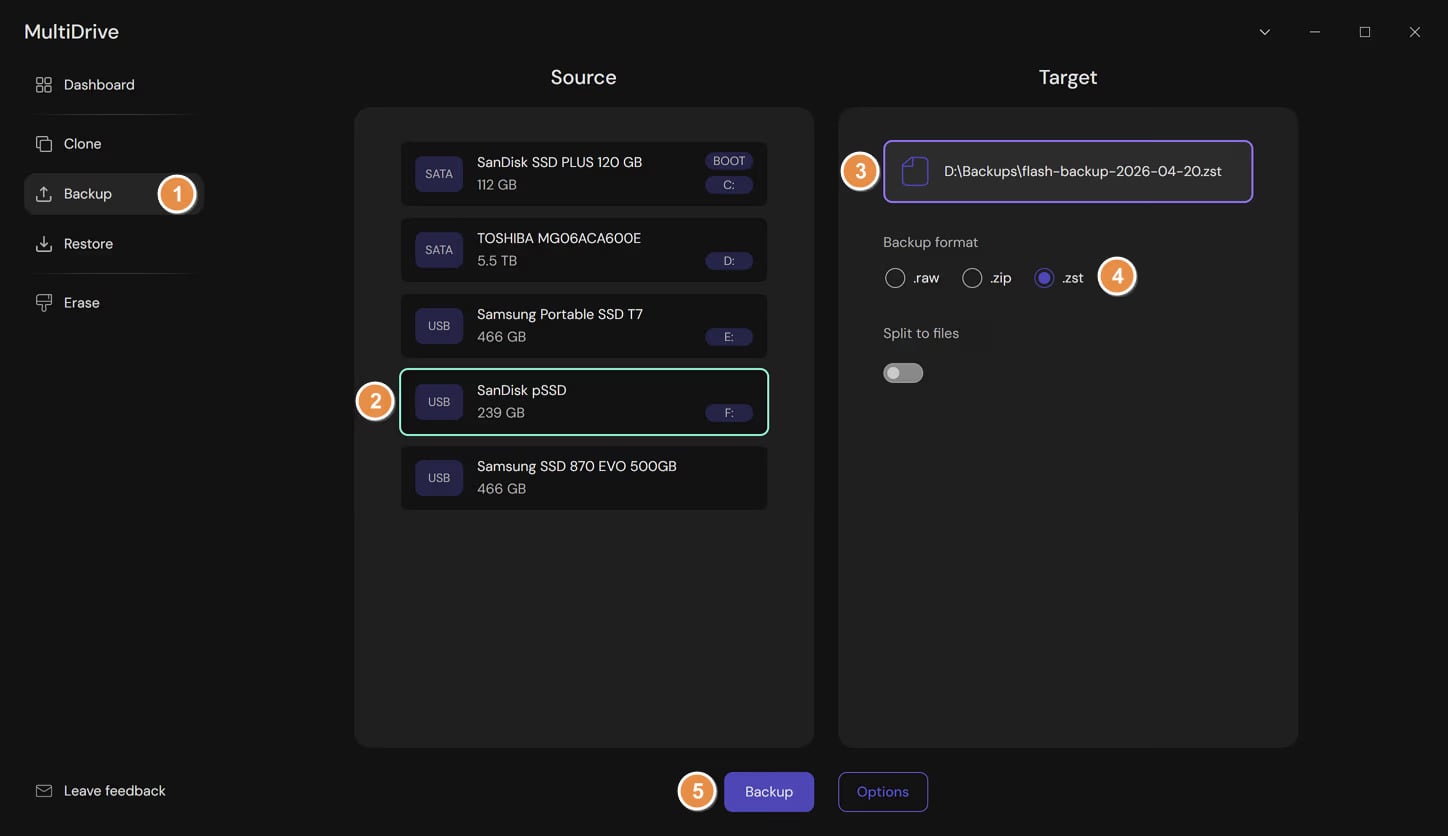
This way you get speed when you need it and efficiency for long-term storage. MultiDrive supports RAW, ZIP, and ZSTD. Just select your source drive, choose a disk backup target, pick your format, and start.
Split Backups and File Size Limits
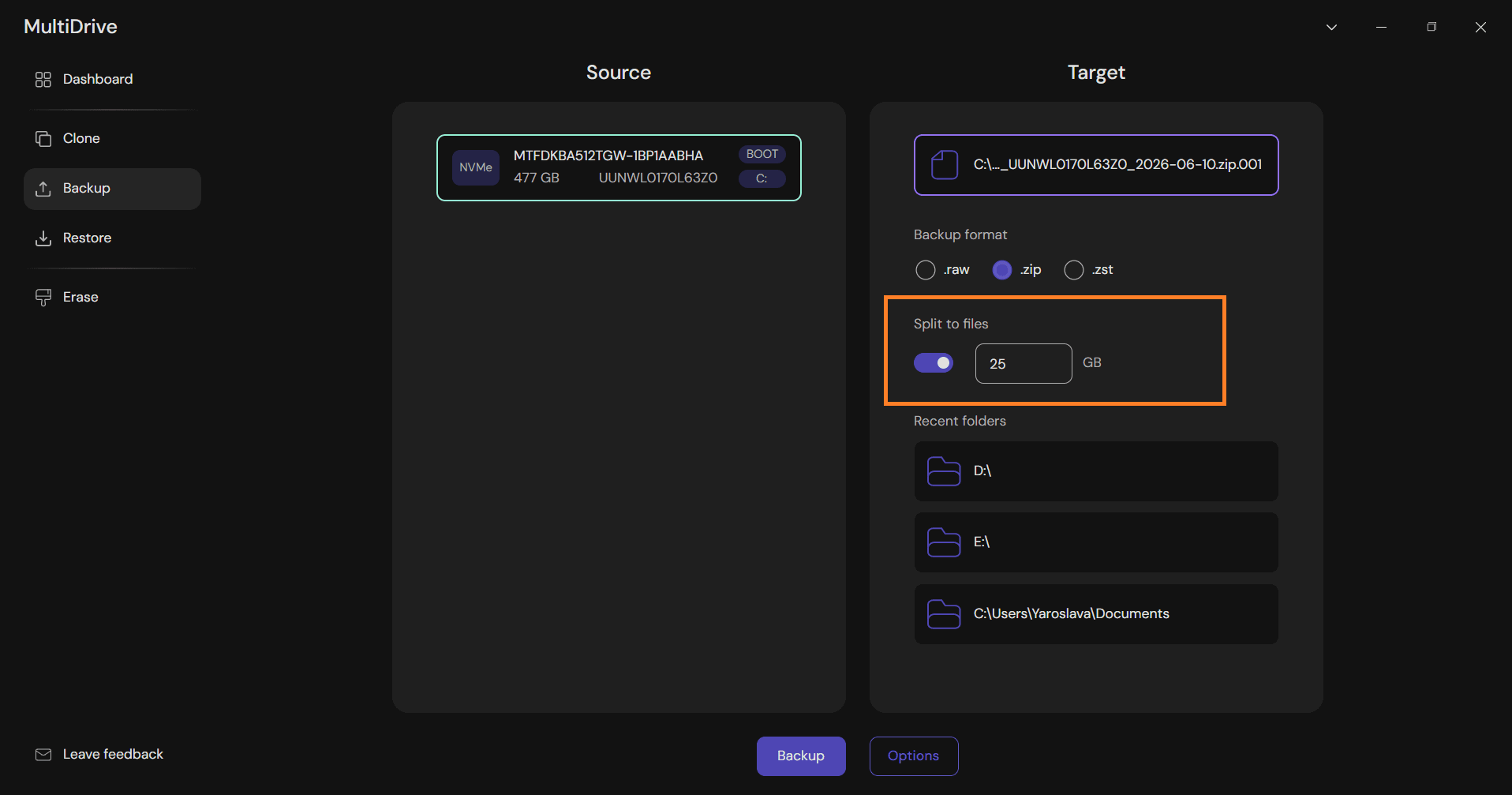
Raw and Zip backup file formats support splitting backups into multiple files, useful for several scenarios:
- If you're saving to a FAT32 drive (older USB drives, some external drives).
- If you're backing up to small drives, like USB drives or optical media.
- If your cloud storage has a per-file upload limit.
- If you're worried about corruption, splitting means that if one file gets damaged, only that portion needs to be re-backed up. The rest stays intact.
Split backup file recommendations:
| Destination | Recommended split size |
|---|---|
| FAT32 media | 3.5GB (stay under 4GB limit) |
| DVD backup | 4.3GB |
| General use | 10–20GB |
| NTFS, exFAT, or modern file systems | Single file. No splitting needed |
MultiDrive handles split file restoration automatically – simply point to any split file in the sequence, and it will locate and process all parts.
Hash Verification and Data Integrity
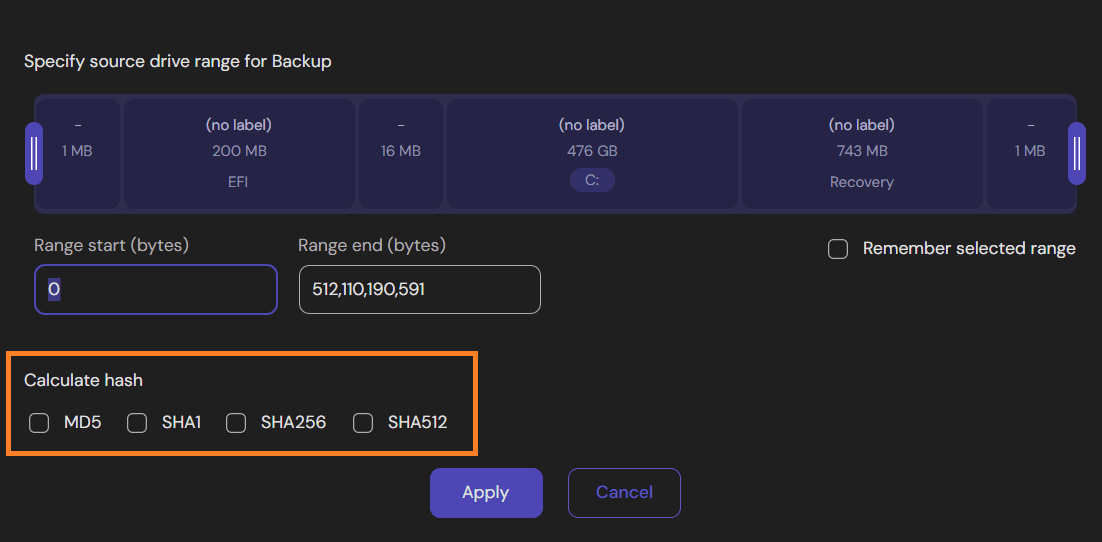
MultiDrive supports hash verification for all 3 backup file formats. It's a simple but important safeguard: when the backup is created, MultiDrive generates a unique checksum of your data. When you restore, it checks that fingerprint again. If anything doesn't match, you'll know before it's too late.
Supported Hash Algorithms
- MD5: Fastest, suitable for basic integrity checks (128-bit).
- SHA1: Good balance of speed and security (160-bit).
- SHA256: Industry standard, excellent security (256-bit).
- SHA512: Maximum security for critical data (512-bit).
According to NIST hash function standards, SHA256 is the recommended minimum for cryptographic applications requiring collision resistance.
Hash Verification Impact on Performance
Hash calculation adds minimal overhead to all three backup formats:
- MD5/SHA1: 2-5% slower backup.
- SHA256: 5-10% slower backup.
- SHA512: 10-15% slower backup.
Recommendation: Always enable hash verification (SHA256 minimum) for your backups. The minor performance impact is worth the integrity guarantee.
Frequently Asked Questions
Yes. ZIP backups can be opened with any standard ZIP tool on Windows, Mac, or Linux. ZSTD requires software that supports the format but most modern backup and archiving tools do.
Yes, both RAW and ZIP formats support splitting into smaller backup files. ZSTD does not support split backups.
All three of them are reliable when used correctly. RAW is the simplest format with the lowest chance of corruption. ZIP and ZSTD add a layer of complexity, but the difference is minimal in practice, especially with hash verification enabled.
Yes, but for network backups, ZSTD or ZIP are the better choice because smaller backup files transfer faster and use less storage.
Both ZIP and ZSTD compress empty and unused disk sectors extremely well, often reducing them by 80–95%. This is one reason why backups of mostly-empty drives are significantly smaller with compressed formats.
Author