Version 1.5 · Released on August 31, 2026
Download MultiDrive
Clone, erase and back up drives at the byte level.
Free for personal and commercial use. No ads, no sign-up.
Built by Atola Technology, maker of forensic disk imagers.
WinPE image
Boot Windows PE to clone/erase the system drive. Use ISO with Rufus or ZIP with MultiDrive Restore.
750 MB
What's new in 1.5 version?
- Automatic shutdown of the computer after all tasks are completed
- Backup / Restore: Much faster ZSTD backups to network shares; the speed no longer drops after the first few seconds
- Clone / Restore: The message about a target smaller than the source now shows the exact Source and Target sizes
- Options in the "After successful task completion" section now take effect only when the task actually succeeds
- Help link next to a failed task: Opens an extended guide on solving read and write errors caused by cables, adapters, etc.
Silent Installation
Deploy the app silently across multiple machines using CLI parameters:
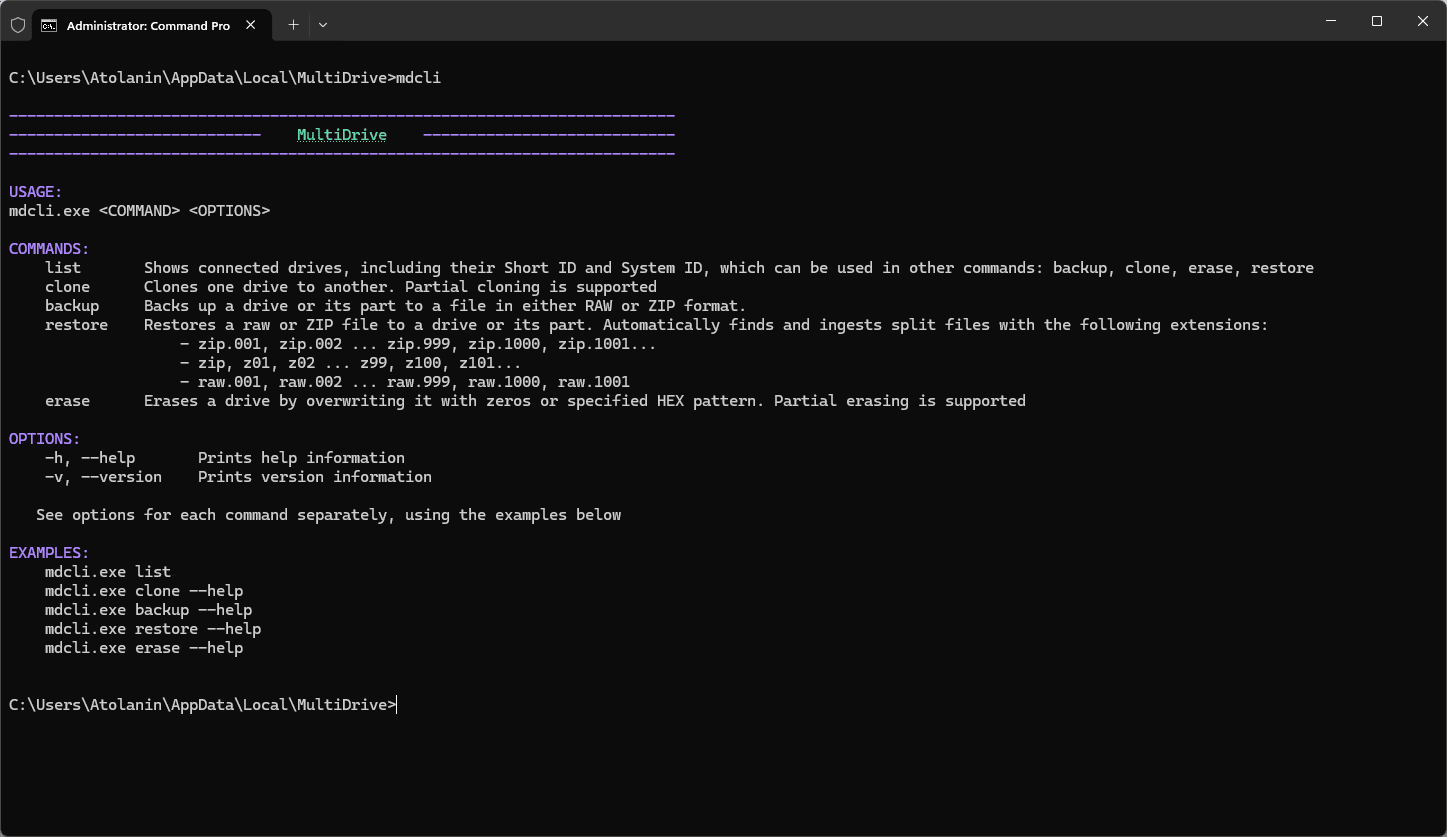
/s- perform silent installation/d=c:\MyFolder- specify destination folder for MultiDrive app/?- see other silent install parametersYou also can install the app using Windows Package Manager (winget)
winget install multidriveand other package managers: Chocolatey and Scoop
choco install multidrive -y
scoop install multidrive
MultiDrive WinPE image
Bootable WinPE image with MultiDrive pre-installed. Use it to clone your Windows boot drive when it cannot be cloned from within Windows. ZIP and ISO downloads are in the list above.
Minimum USB drive size required: 2GB.
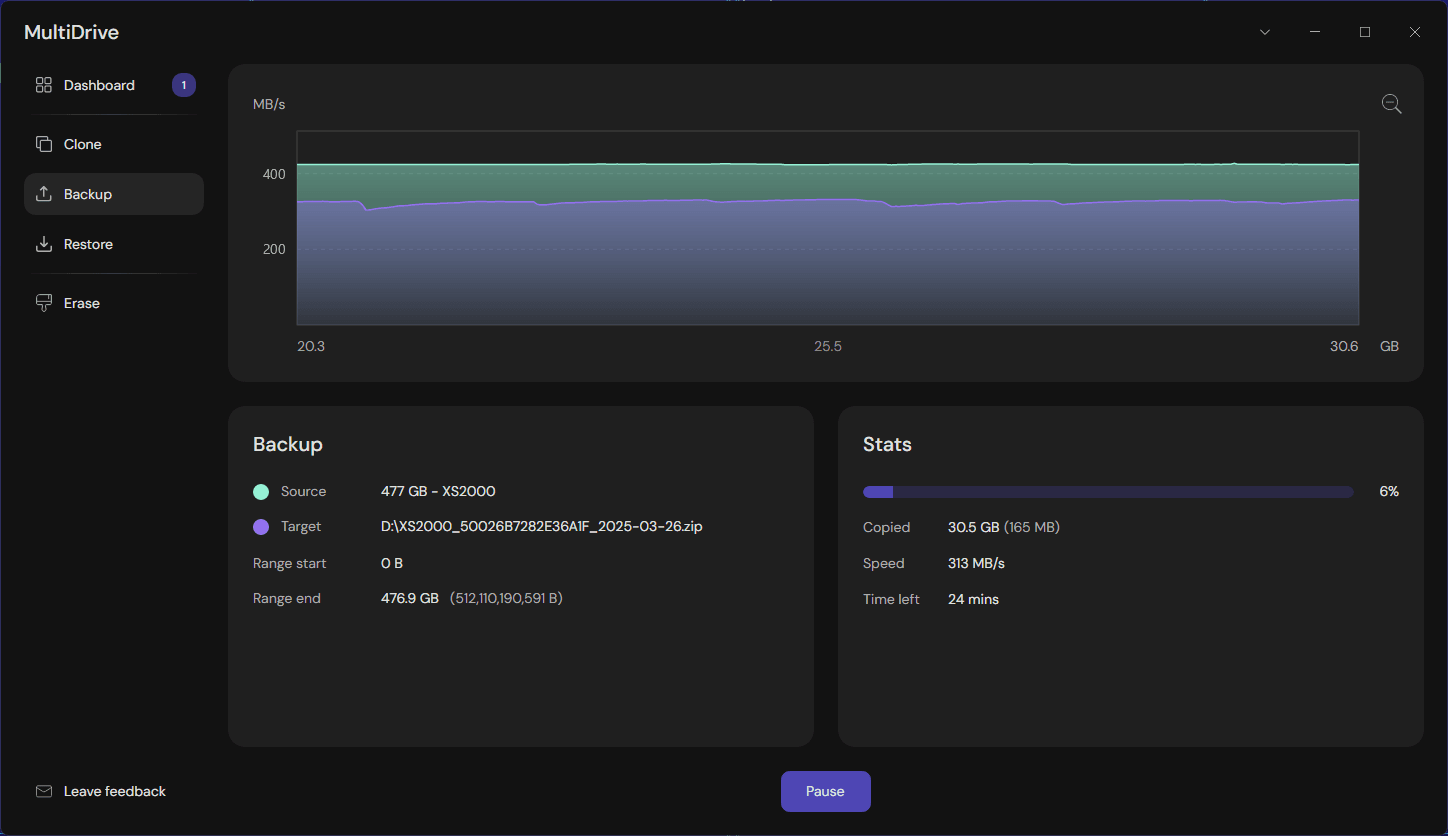
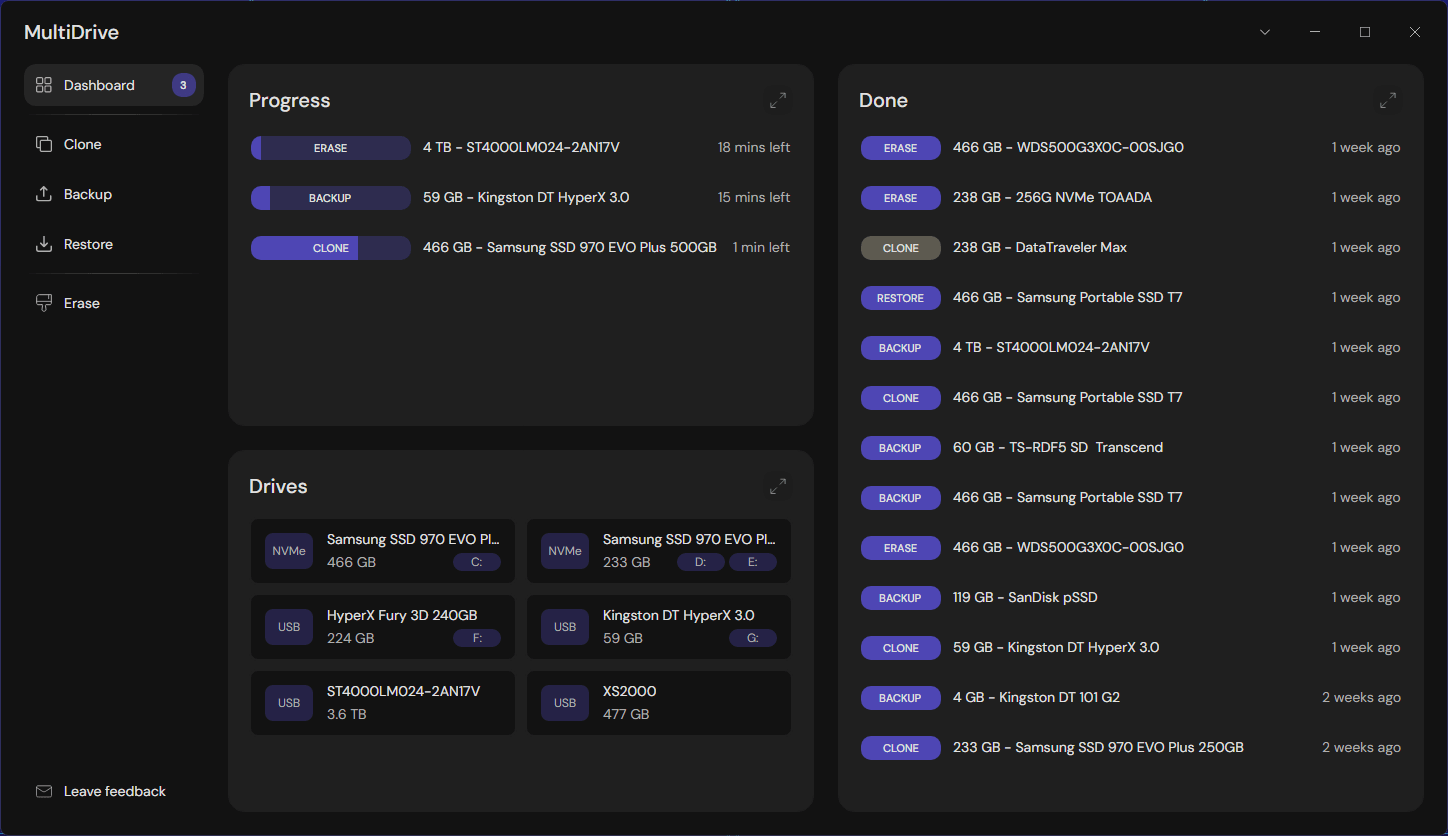
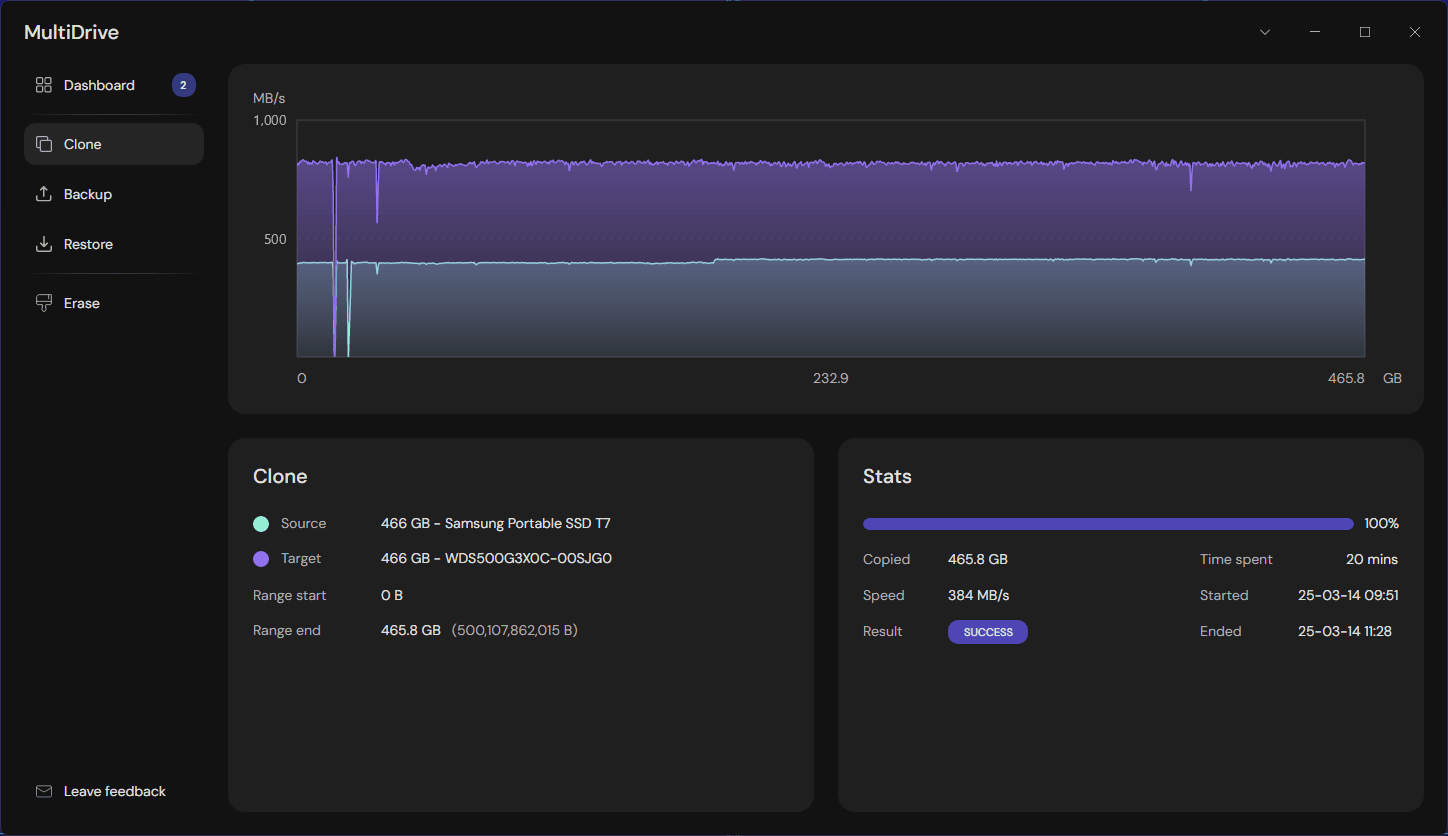
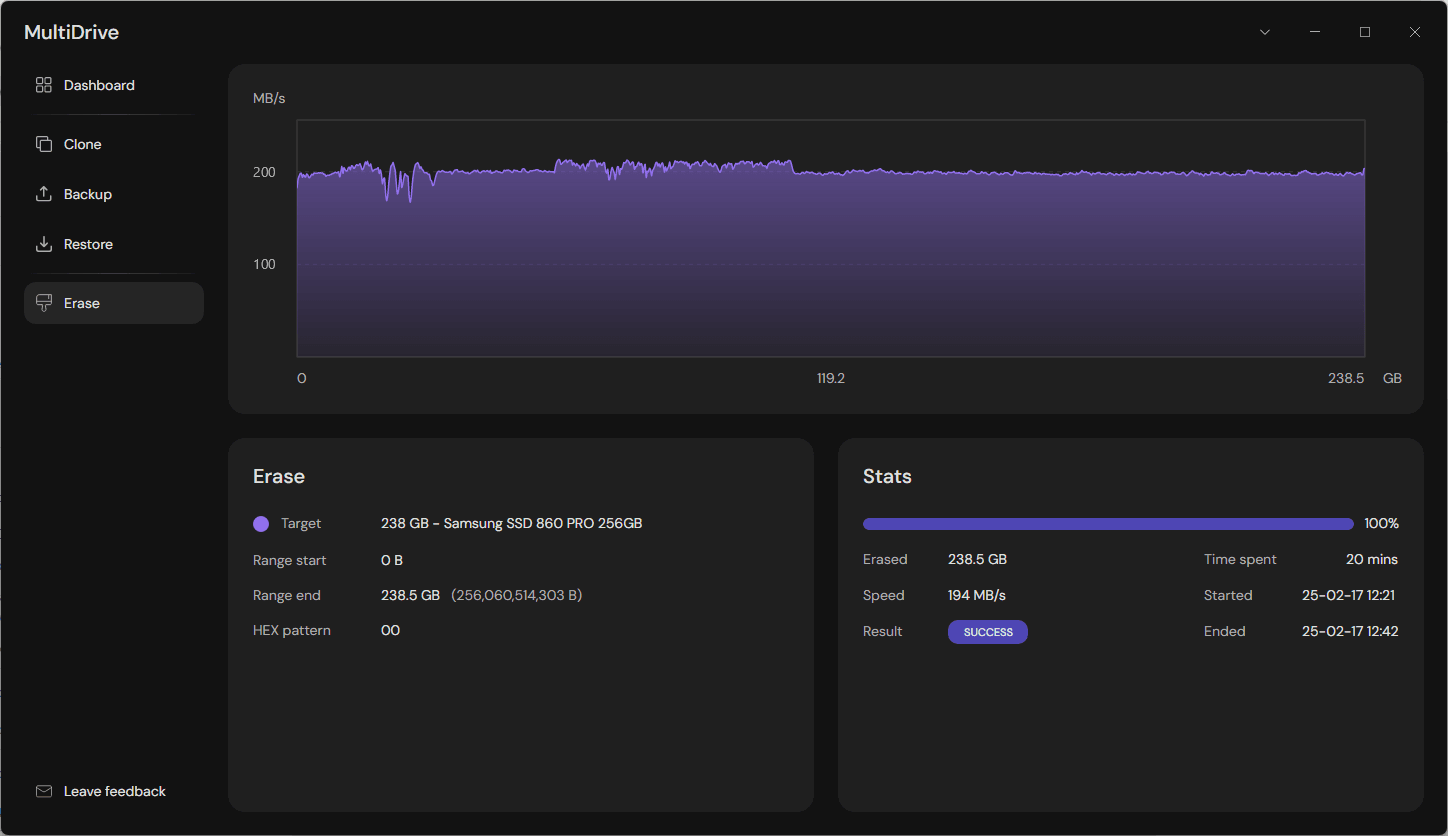
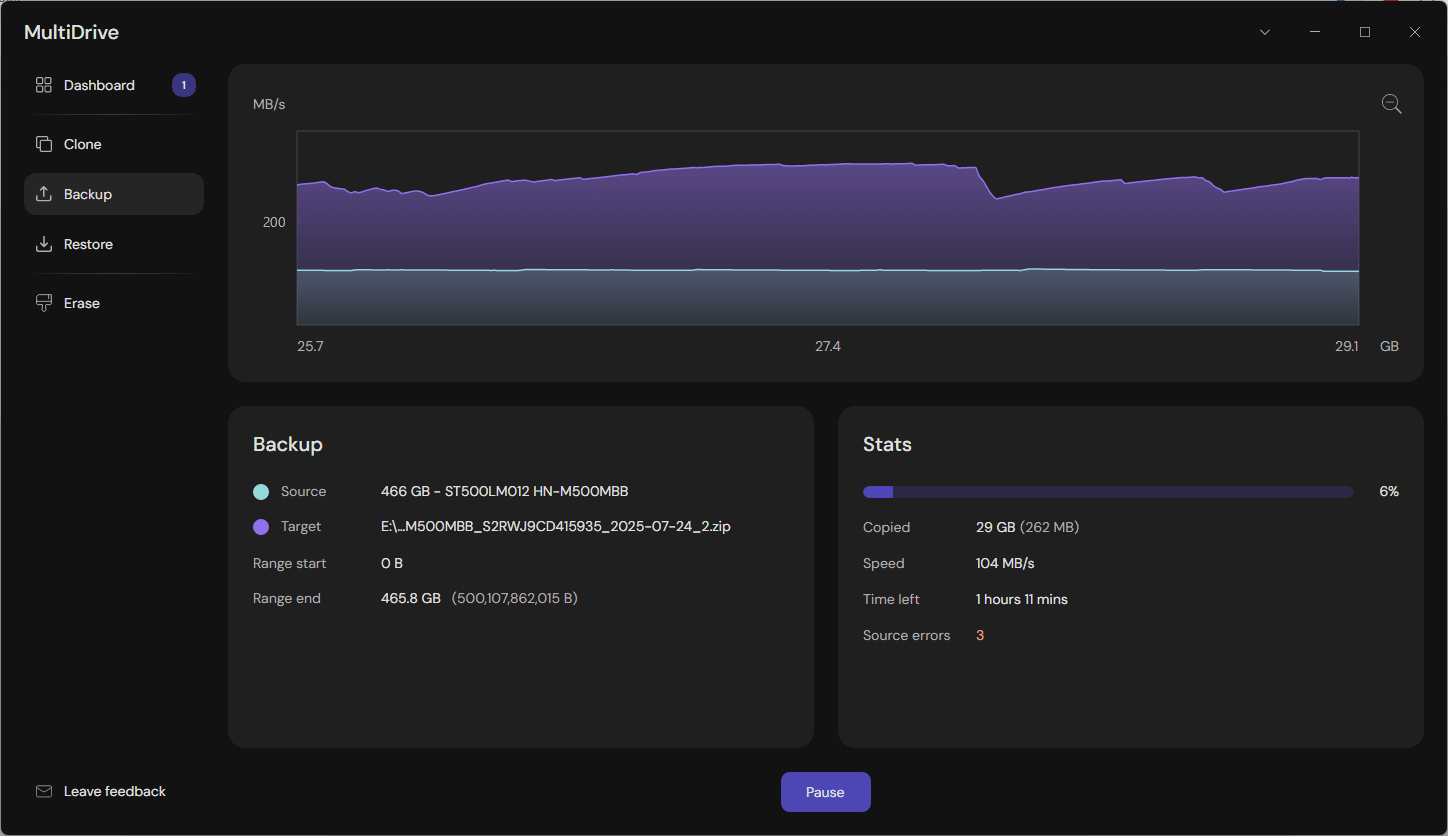
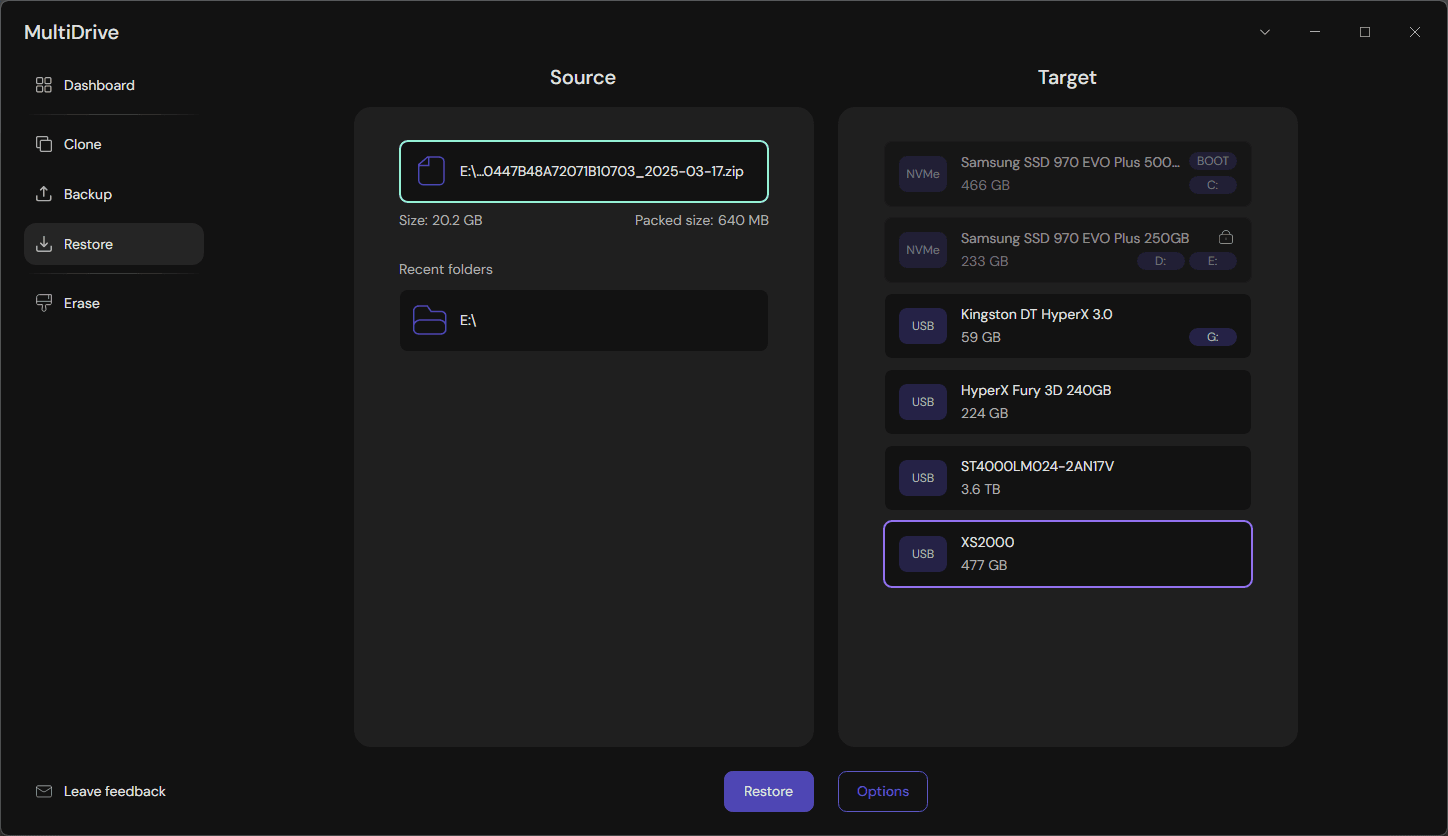
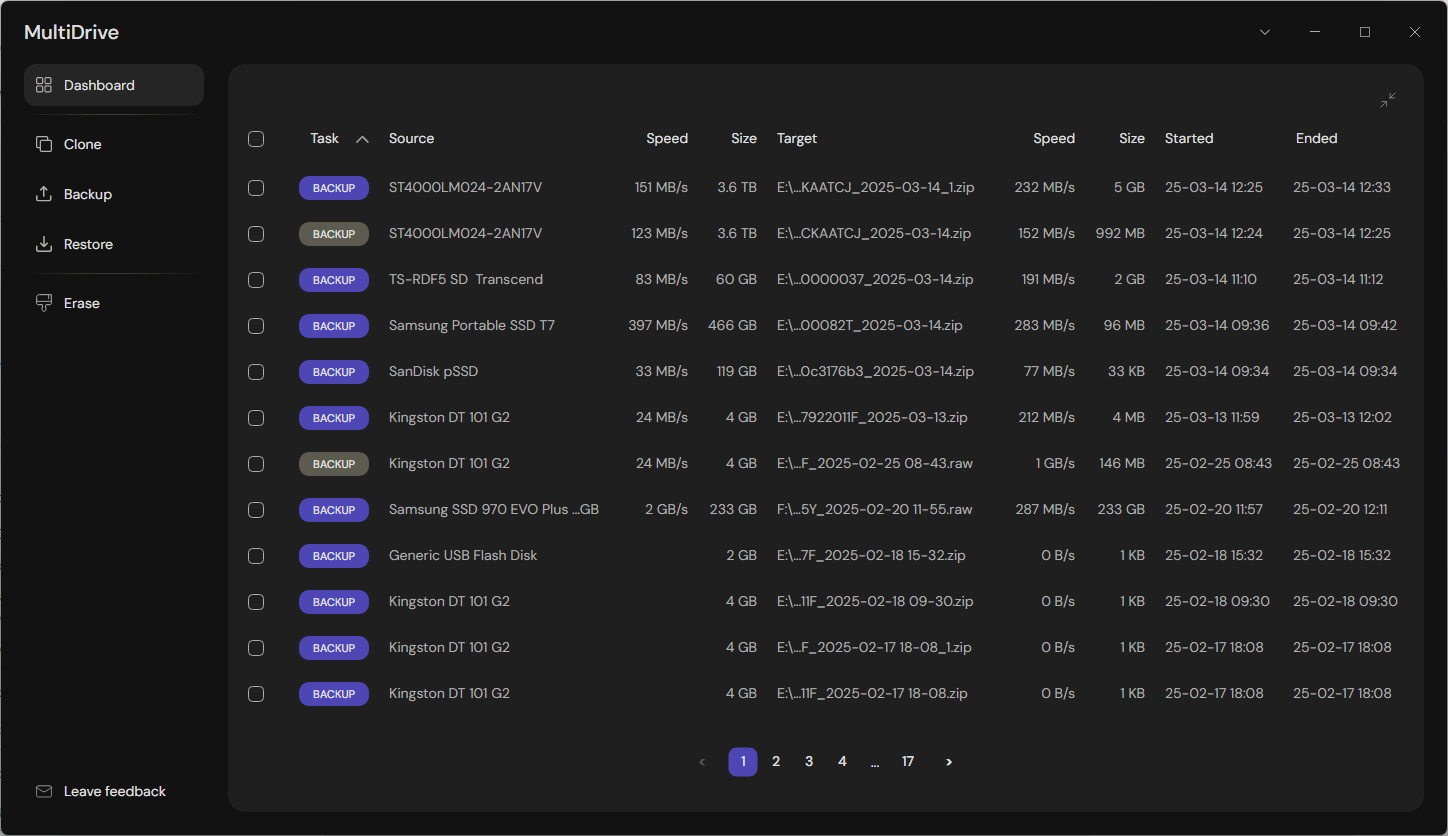
Explore MultiDrive
Download FAQ
Yes, MultiDrive is completely free to download and use for personal and commercial purposes. We believe in making powerful tools available to everyone, regardless of budget.
Yes. MultiDrive is free for commercial use by PC repair shops, IT departments, managed service providers and so on. There are no licence fees, no registration and no need to ask for permission. Just download and launch it on as many machines as you need. See our Terms of Use for details.
Your data security is our top priority. All operations are performed locally on your machine, and we never transmit your files to external servers.
Yes, you can install and use MultiDrive on multiple computers. Each installation requires a separate download and installation process.
On top of that, feel free to use both the command-line interface (CLI) and the user interface (UI) on the same PC.
On top of that, feel free to use both the command-line interface (CLI) and the user interface (UI) on the same PC.
We are glad to hear from you about any issues you encounter while using MultiDrive. Your feedback and use cases are greatly appreciated and help us improve our product.
Please drop us a message via the form: Contact Us
Please drop us a message via the form: Contact Us
MultiDrive can read and write whole disks, not just files. Windows only lets certain computer processes access the hard drive. This means that to clone, back up, restore or erase a hard drive, you need to be an Administrator.
Yes, if that is the drive that Windows is running from. The operating system keeps the boot disk busy with file locks and background processes, so it's not safe to make a clone or backup from within Windows. Launch the MultiDrive WinPE image from the list above so that the system drive is free, then run the task. For other (non-boot) drives, MultiDrive in Windows is enough - you don't need WinPE.
See how to use WinPE to clone your Windows boot drive.
See how to use WinPE to clone your Windows boot drive.