Free Backup Utility
Create a full computer backup with ease. Save a bit-for-bit drive image as a RAW, ZIP or ZSTD file. Restore every piece of data when needed.
Includes bootable WinPE image for safe system drive backup and restore.
Clean and truly free: No registration. No hidden payments. No annoying ads.
Works even with faulty drives.

Tetiana Hryshmanovska
Product Manager, MultiDrive
MultiDrive is a trusted, user-friendly, and free backup utility for Windows designed to effortlessly save your entire drive or selected partition as a RAW, ZIP, or ZSTD file.
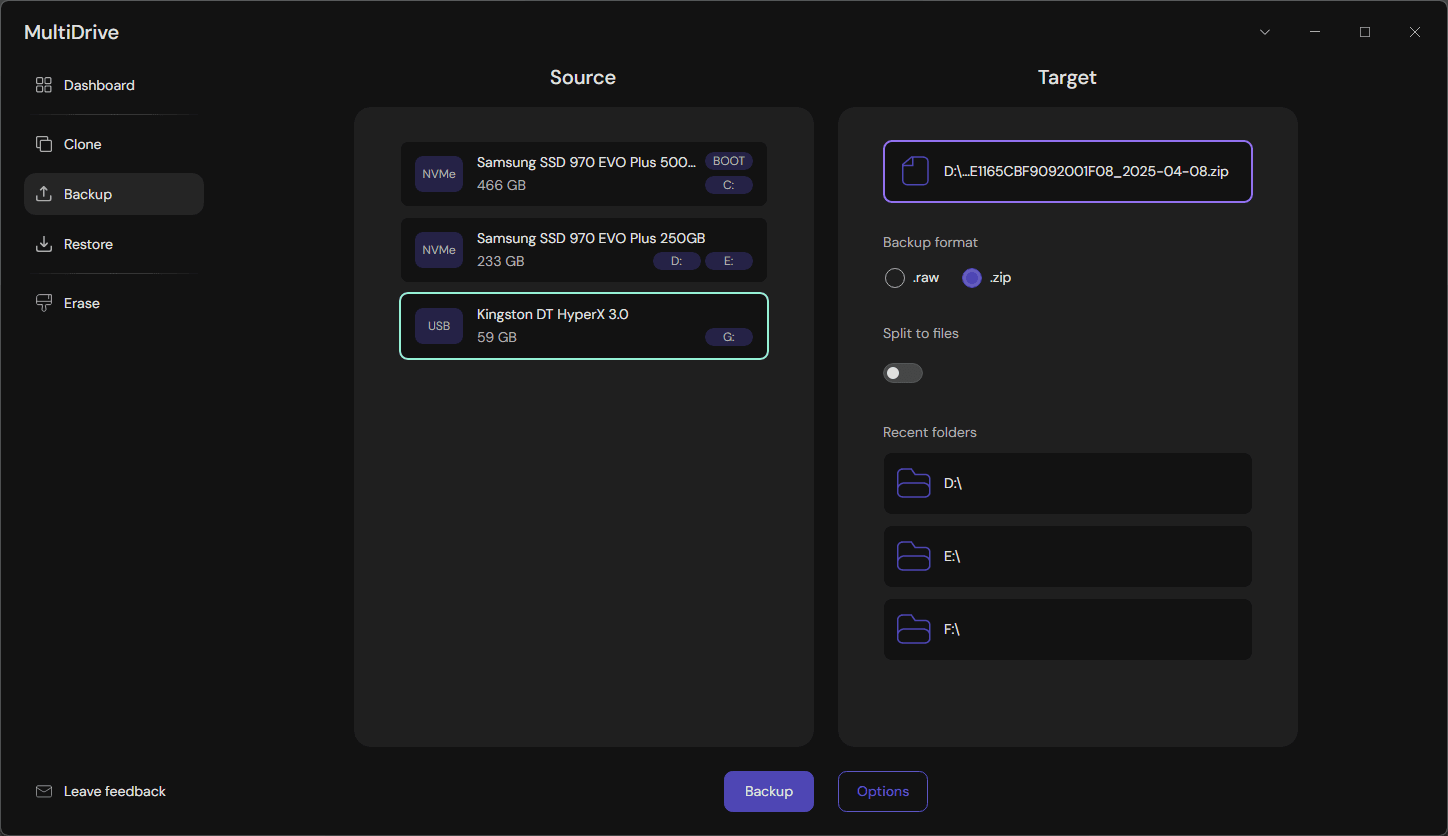
Create a Full Drive Backup in only 5 clicks
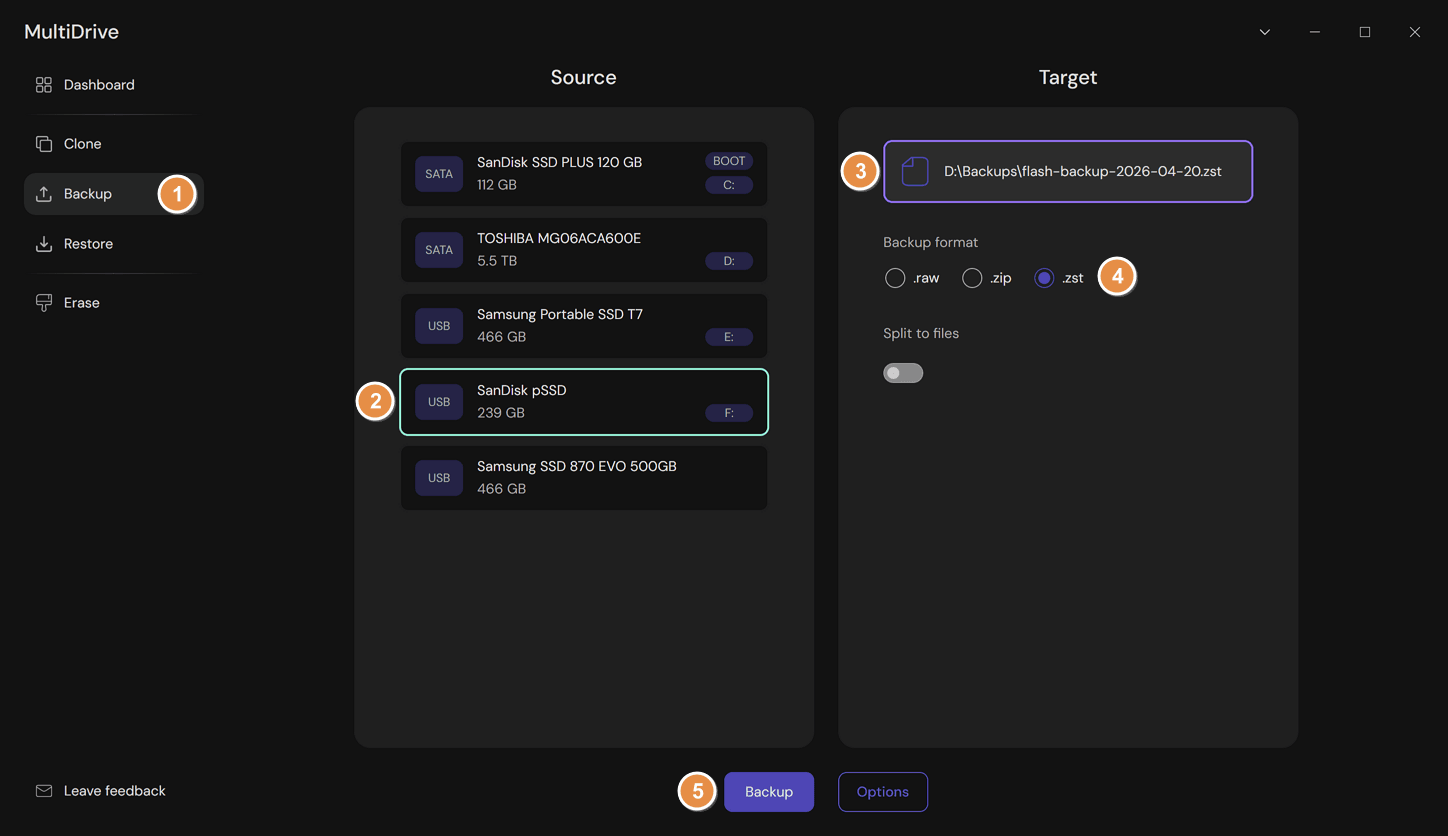
From the left menu, select Backup.
Select your Source drive.
It's the device you want to back up.
Select your Target drive.
It's the device where your backup will be stored.
Select the format of the resulting backup file: RAW, ZIP, or ZSTD.
Click the Backup button at the bottom.
What You Get with MultiDrive as Your Windows Backup Utility:
100% Free Backup Utility
MultiDrive backup software is completely free for personal and commercial use—no hidden costs, registration, or ads.
Pause & Resume Long Backups
If backing up a large drive takes too long, pause the task anytime and resume it later.
Run Backups from a USB Drive
Using MultiDrive's portable version, you can back up multiple PCs without installing the app every single time.
Back Up Drives with Errors
If your drive contains bad sectors or errors, you can still create its full backup copy with MultiDrive. If a task fails with an I/O error, see how to fix disk read/write errors.
Parallel Backup Tasks
Run multiple backup, cloning, or wiping tasks in parallel to save time.
Backup from Command Line
For advanced users, MultiDrive offers a built-in command-line interface for backup automation and integration with other tools.
Safely Back Up a System Drive
MultiDrive comes with a bootable WinPE environment. It allows you to safely back up a system drive while your main Windows system is completely stopped.
No Vendor Lock-in
MultiDrive creates backup files in standard RAW, ZIP, or ZSTD formats. To restore data, you can use MultiDrive or other backup tools.
Backup a Custom Drive Range
Need to back up only a specific part of a drive? MultiDrive lets you define a custom sector range, so you can capture just the portion of the disk you need — saving time and storage space.
Drive Types You Can Back Up with MultiDrive Utility
MultiDrive can back up all popular drive types:
Internal HDDs (Hard Disk Drives)
- SATA HDDs
- SAS HDDs
- IDE HDDs
Internal SSDs (Solid State Drives)
- SATA SSDs
- SAS SSDs
- M.2 SATA SSDs
- M.2 NVMe SSDs
- U.2/U.3 NVMe SSDs
Portable Drives
- USB thumb drives
- External USB HDDs
- External USB SSDs
- Memory cards
- PCMCIA/PC card drives
Backup File Formats Supported by MultiDrive Utility
MultiDrive can save your drive backup as a file in one of three standard formats:
- RAW: A bit-for-bit, uncompressed replica of the drive, saved as a file. Requires the most storage space (same as your source drive capacity).
- ZIP: A widely supported compressed format that reduces file size.
- ZSTD (Zstandard): A compressed format that combines high compression ratios and very fast decompression speeds.
All these formats are widely supported by other software. Therefore to restore data, you can use MultiDrive or other backup tools. For a detailed comparison, see RAW, ZIP, or ZSTD: Backup File Formats.
File Systems You Can Back Up with MultiDrive Utility
Although MultiDrive needs Windows OS to run (Windows 11/10 or Windows Server 2025/2022/2019), the software is able to create a backup copy of a drive containing any file system. The only requirement is that the device needs to be identified by Windows.
How-to Guides for MultiDrive Backup Utility
Need help getting started? Check out our detailed guides that walk you step by step through various drive backup scenarios.
Need help getting started?
Check out our detailed guides that walk you through various scenarios.
Backup Computer to External Hard Drive
Step-by-step guide for backing up your entire computer to an external drive safely and efficiently.
Read MoreTransfer an Old PC to a New PC
Use backup-and-restore method to move your whole system to a new laptop for free.
Read MoreFix Disk Read/Write Errors in Windows 11
Backup stopped with an I/O error? Fix USB power, cables, antivirus blocks, space issues, and CRC errors.
Read MoreAutomated Backups with Task Scheduler
Thorough guide to automate backups using MultiDrive CLI and Task Scheduler
Read MoreDisk Cloning vs Backup vs Imaging
Understand the differences between cloning, backup, and imaging to choose the right method for your task.
Read MoreRAW, ZIP, or ZSTD: Backup File Formats
Compare speed, storage efficiency, split backups, and hash verification to choose the right backup file format.
Read MoreHDD or SSD for backups: speed, capacity, and price
Choose an SSD for about 2 TB or less, frequent or portable backups. Choose an HDD for cheap bulk storage on a desk.
Read MoreRestore your backup after a drive or Windows failure
If your drive fails or Windows becomes unbootable, restore your full backup in a few steps to recover your data.
With MultiDrive, restoring your data is completely free and as easy as 1-2-3:
- Go to the Restore menu.
- Select the backup file to restore.
- Select the drive where you want to restore your backup and click Restore.
MultiDrive saves backups in open formats (RAW, ZIP, or ZSTD), so you can restore data with this backup utility or other compatible tools.
Features of the MultiDrive Backup Utility in Detail
Back Up Drives with Errors
If Windows fails to read your drive, MultiDrive can still keep working. See how it works:
- The utility faces an unreadable block.
- Issues a hardware reset command to clear any error states.
- Attempts to read the block waiting longer for operation to complete.
- In case of another read error, skips the bad block and continues the backup process.
- Fills the corresponding 256KB block in your backup with zeros, keeping the correct file size and offset positions.
If backup stops with a read/write error before retries can help, see how to fix disk read/write errors.
Safely Back Up and Restore a System Drive with WinPE
Backing up your system drive is better done when your main system is not running, because Windows constantly runs background processes and changes the data on the drive. Restoring the system drive from the backup also requires a separate bootable media.
That's why we created a bootable WinPE environment with MultiDrive pre-installed. Here's how it works:
- Download ISO or ZIP file with WinPE image.
- Prepare a bootable USB drive.
- Boot from the USB drive. After booting in WinPE, MultiDrive starts automatically.
- Backup or restore your system drive with MultiDrive.
Pause & Resume Large Backups
When backing up a large drive, pause the process anytime and resume it later without skipping or losing a single bit.
This comes in handy when you need to free up computing resources or temporarily leave your desk.
Back Up Only a Selected Partition or Sector Range
By default, MultiDrive creates a full backup of the selected drive, including free space. But you can select to back up only a specific partition or a sector range using the Options button on the Backup screen.
Split Backups for Large Drives
MultiDrive is able to split large backups into smaller chunks of a defined size. This way, for example, you can store a backup of a 1TB drive on four 250GB devices.
To enable this option, toggle Split to files in the Target section and enter the desired size of each split file.
Compress Backups to Save Storage Space
MultiDrive offers three standard output formats for backup files: RAW, ZIP, and ZSTD. In the ZIP and ZSTD formats, the data is compressed, so your backups will take less storage space.
The compression typically saves 20-50%, but its rate depends on the types of files on your source drive and may vary. Some, like text, provide high compression ratios, others, like JPEG images or MP3 audio, do not compress well.
Verify Backup Integrity Using Hash
A hash value is a unique "digital fingerprint" of your data. It is used to make sure that not a single byte has been lost during the backup process.
MultiDrive supports four different hash methods: MD5, SHA1, SHA256, and SHA512. To enable hashing, click the Options button on the Backup screen and select the preferable hash method.
Backup Multiple Drives In Parallel
To save time, MultiDrive can create backup copies of several drives in parallel.
Progress and status for each running and completed task is shown on the Dashboard.
Parallel backup tasks can also be launched using the command-line interface.
Backup Multiple PC's with MultiDrive Portable
If you manage multiple computers and want to back them up regularly, try the portable version of MultiDrive. It requires no installation, runs from a USB drive, and has the same functionality as the regular version (backup/restore, clone, and erase features are included).
Backup Drives Using Command Prompt
For advanced users, MultiDrive offers a powerful command line interface. The backup command looks like this:
mdcli.exe backup [source] [target] <OPTIONS>
Check our detailed guide on how to create backup from command prompt in MultiDrive >
Or learn how to automate backups using MultiDrive CLI and Task Scheduler >
Drive backup features available through the CLI include:
- Compressing the target backup file to ZIP format
- Hash calculation for integrity checks: MD5, SHA1, SHA256, SHA512
- Specifying number of bytes to back up (like 500MB or 1TB)
- Starting byte offset for both the source and target drives
How Long Will It Take to Back Up a Drive?
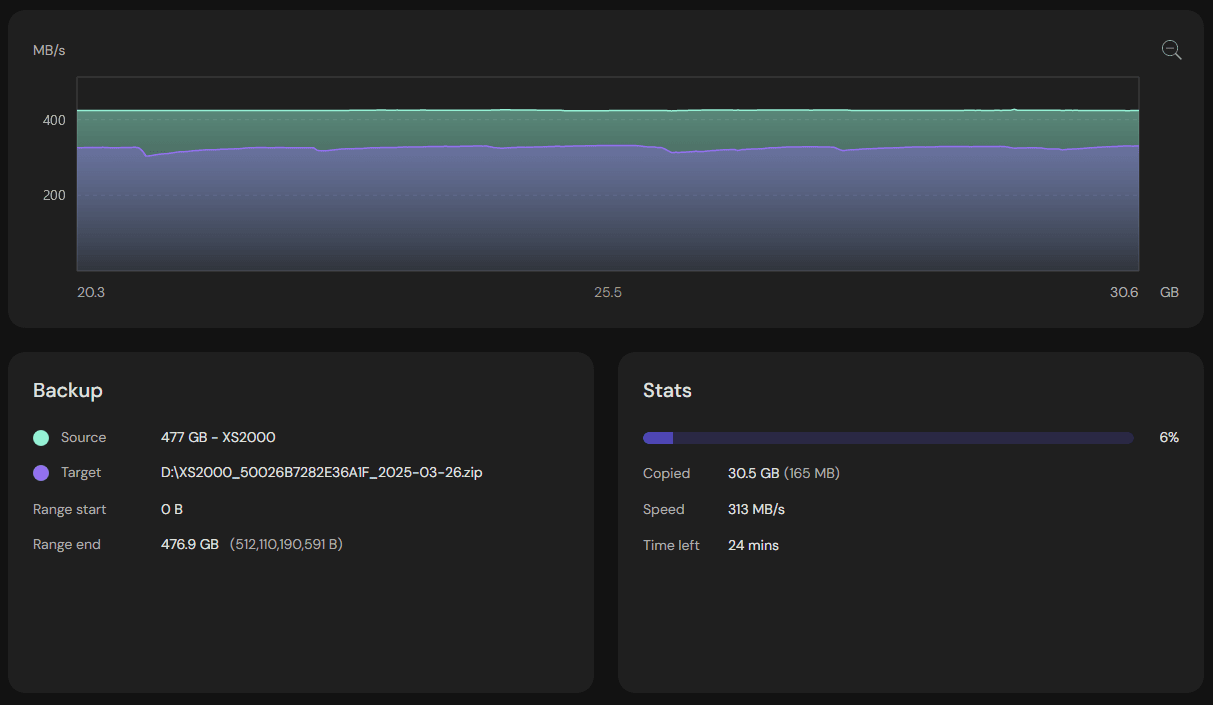
With MultiDrive, backup speed is limited only by the throughput capacity of your source drive and drives used for a target file. Typically, HDDs are much slower than SATA SSDs, and NVMe SSDs are the fastest ones. If you're using an external USB-connected drive to store backups, the USB port and cable versions will also affect the data transfer speed (the higher the version, the faster). For help choosing between an external HDD and SSD, see HDD or SSD for backups: speed, capacity, and price.
Another factor to consider is a target file format:
- RAW is the fastest, but there is no compression.
- ZIP is the slowest. It has standard compression. It opens with any archiver.
- ZSTD is 4–5 times faster than ZIP and offers good compression. It opens with some other archivers.
To optimize backup speed, MultiDrive free backup utility leverages advanced parallelized copy algorithms, originally developed from Atola Technology's paid professional products used by major companies worldwide.
Benchmark example (our lab)
- Scenario: 1TB NVMe SSD (source) to SATA SSD (target), RAW format
- Result: ~ 16 minutes
- Environment: Windows 11 Pro 25H2, Intel Core i7, 32GB RAM
Actual time varies by drive health, interface bandwidth, and concurrent workload.
To help you track progress, MultiDrive features an intuitive graph that shows the speeds of both your source and target drives.
What Do People Say About MultiDrive Backup Utility?
James at bestbackupreviews.com
August 19, 2025
Viktor Shumylo on ProductHunt
December 8, 2025
Abdul Aziz Ahwan
December 19, 2025
Chilarai M on ProductHunt
December 8, 2025
chitochitochito on reddit
October 7, 2025
Mike's unboxing, reviews and how to
September 4, 2025
MohammadAbir on reddit
August 8, 2025
Backup drive FAQ
With MultiDrive, you can easily backup an external USB drive connected to your computer running Windows 10. The process is no different from backing up an internal HDD or SSD on your PC:
- On the left: Select the USB drive you need to back up.
- On the right: Select the target folder or drive where you want to save your backup file.
- Click Backup to start the process.
A backup creates a compressed image file of your drive that can be stored anywhere, while cloning creates an exact copy of one drive to another drive in real-time. Backups are great for long-term storage, while cloning is perfect for immediate drive replacement.
To learn more and better understand the differences, check our explainer Disk Cloning vs Backup vs Imaging.
MultiDrive supports splitting backup files into partial files when using either ZIP, ZSTD, or RAW formats. See Split option when starting backup. This feature is particularly useful for:
- Storing backups across multiple external drives
- Working with filesystems that have file size limitations
- Creating manageable backup segments for easier transfer or archiving
- Backing up to CD/DVD/Blu-ray discs with limited capacity
For ZIP format, you'll need space roughly equal to the used space on your source drive (compression typically saves 20-50%).
For RAW format, you need space equal to the entire drive capacity regardless of used space. It's wise to add 10-15% extra space as a buffer.