Use WinPE to Clone Your Windows Boot Drive
Quick answer
- Download WinPE (ZIP or ISO)
- Prepare USB: Restore ZIP with MultiDrive, or flash the ISO with your tool
- Boot from the USB drive
- Clone your boot drive in MultiDrive
- Verify and boot from the target copy
Cloning your boot drive sometimes resembles trying to repair a car engine while driving down the highway. While MultiDrive clones all drive blocks (sectors) at the lowest native level, Windows constantly locks system files and runs background processes. This can occasionally lead to the issue:
- Target copy doesn't boot
- Incomplete data in databases or applications.
- Other inconsistencies in the target copy.
The Solution: MultiDrive WinPE
We created a bootable WinPE environment with MultiDrive pre-installed.
With it, you can run MultiDrive from a USB stick while your main Windows system is completely stopped. When it boots, it automatically opens the MultiDrive app in GUI mode, allowing you to quickly start cloning.
Step 1: Download WinPE image
Our WinPE image is available on the WinPE download page in two formats:
- ZIP - restore to USB with MultiDrive.
- ISO - flash to USB with a tool you prefer.
Step 2: Prepare a bootable USB drive
2a. If you downloaded the ZIP
- Plug any USB drive of 2GB or larger into your computer.
- Launch MultiDrive and click Restore.
- Select the downloaded WinPE ZIP file as Source and your USB drive as Target.
- Click Start
2b. If you downloaded the ISO
Use a flashing tool, such as Rufus, to write the ISO to a USB drive (2 GB or larger).
After selecting the ISO file and USB drive, make sure the following options are selected:
- Partitions scheme: GPT
- Target system: UEFI
Step 3: Boot from USB drive
- Plug the USB drive into the PC containing the source drive you want to clone.
- Restart the PC and enter the Boot Menu (usually F12, F8, or Del, depending on your motherboard manufacturer).
- Select the USB drive to boot.
Note: Secure Boot may block WinPE. If the USB doesn't appear in Boot Menu or fails to start, enter BIOS Setup and temporarily disable Secure Boot. Re-enable it after cloning (Step 4);
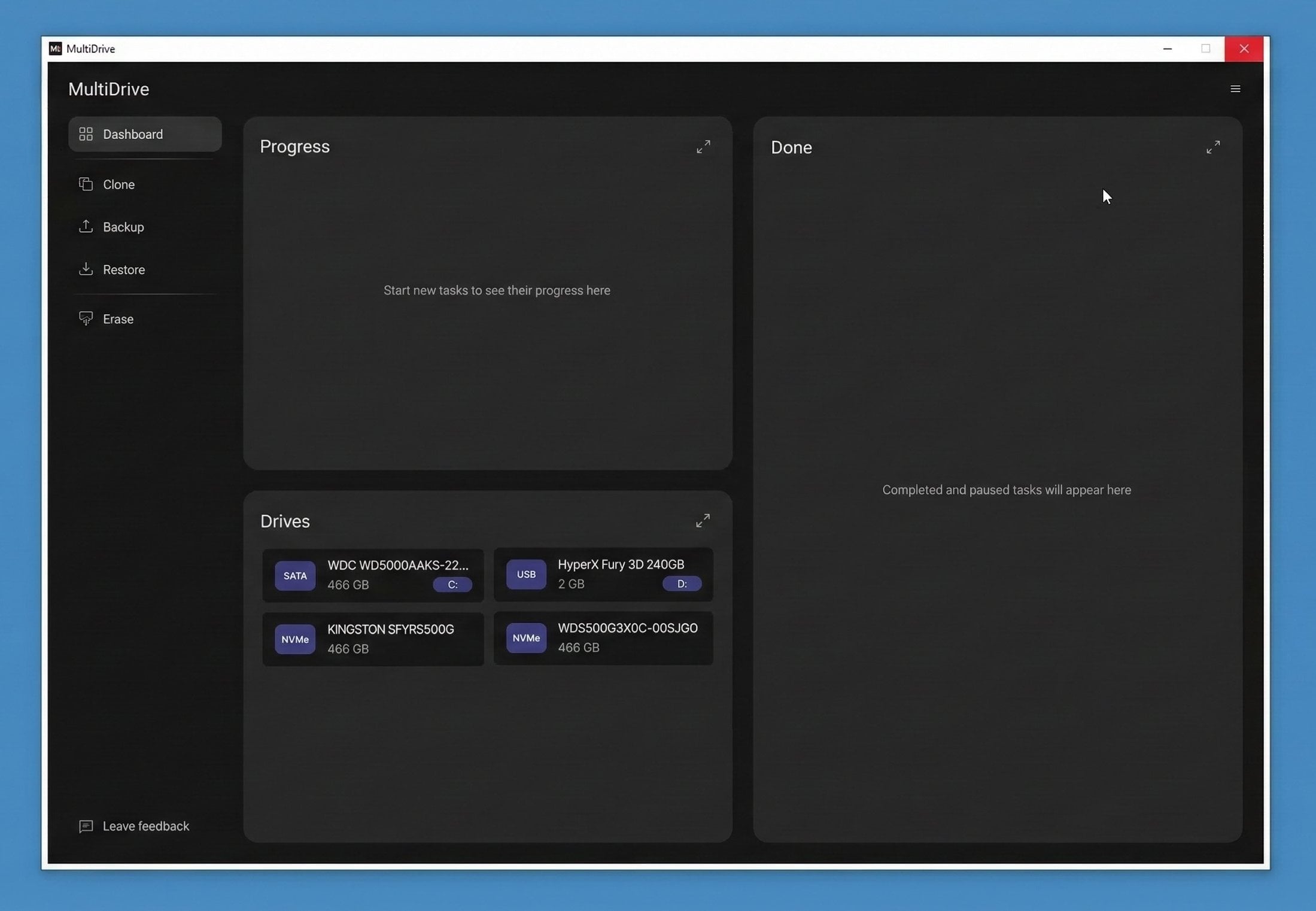
Step 4: Clone your boot drive
- MultiDrive is open.
- Select your internal Windows drive as Source.
- Select another drive as Target.
- Double-check that your Source is your Windows drive, not vice versa.
- Click Clone.
Step 5: Verify and boot from the target copy
- Shut down and remove the original source drive (or change boot order).
- Boot from your cloned drive.
- If Windows boots successfully, you're done!
To power off your PC, click Shutdown in the top right menu of the MultiDrive window.
If the target copy doesn't boot, it may require one of the quick boot recovery procedures, such as rebuilding the boot configuration.
Please refer to the guide: Troubleshooting Cloned Drive Won't Boot
By the way, some users prefer bootable tools like Clonezilla for system drive cloning. We believe that Windows PE with MultiDrive is a simpler and faster way to clone your Windows boot drive. Compare both approaches in the Clonezilla vs MultiDrive guide.
When regular cloning works fine
The WinPE image is specifically for cloning the drive Windows is currently running from.
You don't need WinPE for:
- Cloning data drives (non-boot)
- Creating backup images for archival
- Non-Windows boot drives
See how to clone your Windows boot drive using WinPE
Author