How to Automatically Wipe Drives
With this script, you can launch and monitor multiple disk wiping tasks simultaneously.
The core part of the script is the MultiDrive CLI command: mdcli.exe erase
On this page
- Why automate disk erasure?
- Verify your installation
- Erase command reference
- The -y flag (unattended mode)
- Script: wipe drives in parallel
- How the script works
- Paused disk wiping
Why automate disk erasure?
Picture this: 40 decommissioned laptops in a storage room, each needing its drive wiped before donation or resale. Doing it manually - opening the GUI app, selecting each drive, confirming - easily eats an entire day.
MultiDrive's CLI tool changes the equation. One script, one run, all disks erased in parallel while you focus on higher-value work.
This guide walks you through the erase command and shows how to wipe drives one by one - fully unattended. Use it when you need to:
- Mass-wipe multiple drives attached to one machine
- Run unattended wipes in a lab, ITAD, or refurbishment workflow
- Reduce operator clicks and time spent on wiping
Verify your installation
Open PowerShell as Administrator and run the mdcli.exe from the MultiDrive folder. If you use MultiDrive installer instead of the portable version, the installation folder will be added to the PATH environment variable.
Alternatively, launch the MultiDrive app, click the menu icon in the top-right corner, and select Launch CLI.
Then list every disk the tool can see with the mdcli.exe list command.
Short IDs and the boot disk
The Short ID in the first column (d1, d2, d3…) is what every erase command uses. Write down the IDs of the disks you want to wipe before you run any script.
d1 is always your boot drive. The remaining drives (d2, d3, …) are listed alphabetically by the disk model and serial number text. MultiDrive protects the boot drive from being wiped, even if you mistakenly try to do so.
The erase Command: Full Reference
Enter mdcli erase -h to see the syntax of the MultiDrive disk erase utility:
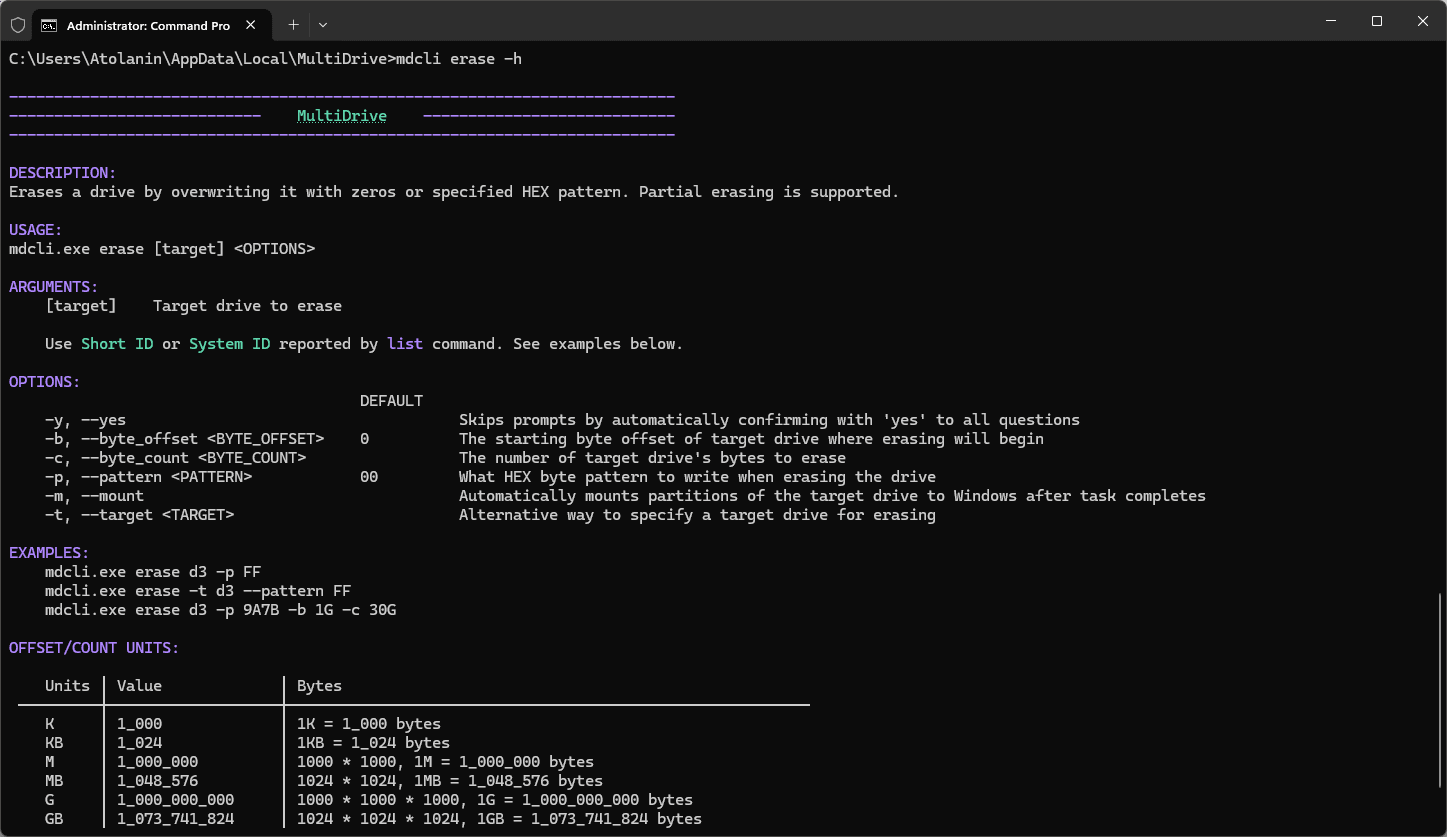
The -y Flag
By default, MultiDrive asks for confirmation before any destructive operation. The -y flag (or --yes) suppresses all prompts - the tool answers yes automatically. This is what makes scripted, unattended wiping possible.
The -y flag bypasses all safety confirmations. Use it only in scripts that already validate the target disk ID.
Script: Wipe Drives in Parallel
The script below finds all drives using mdcli.exe, automatically detects and skips the boot disk, and wipes the others simultaneously.
You can also view or download MultiErase.ps1 on GitHub.
param(
    [string[]]$DriveIds = @()
)

function Get-DriveInfo {
    $tempFile = [System.IO.Path]::GetTempFileName()
    Start-Process -FilePath "mdcli" -ArgumentList "list" -NoNewWindow -Wait -RedirectStandardOutput $tempFile
    $output = Get-Content $tempFile -Encoding UTF8
    Remove-Item $tempFile -ErrorAction SilentlyContinue

    $drives = @{}

    foreach ($line in $output) {
        if ($line -match '^\s+(d\d+)\s') {
            $id = $Matches[1]
            # Get full drive name
            $parts = $line.Trim() -split '\s{2,}'
            $name = if ($parts.Count -ge 2) { $parts[1] } else { "Unknown" }
            $drives[$id] = @{
                Name = $name
                Line = $line
            }
        }
    }

    return $drives
}

Write-Host "Retrieving drive list..."
$driveInfo = Get-DriveInfo

if ($driveInfo.Count -eq 0) {
    Write-Host "No drives found from 'mdcli list'."
    exit 1
}
if ($DriveIds.Count -eq 0) {
    $DriveIds = $driveInfo.Keys | Where-Object { $_ -ne "d1" } | Sort-Object
}

$DriveIds = $DriveIds | Where-Object { $_ -ne "d1" }
if ($DriveIds.Count -eq 0) {
    Write-Host "No drives to erase." -ForegroundColor Yellow
    exit 0
}

Write-Host "`nDrives to erase:" -ForegroundColor Cyan
foreach ($driveId in $DriveIds) {
    if ($driveInfo[$driveId]) {
        Write-Host $driveInfo[$driveId].Line
        if ($systemId) {
            Write-Host "       $systemId" -ForegroundColor Gray
        }
    } else {
        Write-Host "  $driveId : Unknown"
    }
}
Write-Host ""

Write-Host "WARNING: All data on the drives will be permanently erased" -ForegroundColor Yellow
$confirmation = Read-Host "Continue? (y/n)"
if ($confirmation -ne 'y' -and $confirmation -ne 'Y') {
    Write-Host "Operation cancelled."
    exit 0
}
Write-Host ""

$processes = @{}
foreach ($driveId in $DriveIds) {
    $name = if ($driveInfo[$driveId]) { $driveInfo[$driveId].Name } else { "Unknown" }
    $proc = Start-Process -FilePath "cmd" `
    -ArgumentList "/c", "title Erase $driveId - $name && mdcli erase $driveId -y && pause" `
        -PassThru
    $processes[$driveId] = $proc
}

Write-Host "Started $($DriveIds.Count) erase tasks." -ForegroundColor Cyan
Write-Host "Each drive is processed in a separate window.`n" -ForegroundColor Gray

while ($processes.Values | Where-Object { -not $_.HasExited }) {
    $runningIds = @($processes.GetEnumerator() | Where-Object { -not $_.Value.HasExited } | ForEach-Object { $_.Key })
    $completedIds = @($processes.GetEnumerator() | Where-Object { $_.Value.HasExited } | ForEach-Object { $_.Key })
    $runningStr = ($runningIds | ForEach-Object {
        $name = if ($driveInfo[$_]) { $driveInfo[$_].Name } else { "Unknown" }
        "$_ ($name)"
    }) -join ', '

    $completedStr = ($completedIds | ForEach-Object {
        $name = if ($driveInfo[$_]) { $driveInfo[$_].Name } else { "Unknown" }
        "$_ ($name)"
    }) -join ', '

    Write-Host "`r[$(Get-Date -Format 'HH:mm:ss')] " -NoNewline
    Write-Host "Running: " -NoNewline -ForegroundColor Yellow
    Write-Host "$runningStr " -NoNewline
    Write-Host "| Done: " -NoNewline -ForegroundColor Green
    Write-Host "$completedStr   " -NoNewline

    Start-Sleep -Seconds 1
}

Write-Host "`n`n=== Results ===" -ForegroundColor Cyan
foreach ($driveId in $DriveIds) {
    $name = if ($driveInfo[$driveId]) { $driveInfo[$driveId].Name } else { "Unknown" }
    $exitCode = $processes[$driveId].ExitCode
    if ($exitCode -eq 0) {
        Write-Host "  $driveId ($name) : Completed" -ForegroundColor Green
    } else {
        if ($exitCode -eq 1) {
            Write-Host "  $driveId ($name) : Paused" -ForegroundColor Yellow
        }
        else {
            Write-Host "  $driveId ($name) : Failed with code 0x$($exitCode.ToString('X'))" -ForegroundColor Red
        }
    }
}
How the script works
The script erases all disks except for the boot drive (d1).
You can also manually pass a list of drives via the $DriveIds argument. Use commas to separate disk short IDs. The short IDs are shown in the output of mdcli list. Example: .\MultiErase.ps1 d3,d4
The algorithm of the script is:
- The script auto-detects all disks using the
mdcli listcommand. - Then it skips the boot disk d1 automatically, lists all selected disks, and asks for your confirmation.
- To remove the confirmation, delete the script block that begins with:
Write-Host "WARNING: All data on the drives will be permanently erased" -ForegroundColor Yellow
- To remove the confirmation, delete the script block that begins with:
- It launches multiple
mdcli erasetasks as separate processes and monitors all of them. - When all tasks are done, the script reports one of three statuses:
- Completed
- Paused
- Failed with code (in HEX)
Paused disk wiping
You might ask, "How can I get the Paused state?"
All tasks—erase, backup, clone, and restore—support pause and continue functions.
You can pause an active wipe at any time by pressing the space bar key. MultiDrive will pause the current task and wait for your confirmation.
To resume, select the same disk ID in your script. The wipe will resume from where it paused. This is useful when you need to free up the machine temporarily without losing progress on a long wipe.
Author