Cloned Drive Won't Boot – How to Fix It?
You've just cloned your old Windows drive, but your PC fails to boot from the new SSD or NVMe clone. Here's why this could happen and how to fix it.
What you might see when a PC can't boot from a cloned drive
When the Windows OS can't boot from your new cloned SSD or NVMe drive, you will usually see one of the following:
Immediate jump to the BIOS/UEFI:
- Clone drive does not appear in the Boot menu or
- Clone drive is present but does not have the "Windows Boot Manager" label
Black screen with a white text error like:
- No bootable devices found,
- BootDevice not found,
- Reboot and Select proper Boot device,
- Operating System not found
- Error loading operating system
- Just blinking underscore cursor ( _ )
- Loading dots, spinning indefinitely
Blue screen of death (BSOD) with an error code:
INACCESSIBLE_BOOT_DEVICE0xc000000e,0xc0000225,0xc0000034
The BSOD may also contain a text description of an error:
- "The selected entry could not be loaded"
- "A required device isn't connected or can't be accessed"
- "The application or operating system couldn't be loaded..."
Guide: What to do when your cloned drive won't boot
In this guide, we will move from the easiest solutions to the most complex ones, following the "Hardware > Firmware > Software" logic.
If a step solves the problem, and Windows boots correctly, you don't need to perform any of the subsequent steps. If it doesn't, try the following step.
Step 1: Fix the physical connection
- Unplug the original (old) drive if it is still connected.
- Plug the clone directly into the motherboard if you were using a USB adapter. If it is not possible (for example, on a laptop), keep the drives connected as they were and go to Step 2.
- Check the physical connection of the new drive's data and power cables (SATA SSD) or the drive itself (M.2 NVMe). Reconnect the new drive or the cables.
If it doesn't help, proceed to Step 2.
Step 2: Check the BIOS/UEFI settings
- Reboot and enter the BIOS/UEFI by pressing Del, Esc, F2, or F10 (depending on a PC brand).
- Check if your new drive appears in the BIOS/UEFI boot menu.
- If not, it indicates a hardware or connection issue. Check the physical connection, BIOS storage settings.
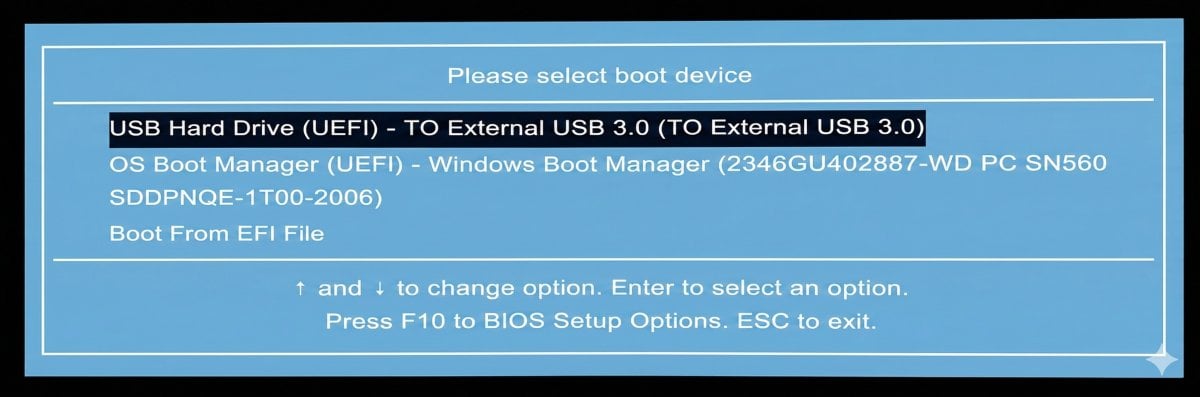
Example of UEFI/BIOS Boot Menu
- Change the boot order, moving your new drive to the top of the Boot menu.
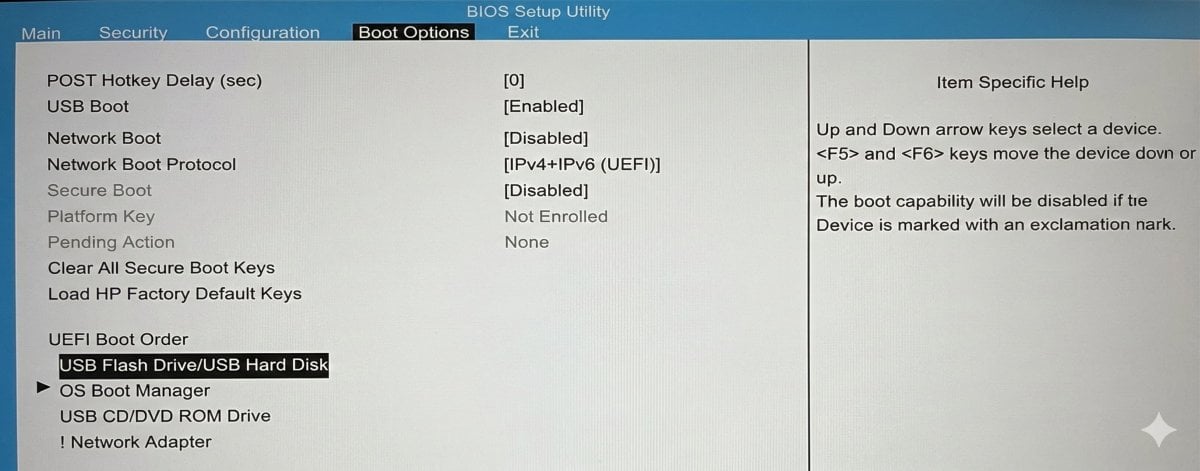
Example of the UEFI Boot Order section
- Check if your new drive has the "Windows Boot Manager" label in the Boot menu.
- Check if the BIOS/UEFI is set to UEFI boot mode or Legacy / CSM (Compatibility Support Module) boot mode. Remember it or write it down. Do not change the boot mode yet.
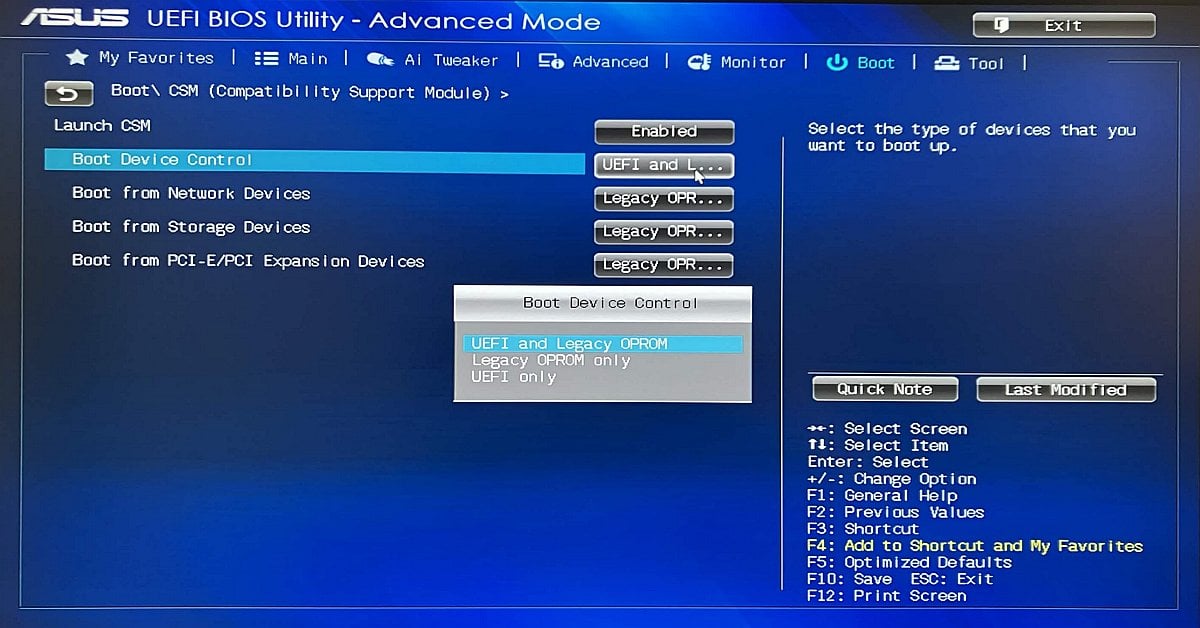
Checking the boot mode in the UEFI/BIOS
- Disable Secure Boot.
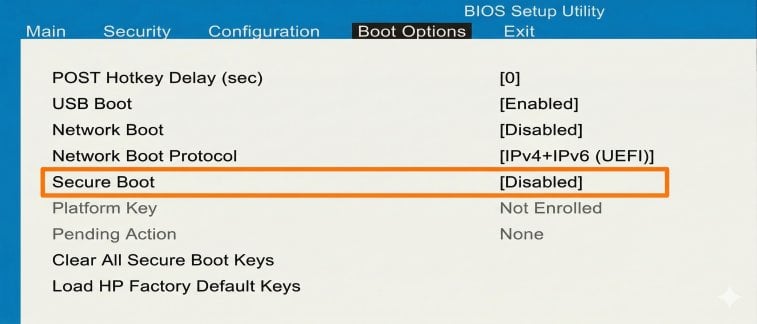
Disabled Secure Boot
- Save and exit.
The PC should reboot.
If it doesn't help, proceed to Step 3.
Step 3: Fix the boot issues from Windows Recovery Environment
- Boot in Windows Recovery Environment:
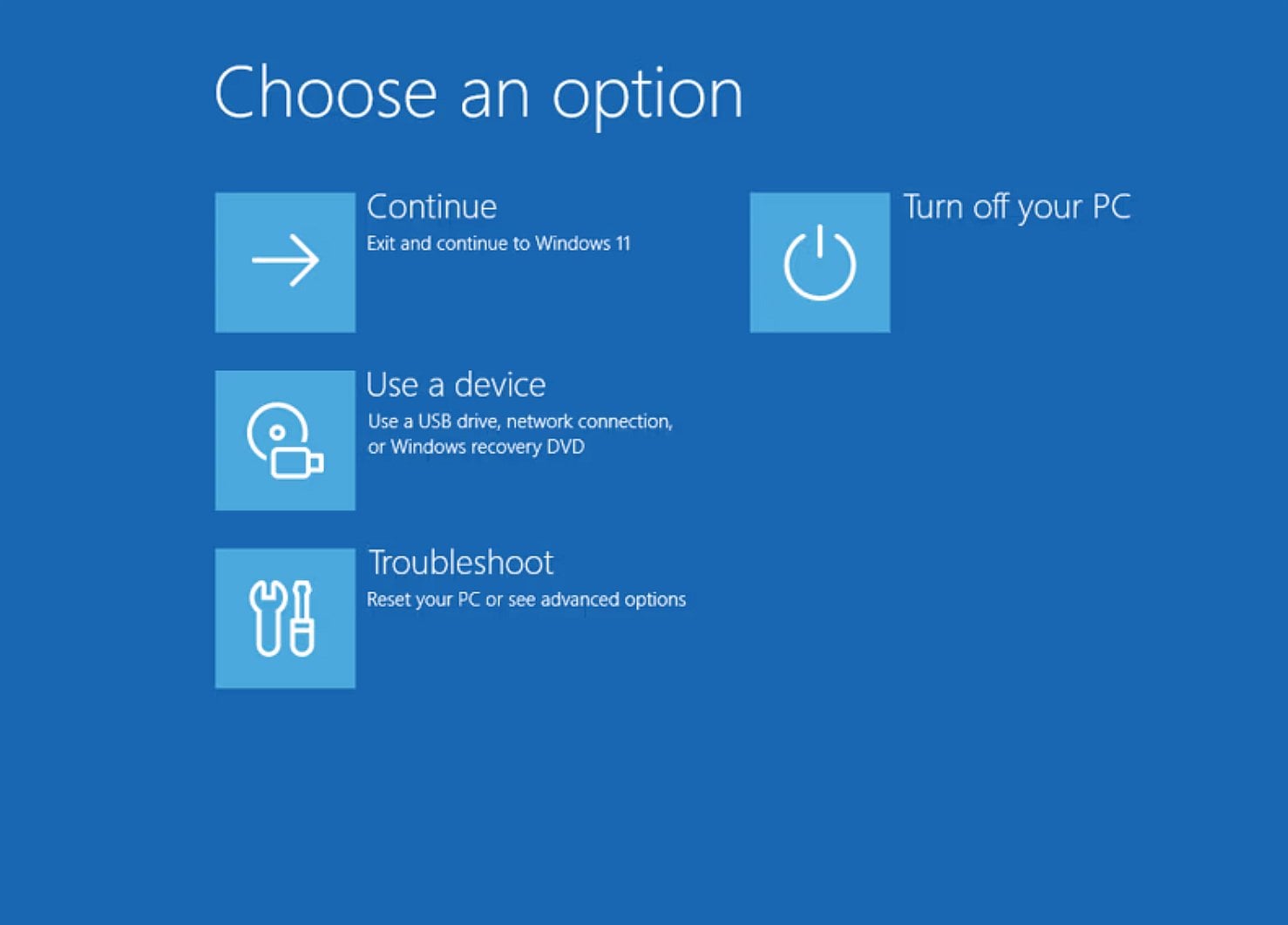
Windows Recovery Environment
- During installation, Windows creates a special hidden partition containing the Recovery Environment (WinRE).
- If the operating system fails to boot three consecutive times, WinRE should launch automatically. You can also trigger WinRE launch by powering down the PC during startup three consecutive times.
- If your drive clone lacks the recovery partition and WinRE cannot launch from your SSD, you should boot from Windows installation media (USB or DVD) instead and choose the "Repair your computer" option during the startup procedure.
- In WinRE, go to Troubleshoot > Advanced options > Startup Repair.
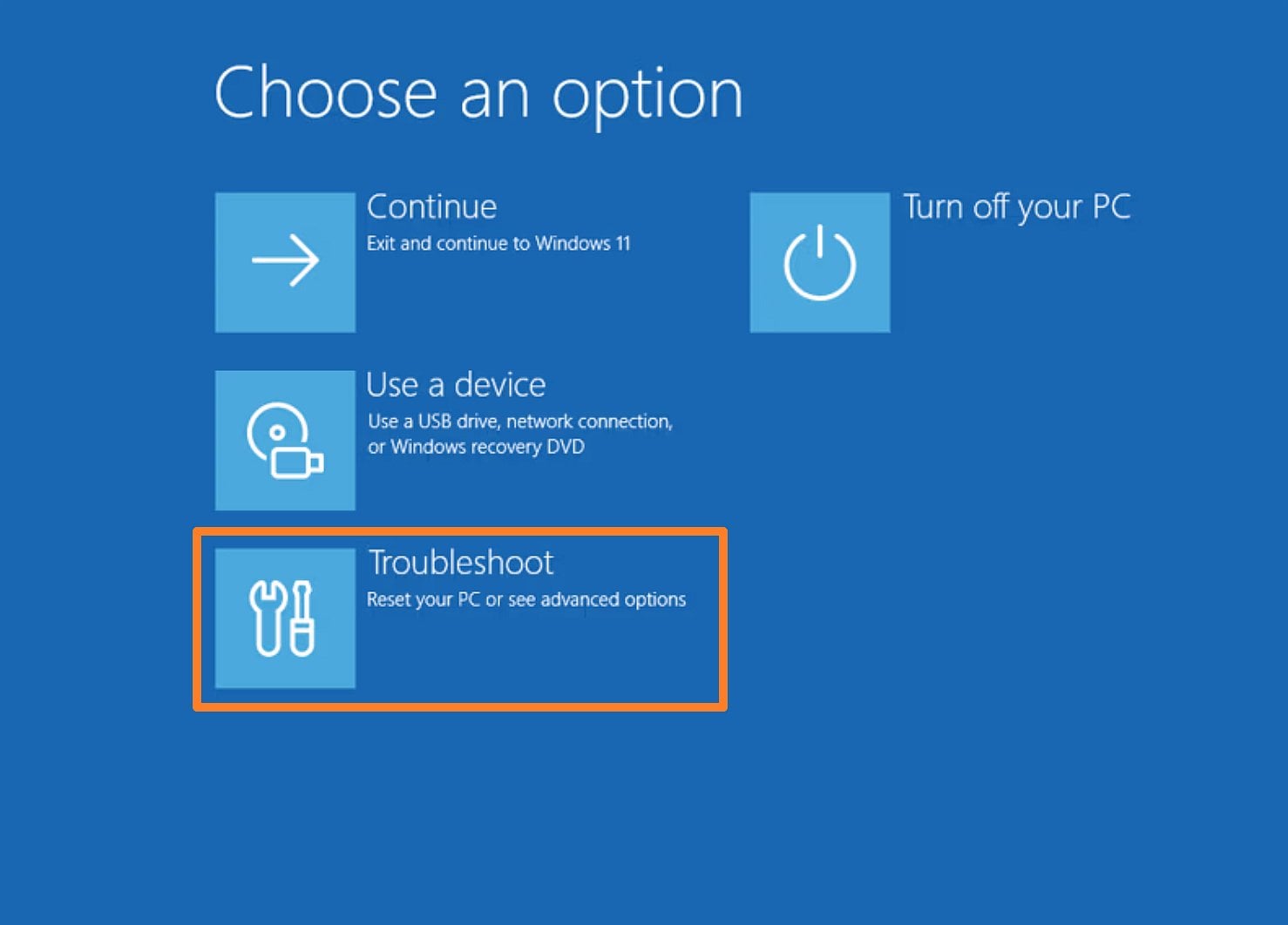
Troubleshoot option in the Windows Recovery Environment
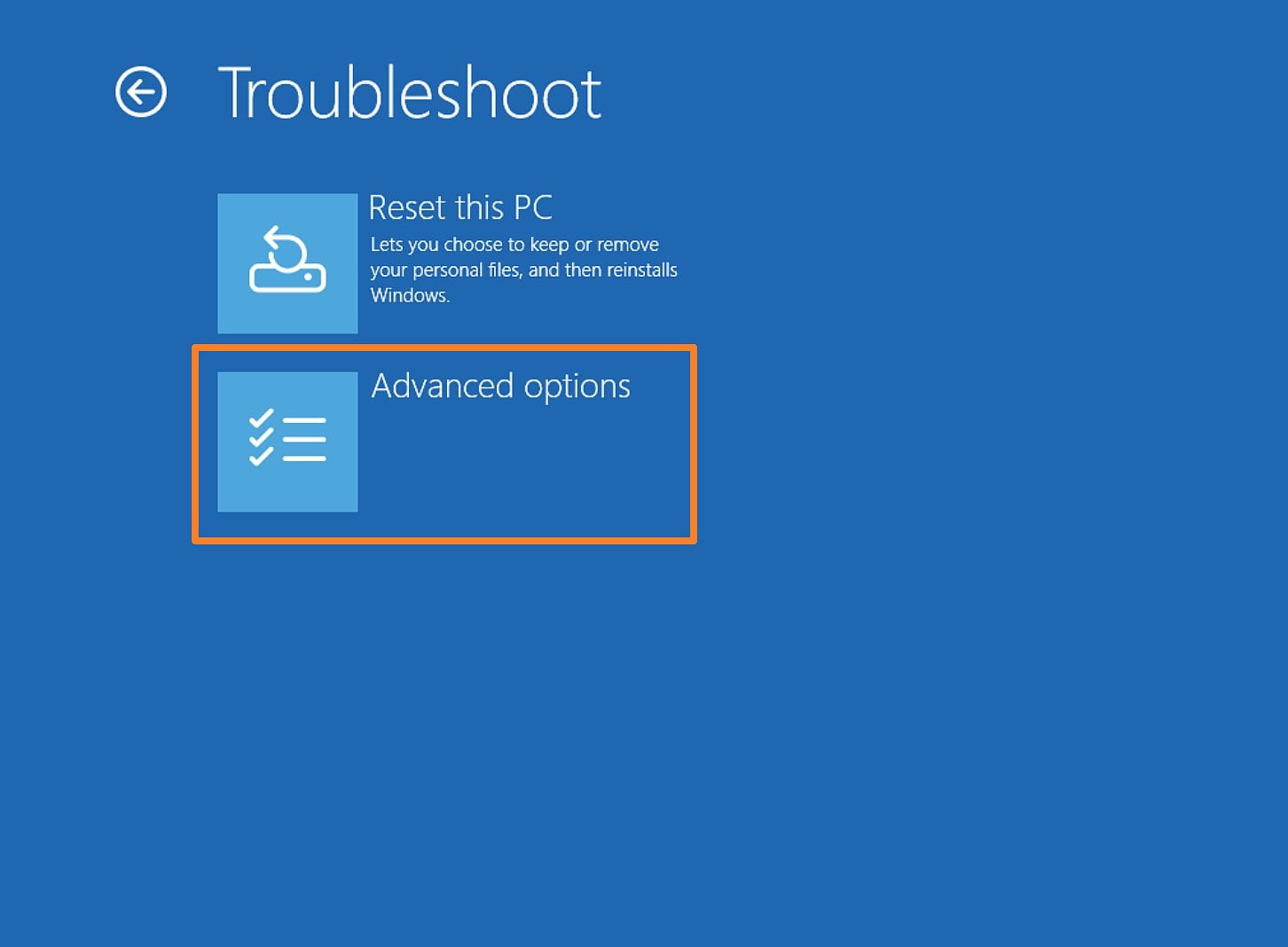
Advanced options in the Windows Recovery Environment
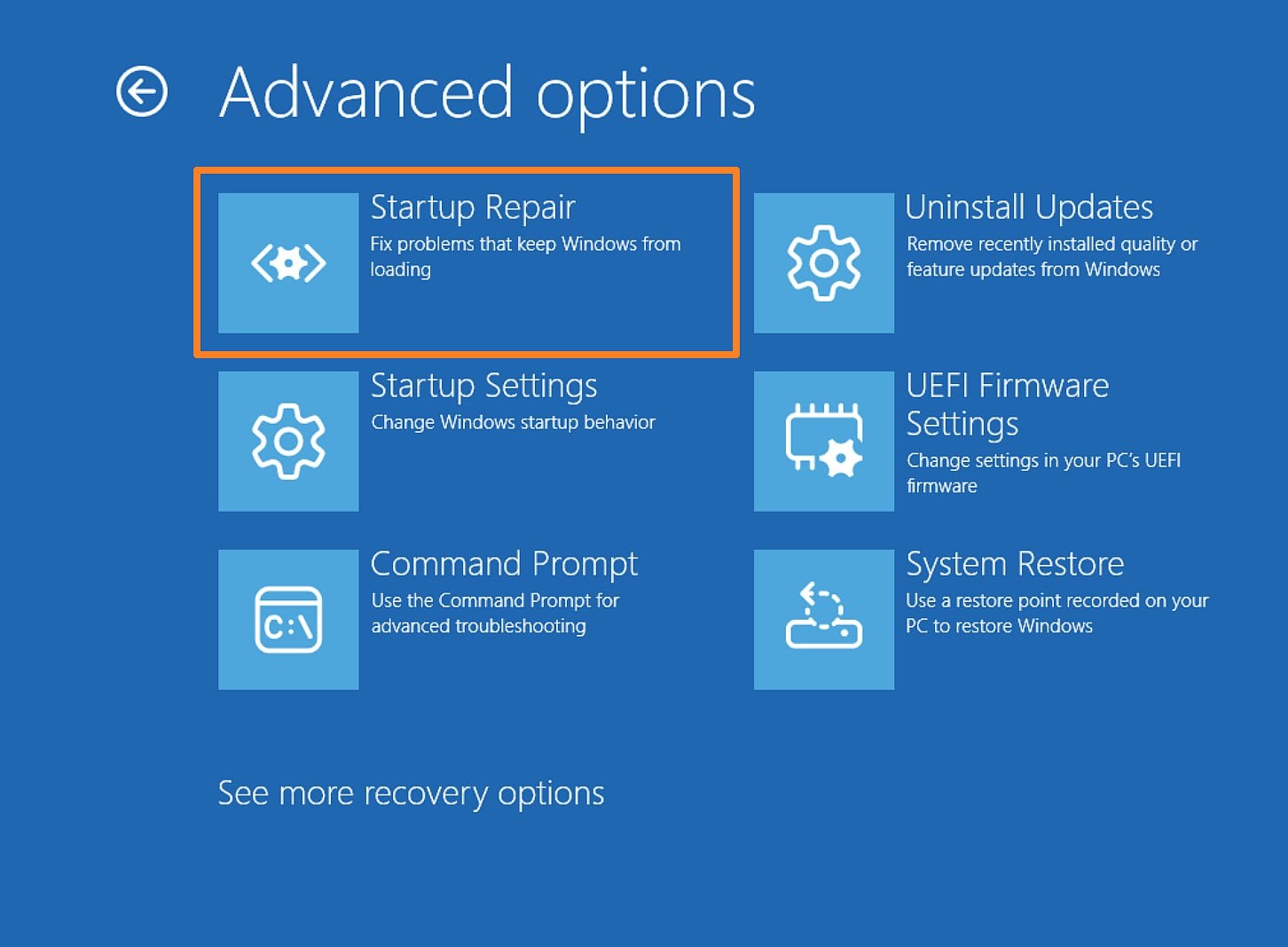
Startup Repair in the Windows Recovery Environment
- Startup Repair is a native Windows recovery tool that can fix certain system problems that might prevent the OS from starting.
- It scans your PC for the problem and then tries to fix it so your computer can start correctly.
- Check and match partition style (MBR or GPT):
- In WinRE, go to Troubleshoot > Advanced Options > Command Prompt.
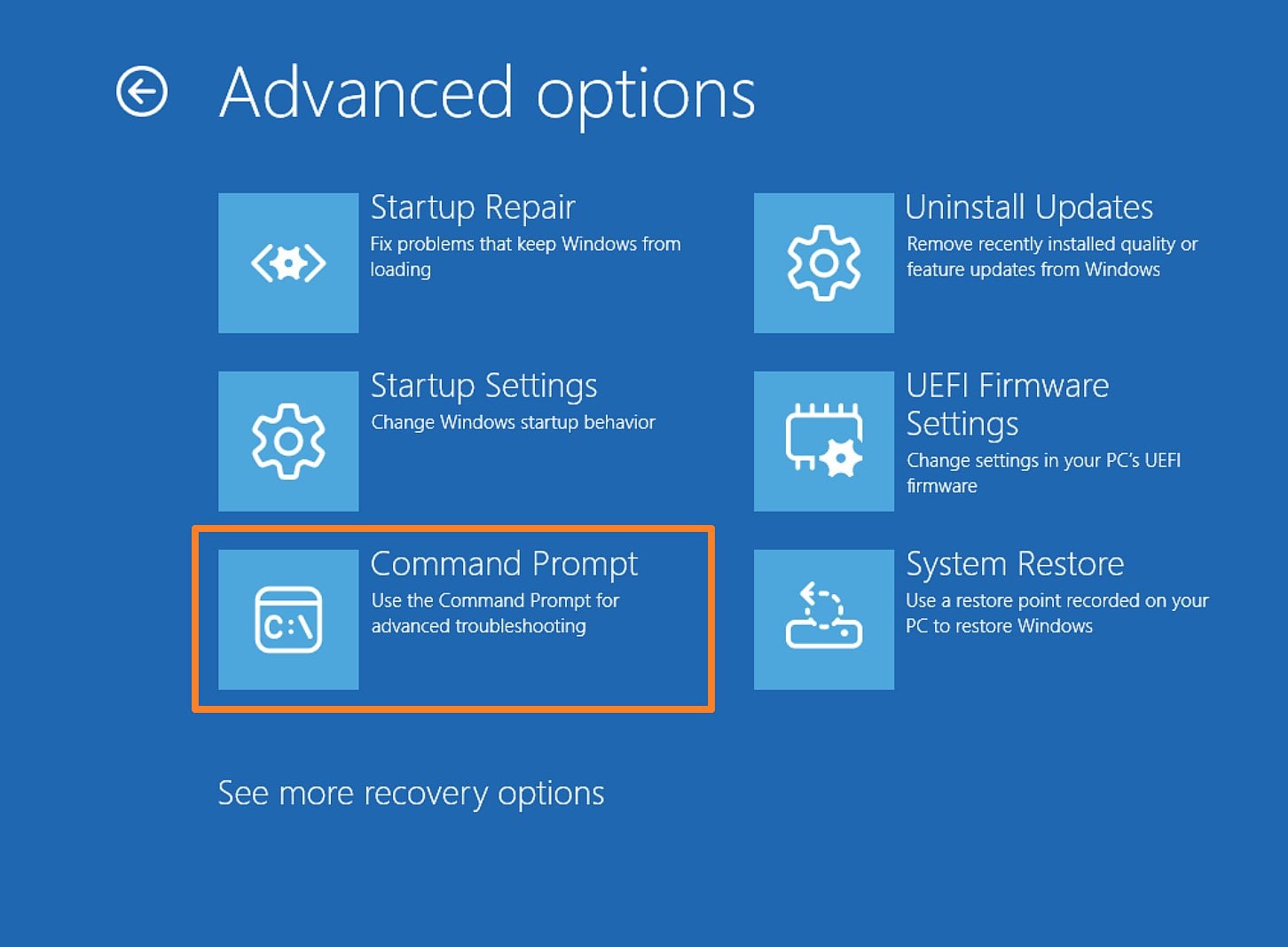
The Command Prompt in the Windows Recovery Environment
- Check if your drive has MBR (Master boot record) or GPT (GUID partition table) style by running the following commands (type and press Enter):
diskpart
list disk
exit
Command What it does diskpartLaunches the native diskpart utility for managing drives, partitions, and volumes. list diskDisplays a list of all physical drives connected to the PC, and their attributes, including partition style. exitExits the diskpart utility. Look at the gpt column:
- If it has an asterisk (*) next to your drive, the drive uses GPT (GUID partition table).
- If not, the drive uses an older MBR (Master boot record).
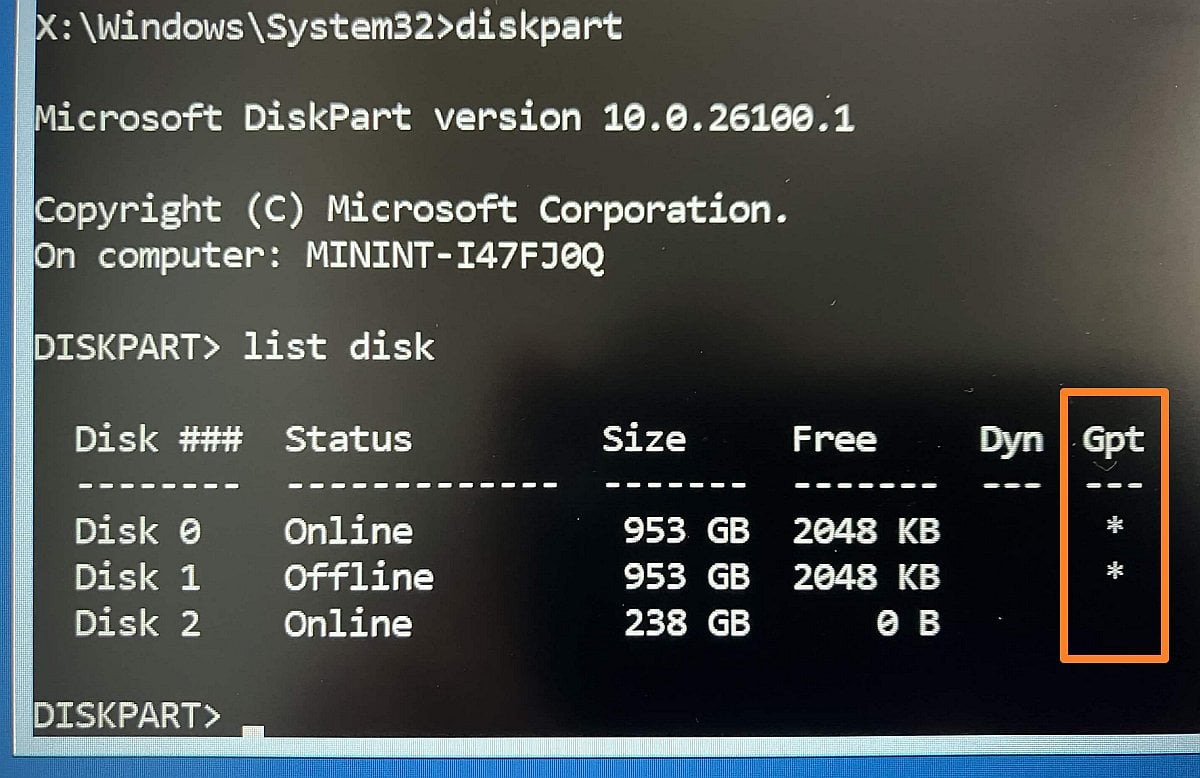
Drives with the GPT partition style have an asterisk next to them
- Match UEFI/Legacy Mode:
Remember your UEFI/BIOS boot settings. UEFI/BIOS must be set to:
- UEFI boot mode for GPT disk. Switching to Legacy may prevent Windows from starting.
- Legacy/CSM for MBR disk. If you cloned a drive from a system using MBR to one that boots in UEFI mode, your cloned drive may not boot because UEFI requires GPT.
- Convert MBR to GPT without modifying or deleting data on the disk:
In WinRE, go to Troubleshoot > Advanced Options > Command Prompt and run the following commands (type and press Enter):
diskpart
list disk
exit
mbr2gpt /validate /disk:#
mbr2gpt /convert /disk:#
exit
Command Comment What it does diskpartLaunches the native diskpart utility for managing drives, partitions, and volumes. list diskDisplays a list of all physical drives connected to the PC. Remember the number of your new drive. exitExits the diskpart utility. mbr2gpt /validate /disk:#Where # is your disk number from the list disk command above. Runs the MBR2GPT utility that converts a disk from the Master Boot Record (MBR) to the GUID Partition Table (GPT) partition style without modifying or deleting data on the disk. /validateoption is used to check whether the disk is eligible for conversion./disk:#specifies the disk number that needs validation.mbr2gpt /convert /disk:#Performs the disk validation and proceeds with the conversion if all validation tests pass. exitExits the command prompt. - Important: After converting the disk from MBR to GPT, you must restart the computer, enter the BIOS/UEFI settings, and switch the boot mode from Legacy/CSM to UEFI. Without this change, the system will not be able to boot from the converted GPT disk.
- In WinRE, go to Troubleshoot > Advanced Options > Command Prompt.
- Create a fresh boot configuration:
- In WinRE, go to Troubleshoot > Advanced Options > Command Prompt.
- Assign the letter to the EFI (bootloader) partition by running the following commands (type and press Enter):
diskpart
list disk
select disk #
list volume
select volume #
assign letter=S
exit
| Command | Comment | What it does |
|---|---|---|
diskpart | Launches the native diskpart utility for managing drives, partitions, and volumes. | |
list disk | Displays a list of all physical drives connected to the PC. | |
select disk # | where # is number of your drive from the list | Selects your clone drive. |
list volume | Displays a list of all partitions (volumes) of all drives. | |
select volume # | where # is the number of your EFI partition from the list, usually 100-500MB FAT32 | Selects the EFI (bootloader) partition for further operations. |
assign letter=S | Assigns a letter S to the EFI partition. We'll use it in the next step. | |
exit | Exits the diskpart utility. |
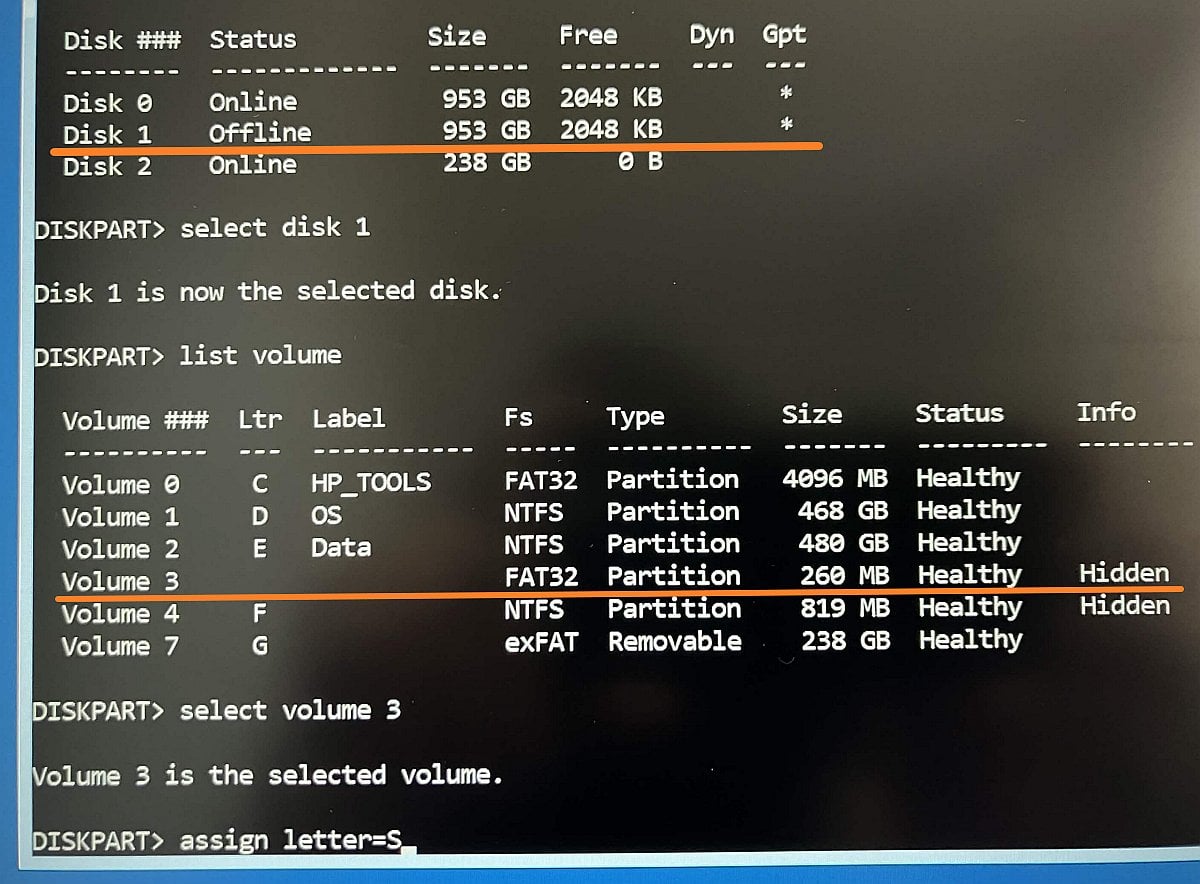
Assigning the letter to the volume with the diskpart utility
- Write a new boot configuration to the EFI partition by running the following commands (type and press Enter):
cd /d S:\EFI\Microsoft\Boot
bootrec /fixboot
bootrec /rebuildbcd
exit
| Command | What it does |
|---|---|
cd /d S:\EFI\Microsoft\Boot | Changes the working directory to the folder where the Windows bootloader files are stored. |
bootrec /fixboot | Writes a new boot sector to the EFI (bootloader) partition. If this command returns the "Access Denied" error, try to create a new EFI System Partition. |
bootrec /rebuildbcd | Scans all disks for Windows installation and creates a new Boot Configuration Data (BCD) to launch the OS. It will find the Windows folder on your new SSD and configure the system to boot from it. It will ask: "Add installation to boot list? [Yes/No/All]". You should type Y and press Enter. |
exit | Exits the command prompt. |
- Recreate the boot configuration of the EFI System Partition using the bcdboot command:
- In WinRE, go to Troubleshoot > Advanced Options > Command Prompt.
- Assign the letter to the EFI (bootloader) partition as shown above in Step 3, paragraph 4-B.
- Check the letter of your actual Windows drive. WinRE often temporarily changes the letter of your OS volume to D:, E:, F: or other. To check the letter of your Windows partition, run the following command (type and press Enter):
diskpart
list volume
exit
Command What it does diskpartLaunches the native diskpart utility for managing drives, partitions, and volumes. list volumeDisplays a list of all partitions (volumes) of all drives. exitExits the diskpart utility. 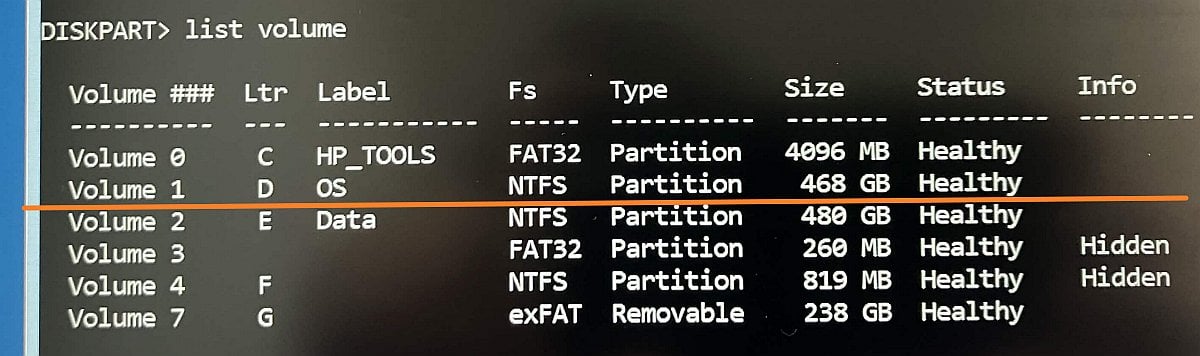
In this example, the Windows partition is Volume 1 with the letter D and the OS label
Look at the table:
- The Label column: your Windows partition is often named "OS" or "Windows".
- The Fs column: Look for NTFS file system.
- The Size column: your Windows partition often has the large or even largest size.
- The Ltr column: The letter of your Windows partition. Remember it, you'll need it later.
- Create a new EFI System Partition by running the following command (type and press Enter):
bcdboot D:\Windows /s S: /f UEFI
exit
Command Comment What it does bcdboot D:\Windows /s S: /f UEFIWhere D:\is the actual letter of your Windows partition (see Paragraph 5D above).bcdboot is a native Windows utility that recreates boot entries on a drive with the volume letter S, including boot files to support a UEFI-based computer. D:\Windows- Specifies the location of the Windows directory to use as the source for copying boot files. If needed, change theD:\to the actual letter of your Windows partition./s S:- Specifies that the system (bootloader) partition is the one with letter S (we've assigned it earlier)./f UEFI- Specifies the firmware type as UEFI, which is default for UEFI/GPT-based systems. You can also use/f ALLor/f BIOSfor BIOS/MBR-based systems.exitExits the command prompt.
How to prevent the "Cloned drive won't boot" issue in the future
Before cloning
- Turn off the BitLocker.
- Make sure that your disk partition style (MBR or GPT) matches the BIOS/UEFI boot mode (MBR requires Legacy/CSM, GPT requires UEFI):
- Check disk partition style:
- In Windows, press Win + X and choose Disk Management.
- Right-click your disk and select Properties.
- Go to the Volumes tab and check the Partition style field.
- Check the BIOS/UEFI boot mode:
- In Windows, press Win + R, type msinfo32 and press Enter.
- Look at the BIOS mode line.
- If you're cloning a system drive with MultiDrive free cloning software, go to Clone > Options and toggle off the option called "Mount target drive upon task completion".
This way Windows doesn't get confused about which of the two identical drives to boot from.
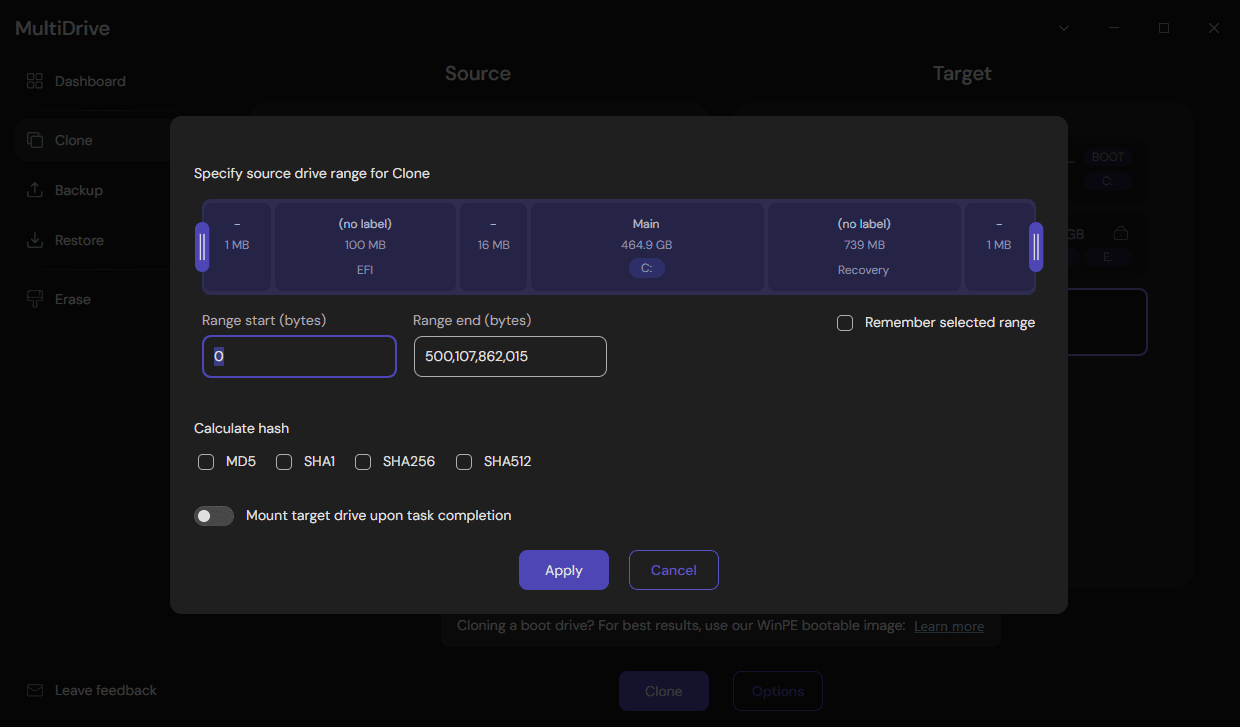
MultiDrive Clone Options - Mount target drive upon task completion
After cloning
- Turn off the computer and physically disconnect the original drive.
- Turn on the PC and enter the BIOS/UEFI settings.
- Open the Boot menu.
- Make sure that your drive with the "Windows boot manager" label is at the very top of the boot list.
- Disable the Secure Boot option temporarily (you can turn it back on after OS boots successfully from a new drive).
- Save and exit the BIOS/UEFI settings.
- The PC will reboot and start the Windows OS normally from your new drive.
Conclusion
Using the methods described above, you can successfully fix the issue when your PC won't boot from the drive clone and prevent this problem from happening in the future.
Author