How to Format a USB Drive
Quick answer
- Plug in the USB drive
- In File Explorer, right-click the drive and select Format…
- Choose NTFS, exFAT, or FAT32
- Keep Quick format selected and click Start
Quick format does not fully erase data. To wipe the USB first, then format it, use MultiDrive.
Need to format a USB drive in Windows so you can reuse it, switch file systems, or fix a drive that Windows no longer mounts? Follow this guide for File Explorer, Command Prompt, and MultiDrive.
In this article
- Which file system: NTFS, exFAT, or FAT32?
- How to format a USB drive to exFAT
- How to format a USB drive to NTFS (for Windows)
- How to format a USB drive to FAT32
- How to format a USB drive using cmd (command prompt)
- How to format a USB drive with MultiDrive
Which file system: NTFS, exFAT, or FAT32?
How you format the USB drive determines which computers and devices can read it.
| File system | Best for | Limits |
|---|---|---|
| exFAT | USB drives used on Windows, Mac, and Linux | No practical file-size cap for everyday use |
| NTFS | Windows-only drives, large backups, permissions | Limited write support on macOS without extra software |
| FAT32 | Old devices that do not support exFAT | 4 GB max file size; File Explorer formats up to 32 GB |
For most flash drives, exFAT is the practical default. Choose NTFS if the drive stays on Windows PCs (for example, as a backup target). Use FAT32 only when an older device requires it.
How to format a USB drive to exFAT
The main benefit of the exFAT file system is that you can use a USB drive with exFAT in Windows, Mac and Linux computers.
Here’s how to format a USB drive to exFAT in Windows:
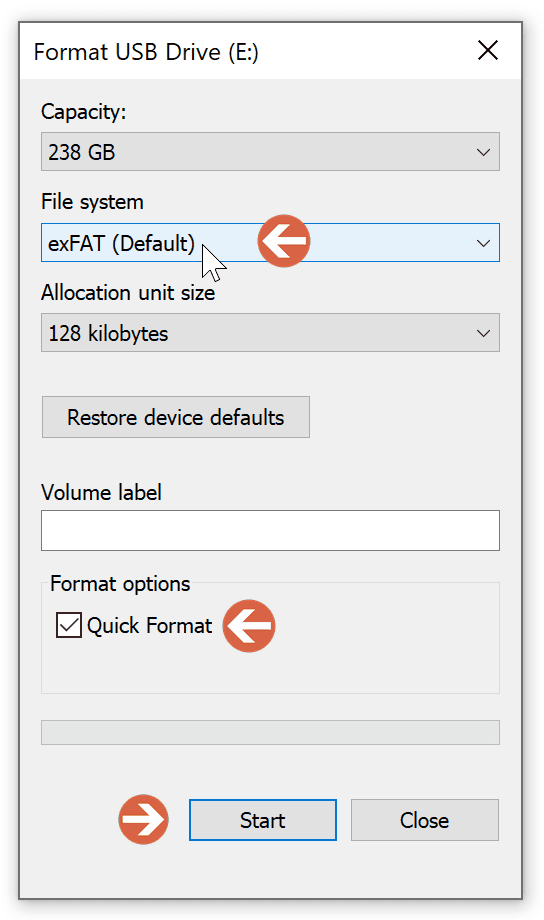
- In File Explorer, right-click your flash drive and select Format…
- In the File system list, select exFAT.
- Make sure that the Quick format option is selected and click Start.
How to format a USB drive to NTFS (for Windows)
NTFS is a default file system for Windows. It supports larger partitions and file sizes: up to 8 petabytes for volumes and files on the latest Windows versions.
Here’s how to format a USB drive to NTFS in Windows:
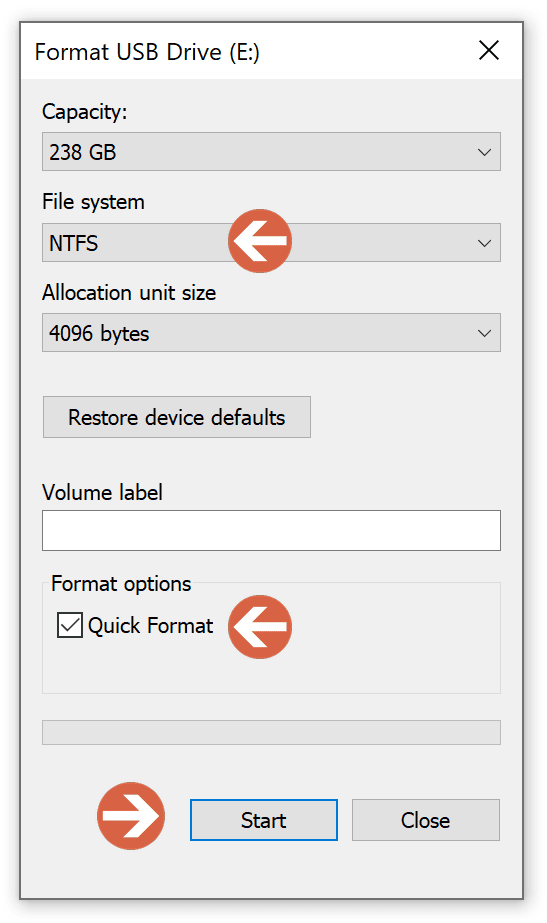
- In File Explorer, right-click your flash drive and select Format…
- In the File system list, select NTFS.
- Make sure that the Quick format option is selected and click Start.
How to format a USB drive to FAT32
FAT32 is an outdated file system, which has significant limitations: the partition size is limited to 2TB and the maximum file size is 4GB. Its successor is the exFAT file system.
Formatting a USB drive to FAT32 in Windows is limited by the drive’s capacity:
- Using the built-in File Explorer, you can format USB flash drives up to 32GB.
- To format a drive larger than 32GB (and up to 2TB), you have to use the built-in Windows ‘format’ command line utility or third-party tools.
Here’s how to format a USB drive to FAT32 in Windows, using File Explorer:
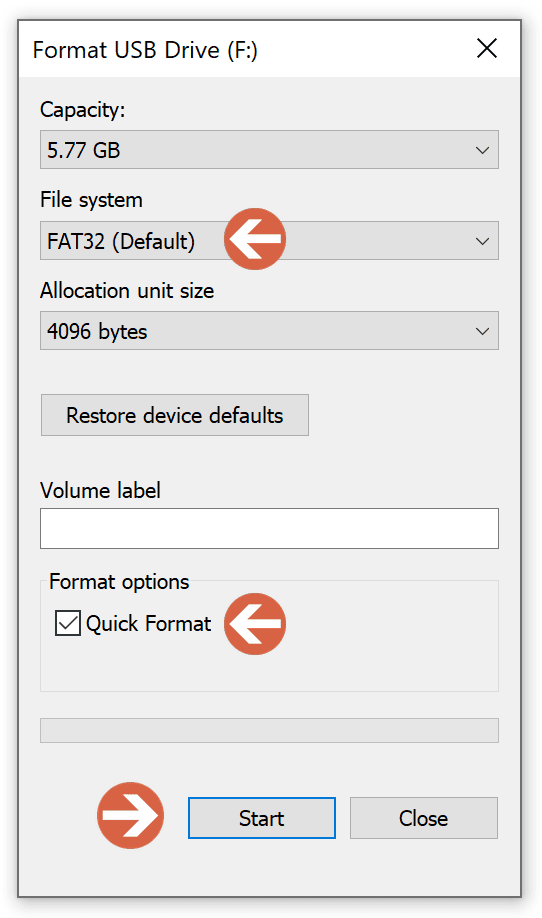
- In File Explorer, right-click your flash drive and select Format…
- In the File system list, select FAT32.
- Make sure that the Quick format option is selected and click Start.
To format a USB flash drive larger than 32GB in Windows, see How to format a USB drive using cmd below.
How to format a USB drive using cmd (command prompt)
Command-line interface is often preferred by advanced users, system administrators, and IT professionals.
Here’s how to format a USB drive from the command prompt, using a built-in Windows command-line utility for drive formatting:
- In Windows, press Win+X and choose Windows PowerShell (Admin).
- Type:
format <volume> /q /fs:<filesystem>
where - <volume> is the volume name or letter (followed by a colon) of the USB drive you want to format,
- /q - parameter for quick formatting (only deletes the file table and the root directory, doesn’t perform a sector-by-sector formatting),
- <filesystem> is the type of file system (FAT, FAT32, NTFS, exFAT, ReFS, or UDF).
For example, to quick-format a USB drive with volume letter E:\ to FAT32, type:
format e: /q /fs:fat32
- Press Enter.
- Confirm formatting by pressing Y and then Enter.
Important: the 'format' command operates with logical volumes, not physical devices. In order for this utility to format an entire USB drive, the device must contain a volume that spans all sectors of the USB drive.
How to format a USB drive with MultiDrive
MultiDrive can format a USB drive after a secure erase. That leaves a ready-to-use volume in NTFS or exFAT, and unlike a quick format it overwrites the old data first.
- Download and install the free software – MultiDrive.
- Plug in your USB drive into any USB port on your computer.
- Run MultiDrive and go to Erase on the left.
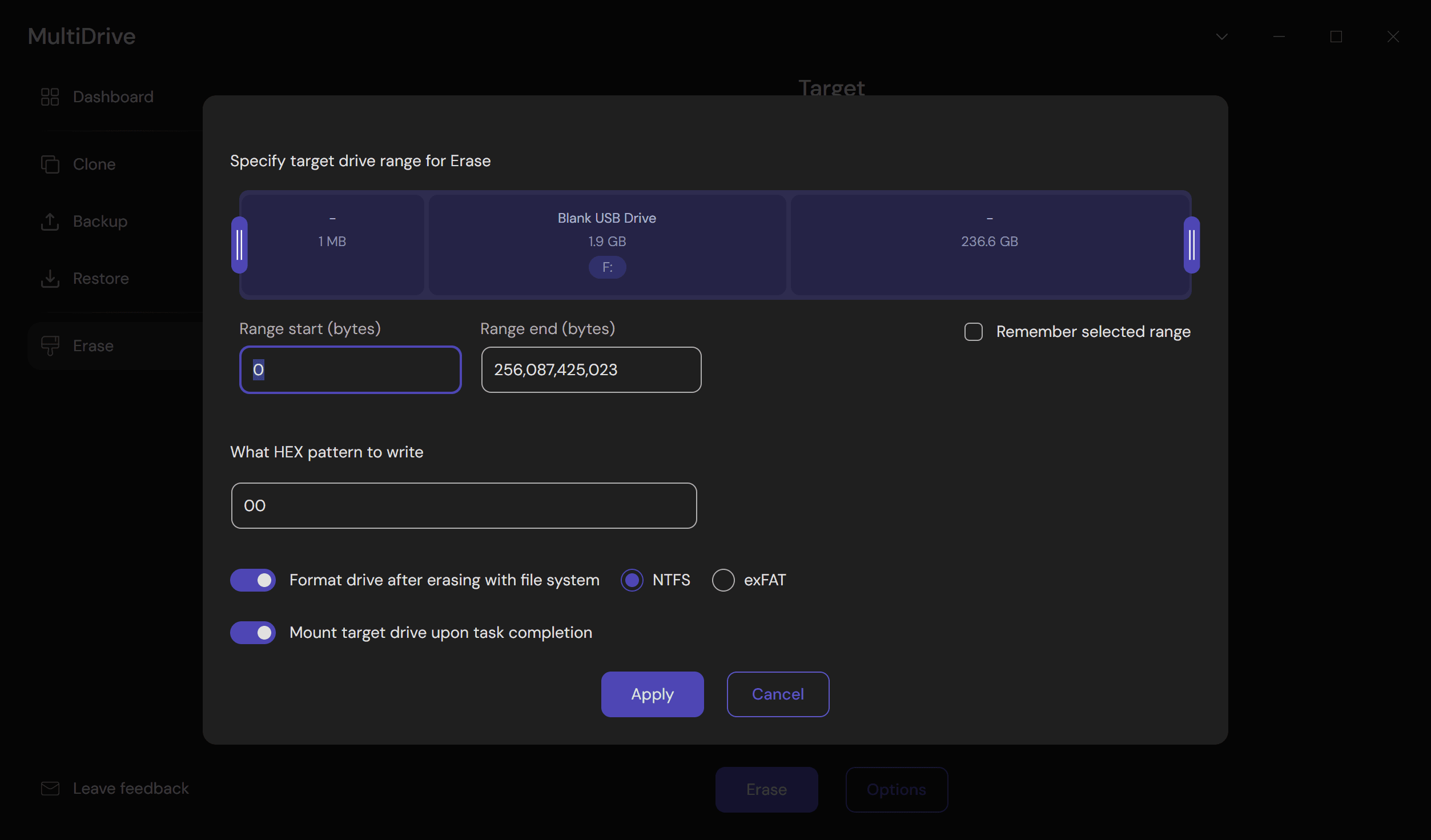
- Select the USB drive you want to format and click the Options button.
- Enable the Format drive after erasing with file system option, select either NTFS or exFAT, and click the Apply button.
- Click the Erase button and wait until the ‘Success’ result appears in the Stats panel.
From the command line, the same option is --format on the erase command, for example mdcli erase -t d3 --format exFAT.
See the MultiDrive CLI erase flags for the full syntax. For a wipe walkthrough without formatting, see how to clear a USB drive.
Formatting a USB drive FAQ
Use exFAT if you will plug the drive into Windows, Mac, or Linux. Use NTFS if the drive stays on Windows PCs and you need large files or Windows permissions. Use FAT32 only for older devices that cannot read exFAT — individual files cannot be larger than 4 GB.
No. A quick format only removes the catalog of files. Recovery software can still find the old data. A full format checks the drive and may overwrite more, but it is still not the same as a secure wipe.
To make the data unrecoverable, wipe the USB drive with MultiDrive, then format it.
Windows File Explorer will not offer FAT32 for drives larger than 32 GB. Use the built-in format command, for example format e: /q /fs:fat32, replacing e: with your USB drive letter.
Yes. In Erase → Options, enable Format drive after erasing with file system and choose NTFS or exFAT. MultiDrive wipes the drive first, then formats it. FAT32 is not available in that option — use File Explorer or the format command instead.
Author