Fix Disk Read/Write Errors in Windows 11
If a backup, clone, or erase task stops with an I/O error, you might think of a dying drive. Usually it isn't.
Across real failure cases we see in MultiDrive, nine out of ten are not caused by a bad disk. They come from the environment around the disk: an underpowered USB adapter, a loose cable, an antivirus holding a file.
Troubleshooting disk read/write errors by message
Check the error message and jump right to the fix.
| Error message | Possible cause | Solution |
|---|---|---|
| The specified network resource or device is no longer available | USB power, cable, adapter, damaged drive, network connection | 1. Device drops out |
| The device is not ready | Enclosure stalled, weak power, drive didn't spin up | |
| Device not found / does not exist | Cable, port, adapter connection, drive is write protected, damaged drive | |
| Access to the path … is denied | File/folder permissions, antivirus, or another app holding the drive | 2. Windows or some app blocks the operation |
| The process cannot access the file … because it is being used by another process | File locked by another application | |
| There is not enough space on the disk | Target volume is full, check provisioning or quotas | 3. Not enough space |
| Fatal device hardware error | Drive's S.M.A.R.T. is reporting bad sectors | 4. Bad sectors and CRC |
| Data error (cyclic redundancy check) | Media degradation or poor cable connection | |
| Error writing to zip entry | Connection loss, lack of free space, broken ZIP/ZSTD archive | 5. Backup file and format errors |
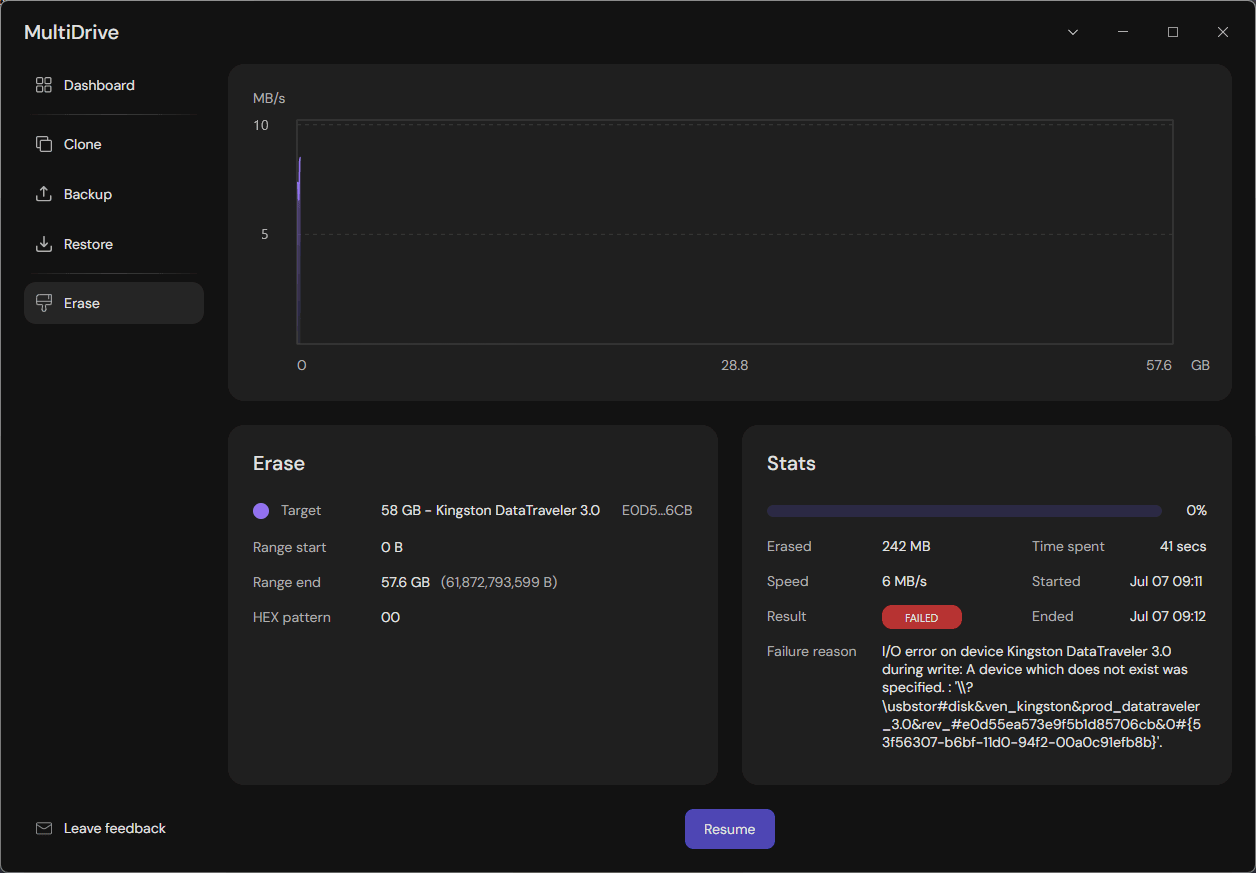
1. Device drops out during read or write operation
This is the largest category by far. The error message begins with "I/O error on device ..." and then Windows reports it in many different ways as you can see in the table above.
Go down this list in sequential order: the top recommendations resolve the majority of cases.
Change the cable, then the port
Swap the USB or SATA cable first. Use high-quality short USB cables. Longer or lower-quality USB cables can produce read/write errors.
Then, use a rear USB port wired directly to the motherboard, not a front-panel header or a USB hub.
Hubs and front panels share and drop power under heavy load. It is a weak connection that can produce read/write retries or even errors.
Replace a cheap SATA-to-USB or NVMe-to-USB adapter
Budget adapters are the second most common cause. In our logs, generic bridge chips fail specifically under sustained write load, even when they read fine for short bursts.
When choosing a USB adapter or dock, prioritize:
- A reliable USB bridge chipset. For example, ASMedia or Realtek. Our tested models are:
- EZ-Adapter MB104U-1SMB for both SATA and NVMe drives
- UGREEN M.2 NVMe SSD Enclosure for NVMe drives
- StarTech SAT32M225 for SATA drives
- External power for any 3.5" HDDs. Bus power alone will not be enough for these drives.
Fix USB power delivery
An underpowered USB drive drops out during read or write operation. Things to check:
- Disable USB selective suspend: Control Panel → Power Options → Change plan settings → Change advanced power settings → USB settings → USB selective suspend setting → Disabled.
- In Device Manager, open the drive / USB Root Hub → Power Management tab → uncheck "Allow the computer to turn off this device to save power."
Disable SD card lock
SD cards typically have a physical write-protect switch on the side. If it's enabled, the drive will not be able to write to the disk. Move the switch to the opposite position to enable writing.
Keep the drive cool
Tasks that involve erasing and making a full copy of a disk can take several hours to complete. If a drive or adapter overheats (modern NVMe drives are particularly susceptible to this), it may cause I/O errors or dropouts. Make sure there is enough airflow around the drives, and don't stack drives on top of each other.
For tracking drive temperature, you can use Hard Disk Sentinel or HWInfo.
Disable hibernation
Run powercfg /hibernate off in the Command Prompt opened as Administrator.
Otherwise, Windows may leave the drive in an inconsistent state if hibernation automatically starts during MultiDrive operations.
2. Windows or some app blocks the operation
The second-largest category. Normally, your hardware is all right, but Windows, an antivirus, or another app is preventing MultiDrive from writing the target file (Backup task) and reading from the source file (Restore task).
- Exclude MultiDrive in your antivirus settings. Otherwise, it may lock large files as they're being written, aborting the MultiDrive task.
- File in use by another process. The process cannot access the file … because it is being used by another process means another app has the target open. Close anything pointing at that file or folder and retry.
- File/folder permissions. Run MultiDrive as Administrator, and write to a location your account owns rather than a protected system path.
- Drive letter changed. If Windows remounts the drive or reassigns its drive letter during the operation, the operation will fail. Also, close Disk Management, just in case.
- Close apps that intensively touch the drive. If you have indexing services, backup agents and disk utilities that scan the same device, they can sometimes cause problems. Also, turn off AutoPlay (Settings → Bluetooth & devices → AutoPlay) so Windows doesn't grab the disk the moment it's connected.
3. Not enough space on the target
- Check the real free space on the target drive volume when running backup. If it's not enough, you can free up some space by analyzing folders and files with WizTree.
- Disk quotas on managed or domain machines can limit the amount of data that your account can write to.
- Thin-provisioned volumes and Storage Spaces can show more free space than physically exists. Prefer fixed provisioning over thin provisioning for critical Storage Spaces volumes.
4. Bad sectors and CRC errors
Unlike tools that stop working on the first unreadable block, MultiDrive retries and reads through bad sectors, so you still get more data off a failing drive.
A bad sector is a block that drive can no longer read reliably. Usually, you may see them in SMART table as "Reallocated Sector Count" or "Current Pending Sector Count" is increasing.
A CRC error (cyclic redundancy check) means the read data did not match its checksum. It is more often caused by a worn-out cable, a dirty SATA/USB connector.
Before cloning or backing up a drive:
- Replace the cable and carefully clean the port.
- Check its SMART status for reallocated/pending sectors using free tools like CrystalDiskInfo.
- If the source is failing, backup it first while it's still readable, then work with the image.
- For a damaged drive that causes Windows to crash or freeze, remove it from your PC, and ask a data recovery specialist nearby to recover the data.
5. Backup file and format errors
Error writing to zip entry message might be caused both by network connection issues and by target folder being full.
- When making a backup to a network folder, check that the connection is stable and prefer a wired link. Avoid slow or unreliable Wi-Fi. Even a single dropped data frame during a writing to a network can corrupt the ZIP file entry.
- When restoring a broken ZIP/ZSTD archive file from a network folder, again check if the connection is stable. If so, most likely the issue is with the archive itself.
- Lastly, make sure the target network folder has enough free space for your backup.
When the drive is failing yet readable
If it is a target drive for a Clone/Restore/Erase task, don't start the task. Take the drive to a data recovery center if you still need to reuse it.
If it is a source drive to backup or clone, MultiDrive can handle slightly damaged drives unless Windows crashes or locks the drive.
Here's how it works:
- If MultiDrive can't read a data block, it sends a command to reset the drive's controller.
- Then the software gives the unstable drive some more time to respond and tries to read the data block again.
- If another attempt fails, MultiDrive skips the block with error and proceeds with cloning the next data blocks.
- The corresponding 256KB block on the target drive is filled with zeros to keep the final data usable.
Another solid approach is to run MultiDrive from a WinPE boot image with MultiDrive preinstalled. WinPE is a minimal Windows with no silent indexing, antivirus, AutoPlay, or other default background processes accessing the drive. In our tests, it clears such issues as "another process is using the drive" and "drive letter changed" failures from section 2, and it lets you simply clone or back up a system drive.
Frequently asked questions
The most common reasons for USB power loss are:
- a bad cable or port
- a weak SATA-to-USB adapter
- an unstable network connection
It is not likely to be a dying drive. Try swapping the cable, using a USB port at the back of the motherboard, and replacing cheap adapters before assuming that the hardware is broken.
Author