HDD or SSD for backups: speed, capacity, and price
You’re planning to buy an external drive to store backups of your system, apps, and files, and wondering which to choose: a hard disk drive (HDD) or a solid-state drive (SSD).
The short answer: It depends on your needs.
Choose an SSD for storing backups if:
- The total size of the data to back up is about 2 TB or less
- The backup frequency will be high (hourly/daily)
- Time matters, and you want backups created and restored as fast as possible
- You will often carry the drive with you in your bag
- You want the drive to be quiet when powered on
Choose an HDD if:
- You need to back up large amounts of data (over 2 TB)
- Backups will be made weekly/monthly
- Time does not matter much because backups are scheduled for nighttime or low-activity hours
- The backup drive will sit on your desk or shelf
- You are OK with some noise and vibration when the drive is reading or writing data
Choose both if:
- You are willing to pay extra for redundancy
- You are OK with spending extra time to make and manage two backup copies instead of one
- You need to carry small backups with you AND store large amounts of data onsite
Now let’s analyze each use case in detail.
Capacity and pricing
HDDs are much cheaper per 1 TB of storage space than SSDs and have a much higher maximum storage capacity.
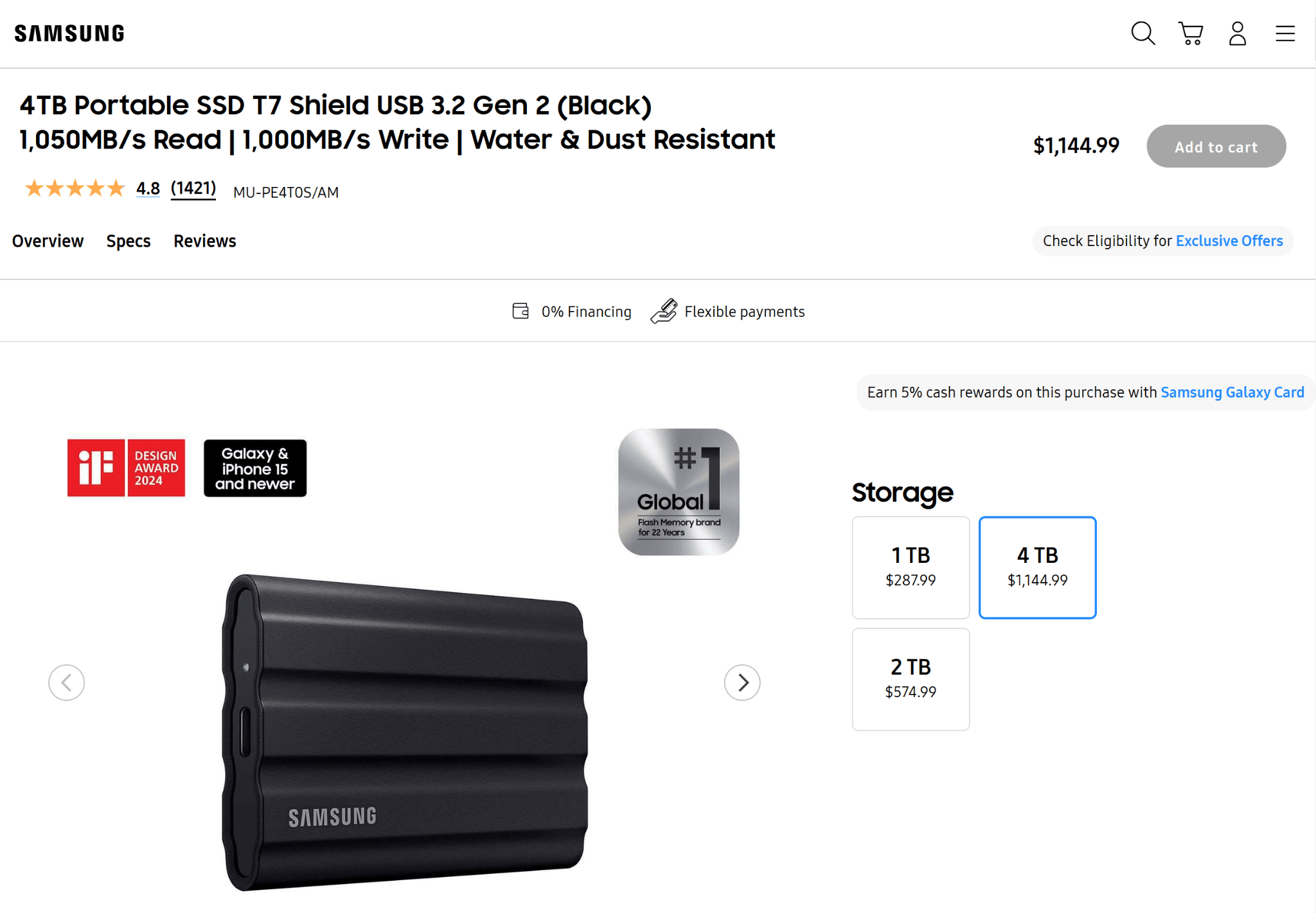
For example, popular models of Samsung external SSDs have a maximum capacity of 4 TB, which will cost you over $1,000.
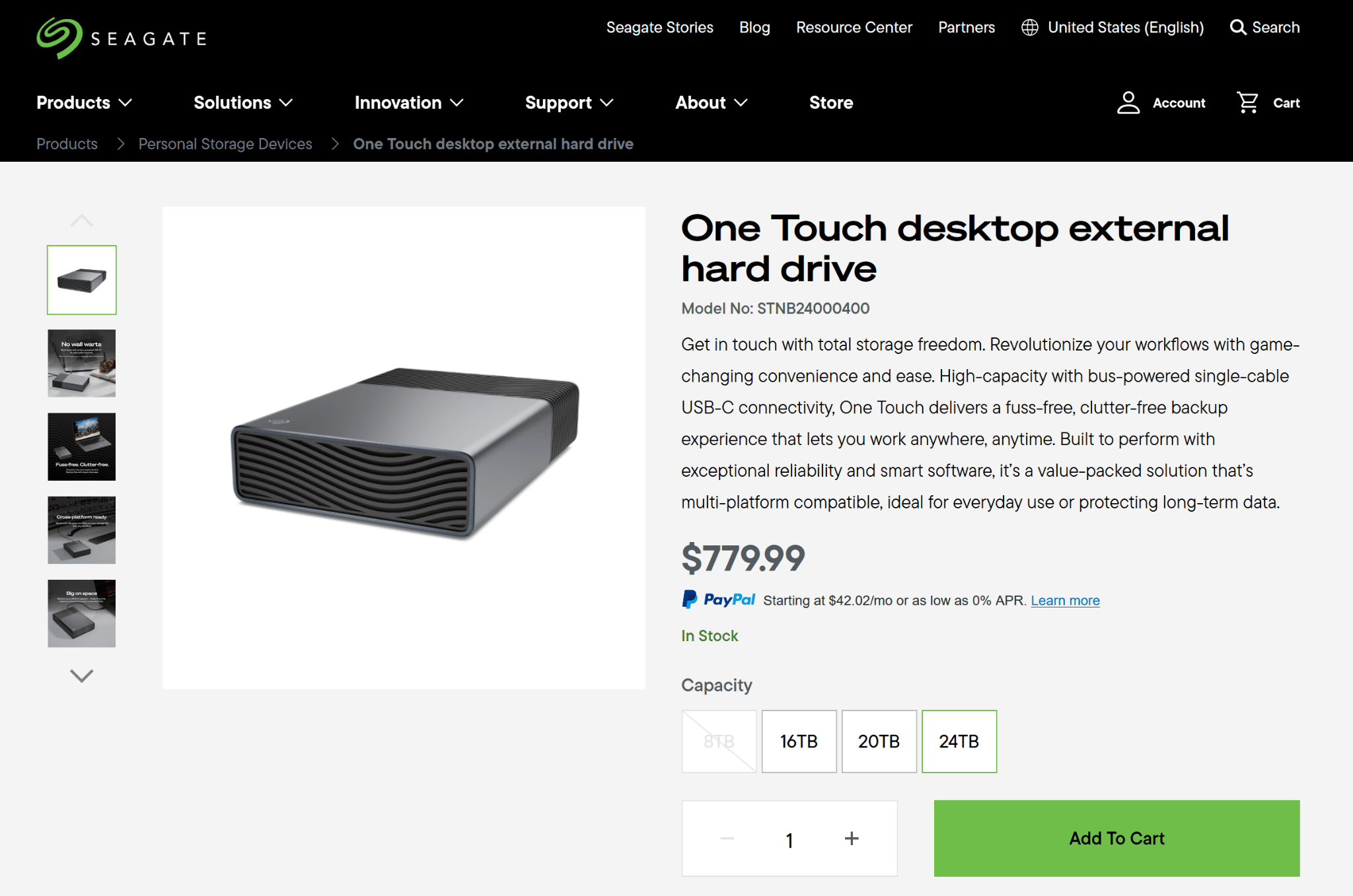
On the other hand, the Seagate One Touch desktop external hard drive can have up to 24 TB of storage space, which costs less than $800.
So, if you only need to back up your laptop with 500 GB internal storage, opt for an SSD.
But if you need a backup copy of your multi-terabyte photo and video archive, an HDD will be a much more reasonable choice.
Also, do not forget to get extra storage space for future data growth and/or storing multiple backup versions.
Pro tip: To use storage space more efficiently, choose backup formats that allow data compression.
Backup frequency and mechanical wear
Need to back up several work files daily? Opt for an SSD. It has no moving parts and does not suffer from mechanical wear from frequent use. Plus, the faster data transfer speed of an SSD saves you hours in the long run. An SSD has a lifetime "write budget" before its NAND flash cells physically wear out, but since you are not a big data center or a heavily used corporate server, your SSD will probably never reach that limit.
Planning to make a full system backup once a month? An HDD will be a better option. With rare power cycles and limited read/write operations (which require mechanically spinning platters and moving drive heads), an HDD will be less susceptible to mechanical failures. But keep in mind that HDDs have much lower data transfer rates than SSDs, which means more time for the same backup.
Backup speed
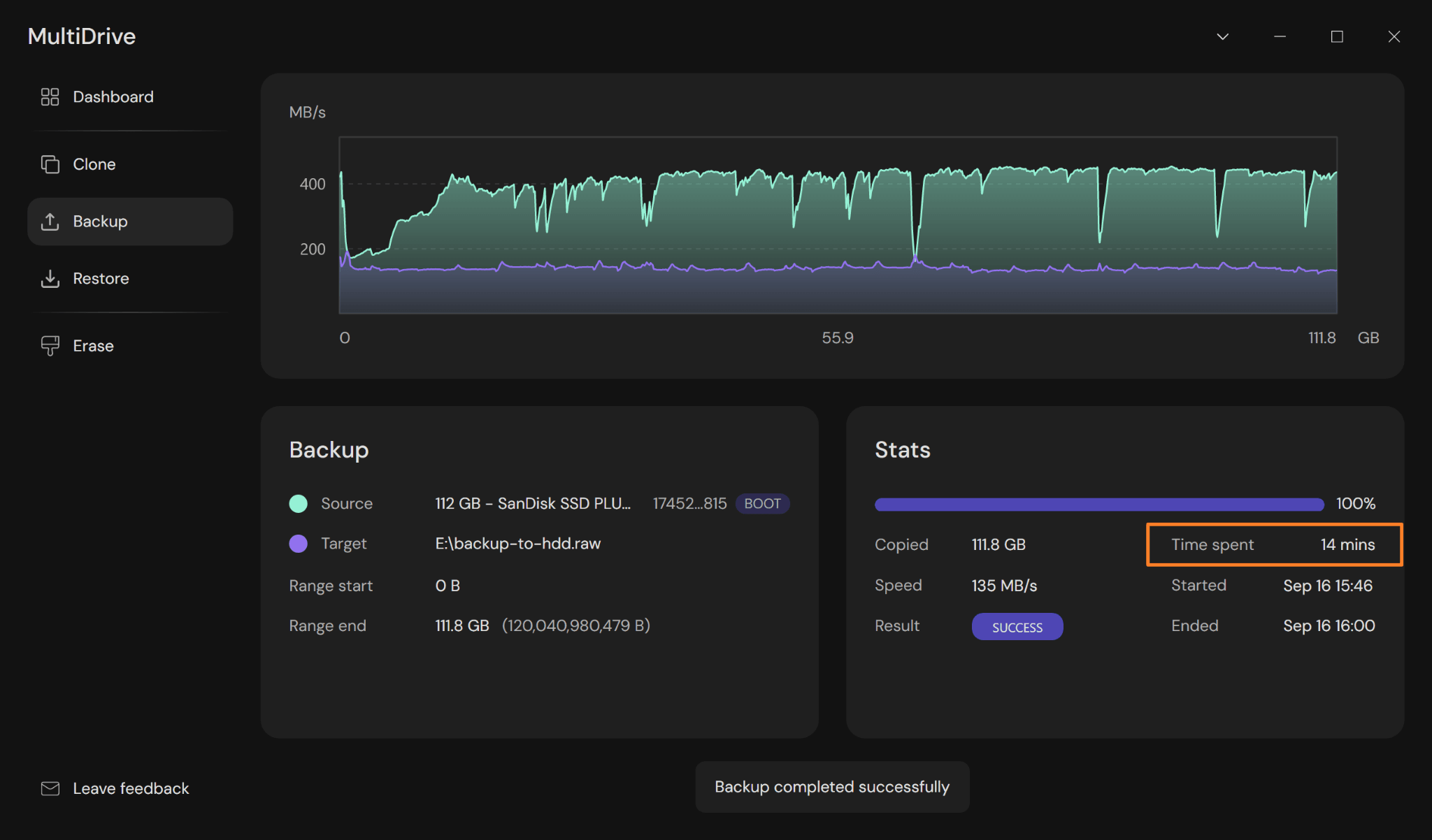
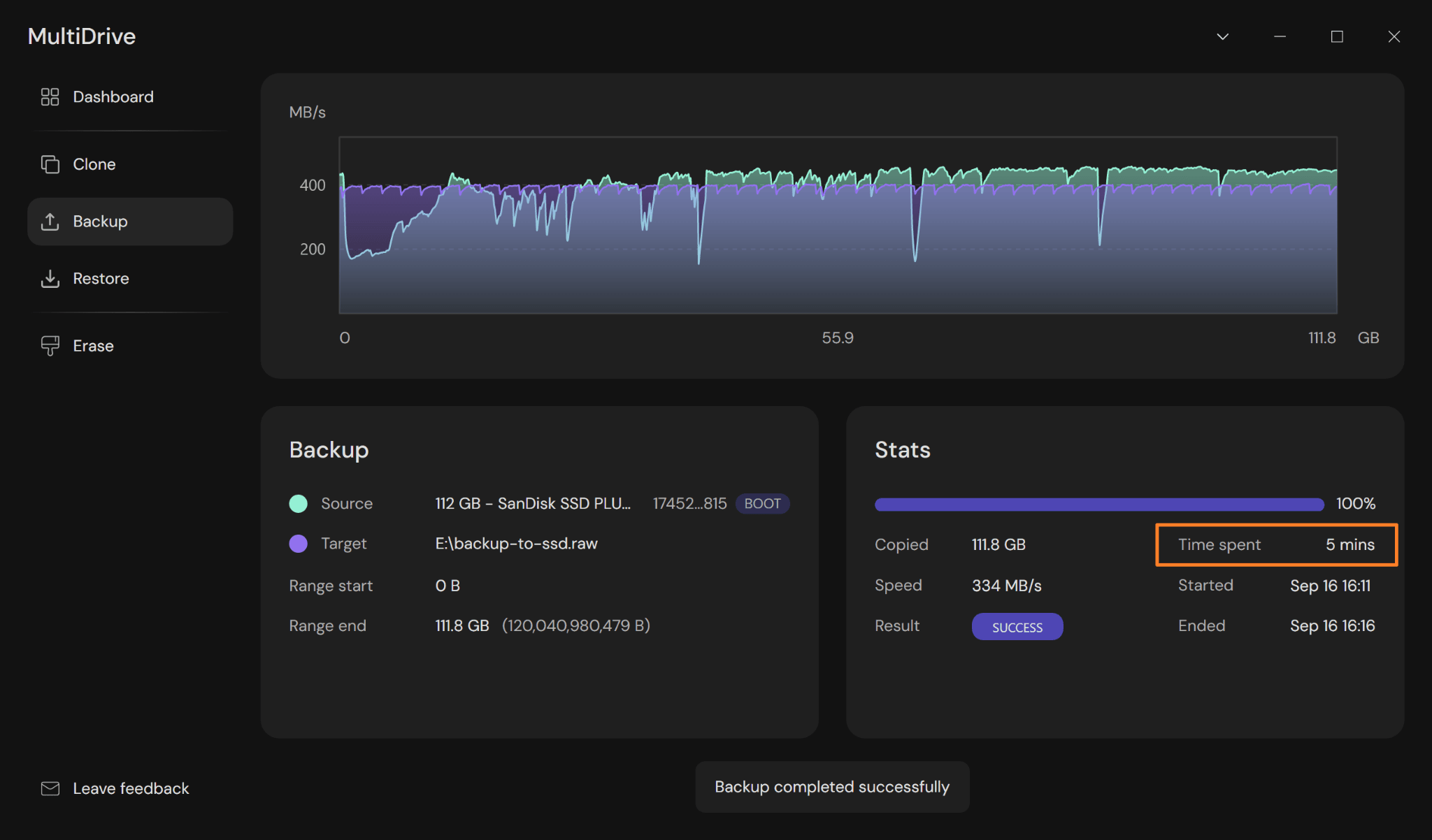
An HDD is much slower than an SSD. To demonstrate this, let’s back up the same 120 GB solid-state drive using MultiDrive, a free backup utility, to both an HDD and an SSD. The source is the same, the USB 3.0 port used to connect the external drive is the same, the backup software is the same. And we’ll use the same uncompressed backup format - RAW. Only the target drives are different.
Our target HDD to store a backup is a Toshiba 1TB USB 3.0 external 2.5" hard disk drive (MQ04UBF100). With this drive, it took 14 minutes to complete the backup task.
Now let’s try an SSD. Our target SSD to store a backup of the same 120 GB drive is the Kingston 2TB XS1000 Portable USB 3.2 Gen 2 solid-state drive. With the SSD, it took only 5 minutes to back up our drive, which is nearly three times as fast as the HDD.
The bottom line:
- If time matters and you want backups created and restored as fast as possible, choose an SSD.
- If time does not matter much and you can schedule backups for nighttime or low-activity hours, choose an HDD.
Unpowered shelf life
Remember that backup drives should not sit unpowered forever. Power up an SSD every 2-3 months so the charge in its flash cells can be refreshed. Power up an HDD at least once a year to redistribute lubricants and let the drive run its own data-correction routines. To be precise: Joint Electron Device Engineering Council (JEDEC), in specification JESD218, states that consumer SSDs must retain data for at least 1 year unpowered at 30°C, and for enterprise-class drives it’s 3 months at 40°C.
The reasons behind these recommendations for SSDs and HDDs are different:
- SSDs store data as an electrical charge in NAND flash cells, and without power that charge can slowly diminish, causing data corruption.
- HDDs have moving parts that require lubricants, and those can thicken over time without use. Additionally, if a drive stays unpowered for a long period of time, bits of data on its magnetic platters can lose their orientation, turning 0s to 1s and vice versa. To prevent this so-called “bit rot”, drives have built-in algorithms, but the drive needs to be powered on to run those corrections.
Drop resistance and portability
Will your backup drive live in your bag or backpack as you move across the city or between countries? A smaller and lighter SSD with no moving parts is the best choice for you. That means less weight to carry and more resistance to occasional bumps and drops.
Will the drive sit on your desk or on a shelf? Then its size and weight will not matter much, and you can opt for an HDD, as hard disk drives typically take up more space and are heavier than SSDs. Additionally, the mechanical parts of an HDD really do not like it when the drive is dropped or shaken.
Noise and vibration
HDD noise may be subtle, but it is noticeable.
An HDD has an actual mechanical motor to spin its platters and move drive heads. And when it spins, it produces some vibration and noise. The constant buzzing of an HDD, reading and writing data on a hard tabletop in a quiet room, can be quite distracting and even irritating.
An SSD has no motors, platters, or heads: nothing moves, and nothing makes noise.
If noise and vibration bother you, choose a quiet SSD over a noisy HDD.
When you need both SSD and HDD
Even the best drive models from the best manufacturers can occasionally fail. Therefore, it is wise not to rely on only one backup copy.
It is better to be safe than sorry: use an SSD for quick everyday backups and an HDD for long-term archival and offsite copies.
Keep one backup copy with you on a lightweight and small SSD and another on an HDD on your desk at home or in the office.
That kind of peace of mind comes at a cost: you need to pay extra for another backup drive, and you need to manage one more backup storage location.
Author