Secure Erase vs Overwrite vs Format: The Difference
Quick answer
- Format clears the list of your files, not the files. Free recovery tools bring them back.
- On a hard drive, overwrite writes over every sector, and the data is gone. On an SSD, some of it can remain. You can check the result in a hex editor.
- On a SATA SSD, Secure Erase is a command the drive runs on itself. NVMe drives use Format NVM or Sanitize. These reach places overwriting can't, and meet the Purge level in NIST 800-88.
- Keeping the drive? Format. Selling it? Overwrite. SSD or decommissioning? Secure Erase.
You're selling an old laptop and want to wipe the hard drive before selling it. Or perhaps you've just bought a cheap disk on eBay and are worried about malware. Either way, you'll run into three options: format the drive, overwrite it, or run a secure erase. They sound like three words for the same thing, but they aren't. That is why many "wiped" drives end up with their previous owner's files still on them, perfectly readable.
This guide explains what each method actually does to the data, where each one fails, and how to choose the one that suits you best.
One reference point worth having up front: NIST SP 800-88 is the US government standard for media sanitization. It sorts methods into three levels. Clear protects against software recovery, Purge protects against laboratory recovery, and Destroy means physical destruction. Formatting doesn't reach any of them. Overwriting is Clear. Secure Erase is Purge.
Table of Contents
- What does disk formatting do?
- What Does Overwriting Mean?
- SSDs Change the Math
- What is Secure Erase
- Feature Comparison Table
- How MultiDrive Erases Drives
- Practical Check: Erase a Drive and Verify It
- Frequently Asked Questions
What does disk formatting do?
How it works
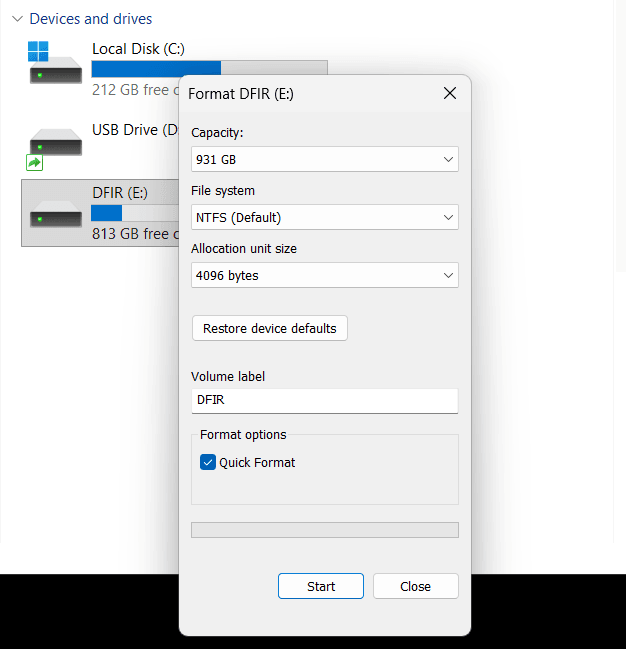
A quick format writes a fresh file system over the old one. It takes seconds because it touches a few megabytes of metadata and nothing else. Windows reports the drive as empty because, as far as the index is concerned, it is. The file data sits untouched in the same sectors until something writes over it. Any file carver, and most free recovery tools, will pull it straight back.
A full format is a different story. Since Windows Vista, unchecking "Quick Format" writes zeros to every sector in the partition, which makes it a single-pass overwrite of that partition – but only that partition. Anything outside it stays.
Advantages
- Instant on any drive size
- Built into Windows, no extra software
- Prepares a drive for immediate reuse
Limitations
- A quick format removes nothing; the data is easily recoverable
- A full format covers the partition only, not the whole drive
- No coverage of unallocated space or leftover partitions
- No verification, no completion report
Common Use Cases
Disk formatting is the right tool when the drive stays with you: switching file systems, fixing a corrupted volume, or clearing a drive that never held anything sensitive. It is not a disposal method.
What Does Overwriting Mean?
How it works
Overwriting (also called filling) writes a byte pattern over every addressable sector of the drive: binary zeros, random bytes, or a custom pattern. Used space, free space, traces of deleted files, and the gaps between partitions all get replaced.
This is the method behind most "hard drive wipe" tools, and it's the one you can actually verify: read the drive back and check that every sector holds the pattern you wrote.
Advantages
- Clears deleted files and free space, not just what you can see
- Works on any drive, through any connection
- You can check the result yourself afterwards
- You know roughly how long it will take
Limitations
- Slow on large HDDs – hours, not minutes
- Can't reach sectors the drive has quietly retired
- Can't reach an SSD's reserved blocks
Common Use Cases
Overwriting is the default for drives leaving your control: resale, donation, recycling.
SSDs Change the Math
On a hard drive, a write to a sector replaces that sector. Solid-state drives don't work that way.
An SSD stores data in memory cells grouped into pages and blocks, and the controller decides which physical cells any given sector lives in. Your files aren't in one place – they're spread across the memory and moved around as the drive sees fit. The controller also holds back a reserved pool of blocks, the over-provisioning zone, that the host can't address at all. Wear leveling uses that pool to spread writes evenly, so no block wears out ahead of the others and write performance stays high.
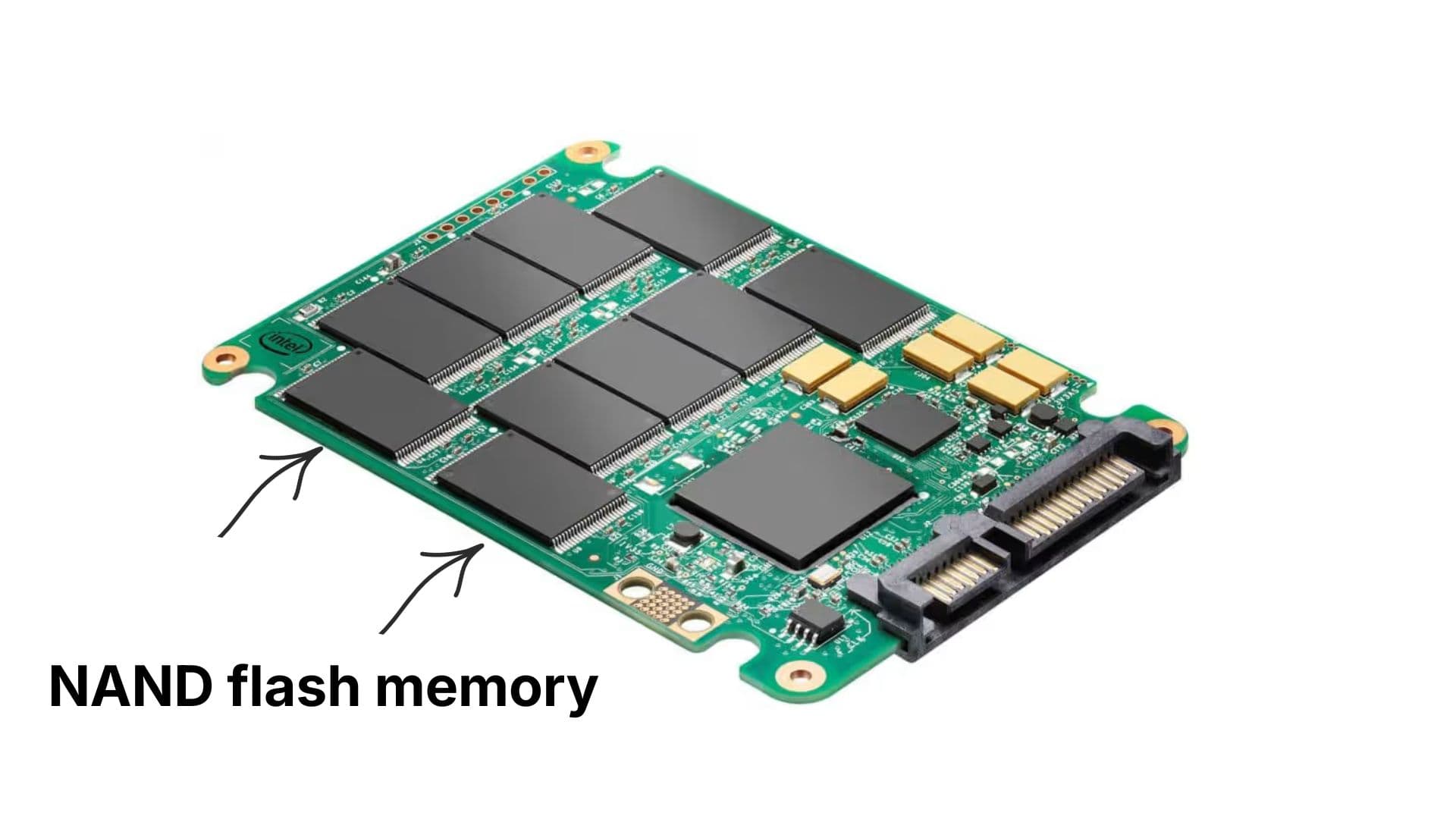
That design has a direct consequence for erasure. When you write zeros to an SSD, the drive doesn't overwrite the cell where the old data sat. It writes to a new block and marks the old one for garbage collection. Your data is still there, in cells the host can no longer address, until the controller gets around to clearing them – and how long that takes is up to the firmware.
When you overwrite an SSD, most of the data is erased, but some of it is left behind. This gap is closed by a command the drive runs on itself.
What is Secure Erase
How it works
Secure Erase is a command you send to the SATA SSD drive, not an operation you perform on it. The drive's own firmware does the work internally. On an SSD it erases all addressable sectors, hidden areas (if HPA/AMA is enabled), and the over-provisioning zone.
Like SATA SSDs, NVMe drives use over-provisioning, leaving some memory blocks unaddressable and potentially capable of retaining data. Simply overwriting accessible sectors may therefore not remove all data. To ensure thorough and reliable data sanitization, use the NVMe commands defined by the NVM Express Work Group, such as 'Format NVM' and 'Sanitize'.
Format NVM – uses the SSD controller's internal wiping algorithm. Some drives support the Cryptographic Erase parameter. With it, all user data on the NVMe drive is erased through deletion of the encryption key.
- Sanitize – there are three options:
- Block Erase – uses a low-level block erase method specific to the media.
- Crypto Erase – changes the media encryption keys.
- Overwrite – writes a fixed data pattern.
Not every controller implements all three. Check what the drive reports before assuming a mode is available.
SAS SSDs are treated in the same way, but using a different set of instructions. The SCSI command set has its own Sanitize, which has the same three options as the NVMe version – Block Erase, Crypto Erase, and Overwrite. So, wiping a SAS SSD is no more difficult than wiping an NVMe SSD, as long as your controller passes the command through rather than swallowing it.
Advantages
- Reaches remapped sectors, spare blocks, and over-provisioned NAND
- Near-instant on SSDs that support crypto erase
- Restores SSD write performance by returning all blocks to a clean state
- Meets the "Purge" bar in NIST 800-88
Limitations
- USB bridges. External USB adapters and enclosures often do not support ATA security commands. The drive may need to be connected directly to the system.
- Firmware reliability. A drive may report that the erase is complete even if the process was not performed correctly.
- Power interruption. If the power is lost during the erase process, the drive may become locked or unusable.
- Limited support. Secure Erase is not supported by all drives, adapters, and RAID controllers.
Common Use Cases
Secure Erase, Format NVM, or Sanitize are the choices for SSD and NVMe decommissioning, for large-scale disposal where per-drive time matters, and for compliance programs that require a Purge-level method with a certificate.
Feature Comparison Table
| Feature | Format (quick) | Overwrite | Secure Erase |
|---|---|---|---|
| What it changes | File system metadata only | Every addressable sector | The whole media, including hidden and reserved areas |
| Data recoverable afterwards | Yes, with basic tools | No on a hard drive; partly on an SSD | No |
| Clears free space and deleted-file traces | No | Yes | Yes |
| Reaches retired and reserved sectors | No | No | Yes |
| Works through USB adapters | Yes | Yes | Often blocked |
| Independently verifiable | Not applicable | Yes – read the pattern back | Only partly; you trust the firmware |
| Risk of leaving the drive unusable | None | None | Real – password lockout, interrupted erase |
| NIST SP 800-88 category | Not sanitization | Clear | Purge |
| Best for | Reusing a drive you keep | Drives leaving your control | SSDs, decommissioning, compliance |
How MultiDrive Erases Drives
MultiDrive overwrites every bit of the device's space with a default pattern of 00 or a custom byte pattern you specify. Files, folders, hidden items, deleted items, and free space all go. The workflow is simple and consists of three steps:
- Select Erase from the left menu.
- Select your drive, and check the selection twice. Everything on it will be gone.
- Click Erase.
Partial drive erase
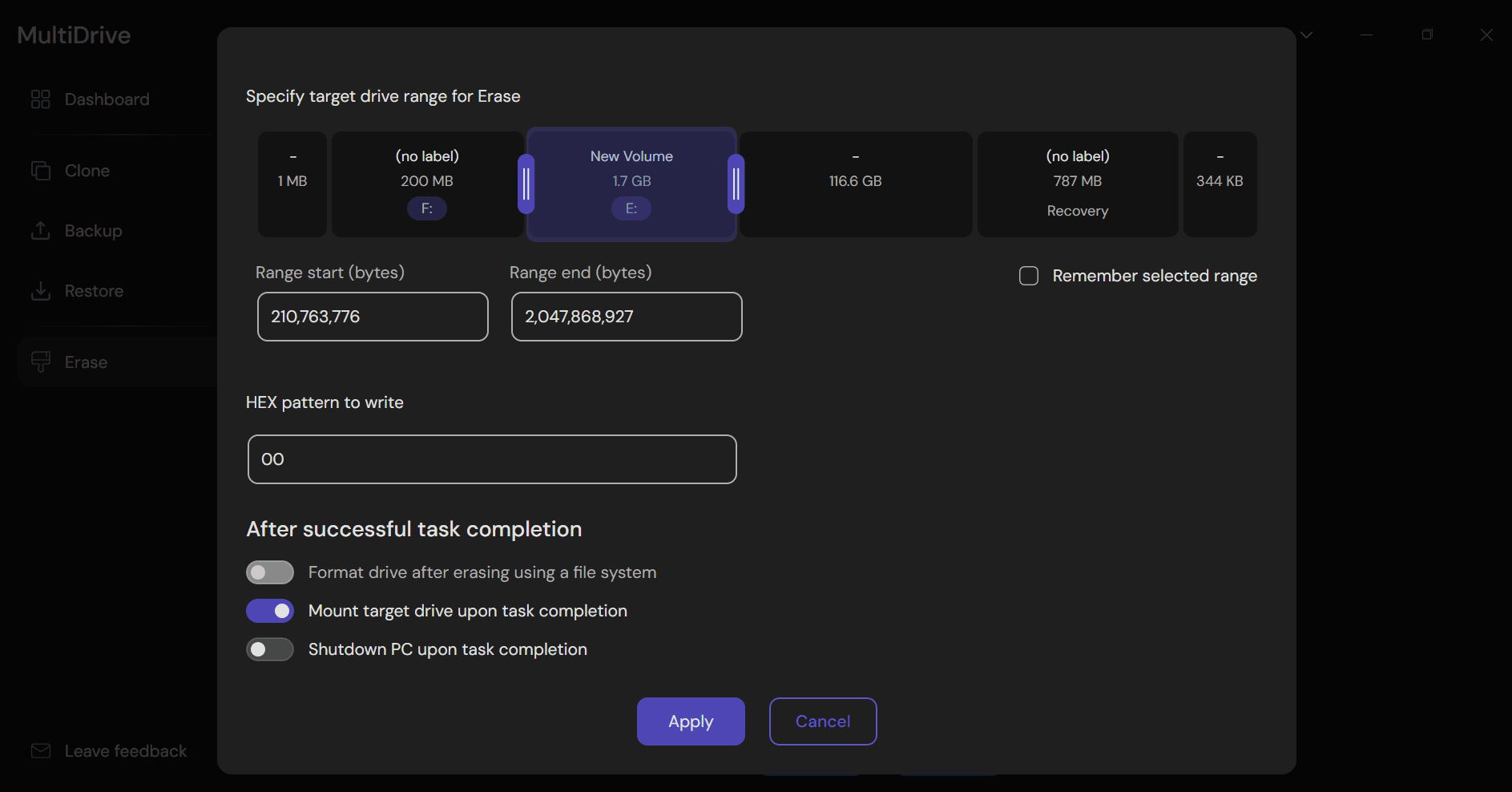
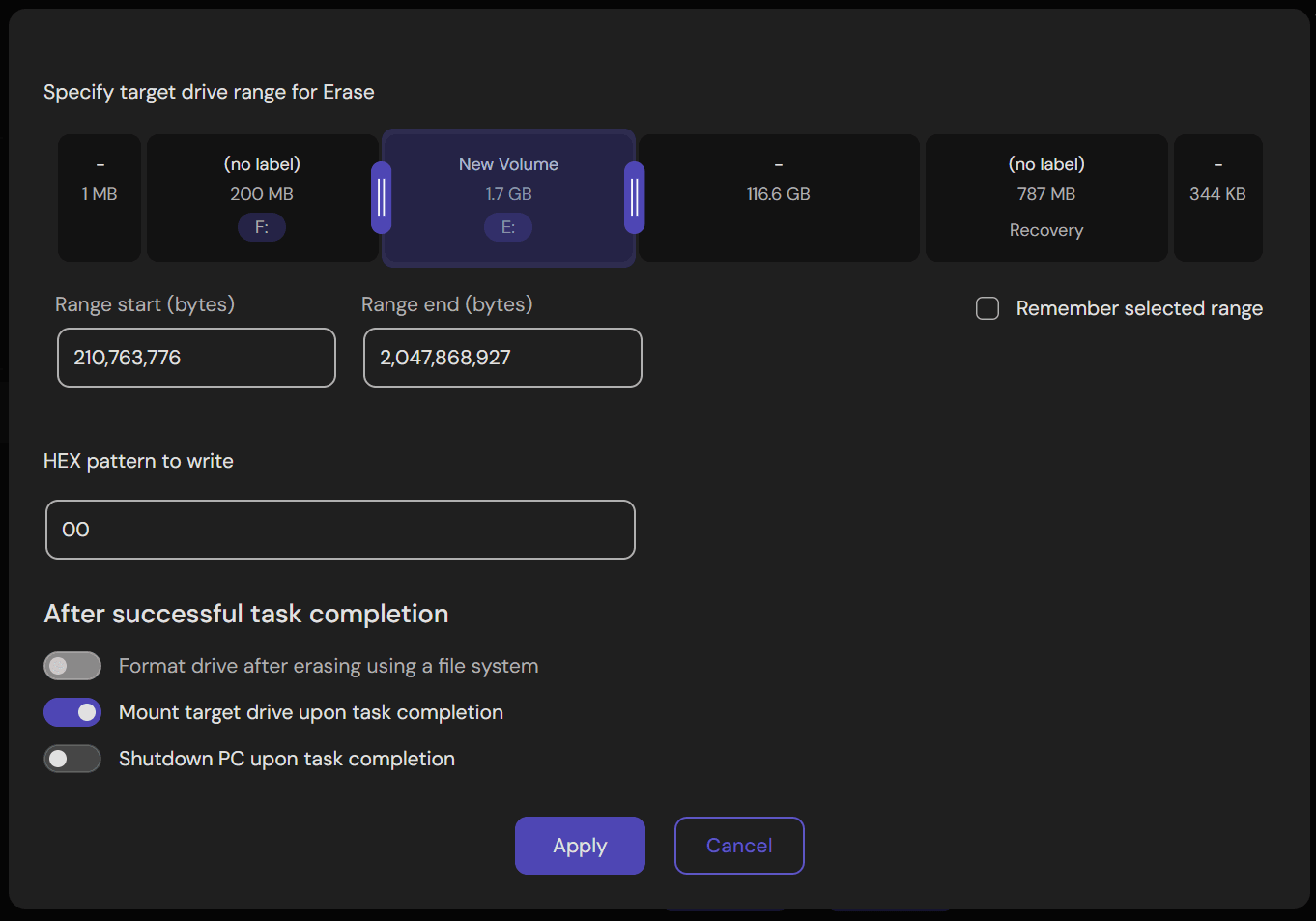
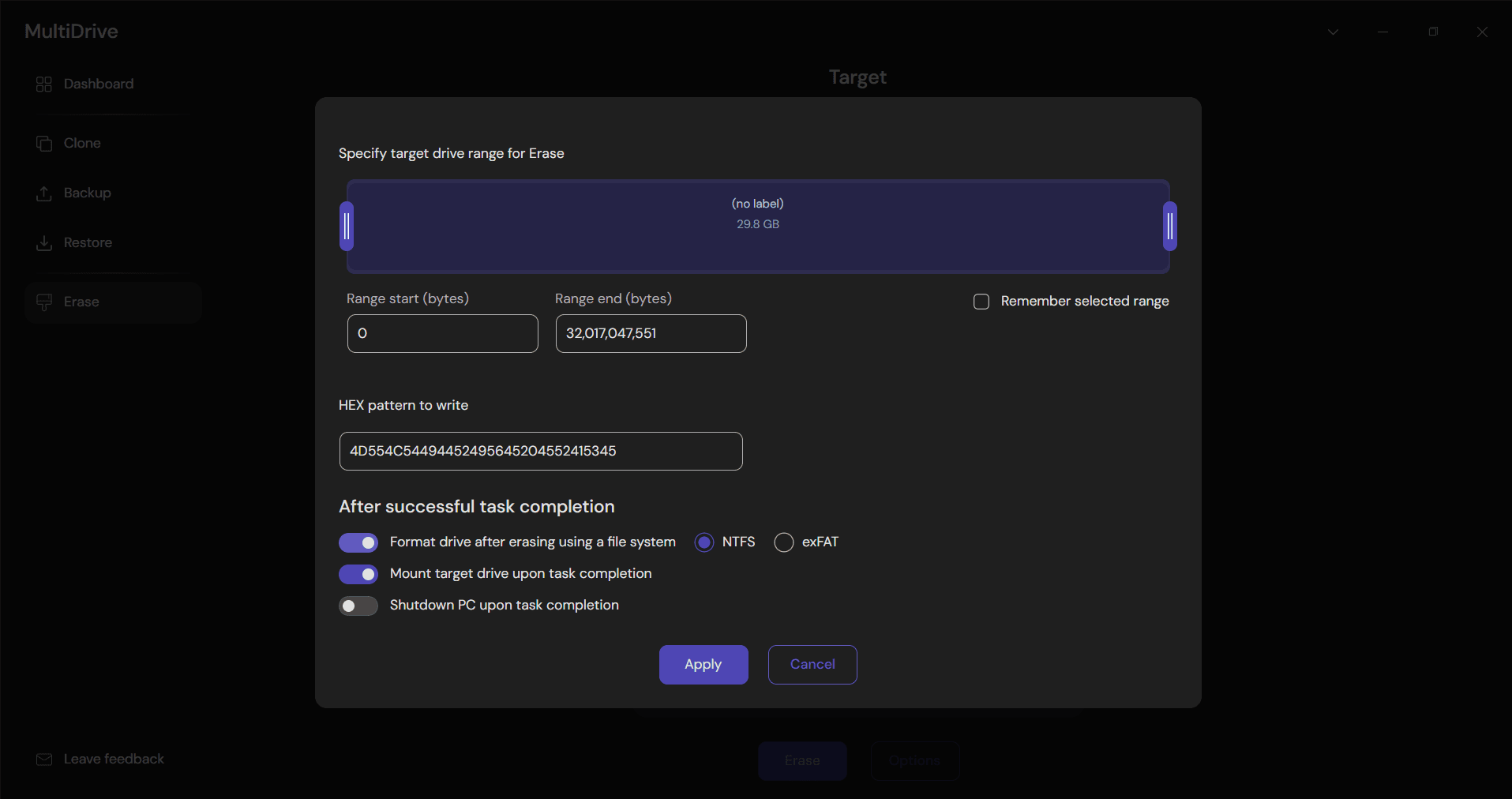
You don't always need the whole drive. On the Erase screen, click Options, pick a partition or a sector range, and click Apply. This is available through the CLI as well.
Several drives at once
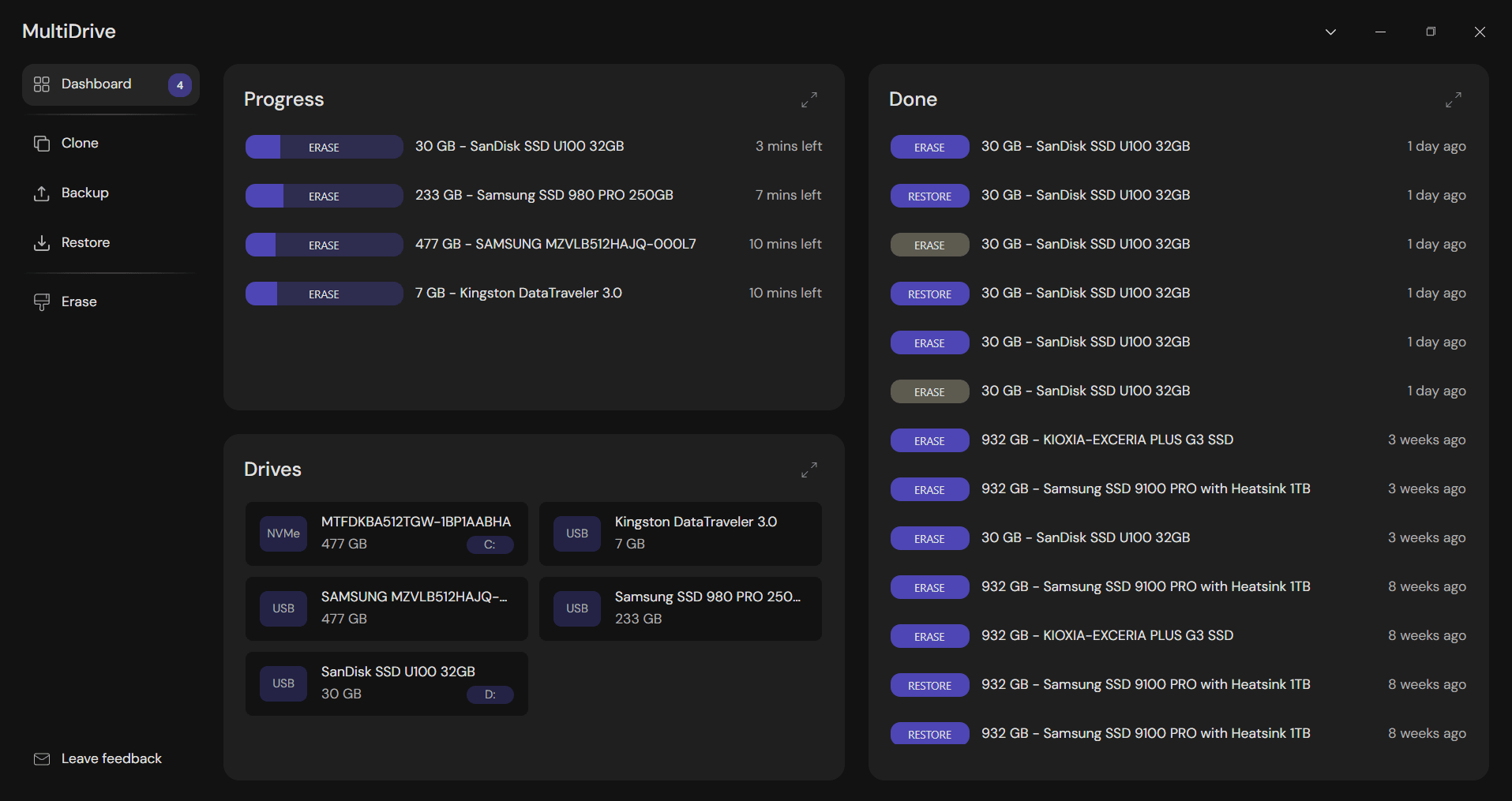
Erase drives in parallel, each with its own progress and status on the Dashboard. Parallel sessions can also be launched from the MultiDrive CLI. Bear in mind that drives sharing a hub or controller will share its bandwidth, so parallel runs are about total throughput, not per-drive speed. Press Pause to stop a wipe and pick it up later from the exact same position. Useful when a 12-hour HDD run collides with going home after work.
Safeguards
- MultiDrive won't erase the boot drive Windows is running from. To wipe a system disk, boot from USB.
- If the selected device contains data, you have to type YES manually to confirm.
- Right-click a drive on the Erase screen and choose Restrict for selection to lock it out of accidental selection entirely.
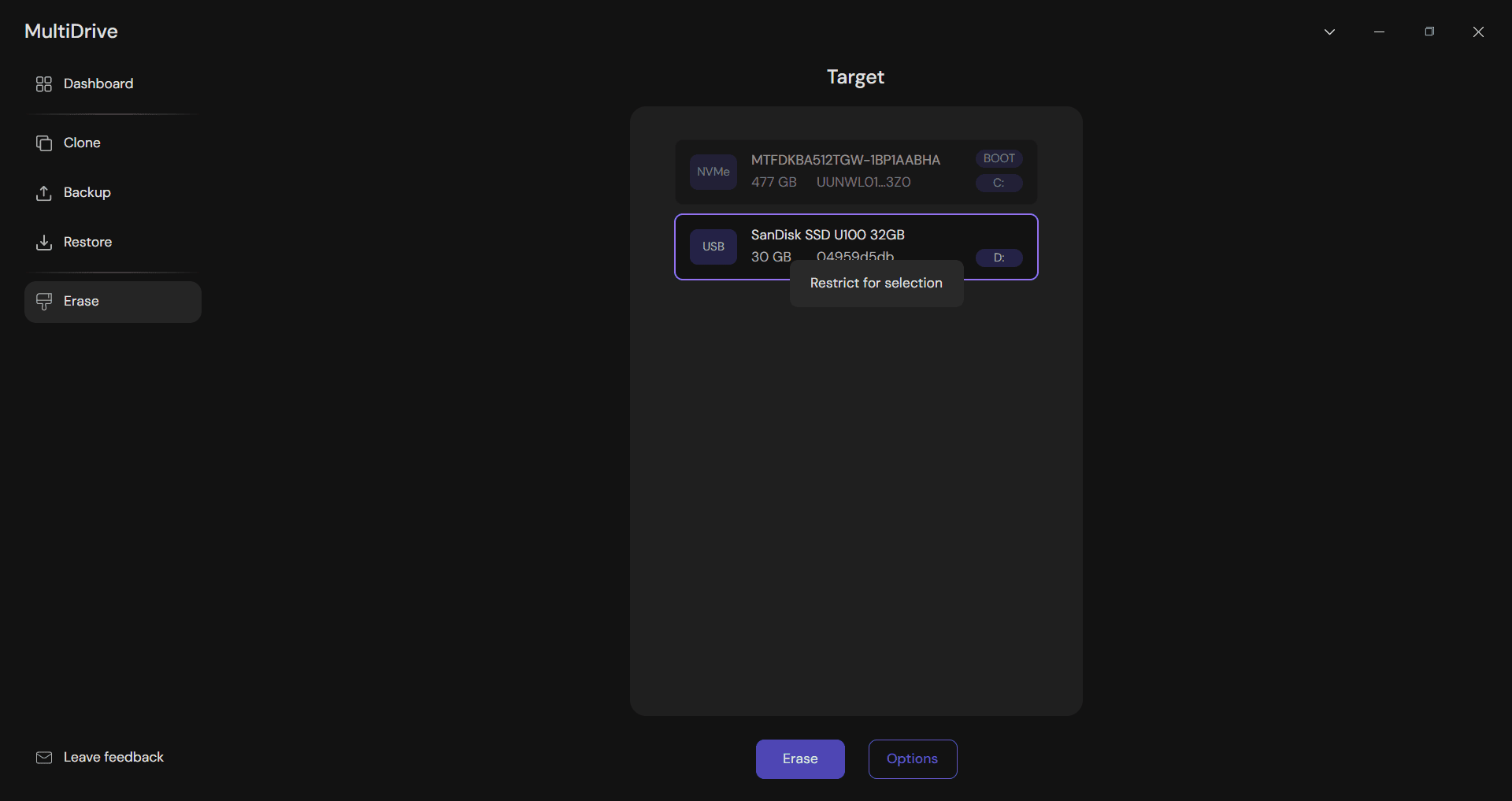
If you deal with a lot of drives at work, the CLI is where you'll live. MultiDrive's PowerShell guide has a ready-made script: it lists every drive, skips the boot disk, wipes the rest in parallel, and tells you which ones finished. You can wipe drives in parallel without confirming each one by typing YES. That step exists for safety in the app, and in the CLI you can skip confirmation.
What MultiDrive does and doesn't cover
MultiDrive doesn't implement Secure Erase, Format NVM or Sanitize yet.
It's a pattern overwrite tool, which covers the addressable space of the drive. Within that scope you have three options:
- One full pass of zeros – sufficient for modern HDD in most reuse and disposal scenarios.
- One full pass of a fixed or custom byte pattern – the same thing from a data-removal point of view, with the advantage that you can spot it in a hex dump afterwards.
- Multiple passes – usually unnecessary on modern drives, but some organizations require them by internal policy or compliance standard. A DoD-style 3-pass wipe isn't a preset in the interface but you script it from the CLI, running the erase three times with different patterns.
For most disposal and reuse scenarios that's the right level. For regulated decommissioning that specifically requires a Purge-level command, you'll need a tool that issues the firmware command directly.
Practical Check: Erase a Drive and Verify It
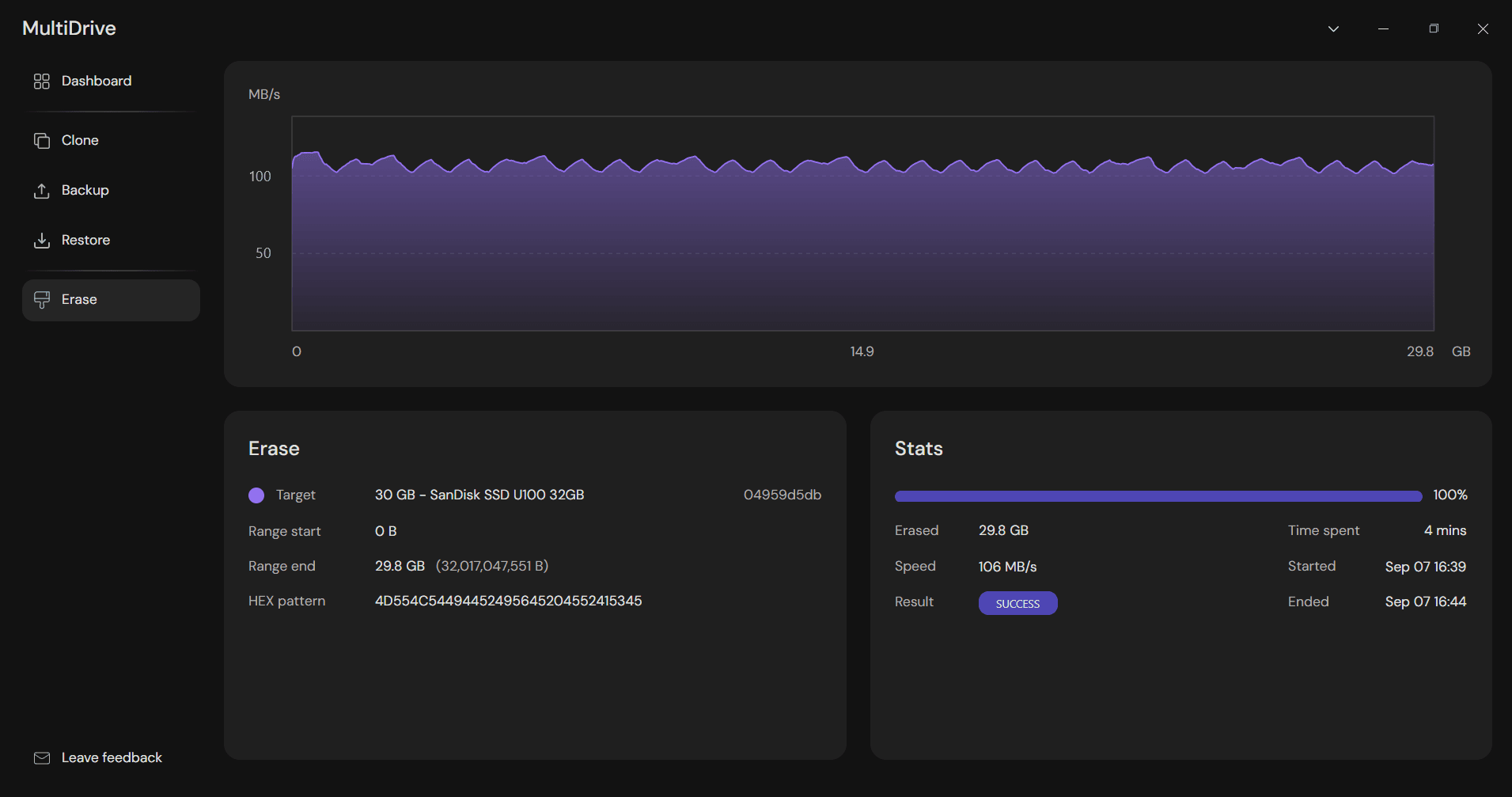
To show how this works in practice, we took an old SanDisk USB 3.0 flash drive, 32 GB, wiped it with MultiDrive using a pattern, opened it in HxD, and checked what we had written.
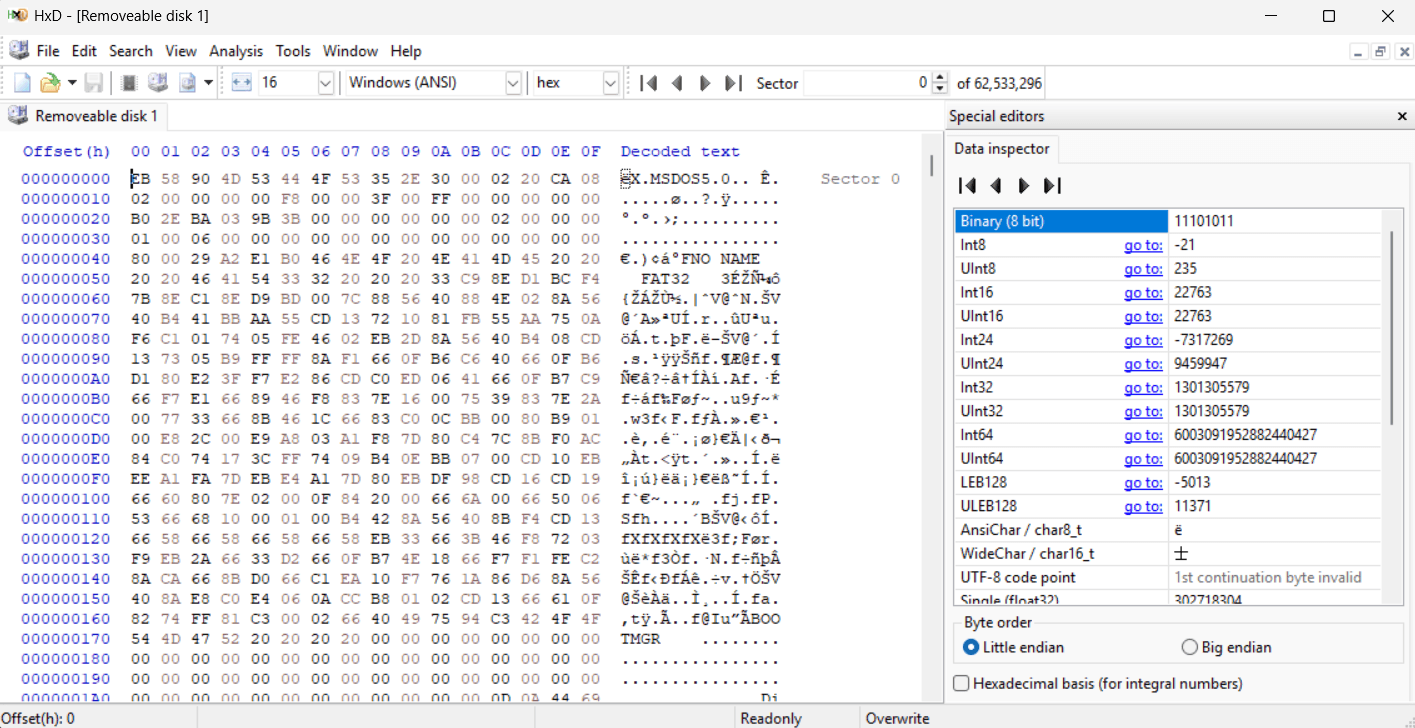
Our drive still held videos and documents. Before touching it, we opened it in HxD. It’s a free HEX-editor.
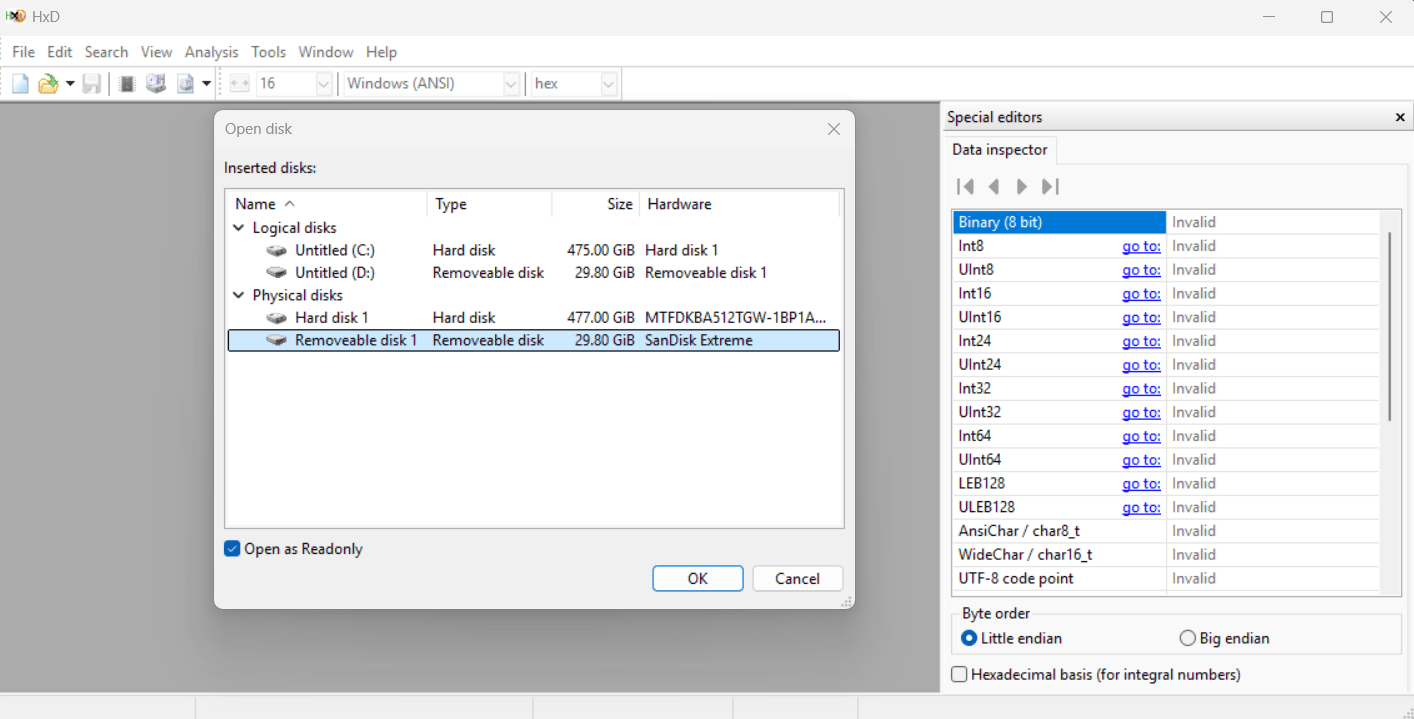
To open the drive, run HxD as Administrator, then go to Tools → Open disk → Physical disks, read-only and look at the raw sectors.
File names, file system structures, readable fragments of documents – all sitting there.
Let’s Erase it. In MultiDrive, we selected the drive, chose a custom hex pattern instead of the default zeros, and entered:
4D554C54494452495645204552415345
Those sixteen bytes spell MULTIDRIVE ERASE. Zeros would have worked, but they're ambiguous – a drive can return zeros from areas nothing ever wrote to, and in a hex dump you can't tell "erased" from "never used." A text pattern removes the doubt. Sixteen bytes also divides 512 evenly, so the phrase lands cleanly at the start of every sector instead of wrapping across boundaries.
Runtime: 4 minutes.
The verification. We reopened the drive in HxD, and checked the first sector, the middle, and the last one.
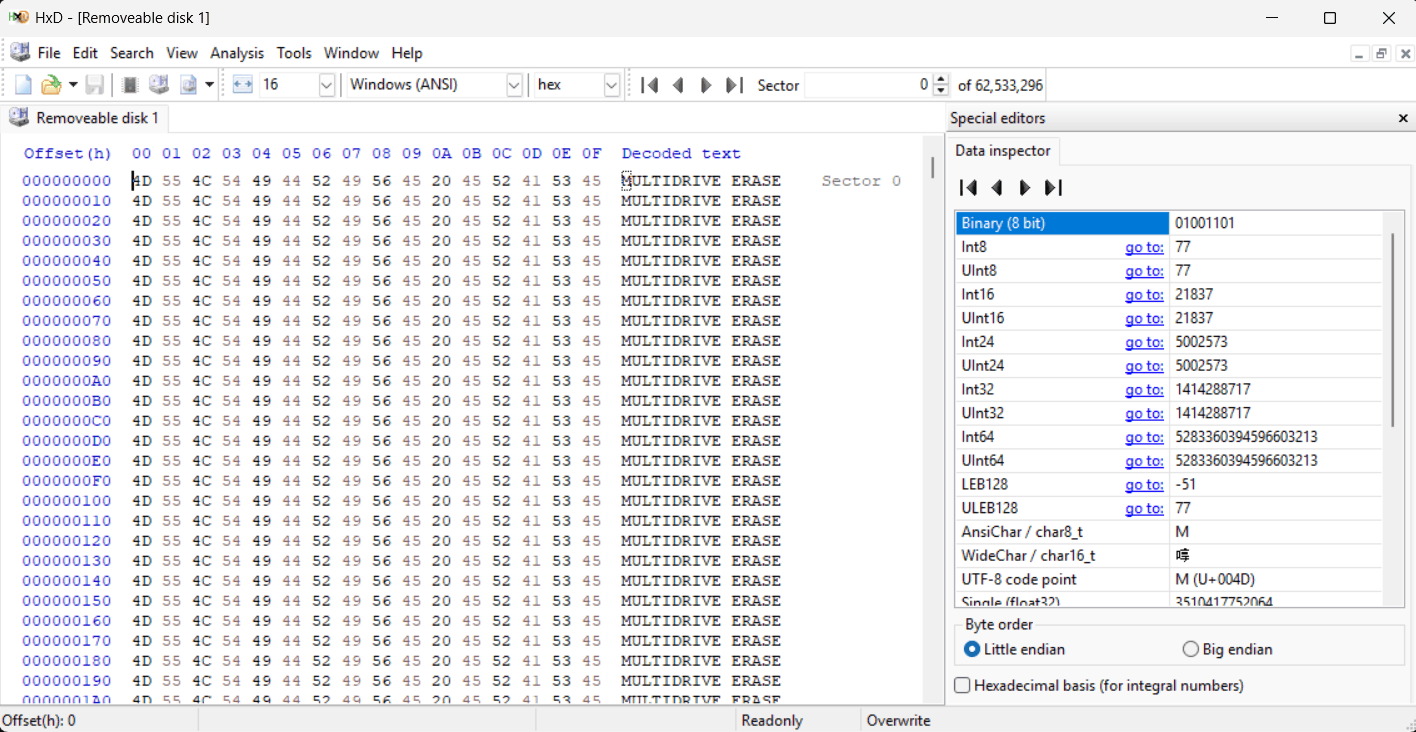
Every row reads the same: 4D 55 4C 54 49 44 52 49 56 45 20 45 52 41 53 45 on the left, MULTIDRIVE ERASE in the text column on the right. The partition table at sector 0 went with everything else, so Windows now reports the drive as uninitialized. That's expected, not a failure – reinitialize and format it if you want the drive back in use.
What this proves, and what it doesn't.
It proves MultiDrive reached every addressable sector on the device, start to finish, and that the verification came from a separate tool rather than MultiDrive reporting on itself.
It doesn't prove the NAND is empty. A flash drive has a controller and spare blocks, same as an SSD, so a small amount of old data can survive out of the host's reach. Getting to it means unsoldering the chips. For a drive you're selling, donating, or handing to someone else, this level of erasure is the right answer – and unlike a format, you can see that it happened.
MultiDrive as a free drive management tool
MultiDrive clones, backs up, and erases drives. Free for personal and commercial use on Windows 10 and Windows 11, with no ads or locked features. Wipe several drives at once and check them on the Dashboard. Every operation available in the GUI is also available through the command-line tool, mdcli.exe.
The command line makes unattended wiping possible. The -y flag lets you run a wipe without anyone at the keyboard. You can start it manually or schedule it using Windows Task Scheduler. The guide also includes a script for automatically wiping drives in parallel. Each mdcli erase command makes one pass using the HEX pattern you choose. If your company policy asks you to do several passes with different patterns, add several erase commands to your script.
You can clone drives and then wipe them. That's the usual sequence when hardware is being decommissioned.
Download MultiDrive – install it or run the portable version from a USB stick.
Frequently Asked Questions
Author