Free USB Clone Tool for Windows
Copying files from one USB stick to another works fine for documents and photos. But if the drive is bootable or has more than one partition, a plain copy may not be enough: the new stick might not boot, and hidden partitions don't carry over. That's because copying files and cloning a drive are two different processes.
This guide explains what a USB clone tool actually does and how to clone a USB flash drive, bootable USB or external drive on Windows 10 and 11.
Quick answer
- Cloning copies every sector. The target must be the same size or larger.
- Use MultiDrive, a free USB clone tool for Windows 10/11.
- Connect both drives, open MultiDrive.
- Click Clone, pick the source and target
- Click Start
Table of Contents
- Common use cases
- Before you start: target drive requirements
- How to clone a USB drive with MultiDrive
- Clone multiple USB drives at once
- Cloning a failing flash drive
- How to verify the clone
- What to do with the old drive
- Tips and troubleshooting
- Frequently Asked Questions
Common Use Cases
Clone a flash drive for a spare copy
You have a USB stick containing work files or a portable app setup that you hand out to colleagues, and you want an identical spare. Cloning creates a second stick that looks and behaves exactly the same, including the volume label and folder layout.
Cloning a failing flash drive
When a flash drive starts showing read errors or malfunctioning, clone it before the damage spreads. MultiDrive reads as many sectors as it can and writes them to the target, logging any errors along the way. Once the clone finishes, work with the copy instead of the failing original.
Cloning a bootable USB
Windows installers, rescue and recovery media, BIOS update sticks – these depend on a boot sector and a specific partition layout. Copy the files to another stick and it won't boot. Clone it and it will.
Cloning is also faster than rebuilding the drive from an ISO each time, and it keeps any changes you made after creating it, such as added drivers, tools, or a persistence partition.
Cloning an external drive
The same applies to external HDDs and SSDs connected over USB. Typical cases:
- Moving to a larger external drive without reinstalling Windows and files
- Replacing an aging external HDD with an SSD
- Making a full copy of a drive before repairing or reformatting it
External drives take longer to clone simply because there's more data – speed depends on the drives and the USB port (USB 3.x is several times faster than USB 2.0).
Before You Start: Target Drive Requirements
Capacity
The target drive must be equal to or larger than the source drive – not the used space, the full capacity. Cloning copies every sector, so a 32 GB stick holding 2 GB of files still needs a target of at least 32 GB.
Warning: Cloning erases everything on the target drive. Files, partitions, and the file system are replaced with the contents of the source. This cannot be undone.
Before you start:
- Back up anything you need from the target drive
- Double-check which drive is the source and which is the target – picking them the wrong way round overwrites your original
- Disconnect other USB drives you're not using, so there's less chance of picking the wrong one
Other things to check
- Close any programs using the source drive
- Use a direct USB port on the computer rather than a hub, for stable speed
- For laptops, plug into power – cloning a large external drive can take a while
How to Clone a USB Drive with MultiDrive
- Download and install MultiDrive. It’s free USB cloning software for Windows 10 and 11.
- Connect both drives. Plug in the source and the target. Select Clone.
- Pick the source. Choose the USB drive you want to clone. Check its model and capacity.
- Pick the target. It must be the same size or larger.
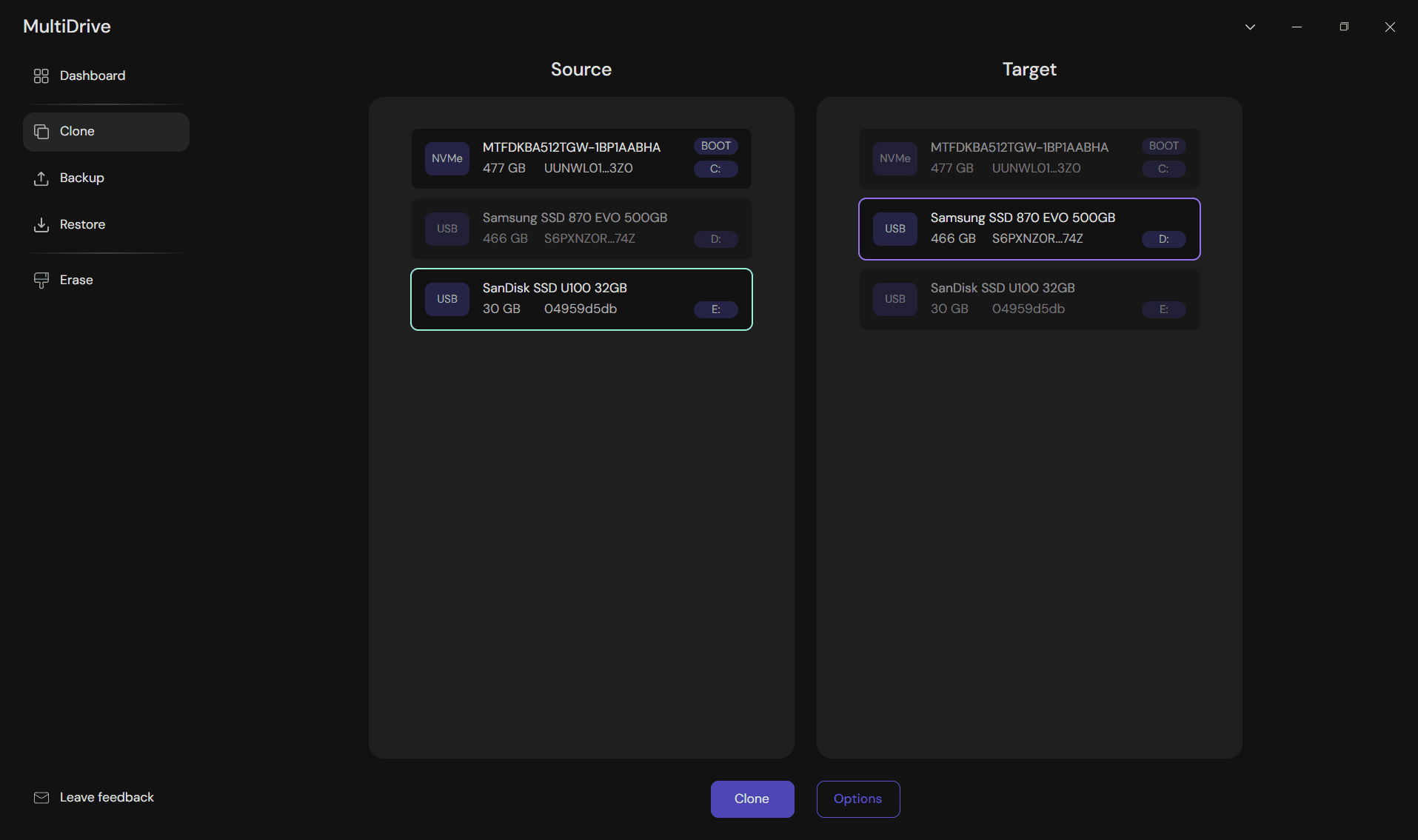
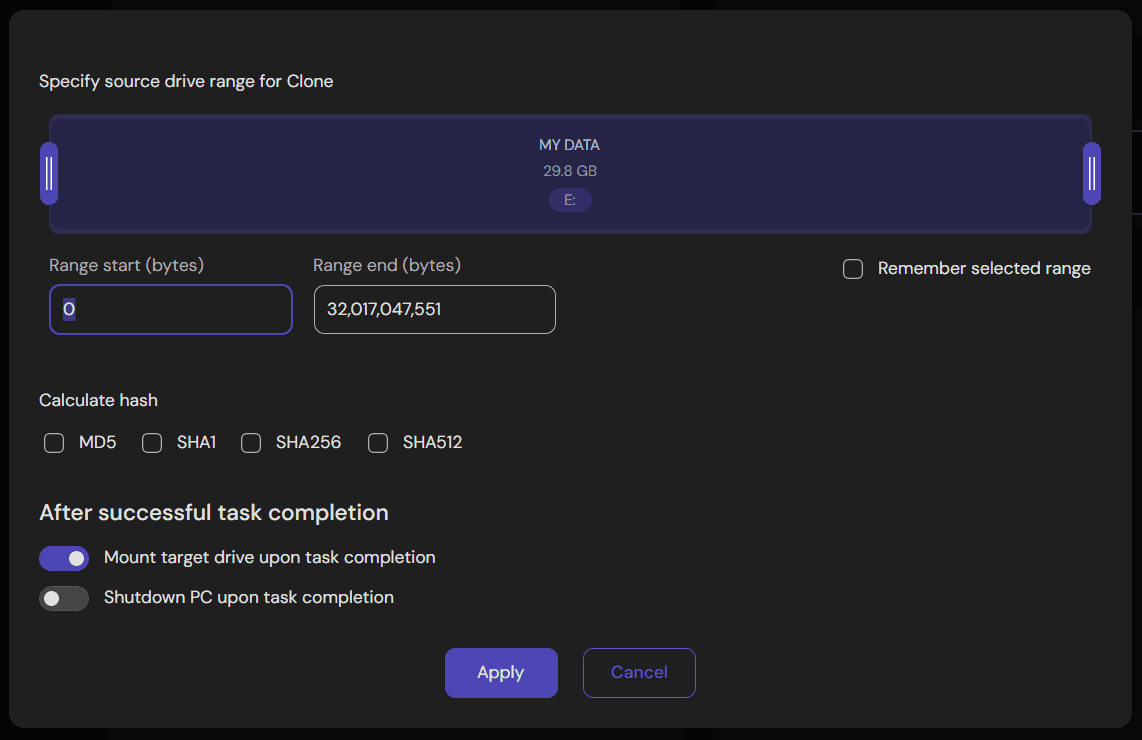
- Check the settings. MultiDrive clones the whole drive by default. You can also set a partial range, select a specific partition, or choose automatic shutdown after the task completion.
- Start. Confirm the warning that the target will be overwritten.
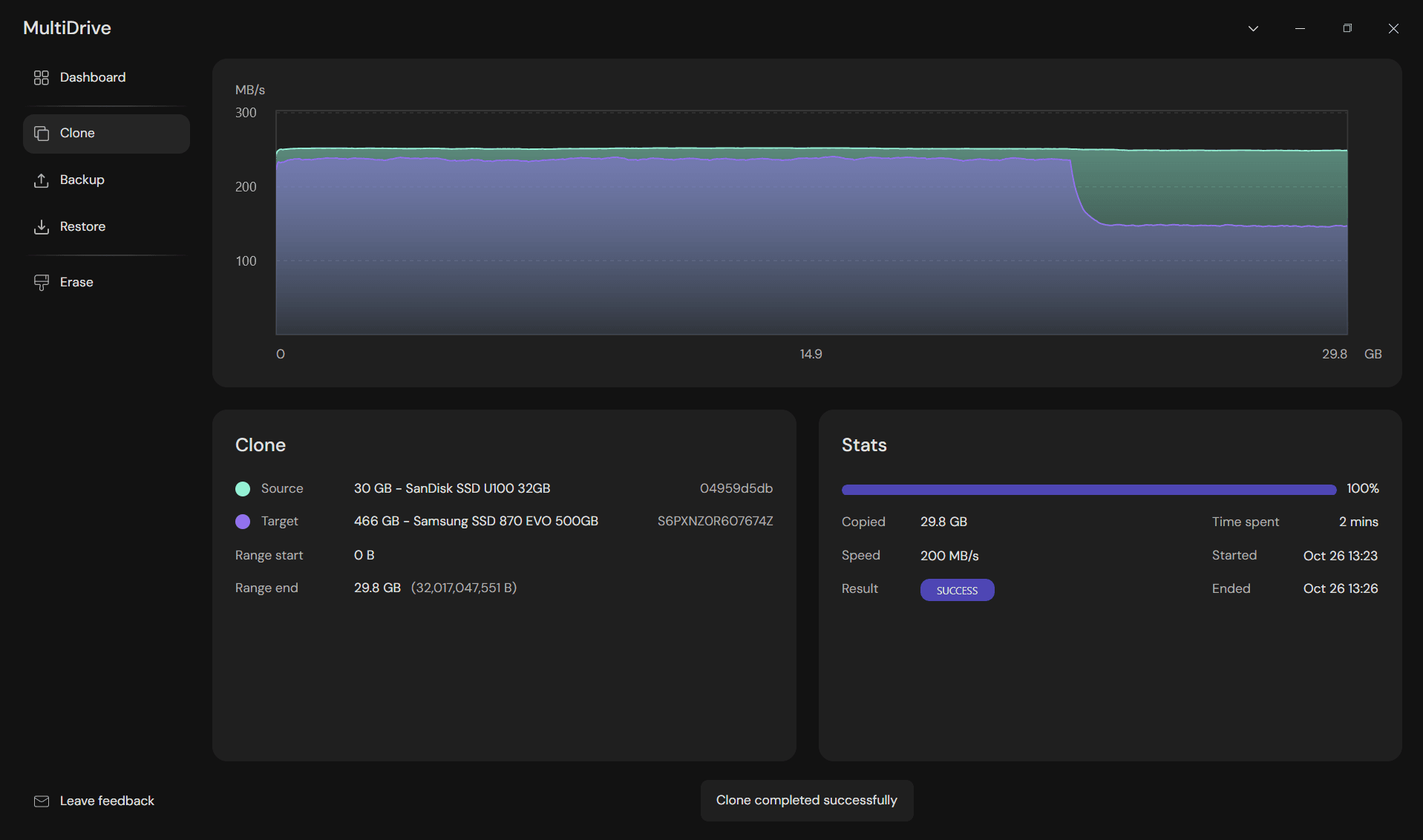
- Wait. The progress screen shows speed, time left, and read errors if the source drive has bad sectors. The graph shows the read speed of the source drive and the write speed of the target drive. A 32 GB USB 3.0 flash drive typically clones in under two minutes; larger external drives take longer.
Clone Multiple USB Drives at Once
To save time, MultiDrive can run multiple cloning sessions simultaneously. The Dashboard shows progress and status for every running and finished task.
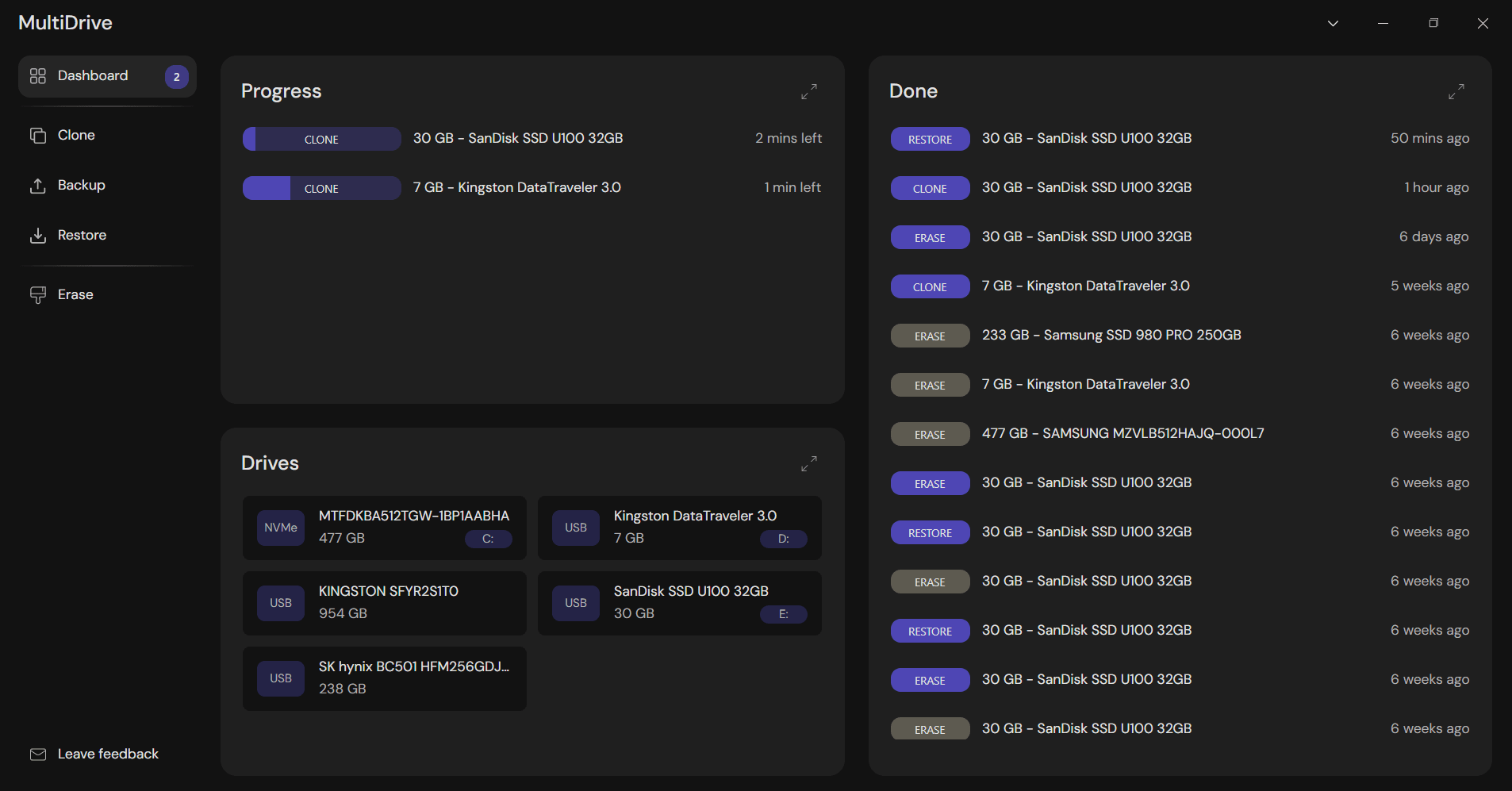
MultiDrive also has a command-line interface (CLI). Use it in a script to repeat the same job, or run several processes in parallel for a whole batch of drives.
How to Verify the Clone
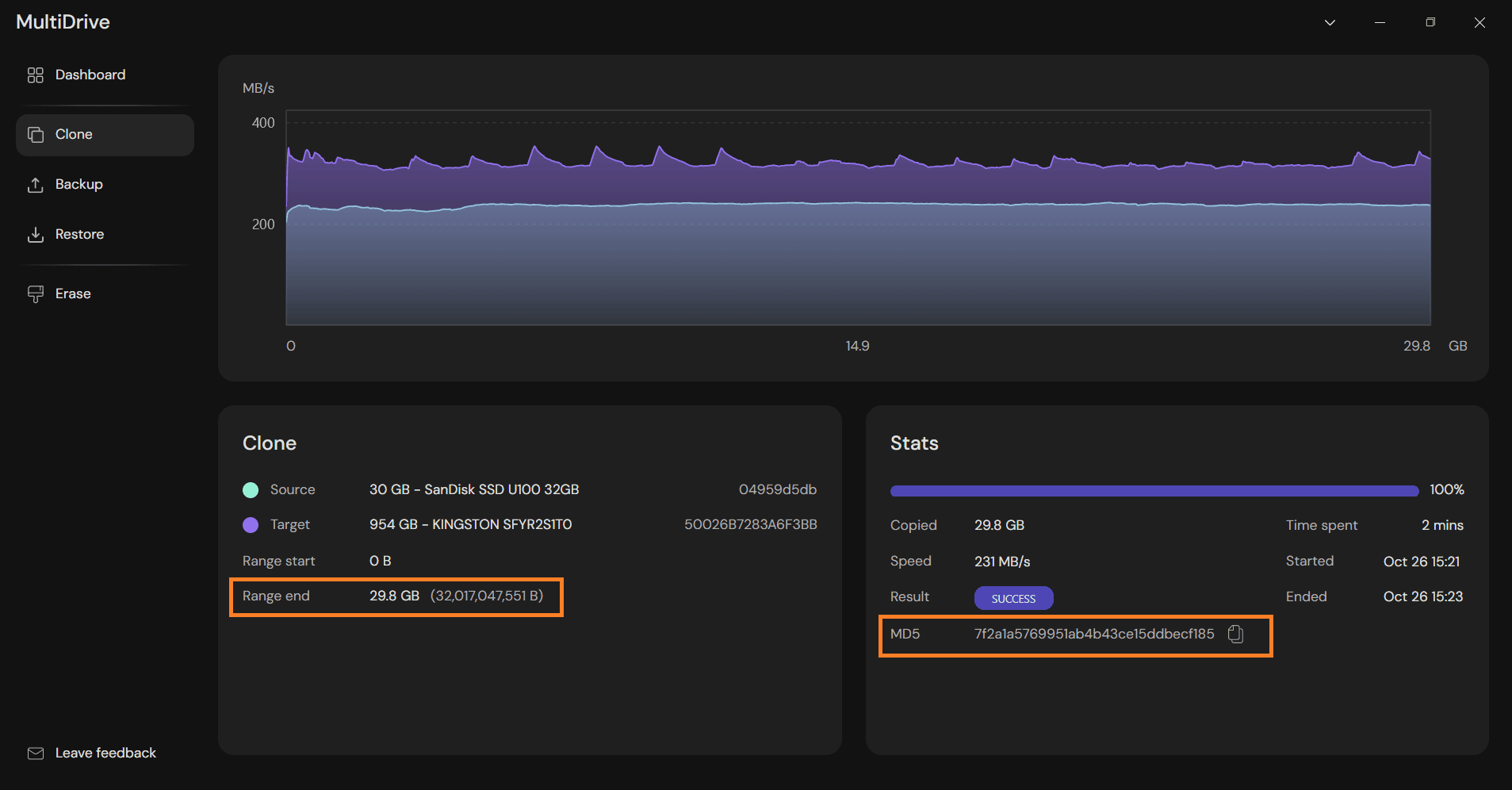
To check that your USB clone matches the original, you can compare both drives in Disk Management and browse the files on the copy. The reliable way to verify that the clone is identical to the original is to compare their hashes. A hash is a short code calculated from all the data on a drive. If even one byte differs, the hash changes. Even MD5 is sufficient here – you are checking data integrity, not guarding against deliberate tampering, so collision resistance is not a concern. When cloning finishes, copy the hash from the Stats panel. MultiDrive can calculate MD5, SHA1, SHA256, SHA512.
- Open the cloned drive in HxD, a free hex editor. Run it as an administrator and go to Tools → Open disk.
- Note the Range end value in MultiDrive’s Clone panel, for example 32,017,047,551 B. Check that the number format (dec or hex) matches what you enter.
- Select the range: Edit → Select block. Set start offset to 0 and end offset to the Range end value.
- Go to Analysis → Checksums and choose the same hashing algorithm as you selected in MultiDrive.
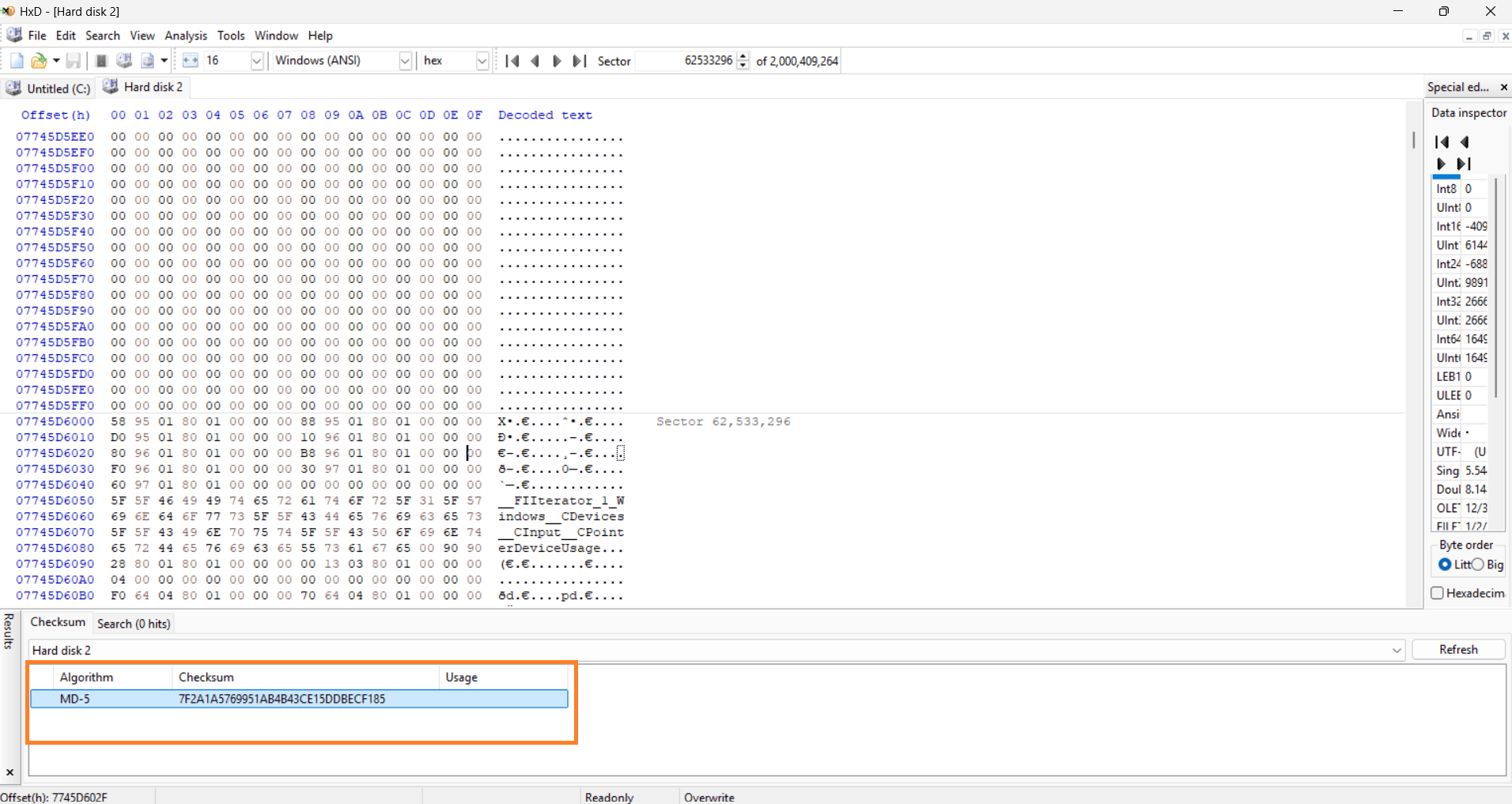
- Compare the two values. If they match, the clone is identical. Letter case doesn't matter.
The range matters. If the target is larger, hashing the whole drive includes the extra space, and the hashes won't match. If the source had bad sectors, the hashes won't match. That's expected – the unreadable sectors couldn't be copied.
What to Do with the Old Drive
Before you give away, sell, or throw out the old flash drive, erase it. Deleting files or a quick format doesn't remove the data, and recovery software can bring it back.
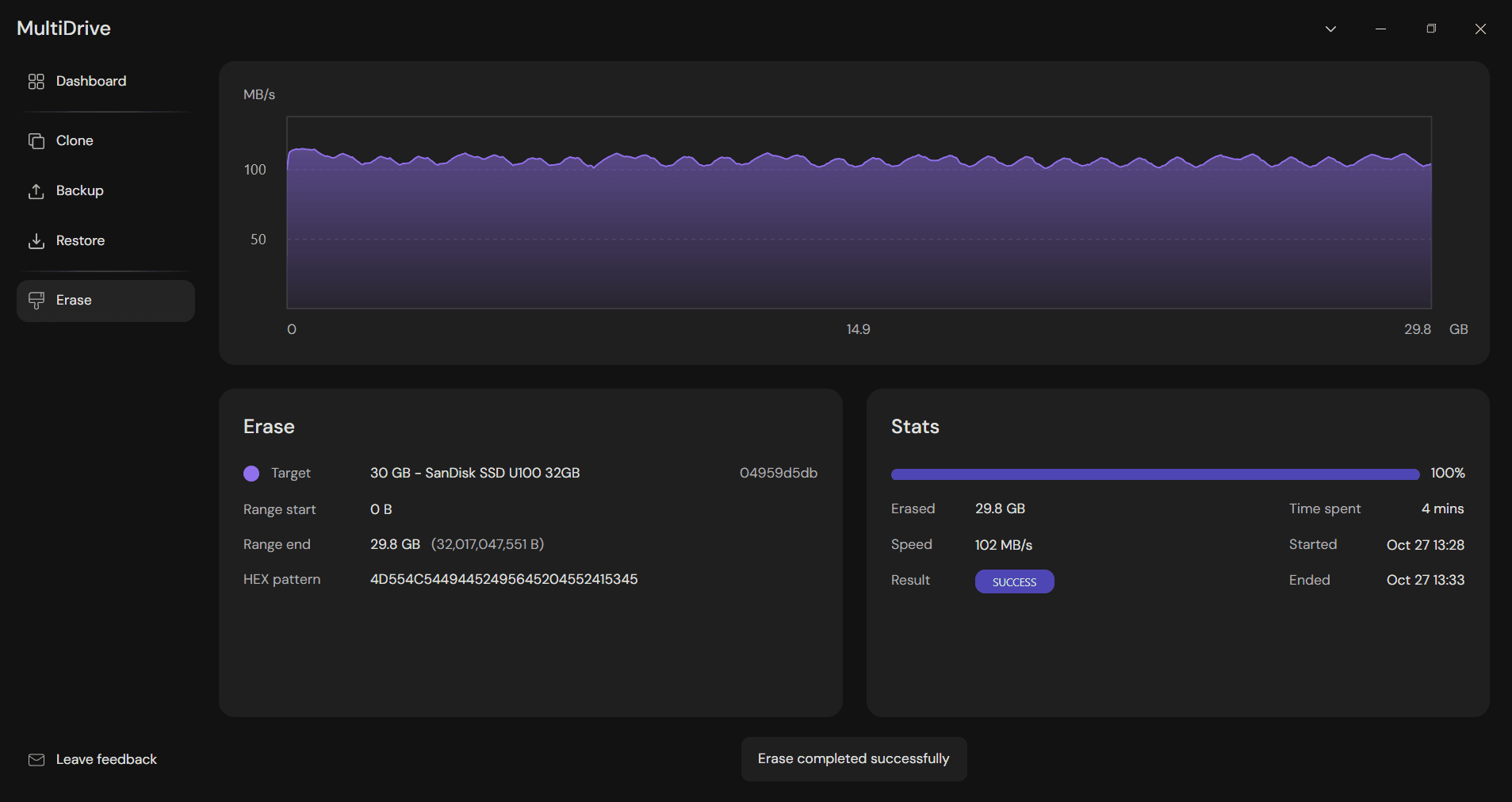
MultiDrive has an Erase feature that overwrites the whole drive, so old data can't be recovered. Select Erase, pick the drive, and start. You can wipe your drive with zeroes or your own pattern. Here's how to erase a drive and verify it.
Tips and Troubleshooting
| Problem | What to do |
|---|---|
| Target drive is slightly smaller than the source | Use a larger target. Two drives sold as the same size can differ slightly in real capacity. |
| Cloned USB drive shows less space than its capacity | The extra space is unallocated. Extend the partition in Disk Management. |
| Cloned bootable USB doesn't boot | Check the boot order and boot mode (UEFI or Legacy) in BIOS. Try another USB port. |
| Cloning is slow | Connect both drives to USB 3.x ports directly, not through a hub. |
| Source drive has read errors | Let the clone finish, then work with the copy instead of the failing original. |
Try MultiDrive for Free
Clone USB flash drives, bootable USBs, and external drives with MultiDrive – free software for Windows 10 and Windows 11. Run several cloning sessions in parallel to copy multiple drives at once.
Frequently Asked Questions
The clone has the same disk signature as the original. When both are connected, Windows sees a signature collision and takes one of them offline. Disconnect the original before using the clone, or bring the disk online in Disk Management – Windows will give it a new signature, and the clone will no longer be byte-identical. See our cloned drive troubleshooting guide for more details.
Yes. Use Backup in MultiDrive to save the drive as a RAW, ZIP, or ZSTD image file. Later, use Restore to write it to any drive of equal or larger size. This works well when you need to keep several versions or don't have a spare drive at hand.
The volume serial number and drive label are copied. The hardware serial number of the USB stick is not – it's built into the device.
MultiDrive is a USB cloner that runs on Windows 10 and 11. On Linux and macOS, the built-in dd command can clone drives, but it has no interface and makes it easy to pick the wrong target. MultiDrive also has a command-line interface for scripting on Windows.
Author