Clonezilla Alternative: MultiDrive
Last tested with MultiDrive 1.4 (Windows 11 Pro 25H2), June 2026.
MultiDrive and Clonezilla are both free disk cloning tools. MultiDrive is a native Windows app with a graphical interface; Clonezilla Live runs from a bootable USB with Linux and a text-based console.
What Is MultiDrive?
MultiDrive is free disk cloning software for Windows 11/10, developed by Atola Technology — a Canadian company with over 20 years of experience in professional digital forensics and data recovery. The app handles disk cloning, backup (ZIP, RAW, ZSTD), restoration, and wiping from a clean graphical interface. It also ships with a full CLI for IT automation.
MultiDrive is 100% free, requires no registration, shows no ads, and has no feature paywalls.
Atola Technology confirms this on their website and promises to keep this version of MultiDrive free forever.

To Our Supporters
At Atola, we believe that managing drives should be easy and free. That's why we've created a simple yet powerful solution for everyone: from home users to tech professionals. MultiDrive is free for both personal and commercial use.
And if we ever introduce a Premium version in the future, rest assured that all the current functionality you rely on will stay free forever. Your trust drives our commitment to excellence. This is our way of saying thank you for being part of the MultiDrive family!



























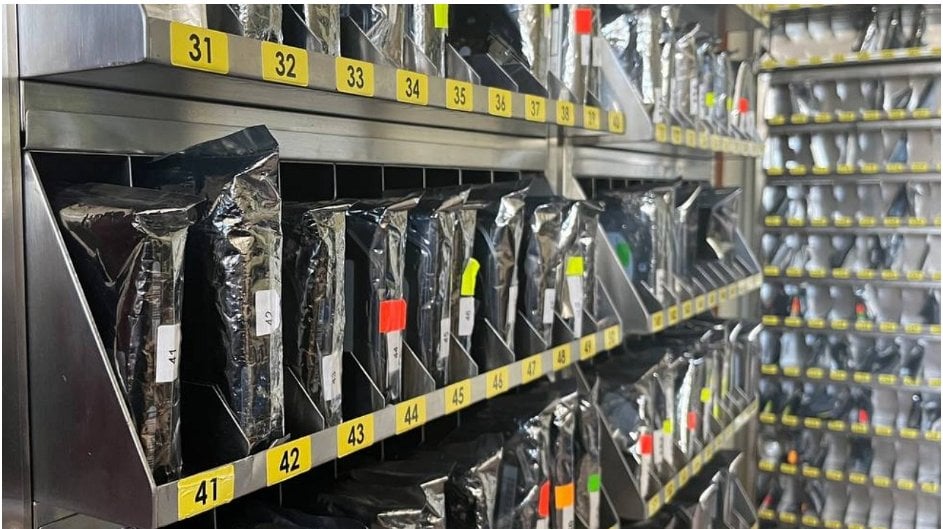
Inside Atola Technology's drive lab: 20+ years of hands-on experience with HDDs, SSDs, and damaged drives — the expertise behind MultiDrive.
What Is Clonezilla?
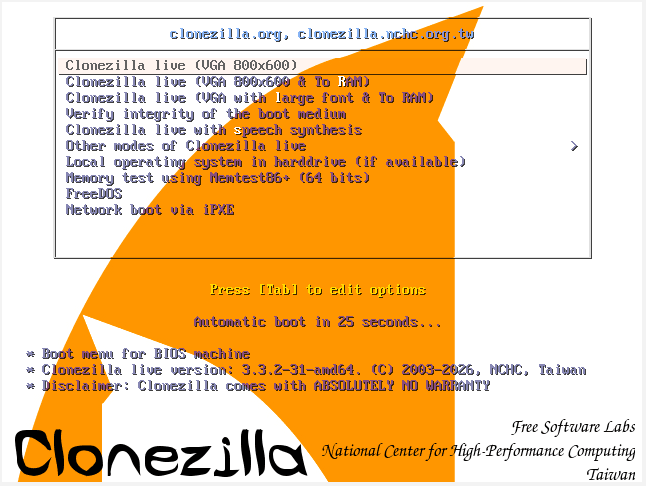
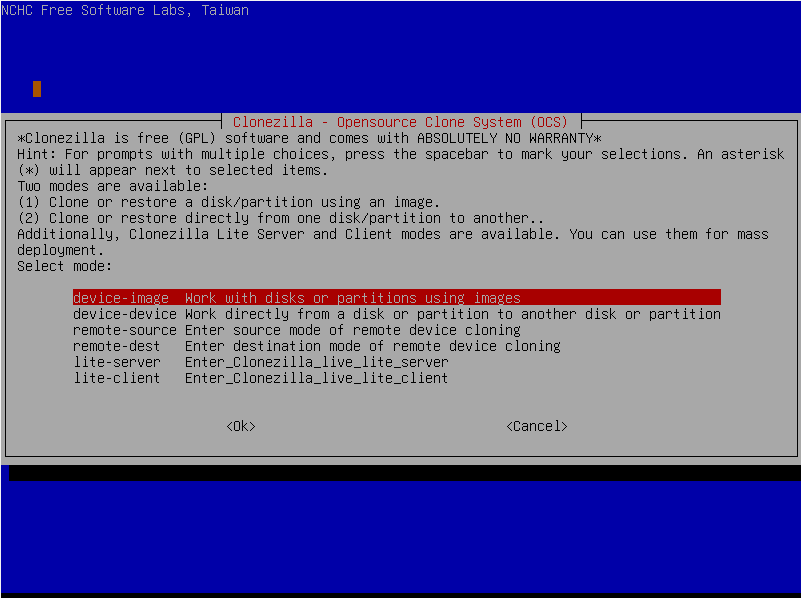
Clonezilla is an open-source disk imaging and disk cloning tool that runs from a bootable USB based on Debian or Ubuntu, created by developers from Taiwan. It uses a text-based interface and is capable of network-based mass deployment, making it popular in enterprise IT environments.
It supports cloning and imaging (backup) the entire drive or individual partitions.
MultiDrive vs Clonezilla Live: Side-by-Side Comparison
| Feature | MultiDrive | Clonezilla |
|---|---|---|
| Price | Free | Free (open source) |
| User Interface | GUI + CLI | Text-based console |
| How it runs | Native Windows app + Bootable USB | Bootable USB/CD only |
| Technical skill required | Minimal | Moderate to high (Linux CLI, disk naming like /dev/sda) |
| Full disk cloning | ✓ | ✓ |
| Default cloning method | Sector-by-sector | Used sectors |
| Backup formats | ZIP, RAW, ZSTD | gzip, bzip2, lzo, lzma, xz, lzip, lrzip, lz4, zstd, RAW |
| Disk wiping | ✓ | ✗ |
| Pause/Resume disk tasks | ✓ | ✗ |
| Parallel tasks | ✓ Clone + backup + wipe + restore simultaneously | Restore an image to multiple PCs over a network with Clonezilla Server Edition (SE), or restore from one source to several drives simultaneously with Clonezilla Live. |
| Data verification | MD5, SHA1, SHA256, SHA512 | MD5, SHA1, BLAKE2, BLAKE3 |
| CLI/Automation | Native Windows CLI app | Bash-based |
| Backup encryption | ✗ | ✓ (gocryptfs) |
| Works inside Windows | ✓ | ✗ |
Ease of Use: Clonezilla vs MultiDrive
Installation
MultiDrive works directly inside Windows — open the app, select a source drive, select a target drive, and click Clone.
It also runs outside Windows via a bootable USB, which takes just a couple of minutes to create:
- Download a ZIP file from the Windows PE page
- Restore it using MultiDrive itself — and the bootable drive is ready!
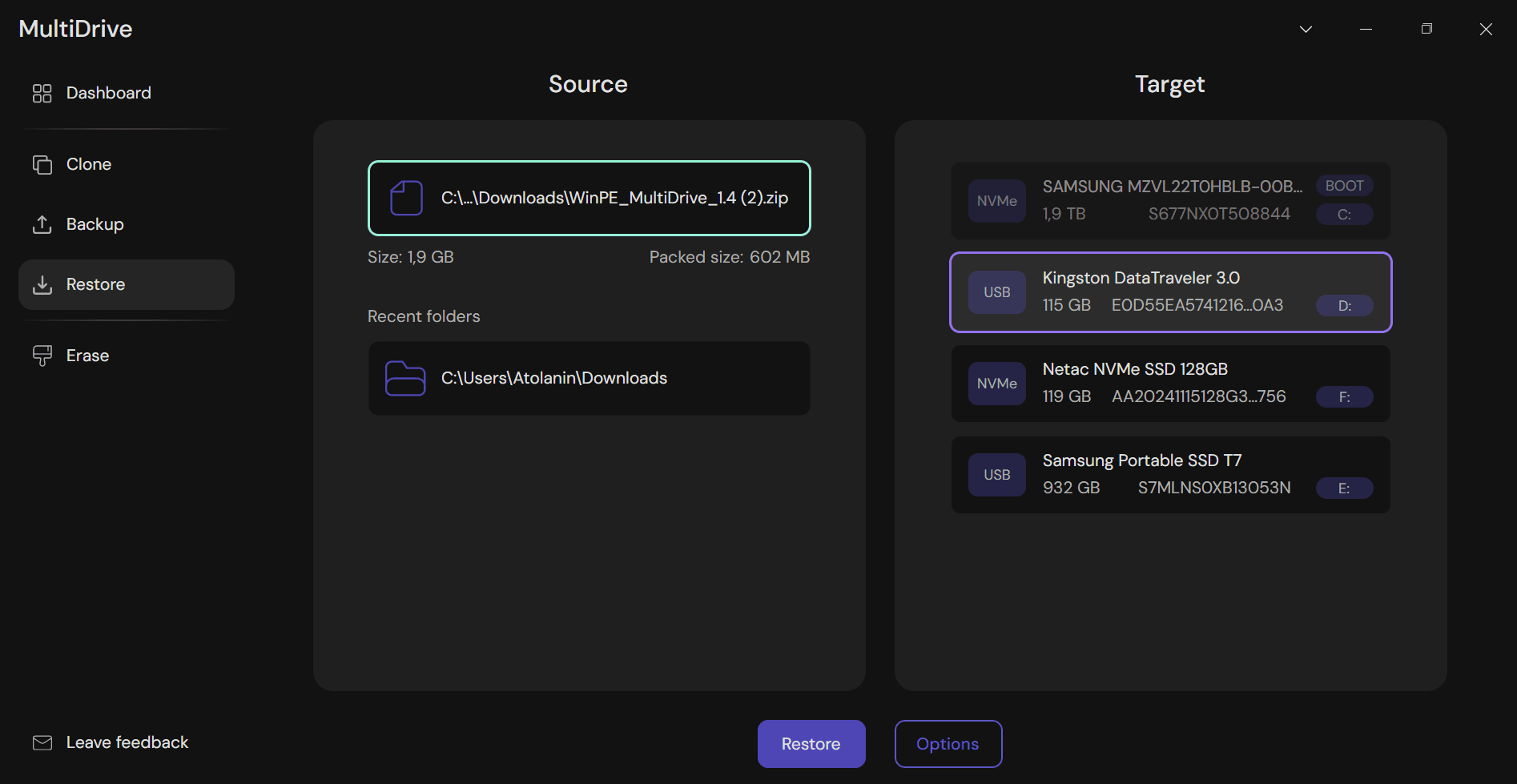
Creating a bootable USB with MultiDrive takes just a few minutes.
Another way is to download the MultiDrive.iso file and create a bootable USB with Rufus or Ventoy.
MultiDrive works at a lower level than the filesystem, so it doesn't matter what filesystem the USB is formatted with.
Clonezilla Live setup is more complicated.
The process differs depending on your boot mode.
For UEFI boot mode:
- Download a Clonezilla Live ZIP file
- Download and install 7-Zip
- The USB must be formatted as FAT16/FAT32; exFAT and NTFS are not supported
- Extract the ZIP contents to your USB drive using 7-Zip
Or download the .iso file and use Rufus.
For MBR boot mode:
You need to use one of these tools: Rufus, Etcher, LinuxLive Creator, or UNetbootin.
Or set it up manually with 7-Zip:
- Extract all the contents of the zip file to the FAT16/FAT32 or NTFS partition on your USB flash drive.
- Open your USB drive as administrator and run makeboot.bat from utils\win32\ (32-bit Windows) or makeboot64.bat from utils\win64\ (64-bit Windows).
- Follow the on-screen instructions.
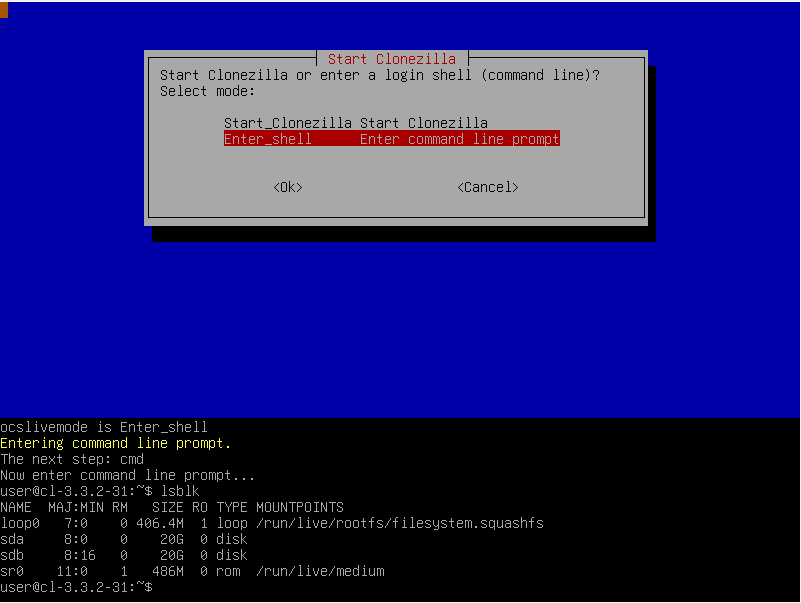
At least one additional tool is required for installation. Once booted, Clonezilla Live presents a text-based console that requires reading through documentation — understanding disk terminology like /dev/sda, partitions, and image modes.
Cloning Methods
MultiDrive uses sector-by-sector cloning, copying every sector of the drive regardless of whether it contains data or not. This produces an exact 1:1 copy of the source drive, including unallocated space, deleted files, and partition structure.
As a result, image files are larger and cloning takes more time — but the approach is more reliable when working with corrupted filesystems, unknown partition types, or when an exact forensic-grade copy is required.
Clonezilla uses used-sector cloning by default, meaning it copies only the sectors that contain data and skips empty space. This makes the cloning process faster and produces smaller image files, which is efficient for deploying an OS image across multiple machines over the network.
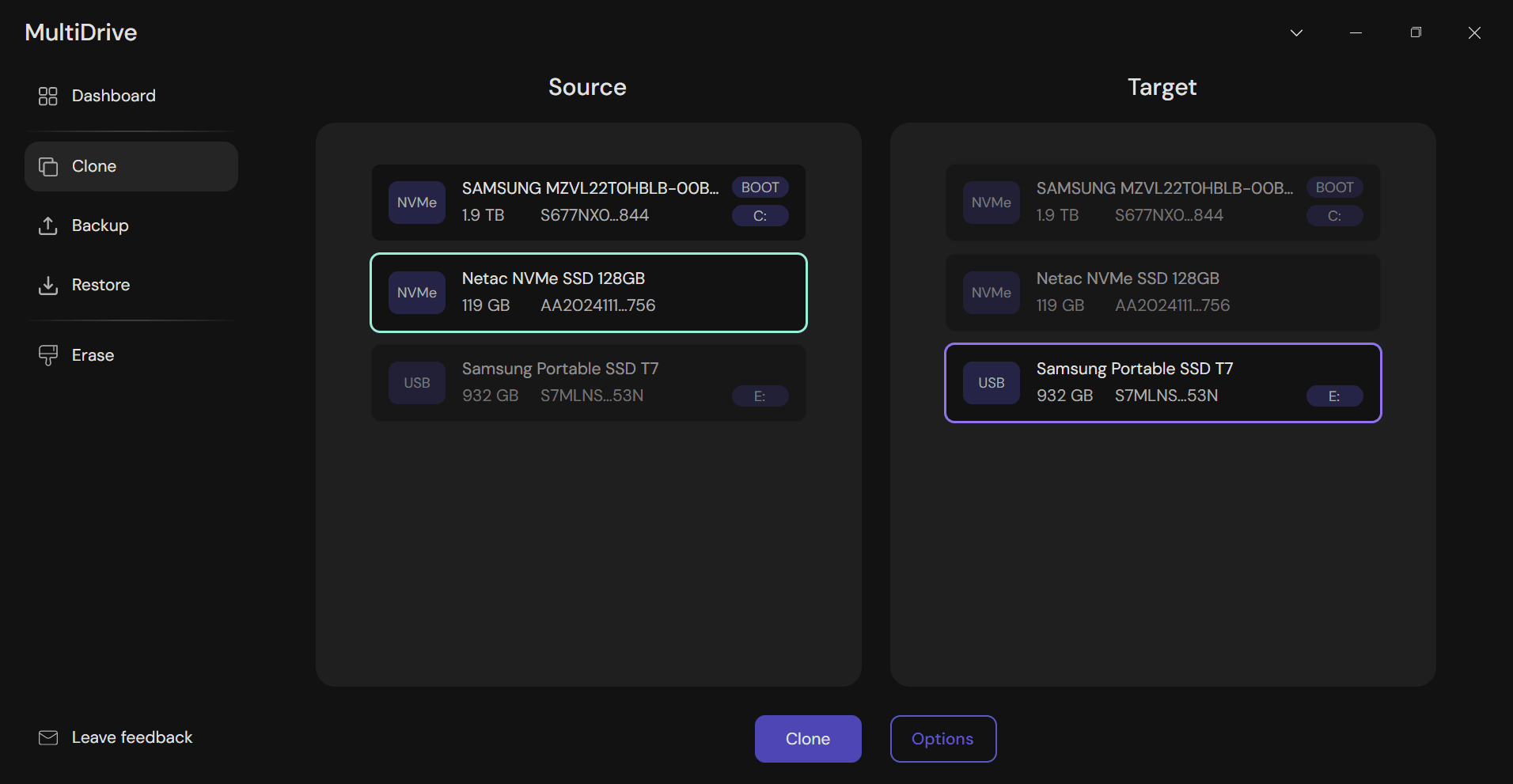
MultiDrive makes disk cloning, backup, and wiping simple. To clone a drive:
- Choose the Source drive
- Choose the Target
- Press "Clone"
If you have two identical drives, the serial number will help you choose the right one.
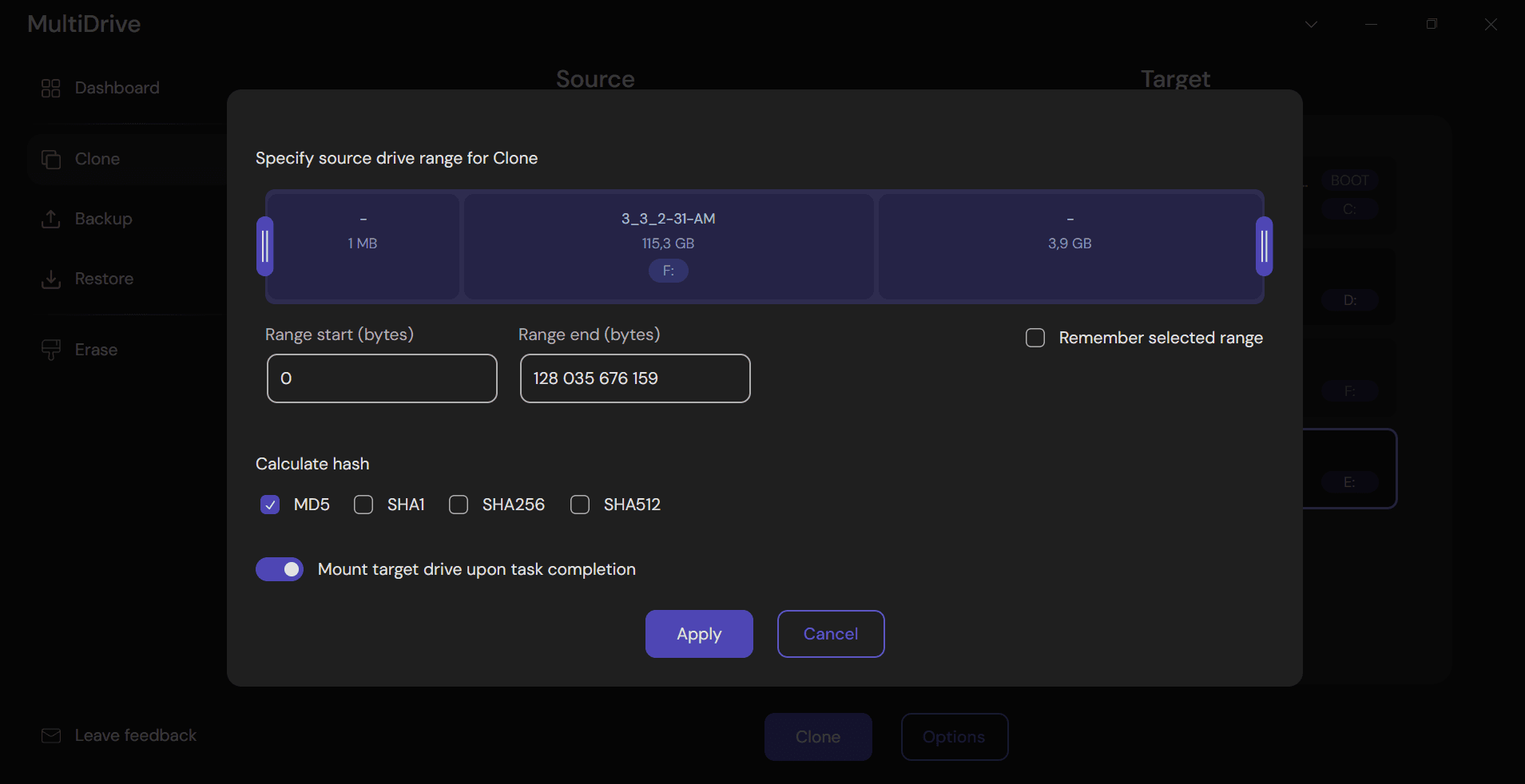
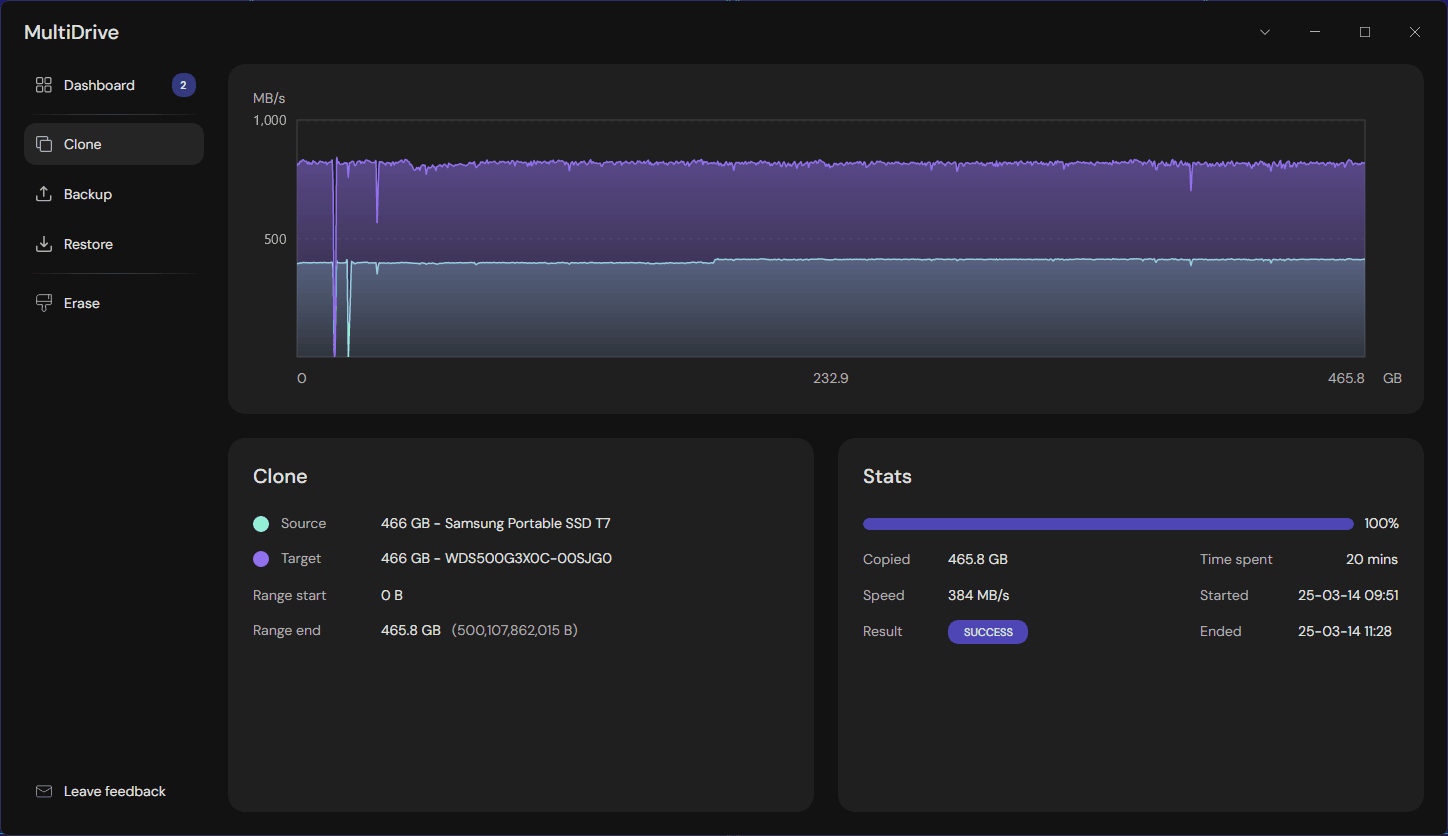
The Options menu allows you to choose range cloning — useful when you only need to copy a specific portion of a drive.
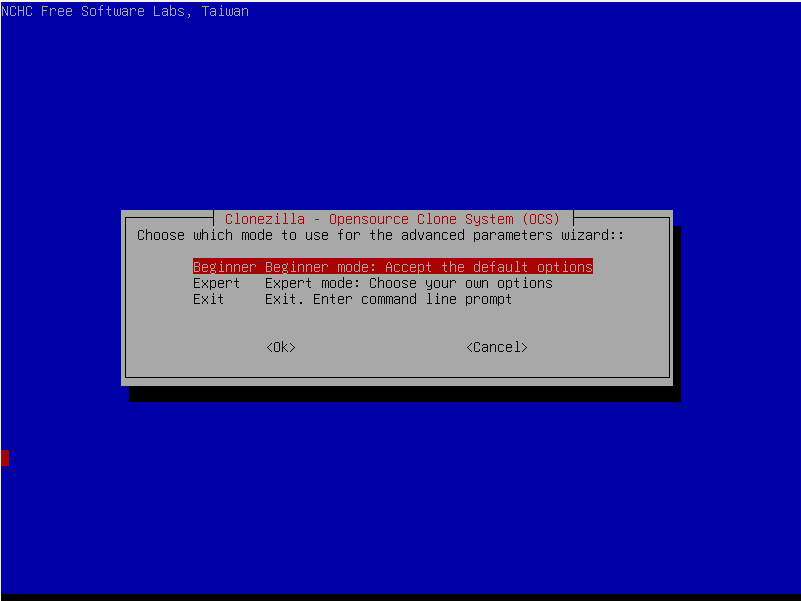
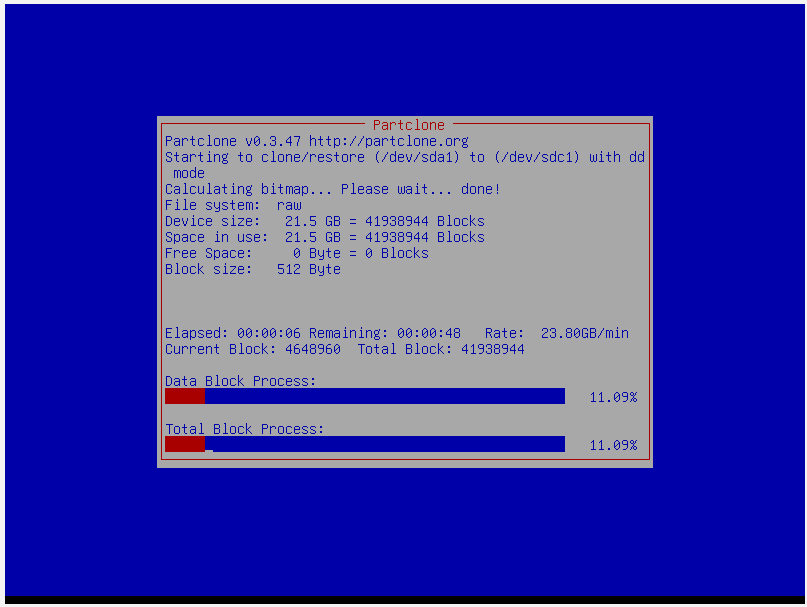
Clonezilla offers two modes: Beginner and Expert. Expert mode provides additional configuration options for experienced users.
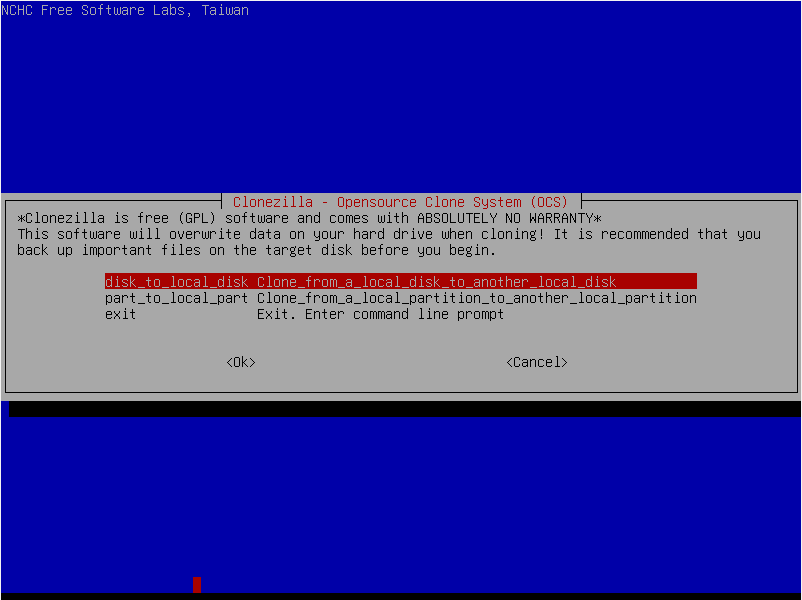
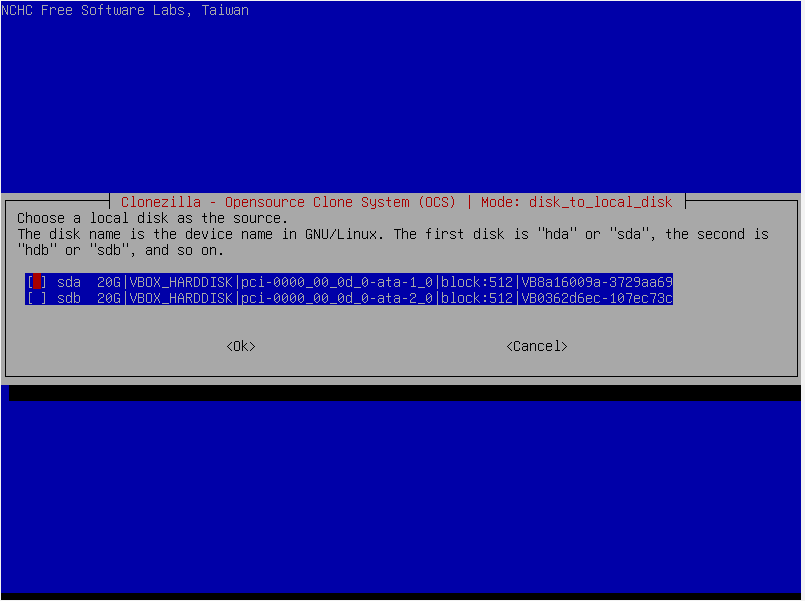
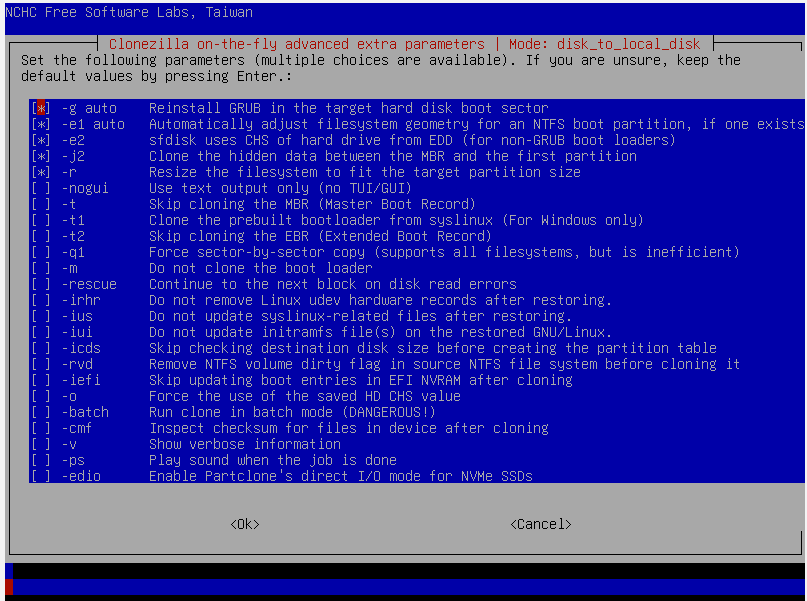
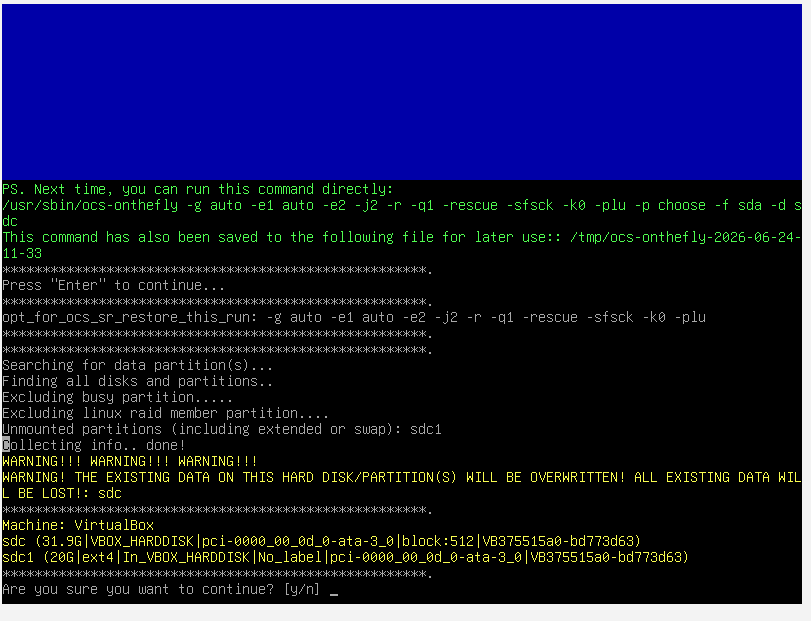
To run sector-by-sector cloning, choose the -q1 and -rescue options.
Clonezilla requires basic familiarity with Linux terminology, disk naming conventions (such as /dev/sda and /dev/sdb), and comfort navigating a text-based interface. In some cases, even within the text-based interface, users may need to enter Linux commands manually — for example, to exit a session, list available disks, or recover from an error.
For users who prefer a simpler workflow, MultiDrive is a more accessible Clonezilla alternative.
Pause/Resume Long-Running Operations
One feature MultiDrive has that helps with long operations is the ability to pause and resume any disk operation— cloning, backup, or wiping.
This matters in several real scenarios:
- You're cloning a 2 TB drive overnight and need to use the computer in the morning. Pause, use it, resume.
- You're working with a failing drive that keeps disconnecting, or if you accidentally disconnect the drive. You can pause, fix the connection, and continue.
- A long-running job against a multi-terabyte drive needs to be interrupted without losing progress.
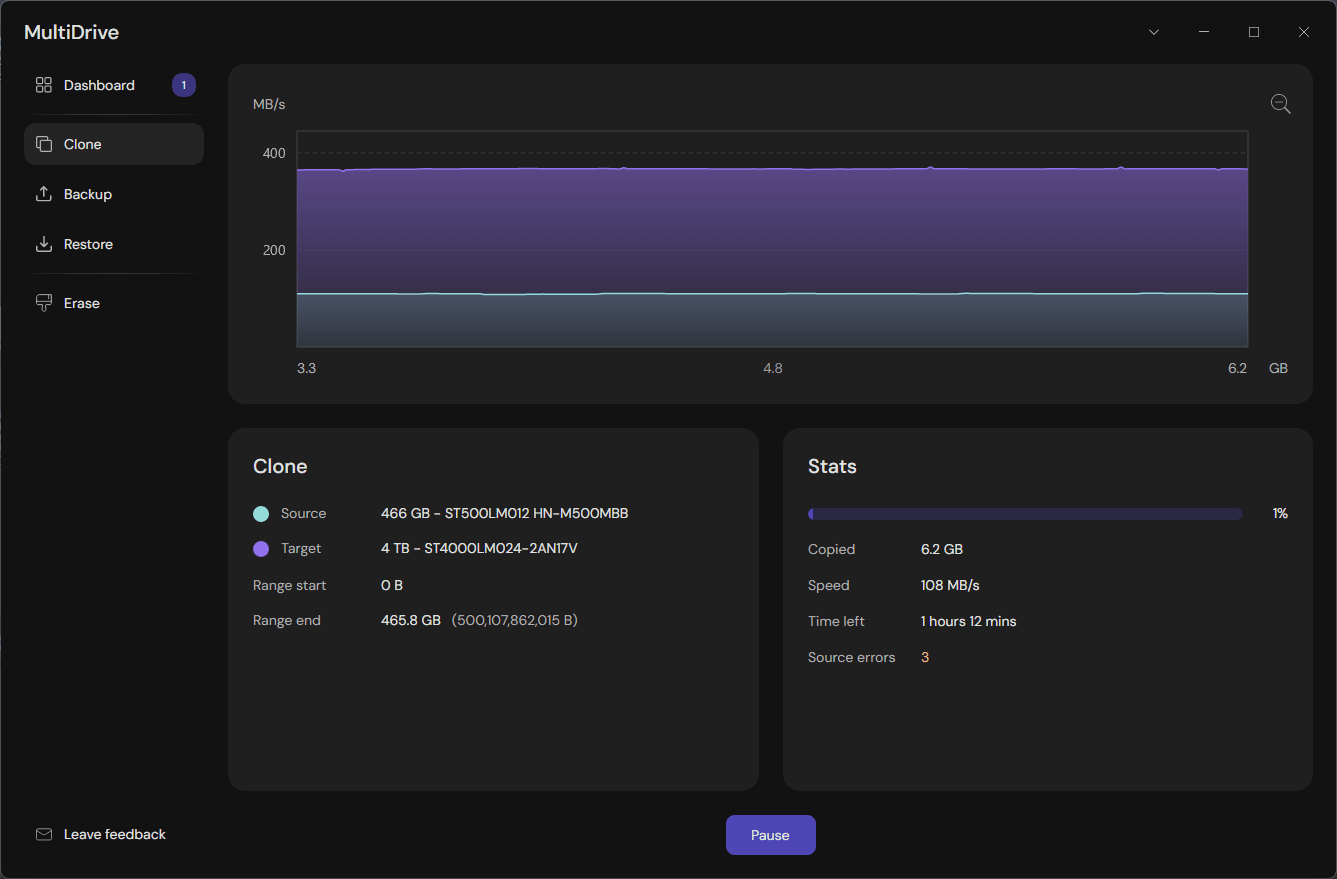
With Clonezilla, an interrupted job means starting from scratch.
Parallel Operations
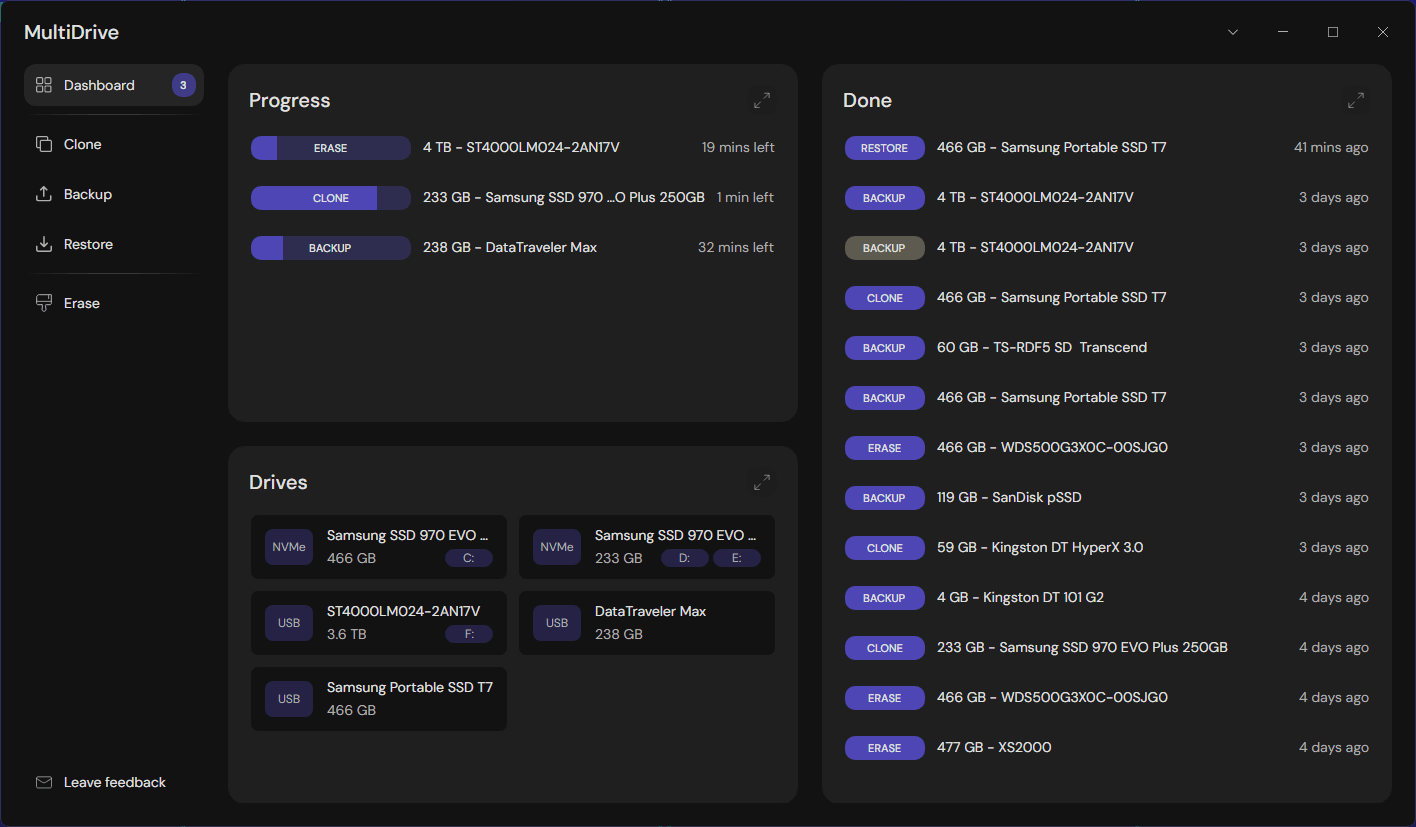
MultiDrive allows running multiple disk tasks in parallel — you can back up one drive, clone another, and wipe a third at the same time. This is particularly valuable for IT professionals managing several systems.
Clonezilla Lite Server and Clonezilla SE support parallel restoring (what they call cloning), but in practice you first need to create an image, then restore it to multiple machines over the network.
See the instructions:
Cloning to multiple machines over the network
With Clonezilla Lite, you can create an image and restore it to multiple connected drives.
See the instructions:
Cloning one drive to multiple drives
Wiping a Drive: MultiDrive Only
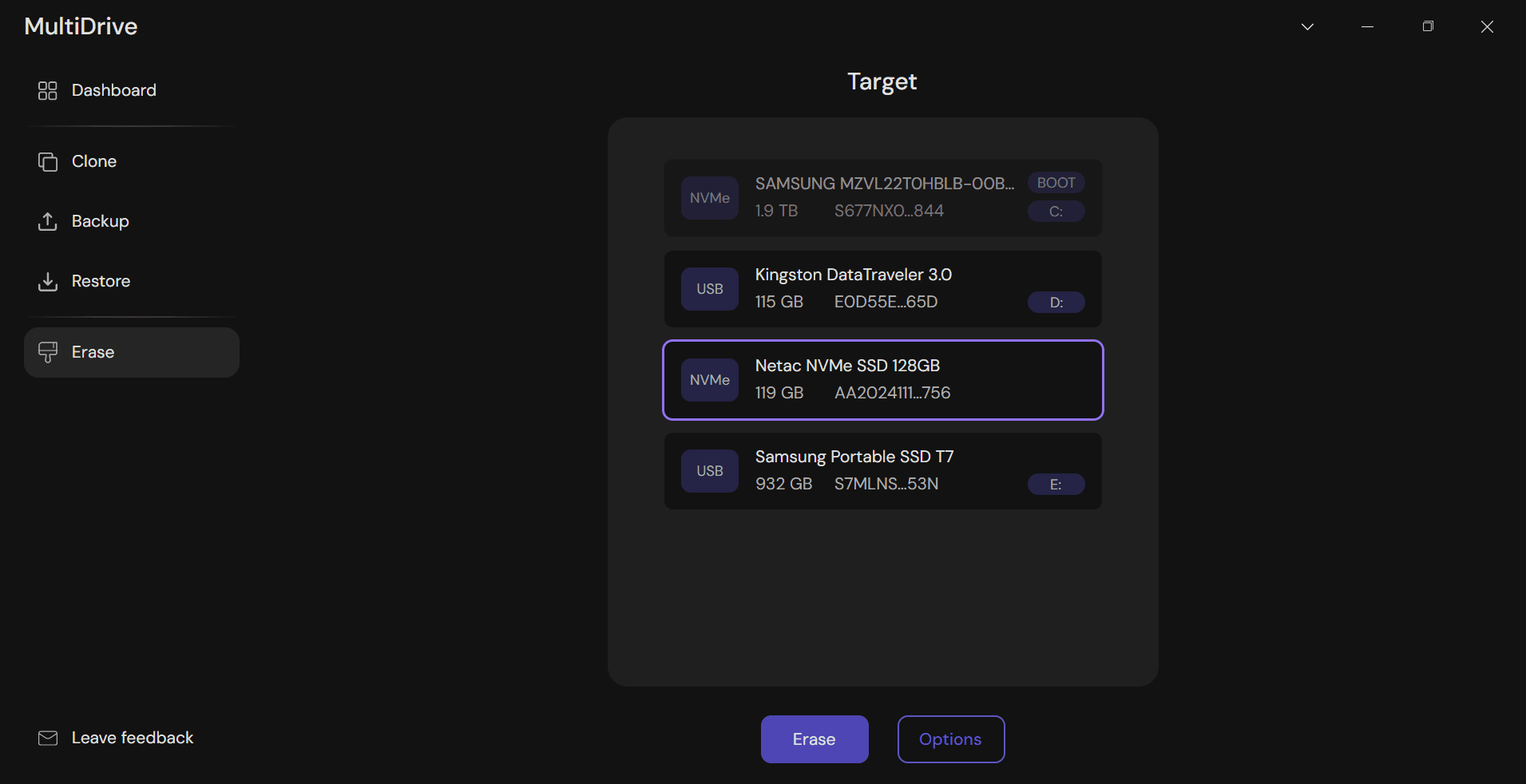
MultiDrive includes disk wiping with HEX pattern overwriting — useful when decommissioning drives, reselling hardware, or handling sensitive data.
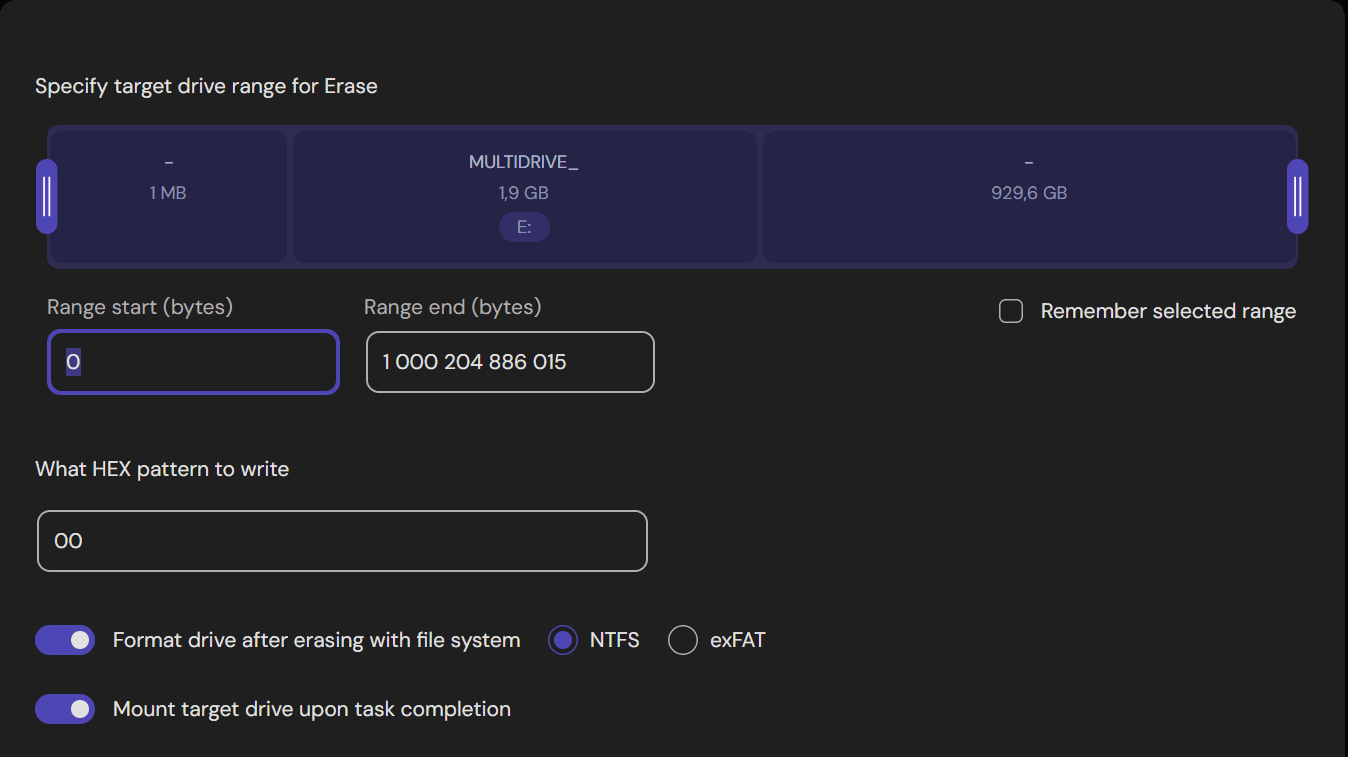
You can wipe the entire drive or a selected range, using zero fill by default or a custom pattern.
Clonezilla Live does not include this feature.
See the articles: How to wipe a hard drive and How to fully wipe a computer.
The Options menu lets you select the wipe range, wipe pattern, and filesystem to apply after wiping — no need to open Windows Disk Management separately.
CLI and Automation
MultiDrive's CLI runs natively in Windows, giving you access to the full Windows ecosystem — PowerShell scripts, Task Scheduler, Event Viewer, and integration with other Windows applications or AI tools (like Claude Code, etc.). All MultiDrive operations (disk cloning, backup, restore, and wiping) are available via CLI, making it straightforward to build automated disk management workflows without leaving your operating system.
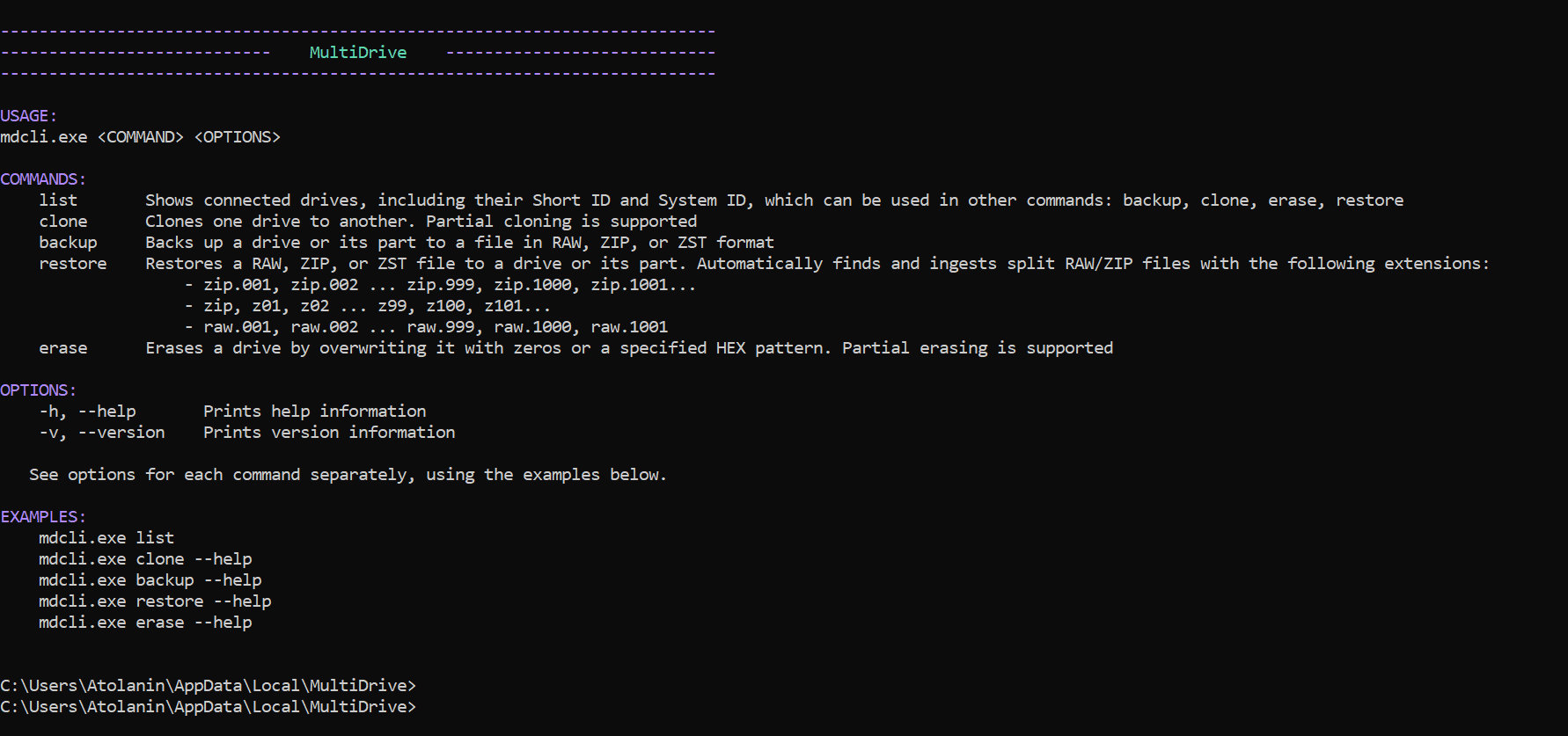
See the article: How to wipe multiple drives in parallel via CLI
Clonezilla Live's scripting is bash-based and runs in a boot environment outside of any operating system. This means you're limited to Clonezilla's own functions and the Linux utilities available on the bootable USB — there's no access to Windows applications, Windows filesystems, or corporate infrastructure.
When Clonezilla Live Is the Better Choice
- One source to multiple disks. Clonezilla Live can restore one image to multiple target disks simultaneously in a single operation locally.
- Open source. Completely free with transparent development.
- Mass deployment over a network. For network-based deployment, Clonezilla offers separate free editions — Lite Server and SE — which can clone multiple drives simultaneously.
When MultiDrive Is the Better Choice
- Saves time on setup. MultiDrive installs in minutes and is intuitive from the first launch — no documentation needed, no additional tools for installation, no text-based UI to navigate.
- Runs multiple operations in parallel. Clone one drive, back up another, and wipe a third simultaneously.
- Pause and resume long-running tasks. Ideal for large drives or unstable hardware where interruptions are unavoidable.
Even after a reboot, you can resume previous operations and continue cloning, backing up, or wiping. - Windows CLI for automation. All MultiDrive operations — cloning, backup, restore, and wiping — are available via the command line. Scripts run natively in Windows, integrating with PowerShell, Task Scheduler, and other Windows tools without additional infrastructure.
- All-in-one tool for Windows. Cloning, backup, and wiping in a single app inside Windows or offline using WinPE.
- Reliable wiping for resale/recycling. Wipe drives before selling or disposing of hardware — no traces of personal or corporate data left behind.
Summary: Which Should You Use?
Choose MultiDrive if you:
- Want a graphical interface that works directly in Windows while you are doing other tasks
- Need to clone, back up, and wipe drives in one tool
- Want to run multiple disk operations at the same time
- Need to pause and resume long operations on large or unstable drives
- Plan to wipe drives before resale or recycling
- Prefer to automate disk operations via PowerShell or batch scripts natively in Windows
Choose Clonezilla if you:
- Are comfortable with a text-based interface and bootable media
- Need network-based deployment (via Clonezilla Lite Server or SE)
- Prefer open-source software
- Don't mind occasionally entering Linux commands manually
- Need to restore one drive image to multiple drives
FAQ
Yes. MultiDrive is a completely free disk cloning and backup tool for Windows 10/11 with a graphical interface — no registration, no ads, no feature paywalls. Unlike Clonezilla, it can run directly in Windows.
Yes, with MultiDrive. It runs natively in Windows so you can clone a drive without rebooting or creating a bootable USB stick. Clonezilla always requires booting from a USB, CD, or PXE.
MultiDrive can be used both as a native Windows app and from a bootable USB. Creating a bootable USB disk takes a couple of minutes — download a ZIP and restore it using MultiDrive itself. There are no restrictions on the USB filesystem format.
MultiDrive supports running multiple operations simultaneously — for example, cloning one drive, backing up another, and wiping a third at the same time. Clonezilla Server supports cloning one source to multiple targets.
Yes. MultiDrive has a full Windows command-line interface (CLI) that supports all operations — drive cloning, backup, restore, and wiping — and integrates natively with PowerShell and batch scripts. Clonezilla relies on bash scripts in a Linux boot environment.
Other comparisons
Author