MultiDrive as a free AOMEI Backupper alternative
Last tested with MultiDrive 1.5 (Windows 11 Pro 25H2), September 2026.
Choose MultiDrive if you want free backup of entire drives in open formats like RAW, ZIP, or ZST files, drive cloning and wiping, parallel tasks, and a CLI. Choose AOMEI Backupper Standard if you expect file-level backup, incremental backups, or schedules in the GUI.
Standard is AOMEI’s free personal edition. AOMEI’s paid tiers start at $39.95 for Professional and go to $699 and above for other tiers.
Main Differences between AOMEI Backupper and MultiDrive
Free AOMEI Backupper Standard vs free MultiDrive.
| MultiDrive wins | AOMEI Backupper Standard wins |
|---|---|
|
|
In This Article
- Main Differences between AOMEI Backupper and MultiDrive
- Overall Look and Feel
- Back Up Disk, Partition, Folder, or File
- What You Can Back Up (Possible Sources)
- Where You Can Store Backups (Possible Targets / Destinations)
- Backup Formats and Compression
- Split Backup Image
- Backup Algorithm: All or Only Used Sectors
- Backup Method: Full or Incremental
- Back Up on Schedule or by Trigger
- Backup Process: Pause and Resume, Time Estimate
- Automatically Shut Down a PC after a Backup is Completed
- Restore Disk, Partition, or Files
- Quick Comparison of Other Features (Except Backup)
- File Copying
- Clone Disk or Partition
- Create Bootable Media (WinPE)
- Wipe Drive
- Parallel Drive Tasks
- Portable Version
- Command-Line Interface
- Conclusion
- FAQ
Where MultiDrive Is Better than AOMEI Backupper Standard
Open and free backup formats:
- MultiDrive offers widely used and open formats for its backup files, such as RAW, ZIP, or ZSTD, which can be opened by a variety of third-party tools if you decide to change your backup software.
- AOMEI Backupper uses proprietary backup formats (*.afi for file backups and *.adi for drive backups), which tie your backup workflows to this exact vendor. And if AOMEI decides to put a price on its Standard version in the future, you’d have to pay to restore your data from backups. The option to browse the contents of your backup files, called “Explore image” is paid too.
Free for both personal and business use:
- MultiDrive is totally free for both personal and business use. And it runs on Windows Server 2025/22/19 free of charge.
- AOMEI Backupper is free only for personal use; business use is allowed only in paid versions, starting at $49.95. Support for Windows Server systems is available only on the Server and Technician Plus editions, starting at $149.00 and $699, respectively.
Pause and resume for long operations:
- In MultiDrive, when any drive task is running, you can press the Pause button to temporarily stop the process and then resume it later.
- AOMEI Backupper doesn't have a pause feature for active drive operations.
Free cloning to a larger drive:
- In MultiDrive, cloning a smaller drive to a larger one is completely free, but you have to manually adjust the partition size of the cloned device to claim all available space.
- In AOMEI Backupper, the cloning feature itself is free, but the tool requires a paid tier starting at $39.95 to resize partitions when cloning a smaller drive to a larger one.
Free drive wiping feature:
- MultiDrive’s Erase feature is totally free and lets you securely wipe drives by overwriting them with zeroes or custom byte patterns. It supports wiping multiple drives in parallel, has a pause/resume option, and can deal with drives with minor errors.
- AOMEI Backupper made the Disk Wipe feature available only in paid tiers, starting at $39.95.
Performing backup, cloning, and wiping tasks in parallel:
- MultiDrive performs multiple drive operations simultaneously: for example, you can back up one drive while cloning another, or wipe multiple drives at once.
- AOMEI Backupper locks itself when a drive task is running, so you can’t start any other tasks.
Free portable version:
- MultiDrive gives away the portable version for free as a downloadable ZIP file.
- AOMEI Backupper limits the use of the portable version to paid tiers Technician and Technician Plus, starting at $499 and $699 respectively.
Where AOMEI Backupper Standard Is Better than MultiDrive
Saving files and folders as a backup file:
- AOMEI Backupper has the “File backup” option that saves selected folders and files as a single image file in proprietary *.afi format.
- MultiDrive doesn’t support file-level backups as it focuses on a full drive backup.
File sync (copying selected files to the backup drive):
- AOMEI Backupper offers the free “Basic sync” feature, which copies selected files and folders to other locations, such as an external hard drive, NAS, or a removable USB flash drive, without the creation of an image file. However, advanced synchronization options, such as keeping track of newly added, modified, or deleted files, are available only in paid tiers.
- MultiDrive doesn’t support file-level backups or synchronization.
Incremental backup:
- AOMEI Backupper supports the incremental backup method in its free version, which backs up only changed and newly added files, saving time and space.
- MultiDrive only supports full drive backup and partition backup.
Scheduled backup:
- AOMEI Backupper can back up your data on a set schedule: daily, weekly, monthly, etc.
- MultiDrive doesn’t directly support scheduled backups in its interface, but you can use the built-in command-line interface and Windows Task Scheduler.
USB plug-in & event-triggered backup:
- AOMEI Backupper can run backup and file sync tasks after certain triggers: when you plug the USB drive in, when you log in or log off, when your system starts up or shuts down.
- MultiDrive doesn’t have any similar features.
Overall Look and Feel
Both MultiDrive and AOMEI Backupper have sleek and modern-looking user interfaces, with the main task menu on the left and the dashboard with key information on the right. MultiDrive uses a dark black-and-purple color scheme and AOMEI Backupper has white, dark blue, and light blue colors.
| MultiDrive | AOMEI Backupper | |
|---|---|---|
| Information on the main dashboard | Connected drives Running tasks Completed tasks | Scheduled tasks Recently completed tasks |
| Window resize | Resize and maximize | Fixed size |
| Themes and color palette | Dark theme (black, dark gray, and purple) Light theme (light gray, white, and light purple) | Light theme only (white, dark blue, and light blue) |
| Language support | English only | 21 languages, including English |
Main Screen
On the main screen, MultiDrive displays the information about connected drives, running, and completed tasks; AOMEI Backupper features scheduled and recently completed tasks.
The MultiDrive window can be resized or even maximized to fit the entire screen. The AOMEI Backupper window has a fixed size.
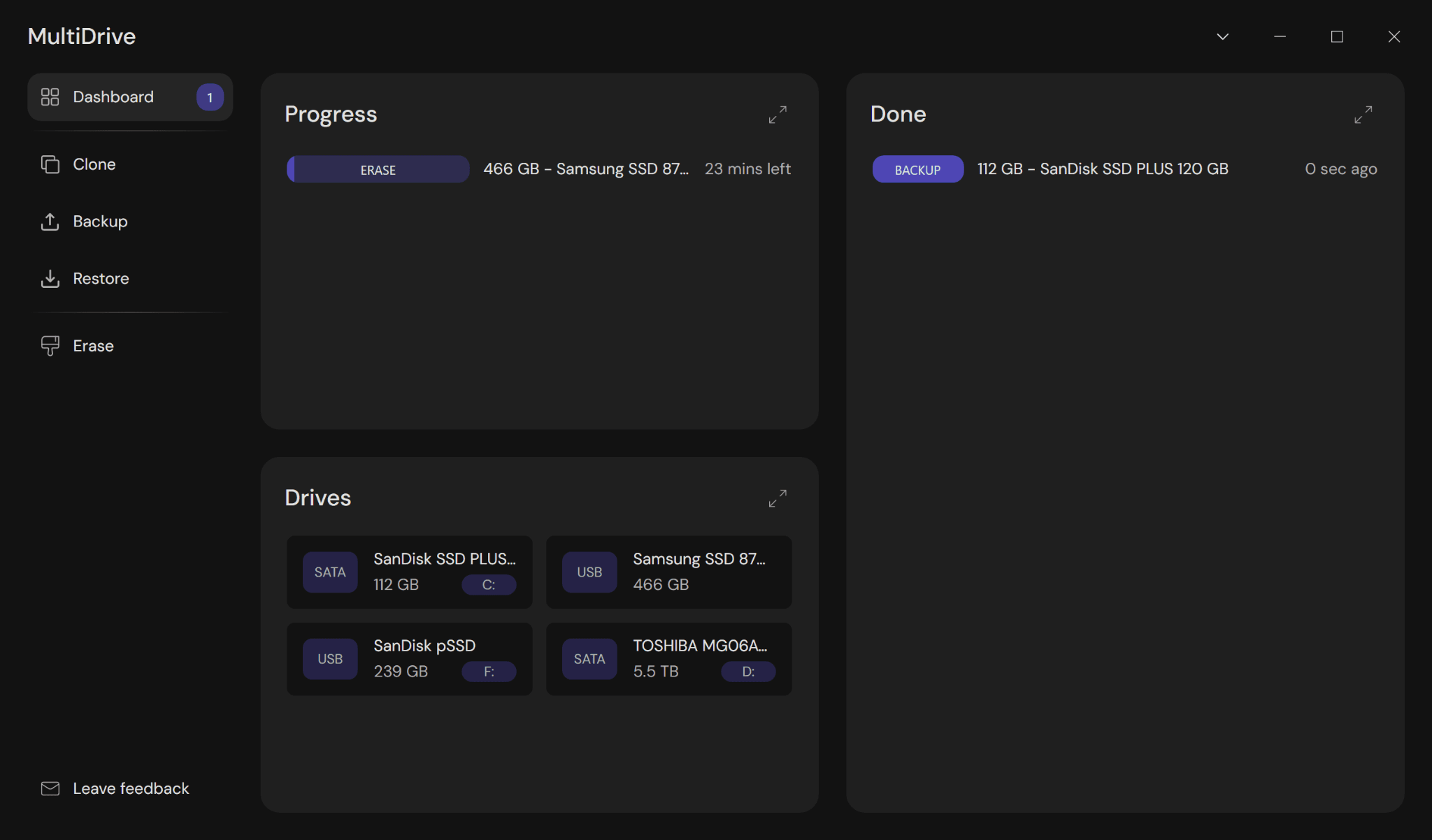
The MultiDrive window with the task menu on the left and the dashboard with the drive and task info on the right.
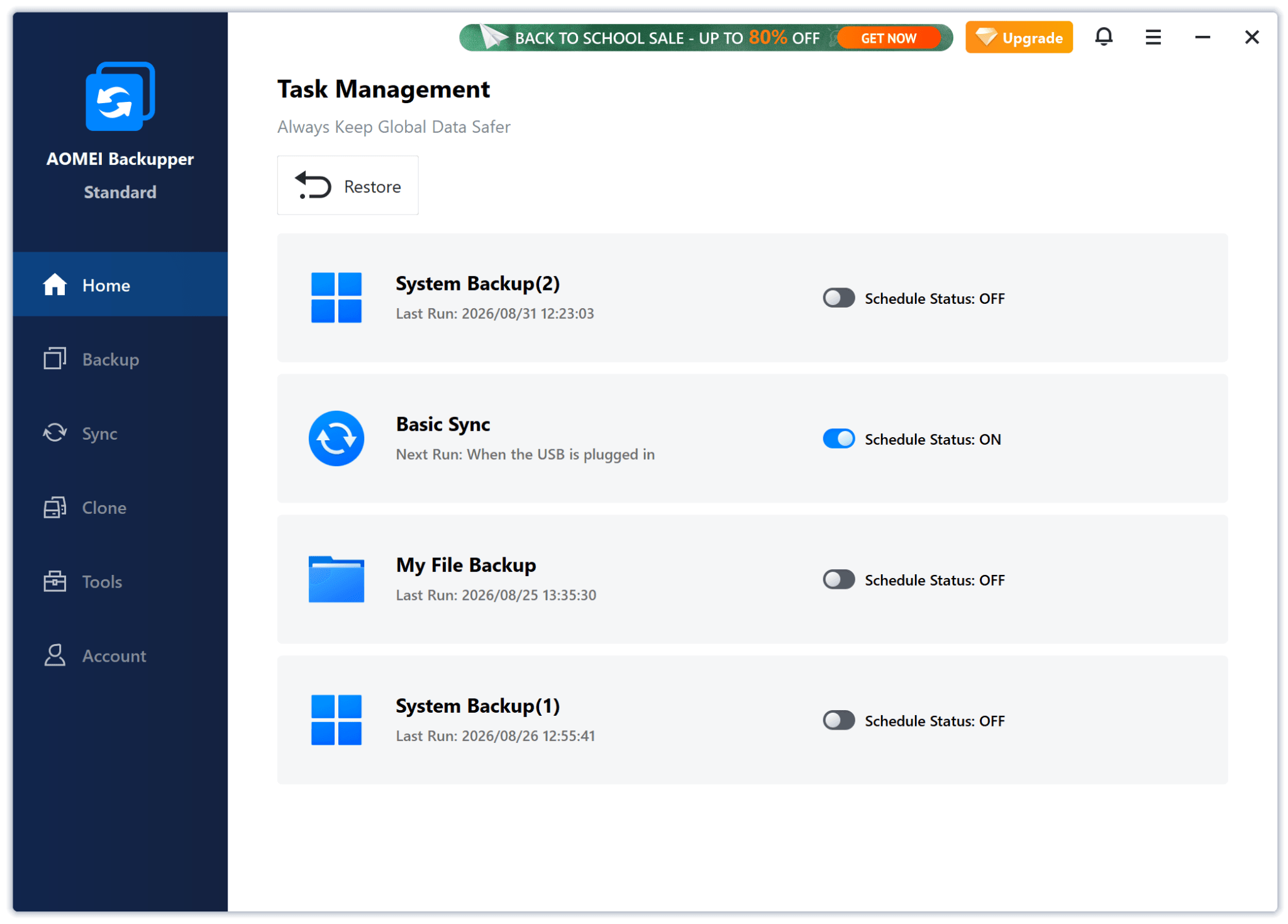
The AOMEI Backupper window with the task menu on the left and the Task Management dashboard on the right.
Light and Dark Color Themes
By default, MultiDrive offers the dark black-and-purple theme, but a user can switch to a light theme with a light gray, white, and light purple palette.
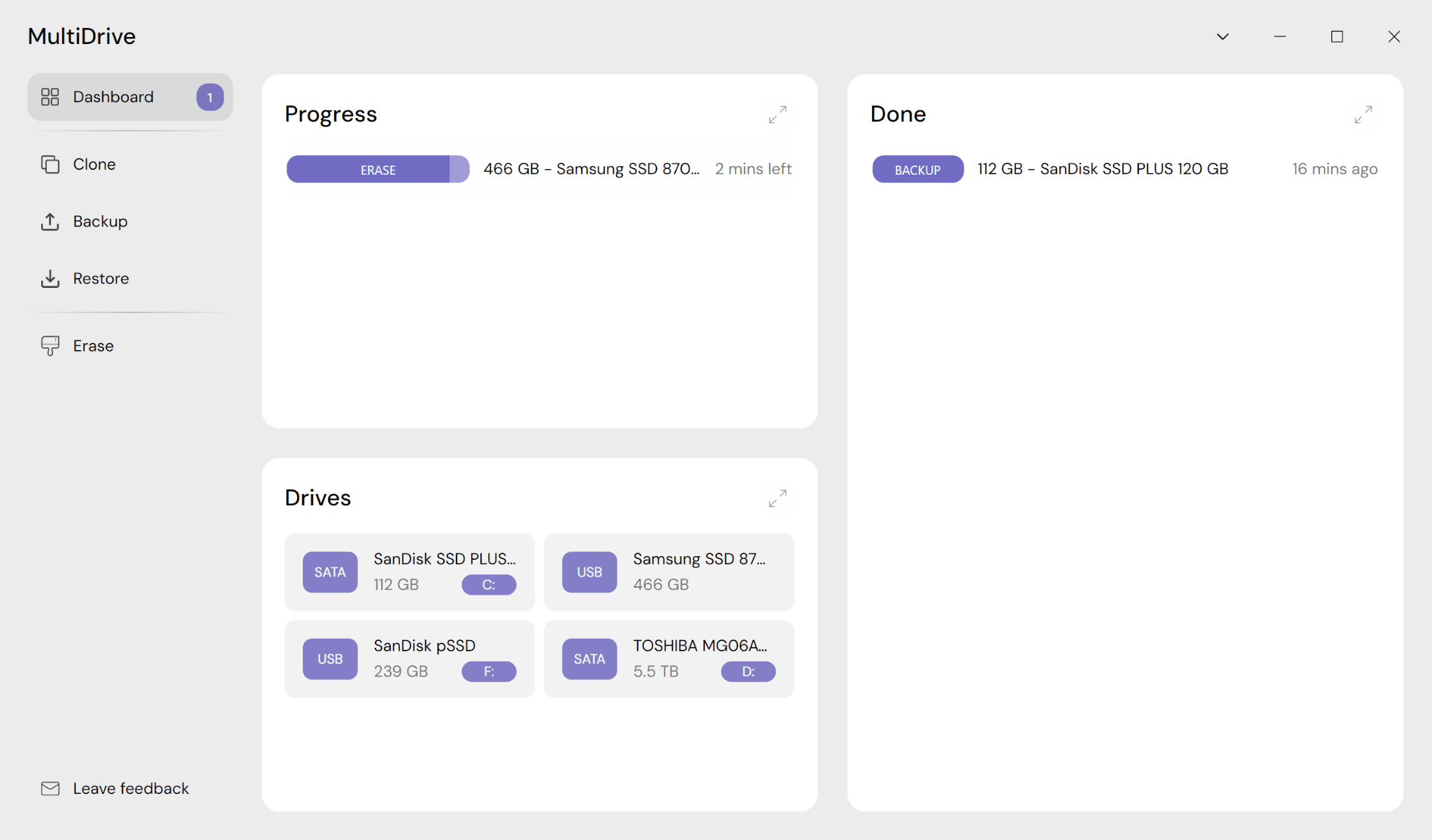
The MultiDrive light theme with light gray, white, and light purple colors.
AOMEI Backupper uses a light theme and doesn’t have a dark one.
Language Support
The user interface in MultiDrive is in English only. AOMEI Backupper supports 21 languages, including English, Chinese, Arabic, Spanish, French, German, Italian, and more.
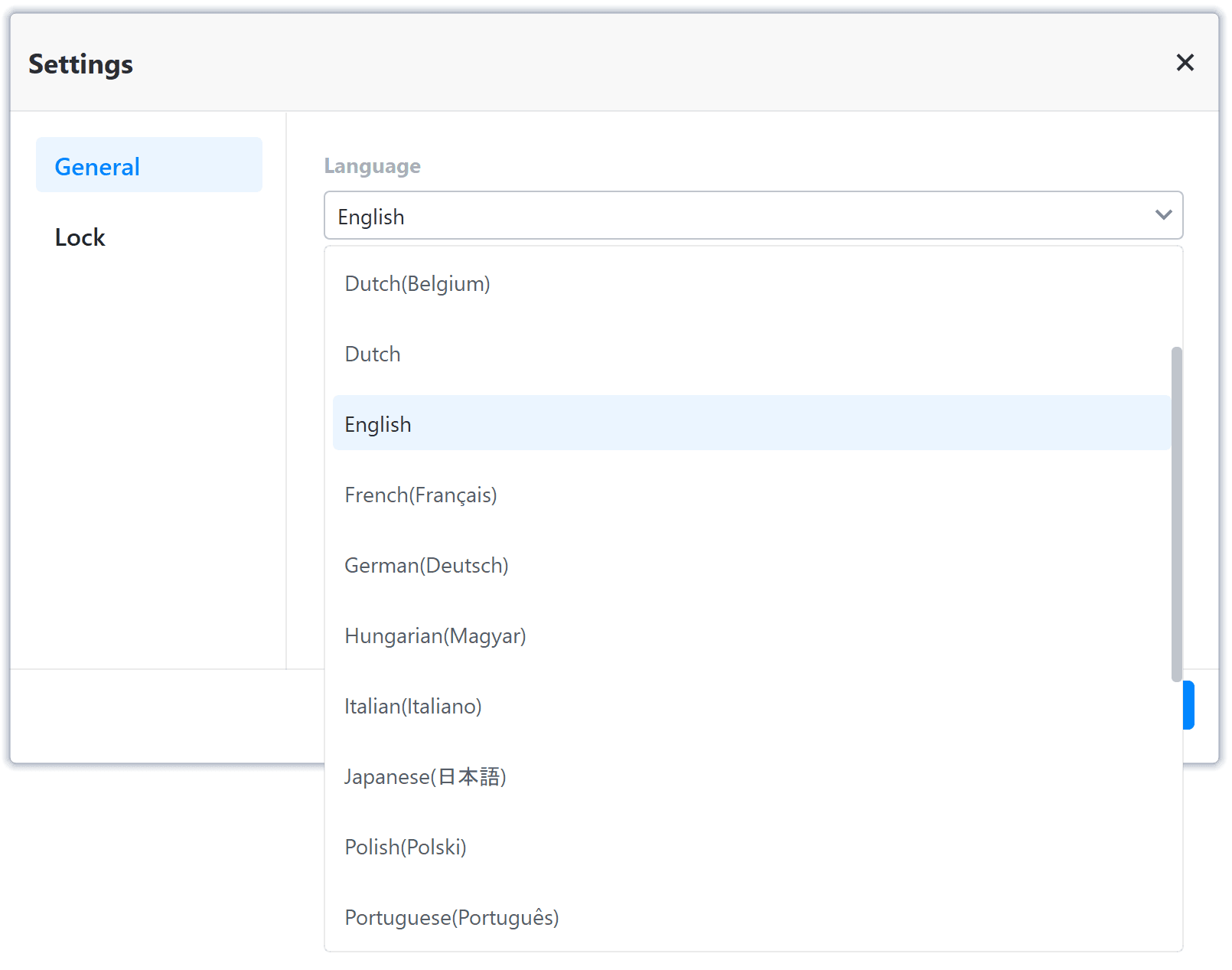
Changing language in AOMEI Backupper.
Back Up Disk, Partition, Folder, or File
The basic backup functionality of MultiDrive and AOMEI Backupper is the same: both tools can save the contents of a physical drive or a logical drive volume into a single backup image file, compressed or not.
MultiDrive focuses on a full, sector-by-sector drive backup, including free and unallocated space, and doesn’t have an option to back up folders and files. The backup process is streamlined and straightforward, it can be paused and resumed at any time.
AOMEI Backupper offers a wider range of backup options, but they are hidden in numerous submenus, and this variety can confuse and overwhelm a regular user.
| MultiDrive (free) | AOMEI Backupper (free version) | |
|---|---|---|
| Sources | ||
| Single physical drive | Yes | Yes |
| Multiple physical drives at once | No | Yes |
| Single partition / volume | Yes | Yes |
| Multiple partitions / volumes at once | Yes, on the same drive | Yes, across multiple drives |
| Files and folders | No | Yes |
| Targets / Destinations | ||
| Internal drive | Yes | Yes |
| External drive | Yes | Yes |
| USB Flash drive | Yes | Yes |
| Network share | Yes | Yes |
| NAS | Yes | Yes |
| Backup Formats and Compression | ||
| Open formats | *.raw, *.zip, *.zst | No |
| Proprietary formats | No | *.adi, *.afi |
| Compression | Yes: None (*.raw) Normal (*.zip) High (*.zst) | Yes: None Normal High |
| Backup All / Used Sectors | ||
| Backup all sectors, including free and unallocated space | Yes | Yes |
| Backup only used sectors (with data) | No | Yes |
| Backup Methods | ||
| Full | Yes | Yes |
| Incremental | No | Yes |
| Differential | No | Paid |
| Backup on Schedule | ||
| Daily Weekly Monthly | No | Yes |
| Backup by Trigger | ||
| USB plug-in User logon User logoff System startup System shutdown | No | Yes |
| Pause Backup | Yes | No |
| Shut Down a PC after a Backup is Completed | Yes | No |
What You Can Back Up (Possible Sources)
As a source, both tools can use internal, external, and network drives, as well as NAS, connected to your PC.
MultiDrive’s primary focus is to back up a single physical drive, including a system one, to a single backup file in one of the open formats: RAW, ZIP, or ZST. To run backups of multiple drives (say, several USB sticks), you have to start a backup process for each drive separately, resulting in multiple backup files. The good news is that MultiDrive can run multiple tasks simultaneously.
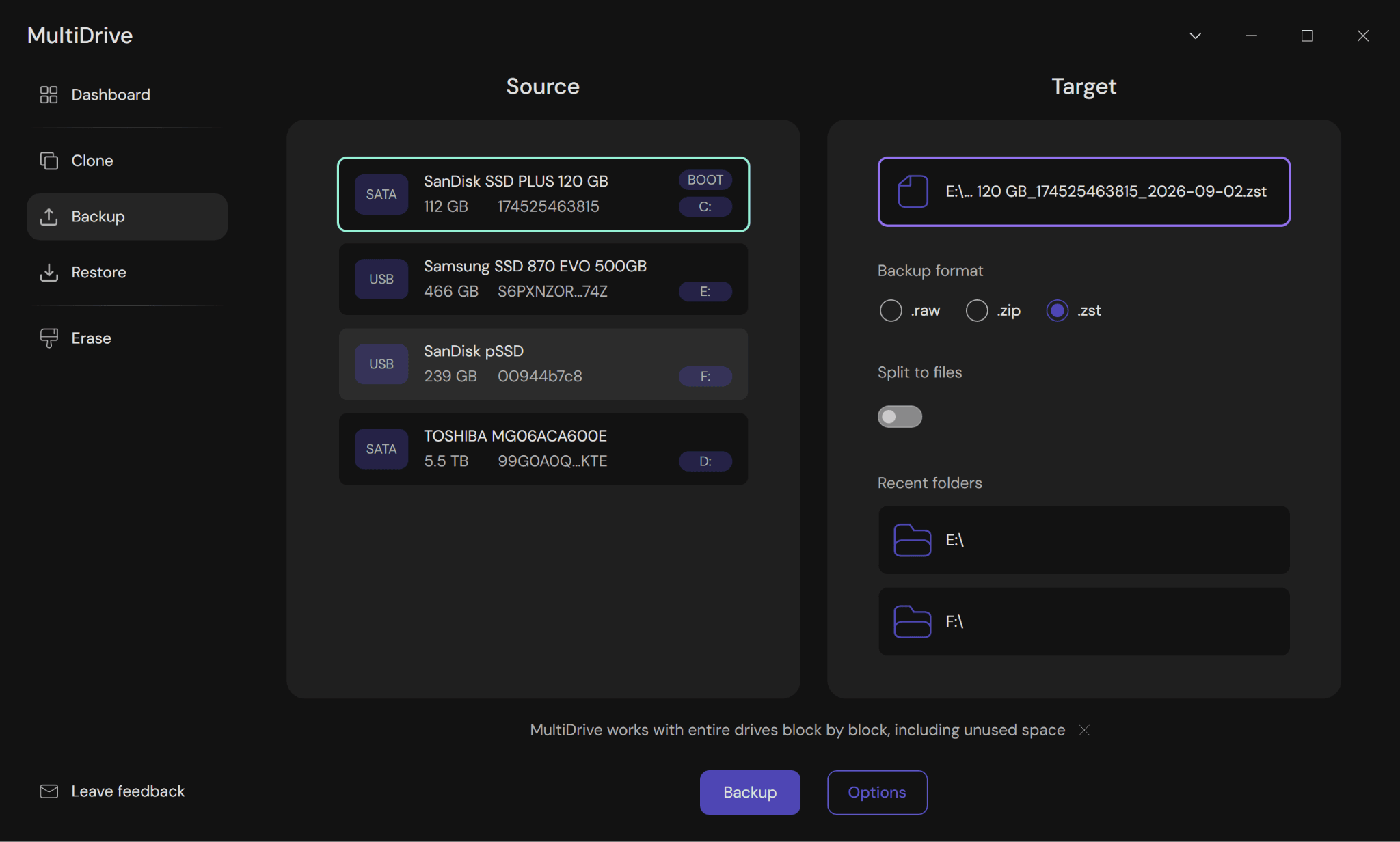
Selecting a source drive for backup in MultiDrive.
Backing up an individual partition is available in MultiDrive, but this feature is hidden under the Options button, and you have to pinpoint the start and the end of the partition by hand.
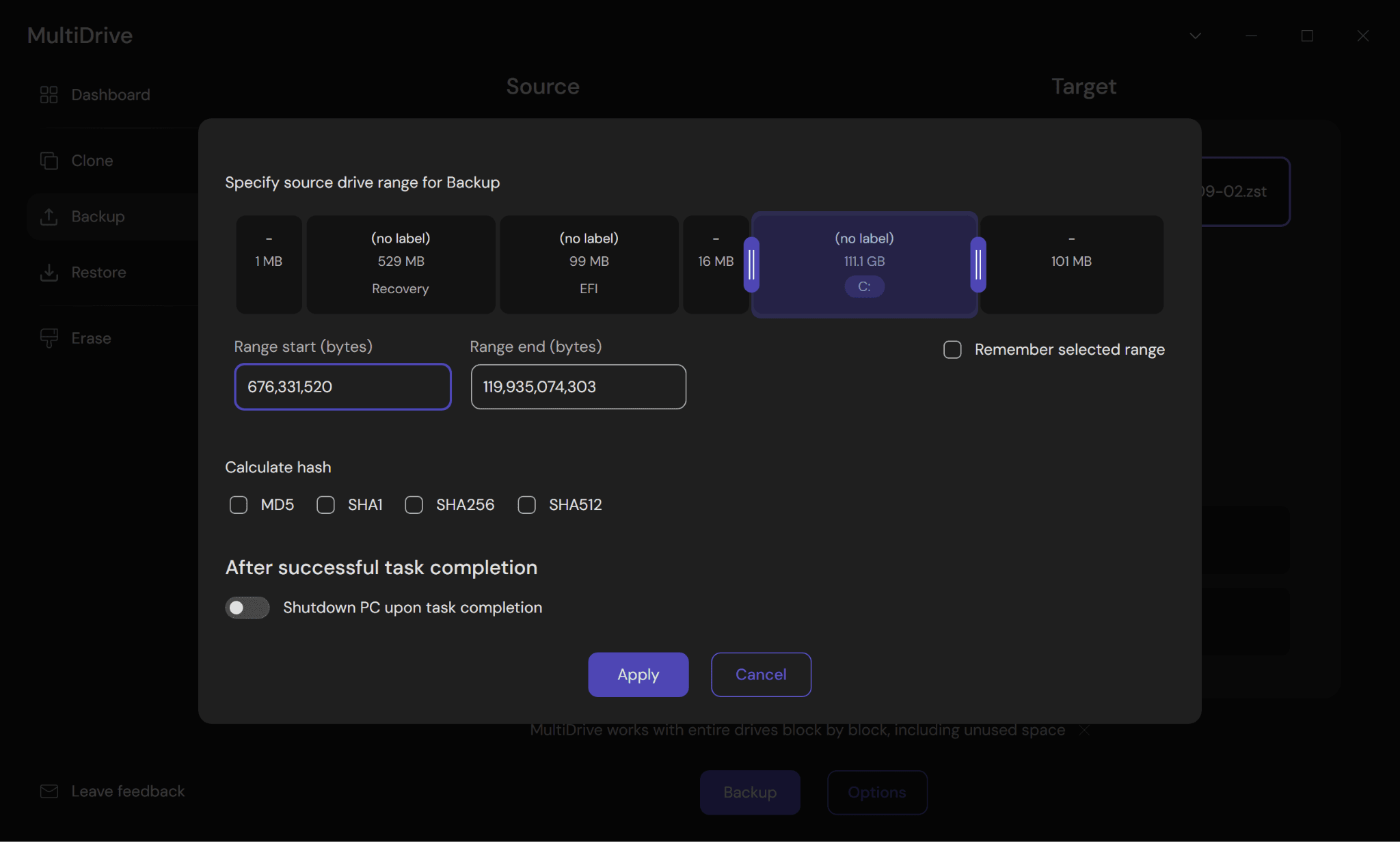
Selecting a partition for backup in MultiDrive.
AOMEI Backupper, in addition to a single drive or partition, allows you to select multiple physical drives or multiple partitions across several drives for backup, and save them as a single image file in the proprietary *.adi format.
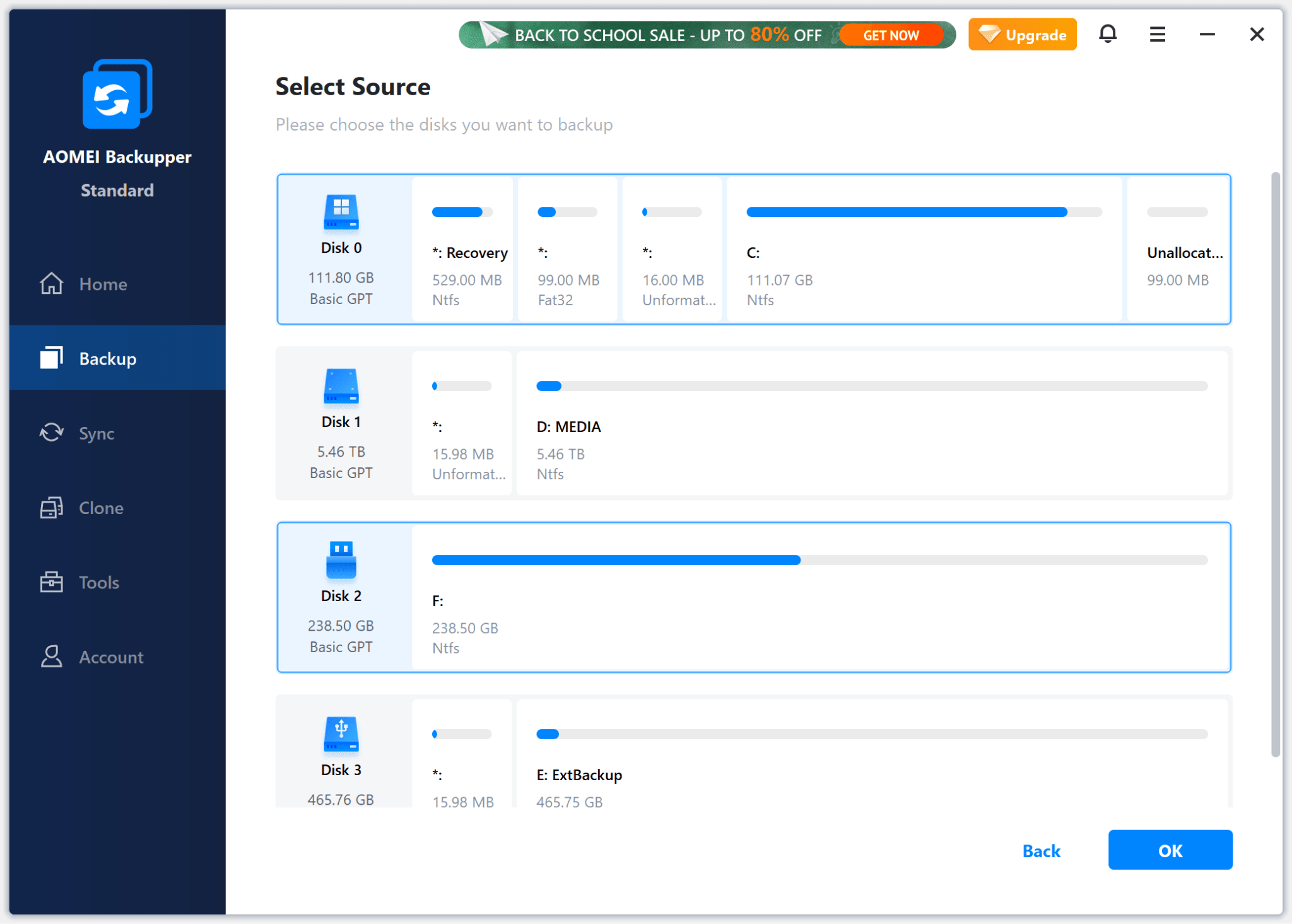
Selecting multiple source drives for backup in AOMEI Backupper.
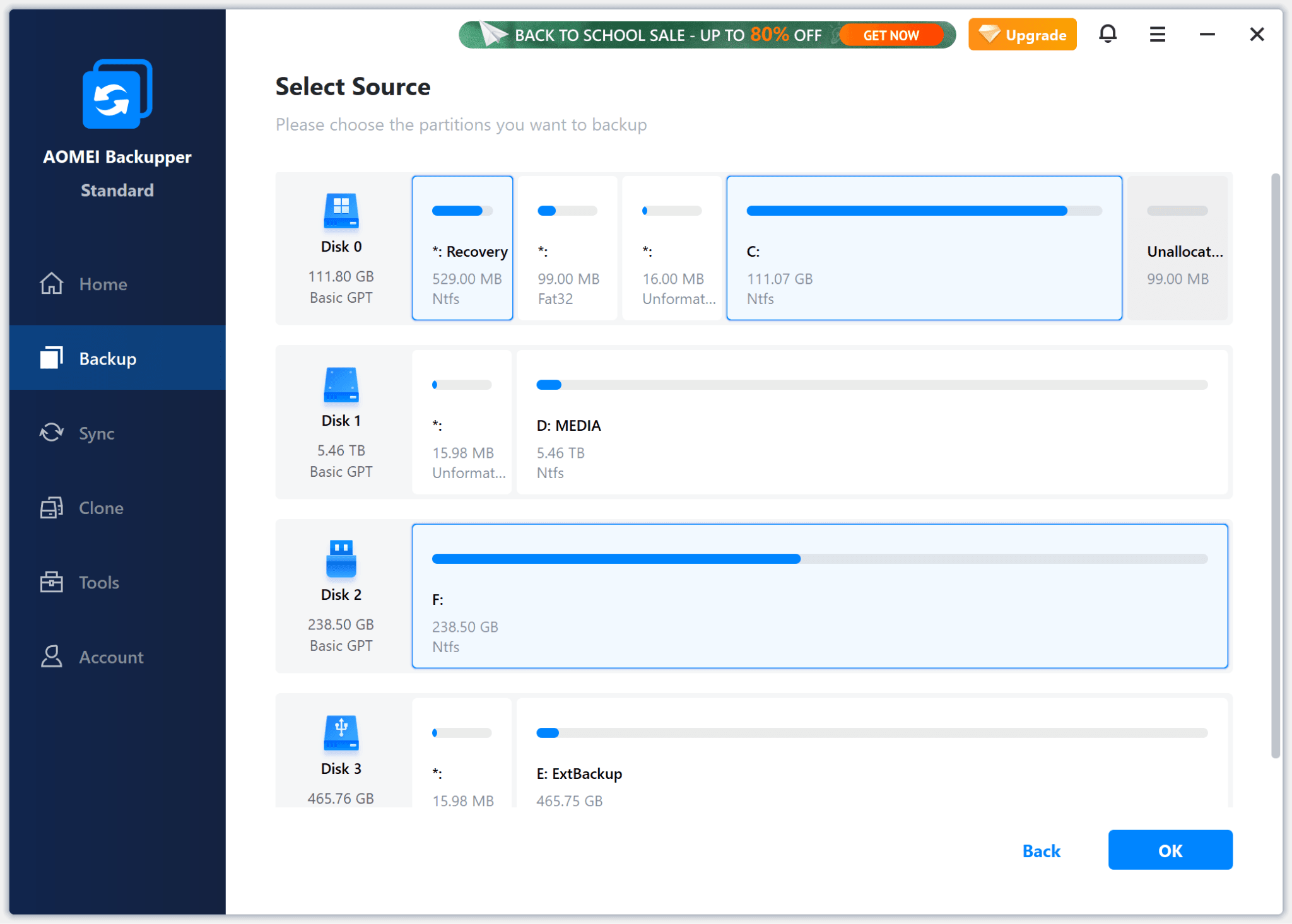
Selecting multiple partitions across several drives for backup in AOMEI Backupper.
AOMEI Backupper also can save selected folders and files as a single backup file in the proprietary *.afi format.
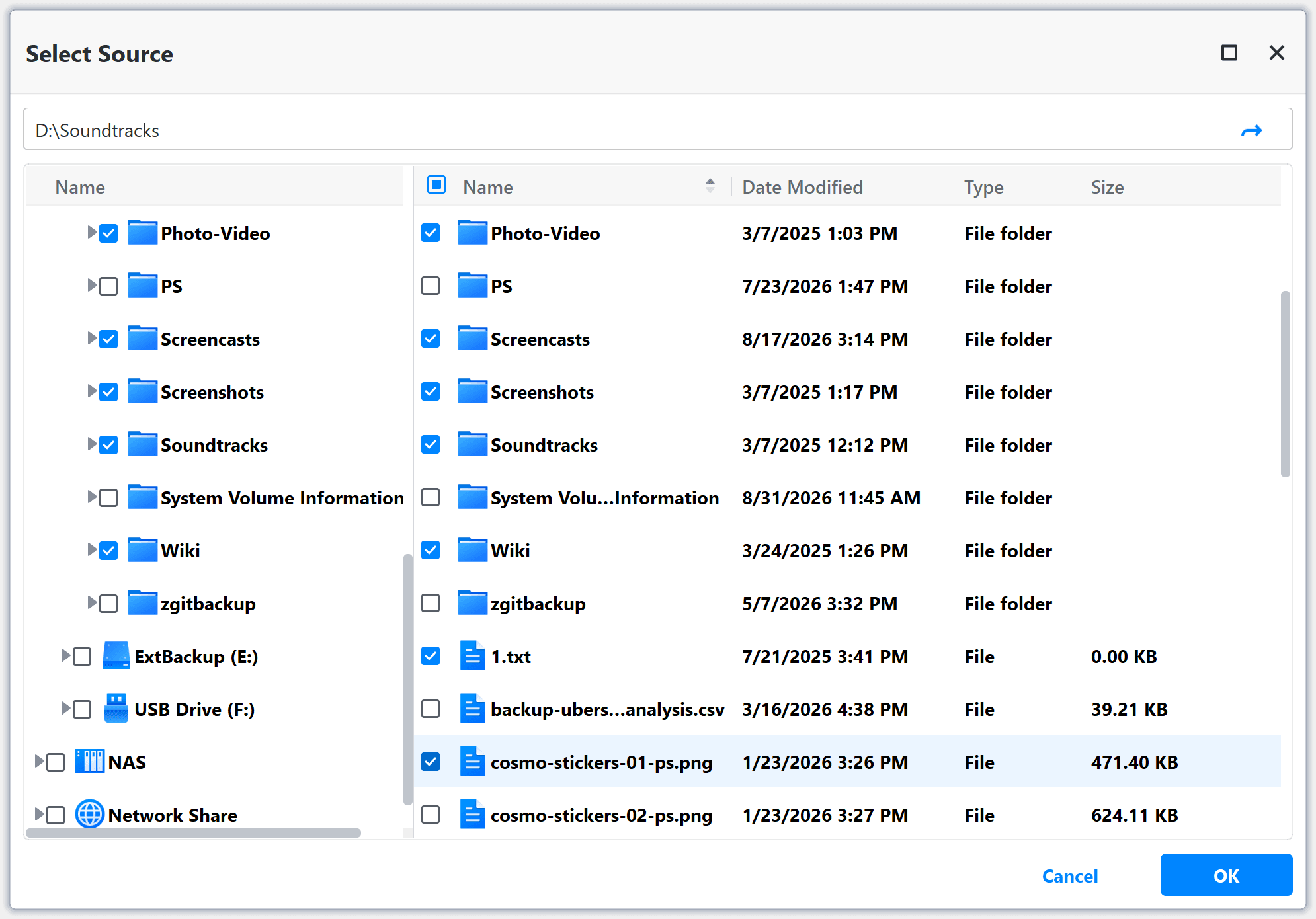
Selecting folders and files for backup in AOMEI Backupper.
Where You Can Store Backups (Possible Targets / Destinations)
Both MultiDrive and AOMEI Backupper can save your backup files to various locations, including:
- Other internal drive
- External drive
- USB flash drive
- Network share
- Network-attached storage (NAS)
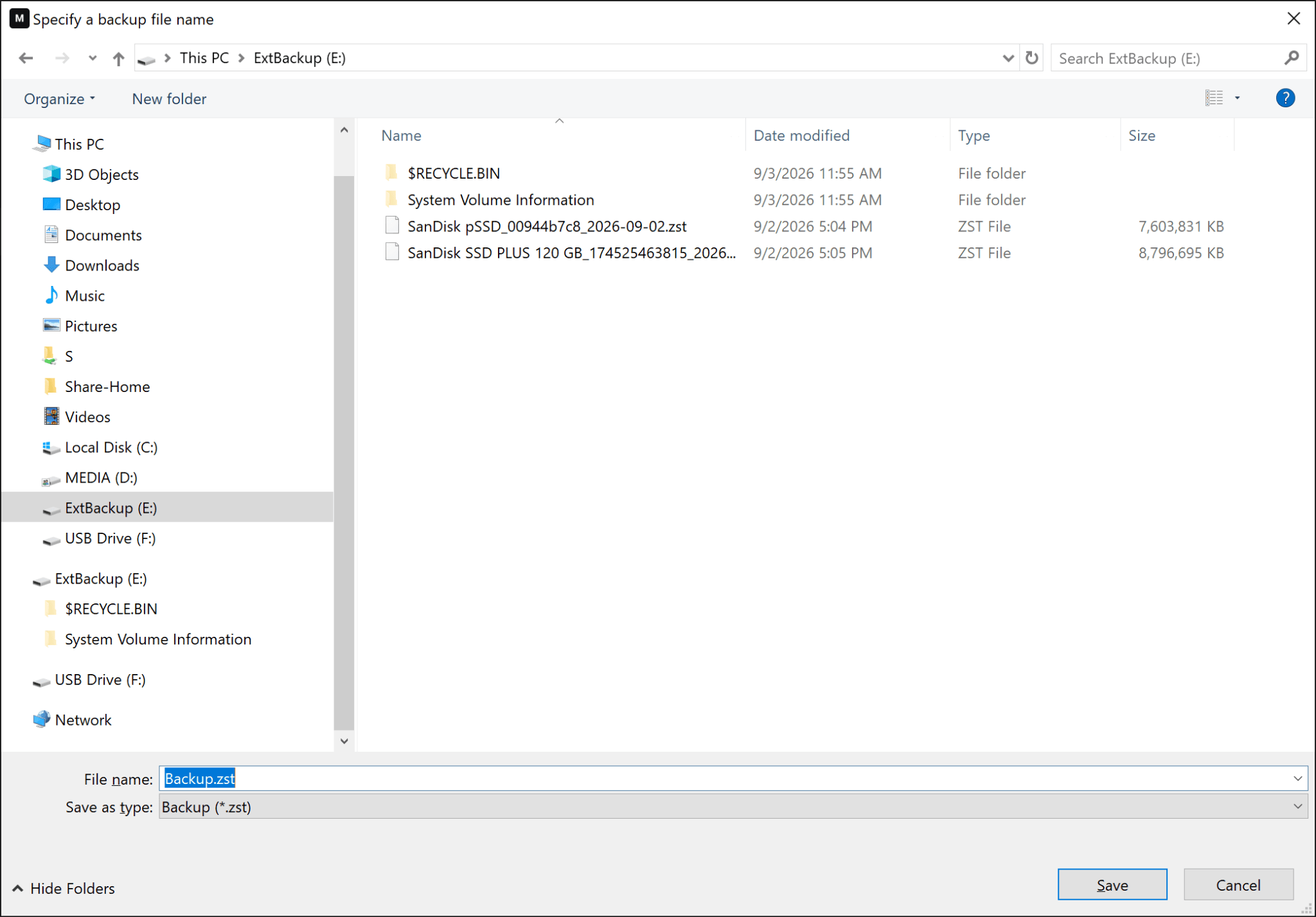
MultiDrive uses the standard File Explorer interface to specify a backup file location and name.
Backup Formats and Compression
MultiDrive uses widespread open formats for backup files, which can be opened by a variety of third-party tools if you decide to change your backup software:
- RAW (no compression) – a backup file takes as much space as your source drive.
- ZIP (compressed) – a RAW file compressed into a ZIP archive, takes 40-70% less space than the original.
- ZST (compressed) – a RAW file compressed with Zstandard, a new compression algorithm developed by Meta (Facebook), reduces backup file size by 35-68%.
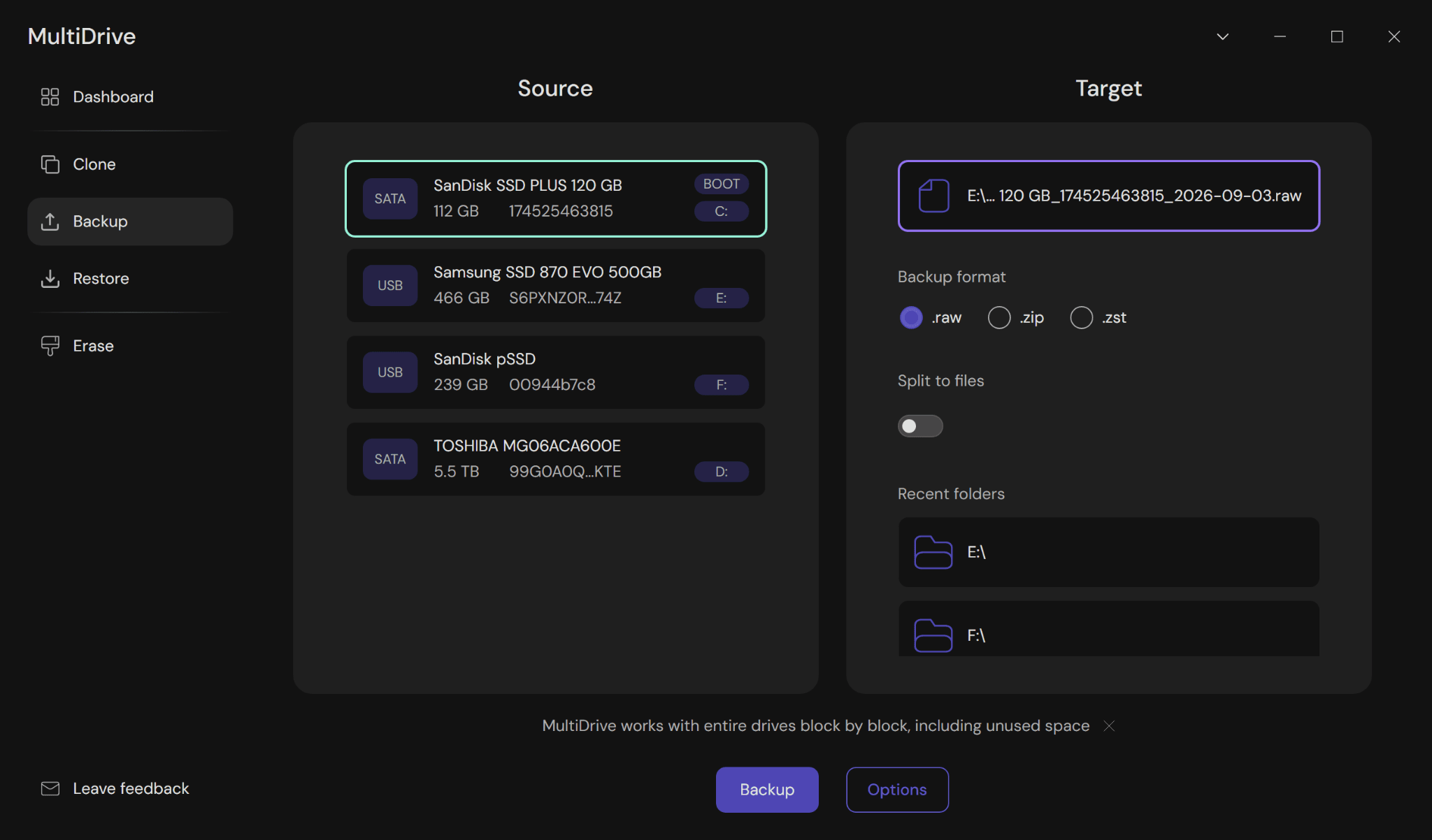
Selecting the backup format in MultiDrive from three options: RAW, ZIP, or ZST.
AOMEI Backupper uses proprietary formats for its backups: *.adi for drive backups and *.afi for file backups. The proprietary format ties you to this exact vendor: if AOMEI decides to put a price on its Standard version in the future, you’d have to pay to restore your data from backups.
The compression level needs to be selected by hand in the backup settings:
- None – the backup size will be equal to your original data.
- Normal – the default moderate level of compression.
- High – the backup file will be smaller, but the backup will take longer to complete.
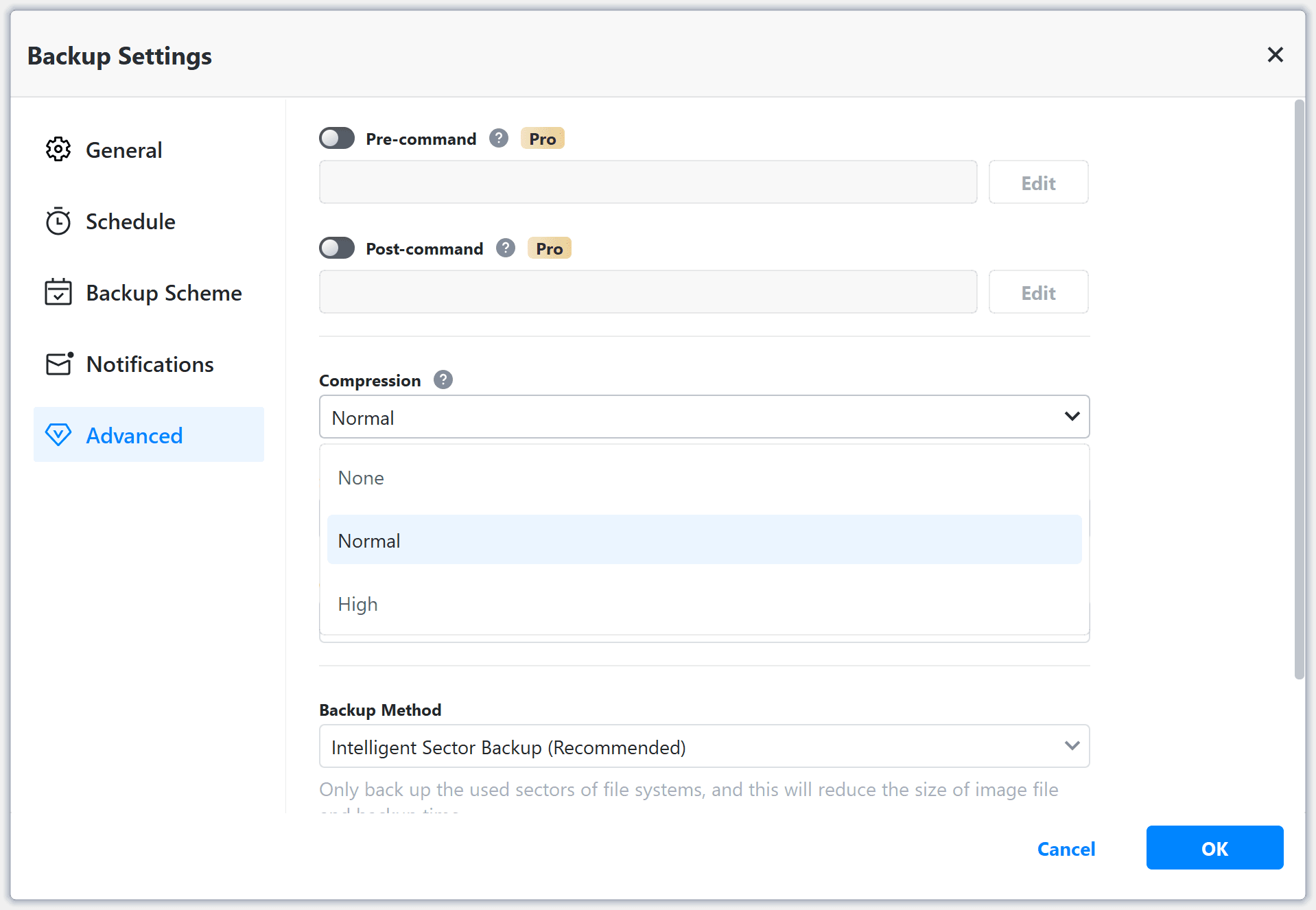
Selecting the backup compression level in AOMEI Backupper.
Split Backup Image
Both MultiDrive and AOMEI Backupper support splitting a backup image into smaller files (chunks) of a certain size, defined by the user.
AOMEI Backupper also offers 5 predefined chunk sizes to select from: CD (650 and 700 MB), DVD (4.7 GB), FAT32 (4 GB), and ZIP-100 drive (100 MB).
Backup Algorithm: All or Only Used Sectors
MultiDrive backs up all sectors of a source drive or partition, including free and unallocated space. This makes a backup image file an exact replica of the drive (including free space), but it takes some extra storage space.
AOMEI Backupper, by default, saves only used sectors containing data in order to reduce the size of the image file and the backup time. But this setting can be changed to sector-by-sector backup, and the tool will back up all sectors of disks or partitions whether they are used or not.
Backup Method: Full or Incremental
MultiDrive performs only a full backup of a drive or partition. If you make another backup of your data later, it will be another file containing all the sectors of a source drive or partition. This method is more comprehensive, but it takes more storage space to accommodate multiple backup versions.
AOMEI Backupper Standard supports both full and incremental backup methods:
- With the Full option selected, the tool will perform a full backup every time.
- With the Incremental method selected, the tool will first create a full backup, and then successive backups will contain only the portion of data that has changed since the last backup. This way, backups take less time and space, but are more susceptible to errors or failures.
- The differential backup method is available only in paid versions of AOMEI Backupper, starting at $39.95.
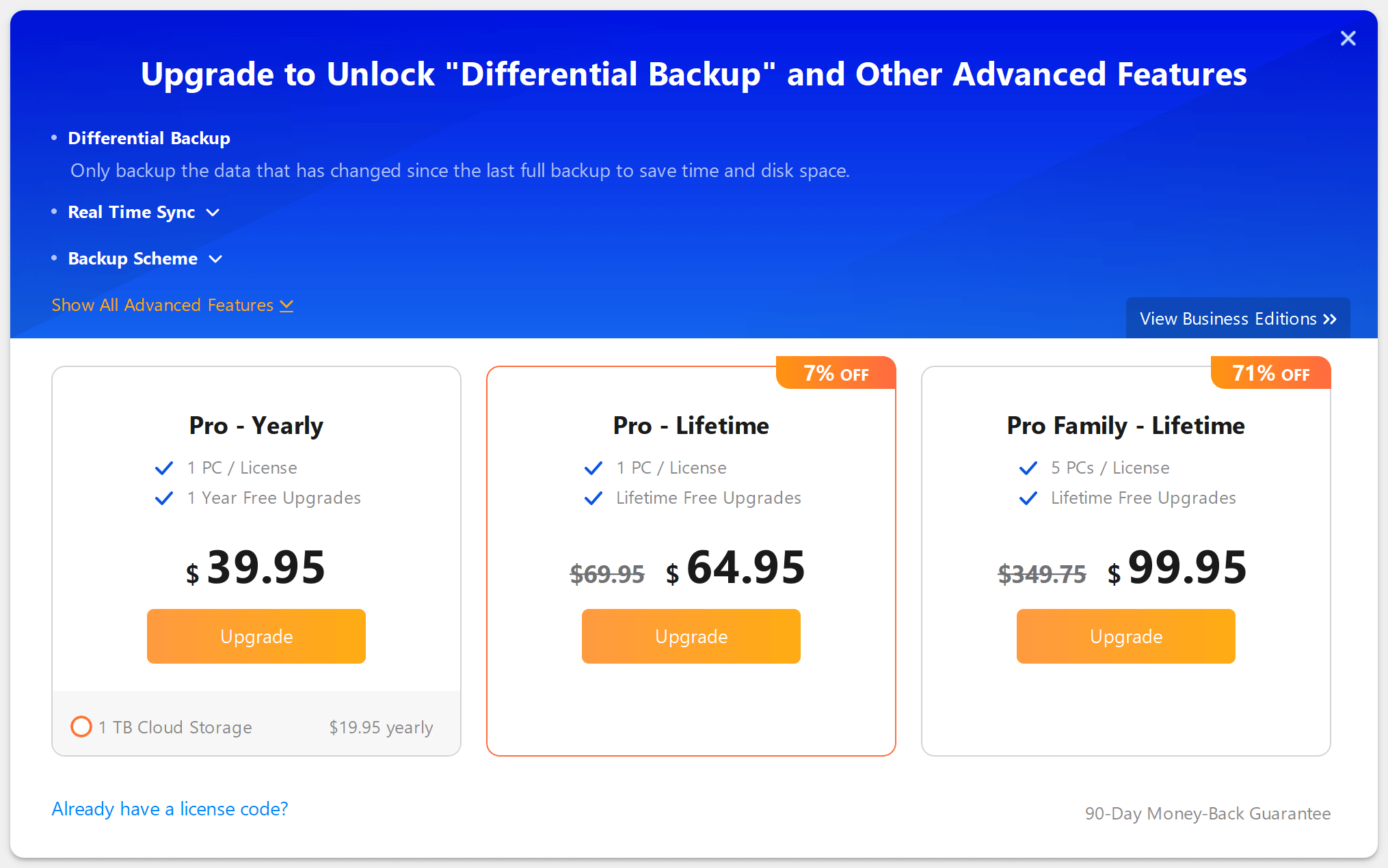
AOMEI Backupper urges the user to upgrade to a paid version in order to unlock differential backup.
Back Up on Schedule or by Trigger
MultiDrive doesn’t directly support scheduled backups in its interface, but you can use the built-in command-line interface and Windows Task Scheduler. Event-triggered backups are also not supported.
AOMEI Backupper has the option to back up your data on a set schedule: daily, weekly, monthly, etc. It can also run backup tasks after certain triggers: when you plug the USB drive in, when you log in or log off, when your system starts up or shuts down.
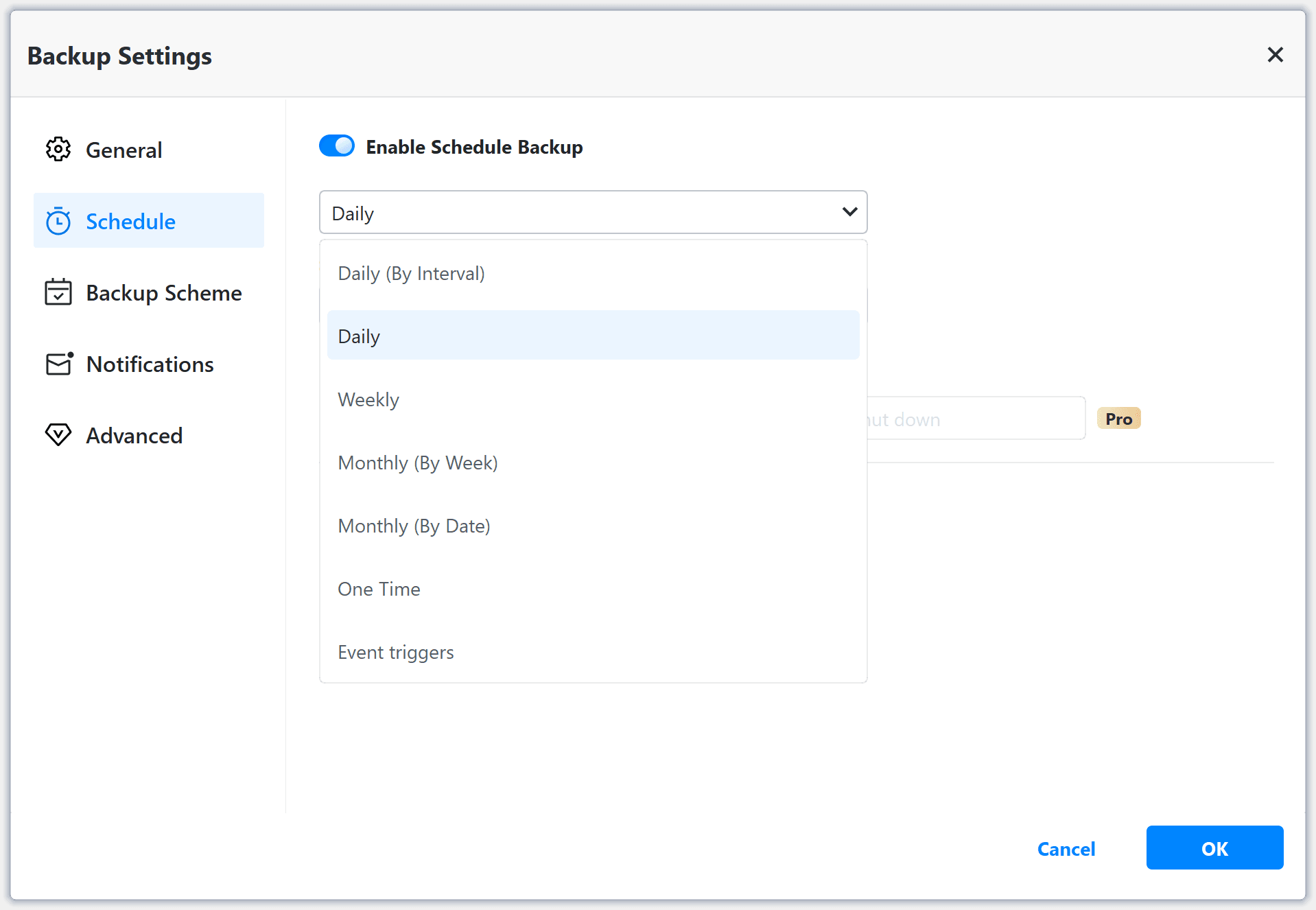
The backup scheduling options in AOMEI Backupper.
Backup Process: Pause and Resume, Time Estimate
With regard to the backup process, the main advantages of MultiDrive over AOMEI Backupper are the estimate of the time needed to complete the task and the pause/resume functionality.
MultiDrive features a clean and informative backup progress screen. It displays:
- a running graph with source drive read speed and destination drive write speed,
- info about the source drive and the target image file,
- the current data transfer speed,
- the amount of copied data,
- the percentage of completion,
- the time left to complete the task.
From the MultiDrive progress screen, you can pause the backup task at any time and then resume it later from the exact same sector. This feature might be useful when you need to turn off your PC or leave your workplace for a period of time.
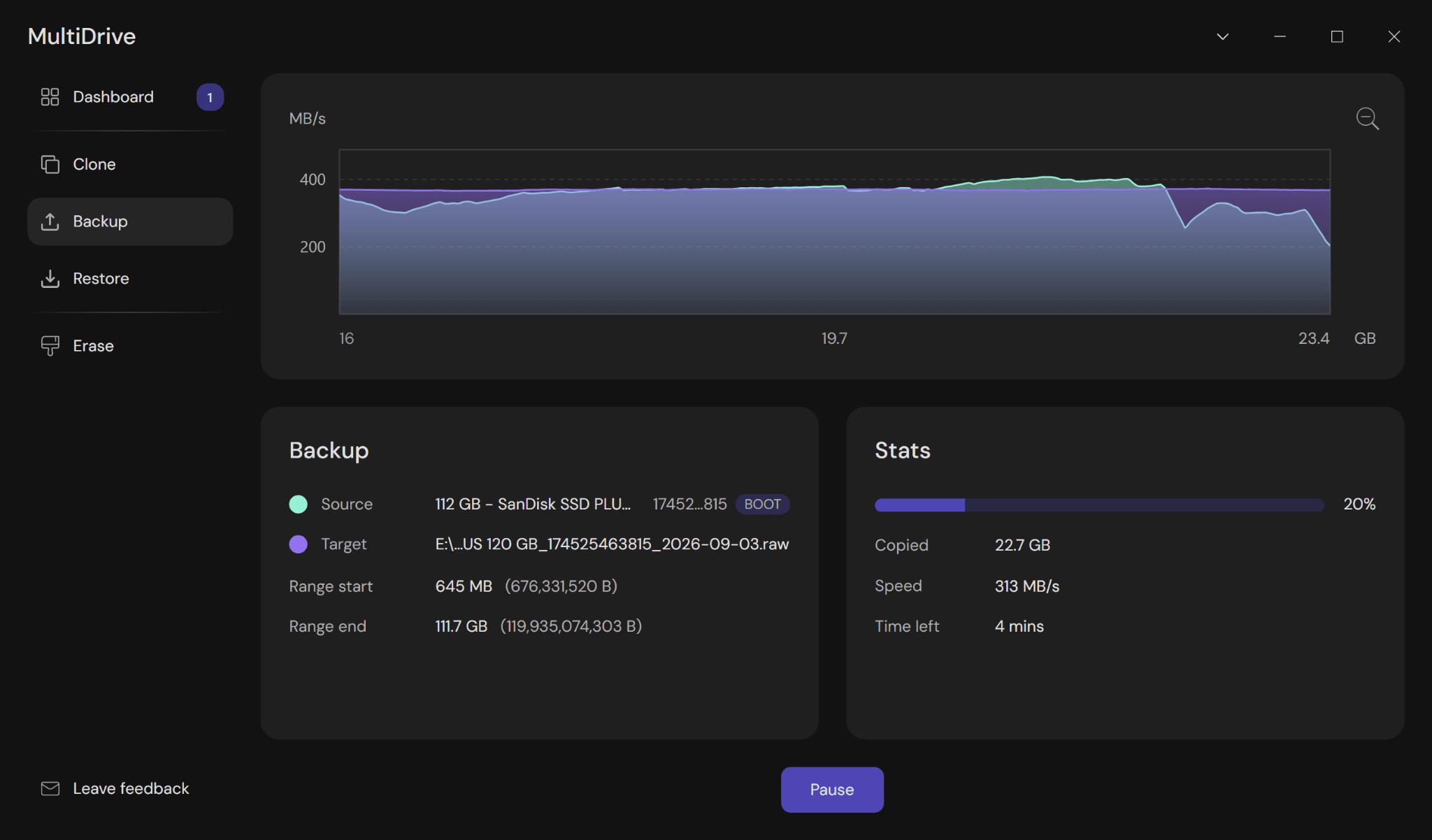
The backup progress screen in MultiDrive.
AOMEI Backupper displays the following information on its backup progress screen:
- the percentage of completion,
- the chosen backup method (full or incremental),
- the elapsed time,
- the current data transfer speed,
- the source and destination drives.
AOMEI Backupper doesn't have a pause feature. As noted above, it runs one task at a time.
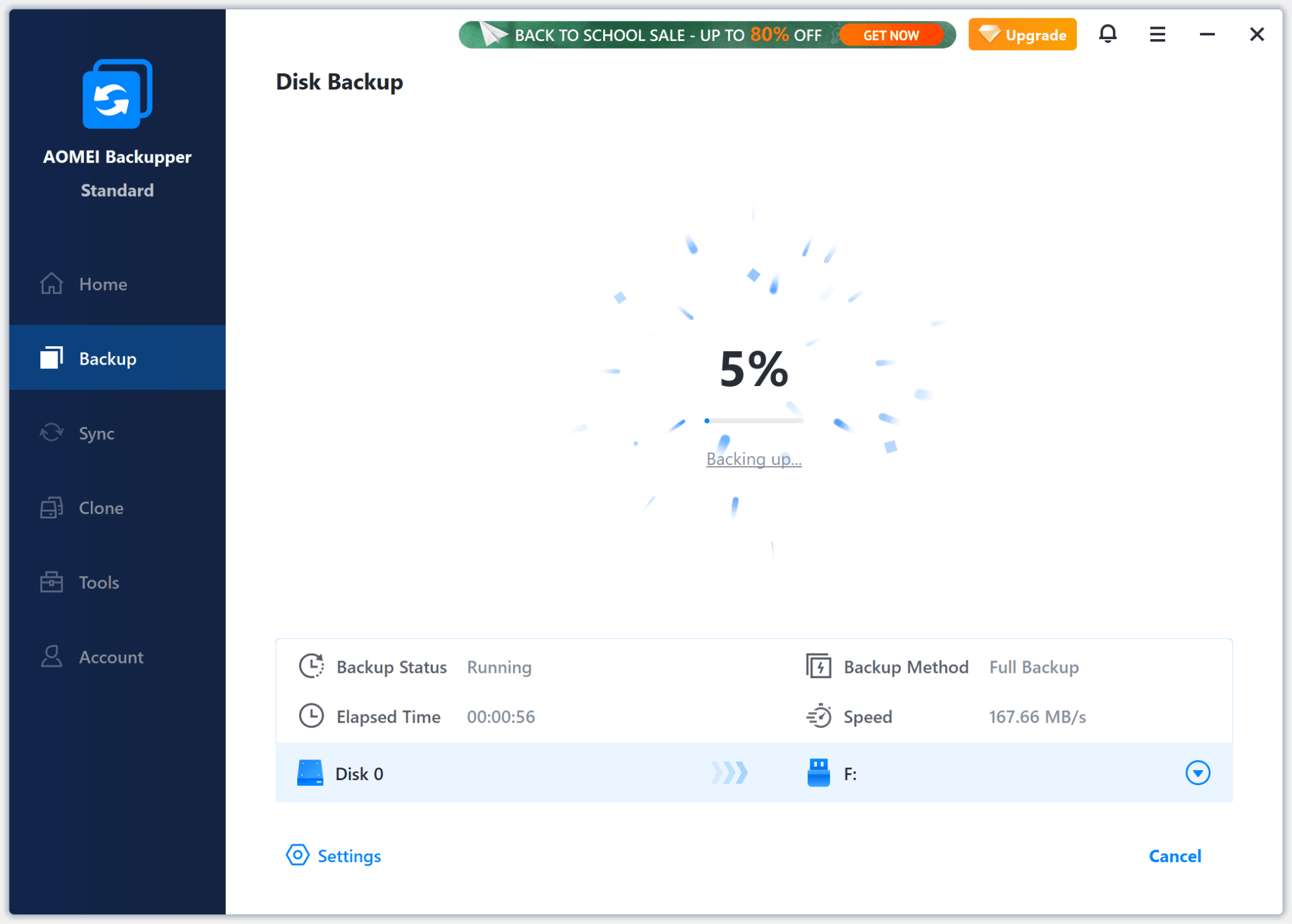
The backup progress screen in AOMEI Backupper.
Automatically Shut Down a PC after a Backup is Completed
MultiDrive has an option to shut down a PC after your backup task is successfully completed.
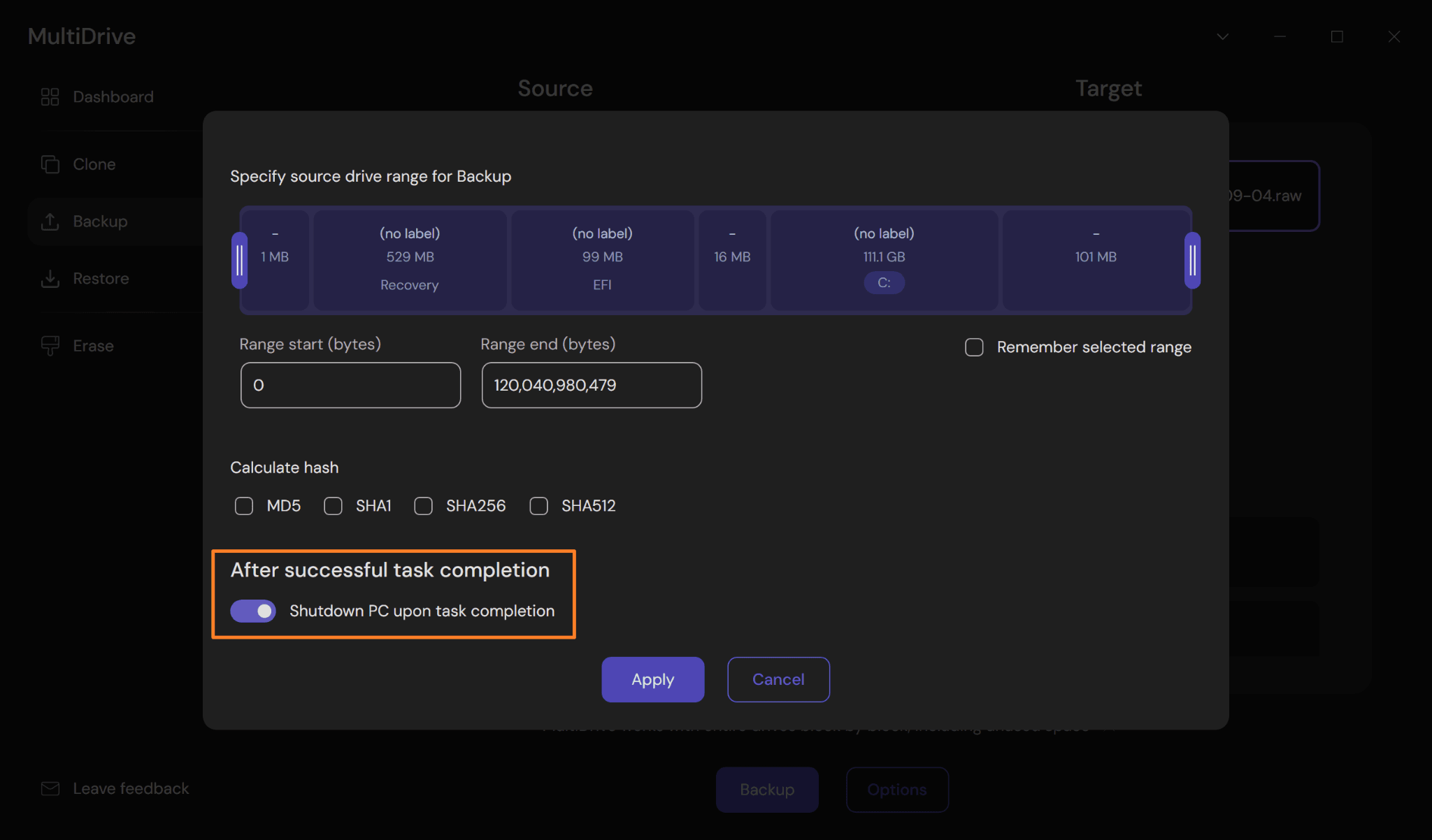
Enabling the “Shutdown PC…” option in MultiDrive.
AOMEI Backupper doesn’t offer such a feature, but in paid versions, starting at $39.95, you can use a workaround: the “Post-command” setting in the backup options allows you to run a custom script that will shut down your PC after a backup.
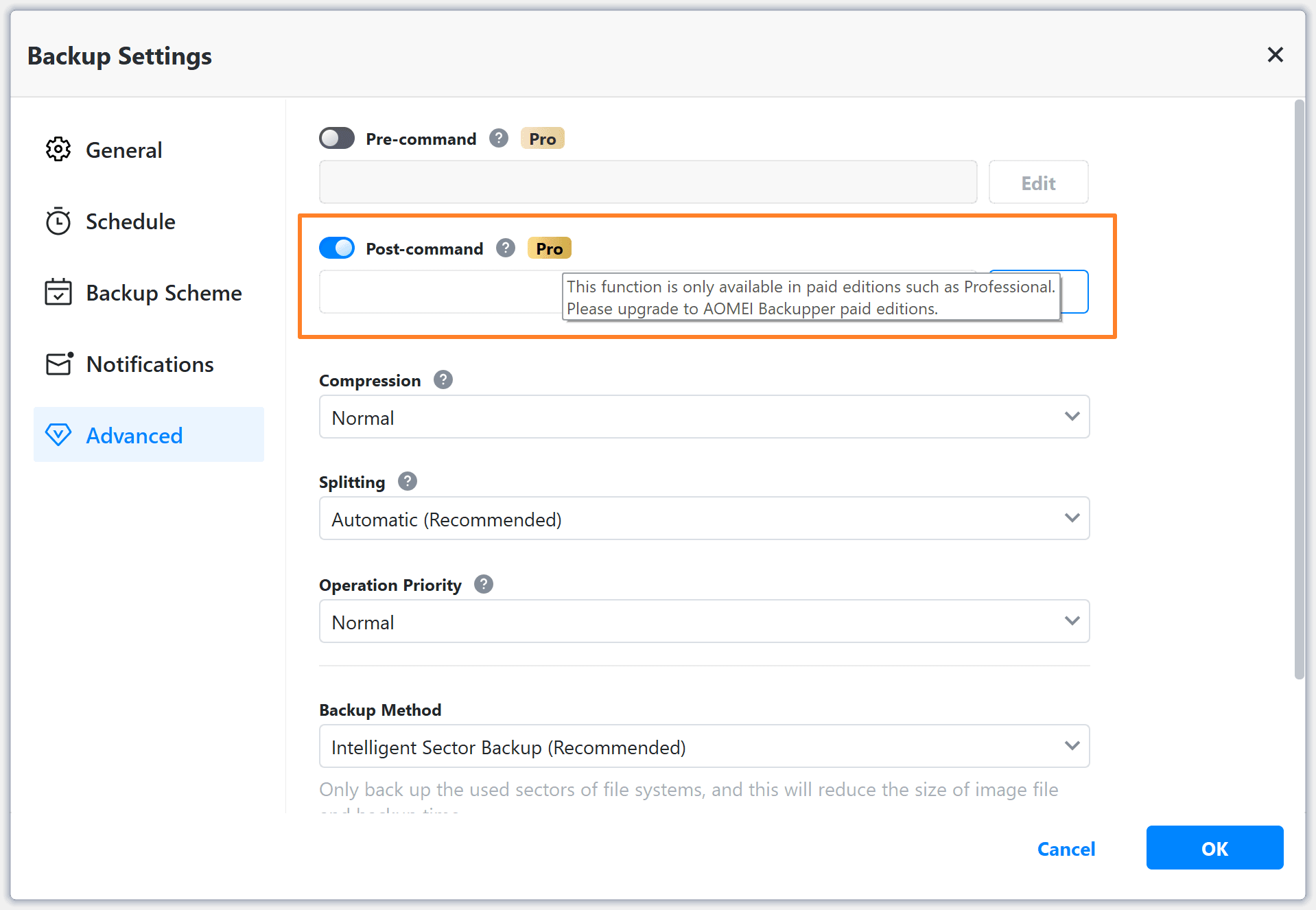
The Post-command option in the advanced backup settings of AOMEI Backupper.
Restore Disk, Partition, or Files
In MultiDrive, the restore option sits in the main menu on the left and is available from any screen within the app. You need to select your backup file in RAW, ZIP, or ZST format as a Source and your drive as a Target.
In Windows, MultiDrive won’t let you select your system drive as a target to restore for safety reasons. To restore your system drive from a backup, you need to create a bootable WinPE image first and boot from it, so you won’t disrupt your running Windows OS.
After you start the restore process, MultiDrive will overwrite your target drive with the contents of the source backup file you’ve selected, sector by sector.
The restore process in MultiDrive can be paused and resumed later. There is also the option to shut down your PC after the restore is completed.
As MultiDrive doesn’t make file-level backups, restoring individual files or folders isn’t available in this tool.
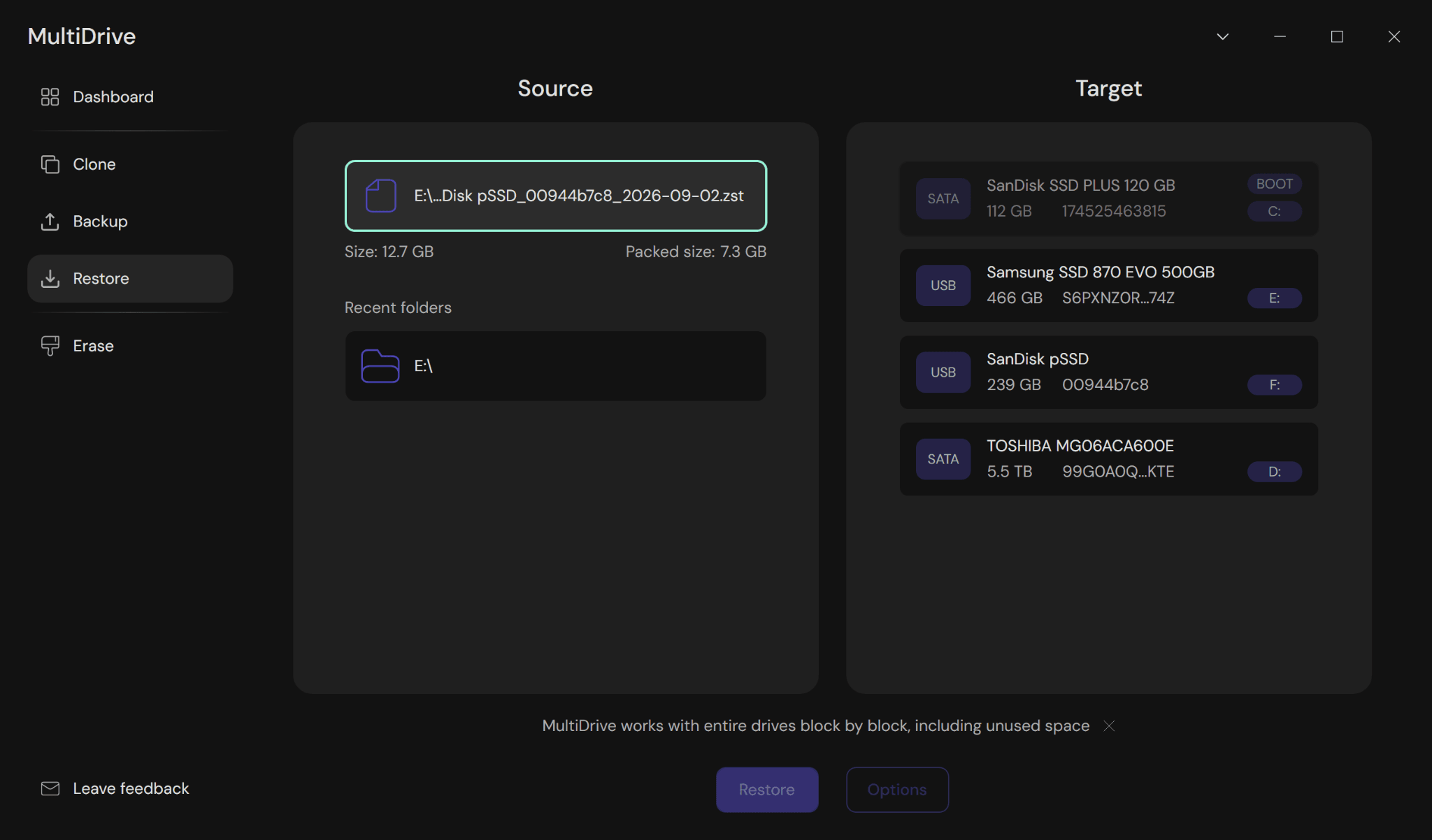
Selecting a source backup file to restore in MultiDrive.
In AOMEI Backupper, the restore option is available only on the home screen and only if you have previously completed backup tasks. You can also select a backup image file in proprietary AOMEI format (*.adi or *.afi) manually.
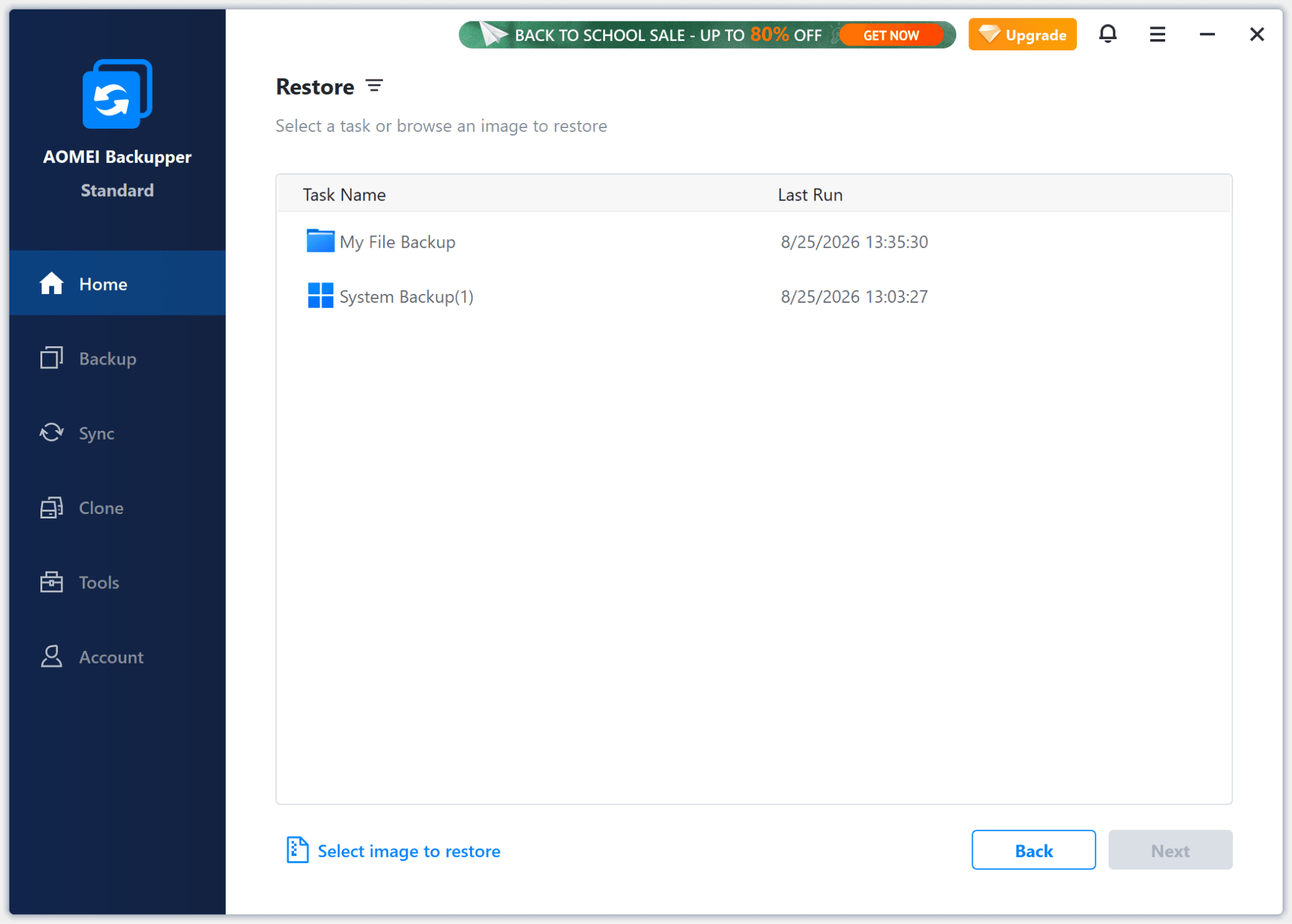
Selecting a backup to restore in AOMEI Backupper.
AOMEI Backupper can restore an entire drive, a partition, or files from a previously created backup image either to the original location or to a new location.
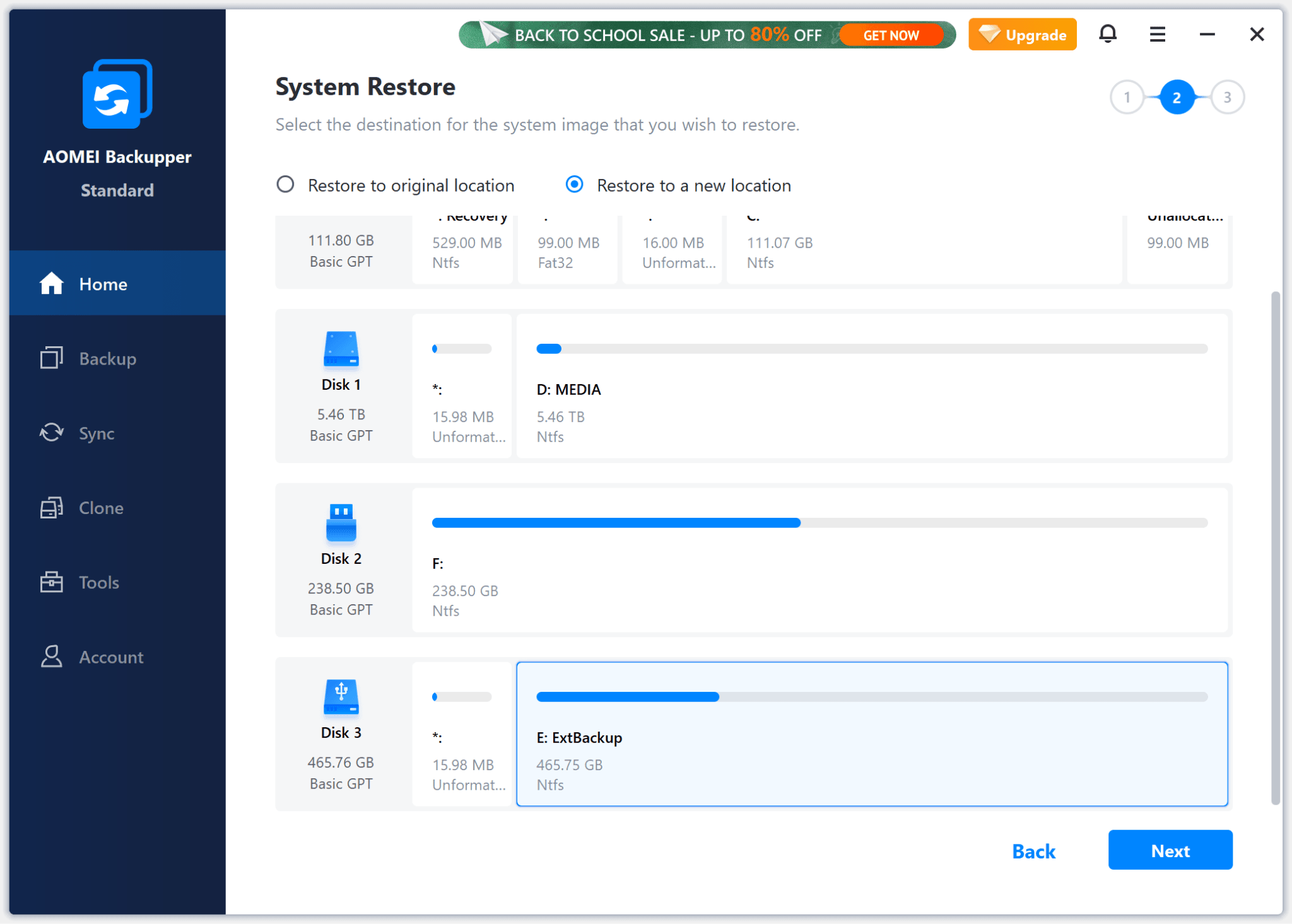
Selecting a new location to restore the system drive image in AOMEI Backupper.
In order to restore the system drive to its original location, AOMEI recommends that users create a WinPE bootable media, which is available in the free version of the software.
Quick Comparison of Other Features (Except Backup)
| MultiDrive (free) | AOMEI Backupper (free version) | |
|---|---|---|
| File Copying (Sync) | No | Yes |
| Clone Disk or Partition | ||
| Same drive size | Yes | Yes |
| Different drive size | Yes | No |
| Create Bootable Media | Yes | Yes |
| Wipe Drive | Yes | No |
| Parallel Drive Tasks | Yes | No |
| Portable Version | Yes | No |
| Command-Line Interface | Yes | No |
File Copying
As MultiDrive focuses on full-drive backups, it doesn’t offer any feature for file-level backup or synchronization.
AOMEI Backupper offers two options for file-level backups:
- Saving selected folders and files as a single backup image in *.afi format (Backup > File Backup). Browsing the contents of the *.afi backup image is a paid option (Tools > Explore image), starting at $39.95.
- Copying selected folders and files to another location as is, similar to traditional copying and pasting (Sync > Basic Sync). With this option, you will be able to freely browse and open individual files from your backup drive using File Explorer.
Clone Disk or Partition
MultiDrive offers a free disk cloning feature with the ability to pause & resume cloning tasks and clone disks with errors.
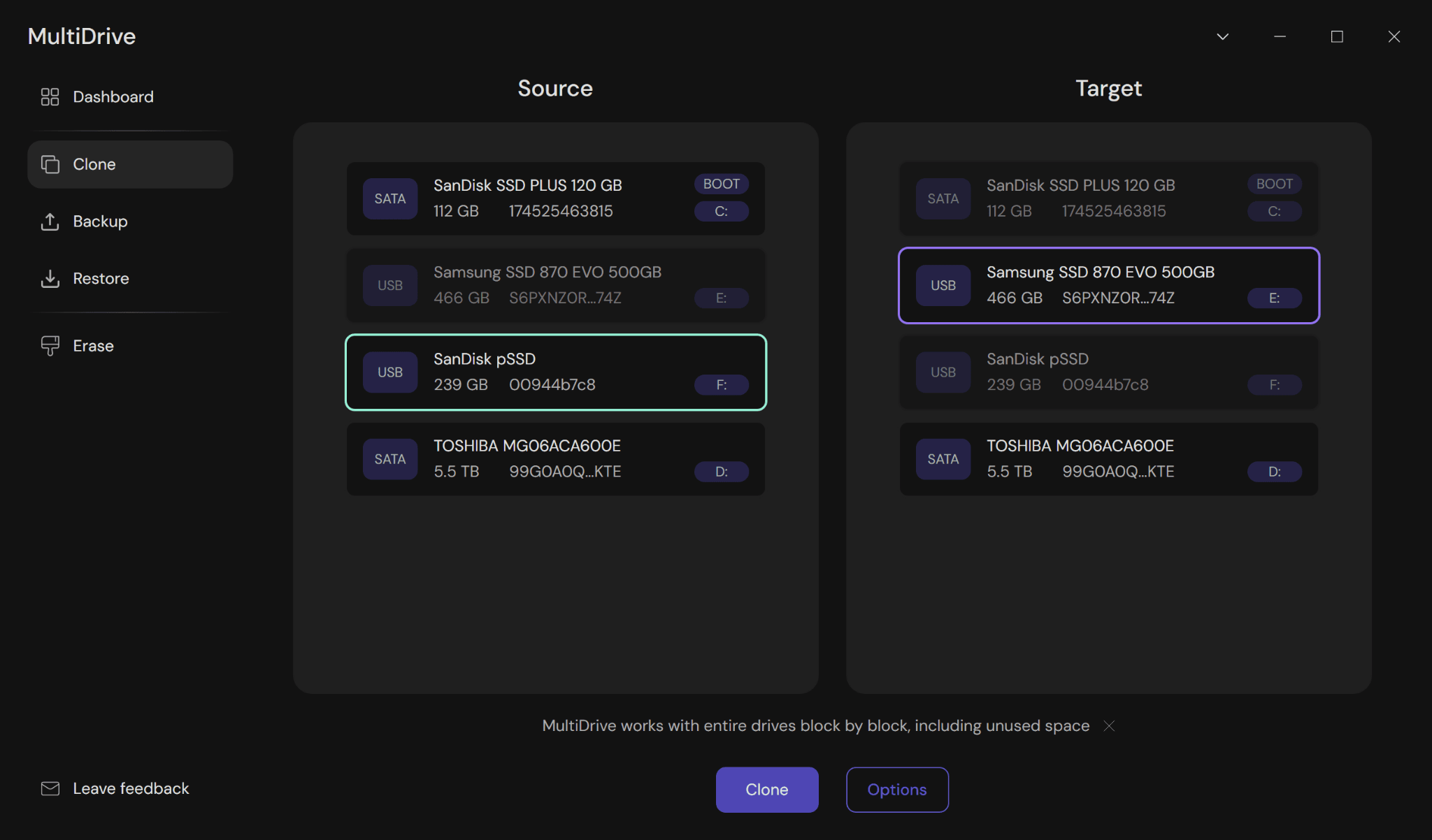
Selecting a drive to clone in MultiDrive.
You can also clone an individual partition, but you’ll have to pinpoint its start and end in the options.
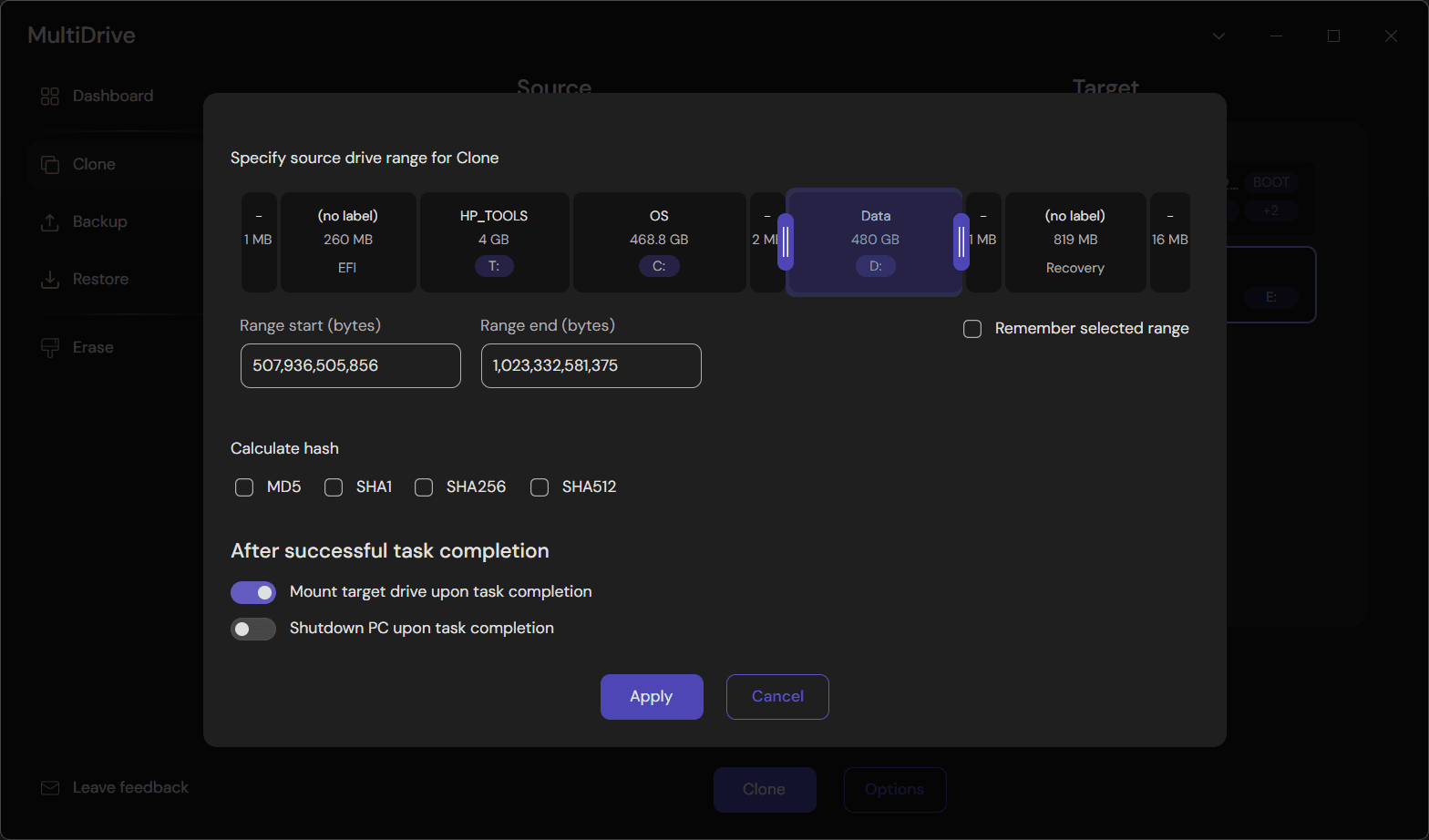
Selecting a partition to clone in MultiDrive.
MultiDrive’s cloning progress screen displays:
- a running graph with source drive read speed and destination drive write speed,
- info about the source drive and the target drive,
- the current data transfer speed,
- the amount of cloned data,
- the percentage of completion,
- the time left to complete the task.
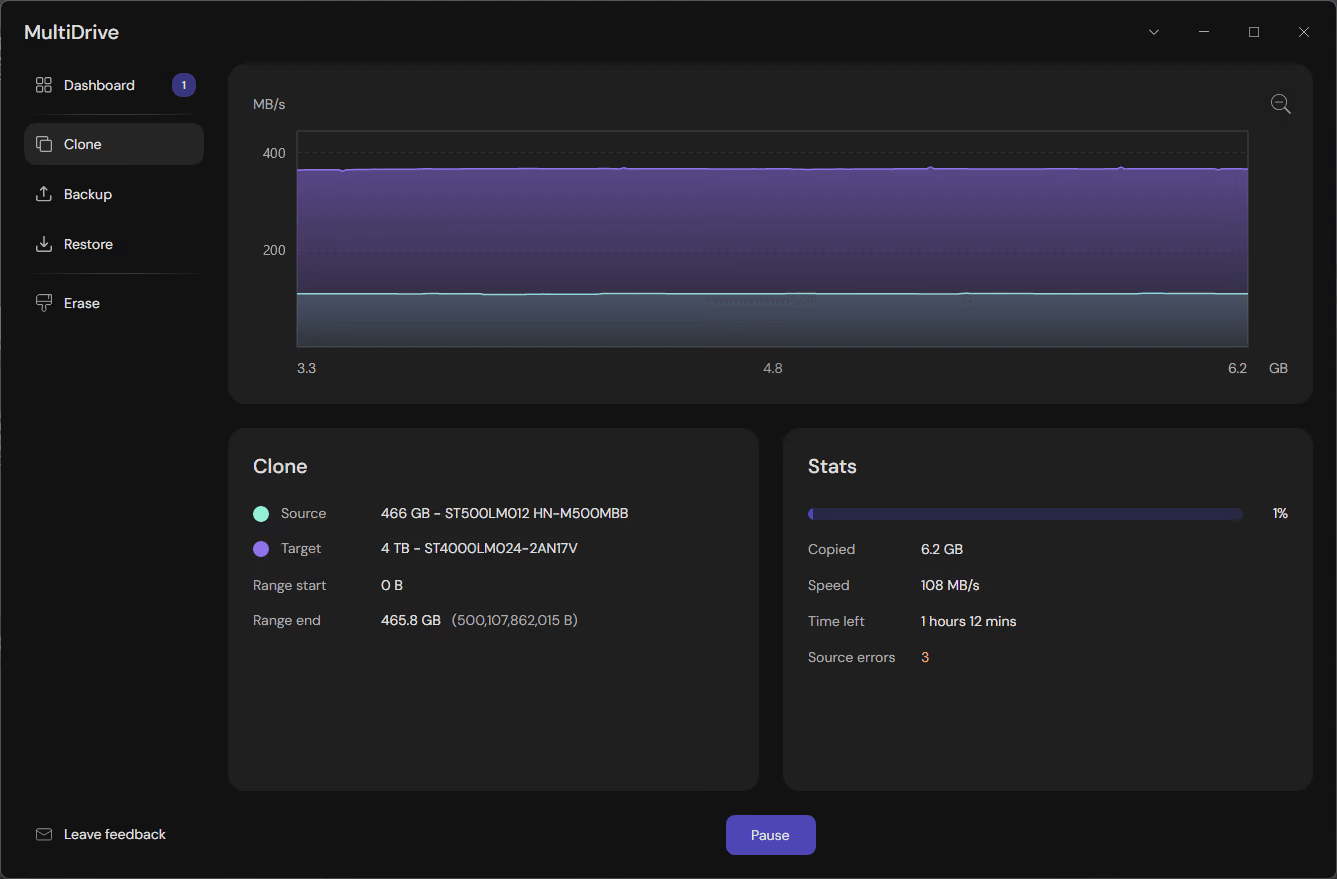
The cloning process in MultiDrive.
MultiDrive supports cloning multiple drives in parallel and can be set to shut down your PC after all tasks are completed. The cloning functionality is also available in MultiDrive’s bootable environment (WinPE) and through command-line interface.
AOMEI Backupper has a free option to clone a drive or partition, but your source and destination drive have to be the exact same size. In the free version, you won’t be able to clone a smaller drive to a larger one or a larger drive to a smaller one, as AOMEI Backupper will urge you to edit partitions, and this feature is available only in paid tiers, starting at $39.95.
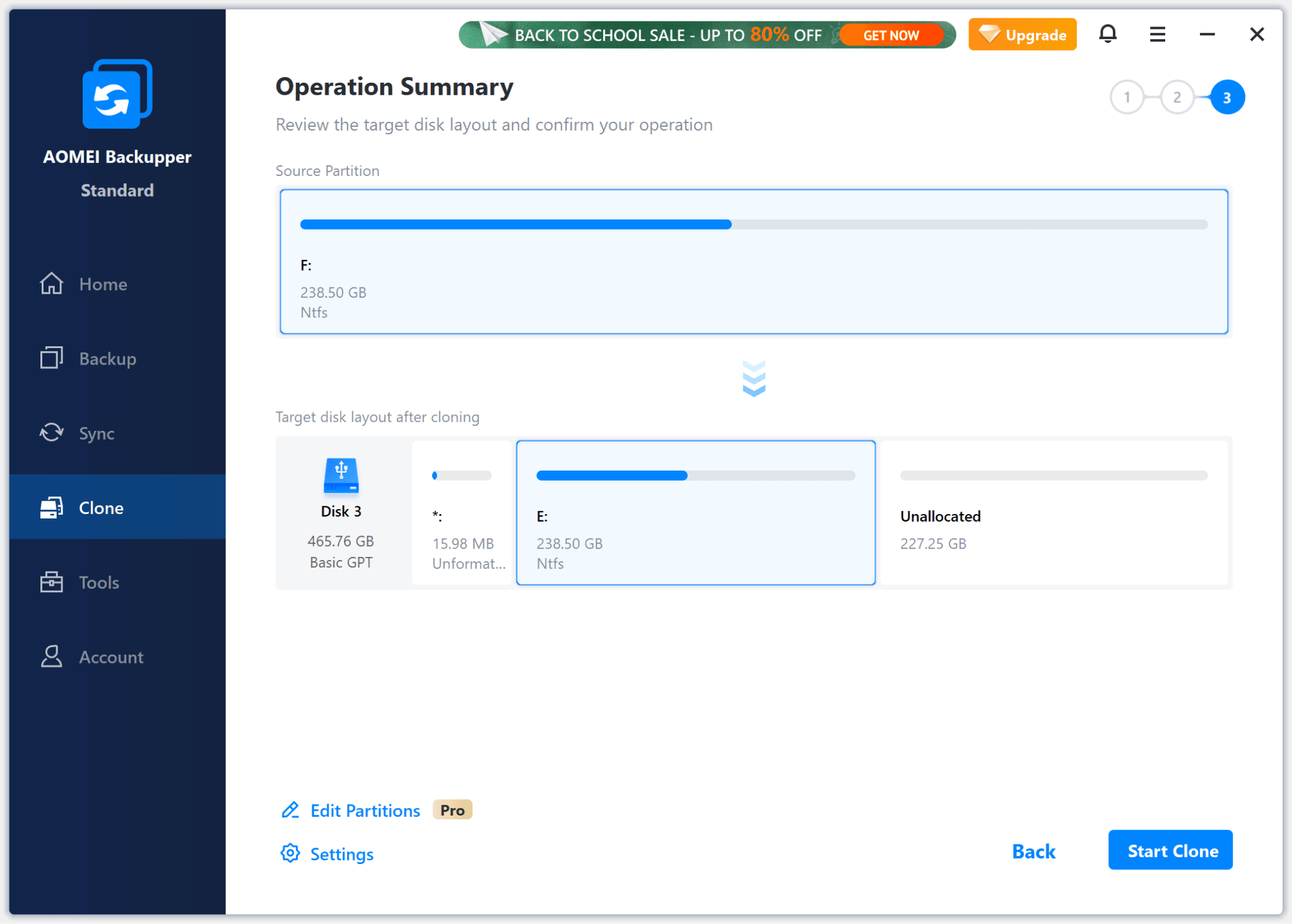
Setting up the cloning process in AOMEI Backupper.
Create Bootable Media (WinPE)
Both MultiDrive and AOMEI Backupper have bootable WinPE versions to safely perform drive operations while Windows is completely stopped.
In MultiDrive, to create a WinPE bootable drive, you need to download a WinPE image from the official site and restore the file to any USB drive of 2 GB or larger using MultiDrive (ZIP format) or a third-party tool (ISO format).
When you boot from the USB drive, a safe WinPE environment with MultiDrive loads automatically. In WinPE, all MultiDrive features are available, including cloning, backing up, restoring, erasing, parallel drive operations, pausing and resuming, and more. Because the main operating system isn’t running in this environment, it is safe to clone and back up your system drive, and you can even fully erase it if you need to.
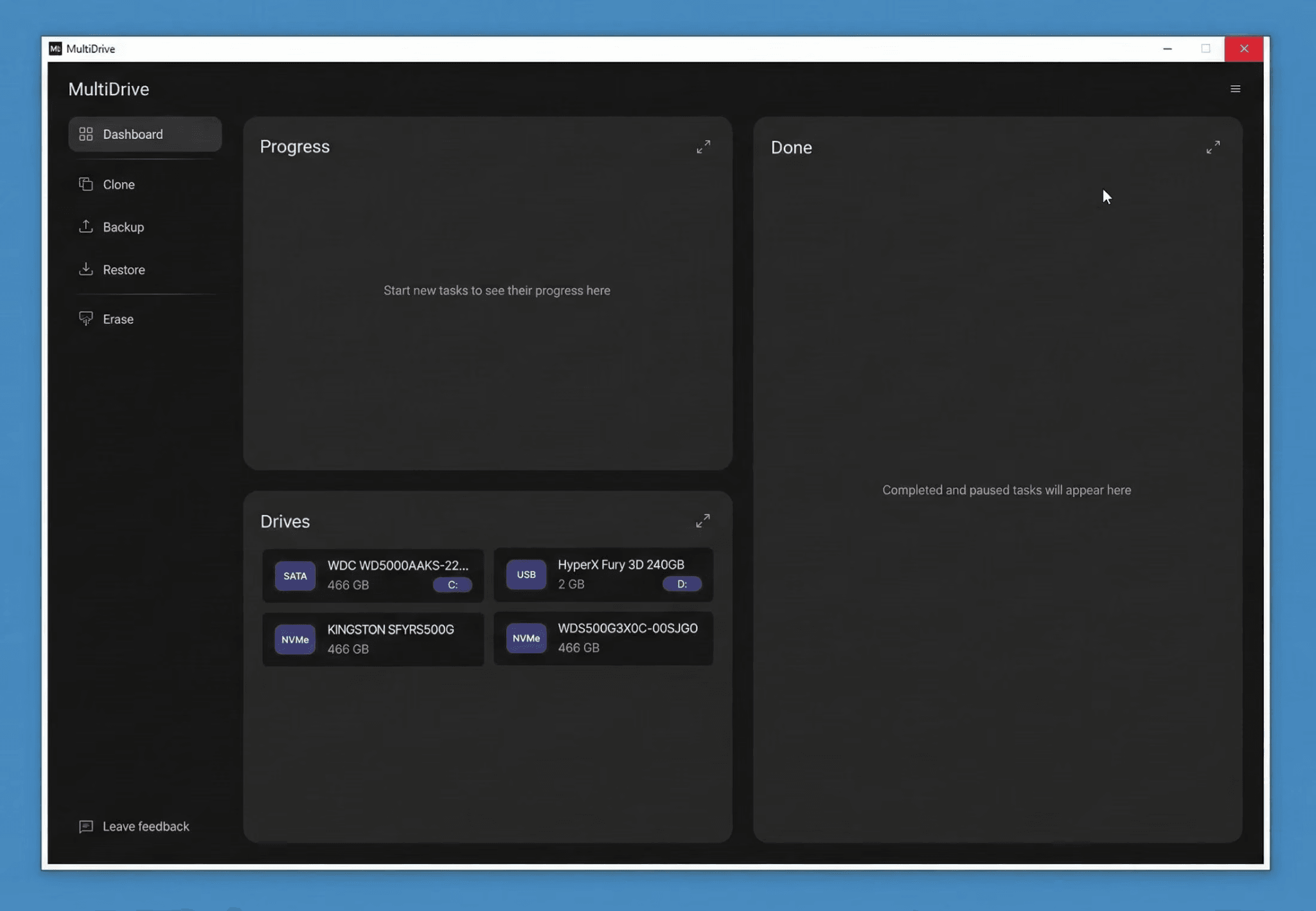
MultiDrive launched from a bootable USB drive in WinPE.
In AOMEI Backupper, you can create a bootable USB drive without downloading anything (Tools > Create Bootable Media), but there’s also an option to download the WinPE creating environment from the internet.
When you boot from the created USB drive, a WinPE version of AOMEI Backupper loads automatically. All main drive operations are available in WinPE (backing up and restoring, file synchronization, cloning to a drive of the same capacity) with the limitations described in the relevant sections of this article, including:
- No cloning to a drive of a different capacity, smaller or larger
- No drive wiping
Wipe Drive
MultiDrive completely wipes drives or selected partitions, including ones with errors, by overwriting every drive or partition sector with a byte pattern (by default, it’s zeroes). For non-system drives, the process is straightforward: Erase > Select the drive > Click the Erase button.
The boot drive, from which your operating system runs, is disabled for erasure for safety. In order to wipe the system drive, you need to run MultiDrive from a bootable USB drive with WinPE.
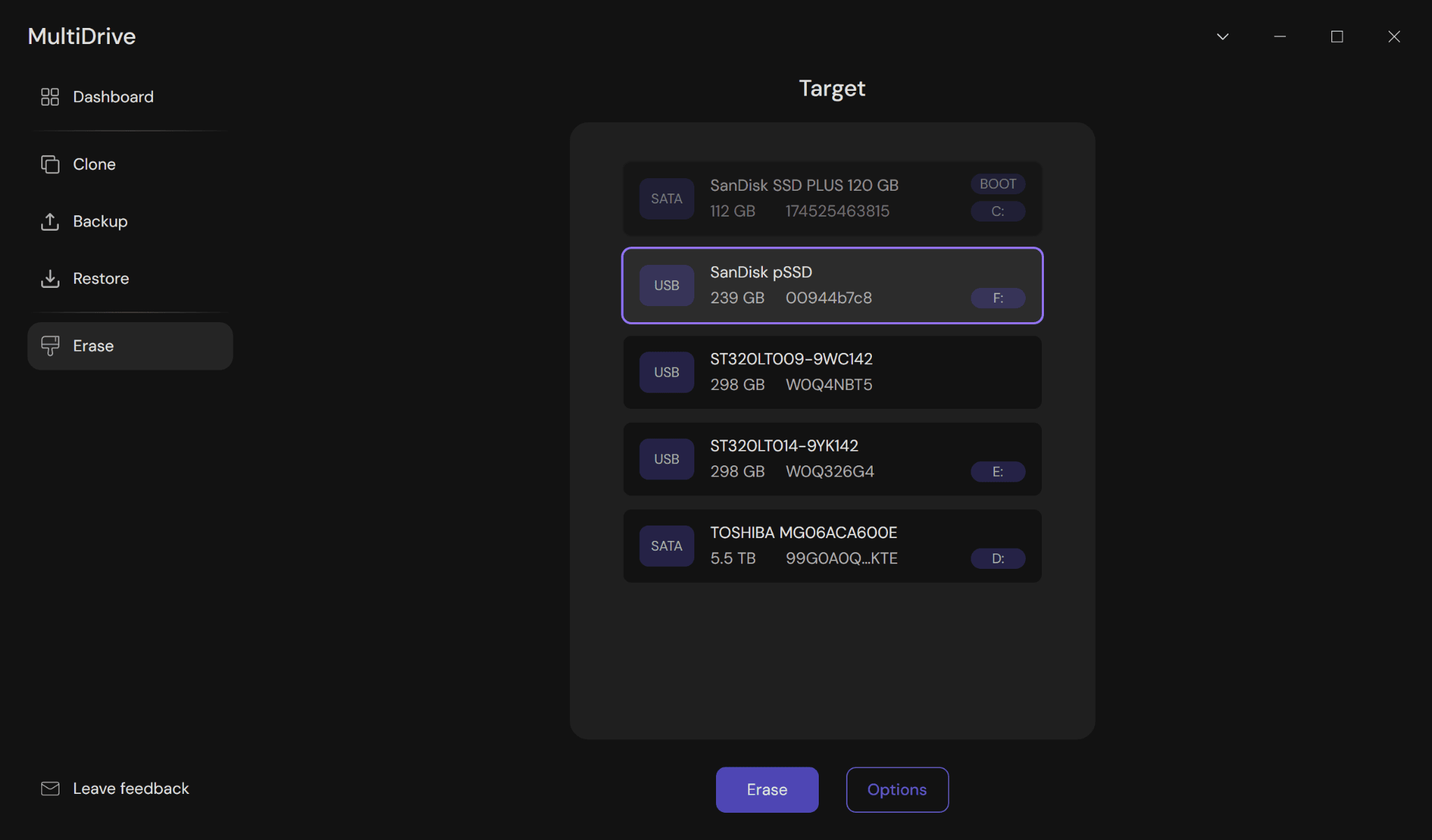
Selecting a drive to completely erase in MultiDrive.
Using the drive wiping options in MultiDrive, you can:
- Choose a partition or drive sector range to erase.
- Enter a custom byte pattern with which to overwrite.
- Format a drive after wiping is complete, creating a new NTFS or exFAT file system.
- Mount a drive after wiping.
- Tell MultiDrive to automatically shut down your PC once the task is finished.
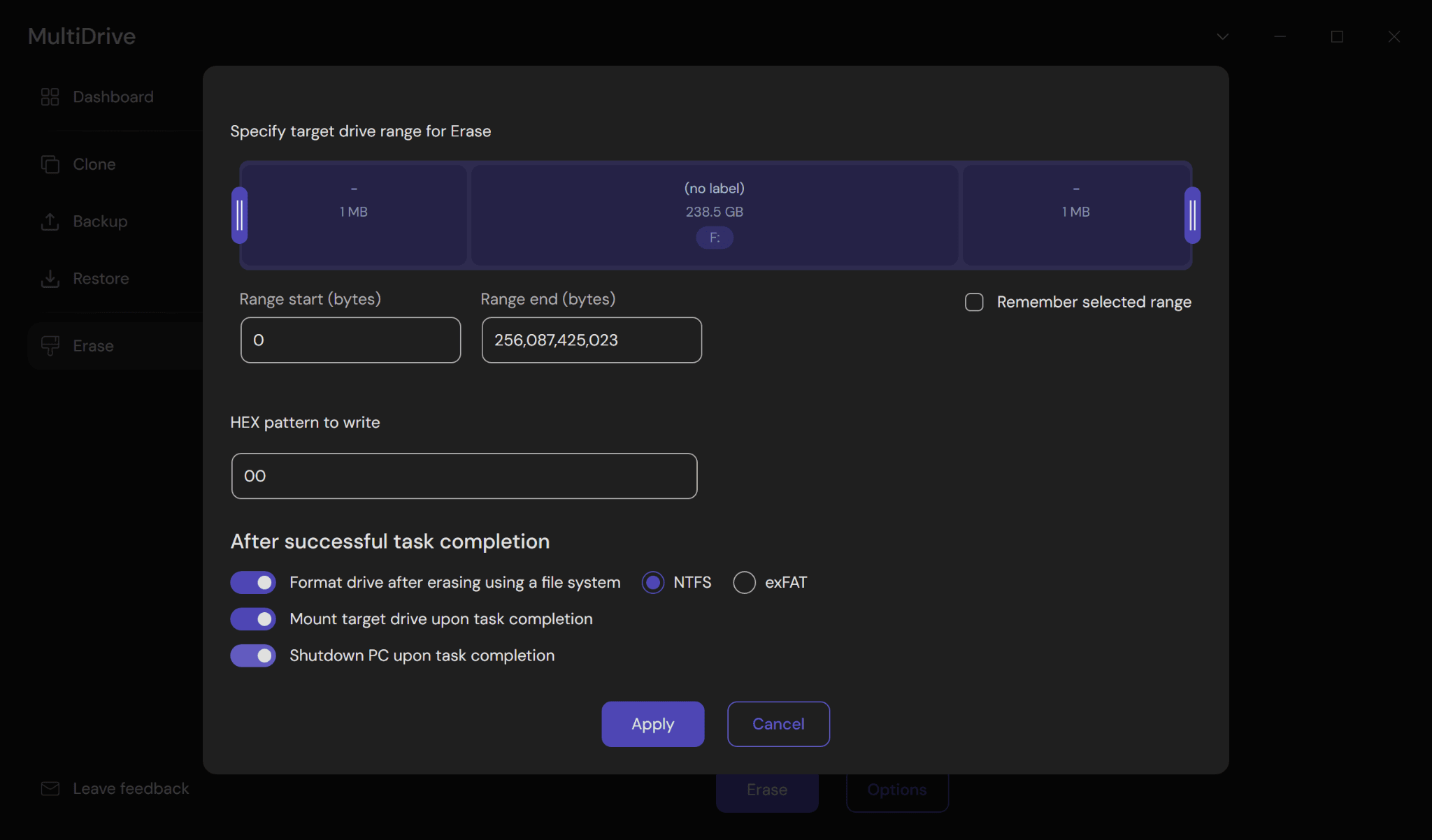
The available options for a drive wiping task in MultiDrive.
AOMEI Backupper disables disk wiping in its free version; the feature is available only in paid tiers, starting at $39.95.
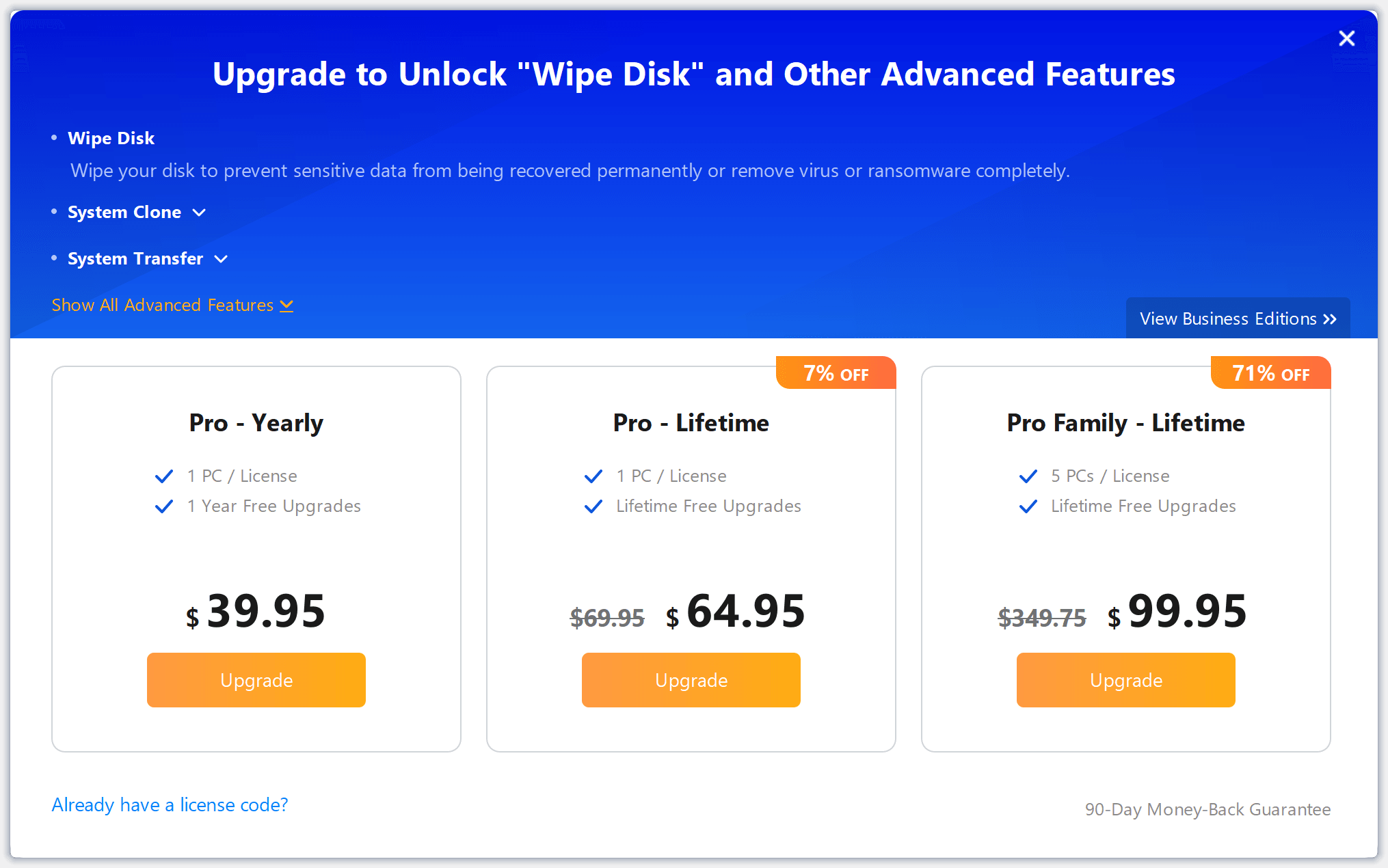
AOMEI Backupper urges the user to upgrade to a paid version in order to unlock the drive wiping feature.
Parallel Drive Tasks
MultiDrive fully supports parallel drive operations: you can back up one drive while cloning another, or erase multiple drives at the same time. Each active task can be paused and resumed later. The progress of each running task is displayed on the dashboard.
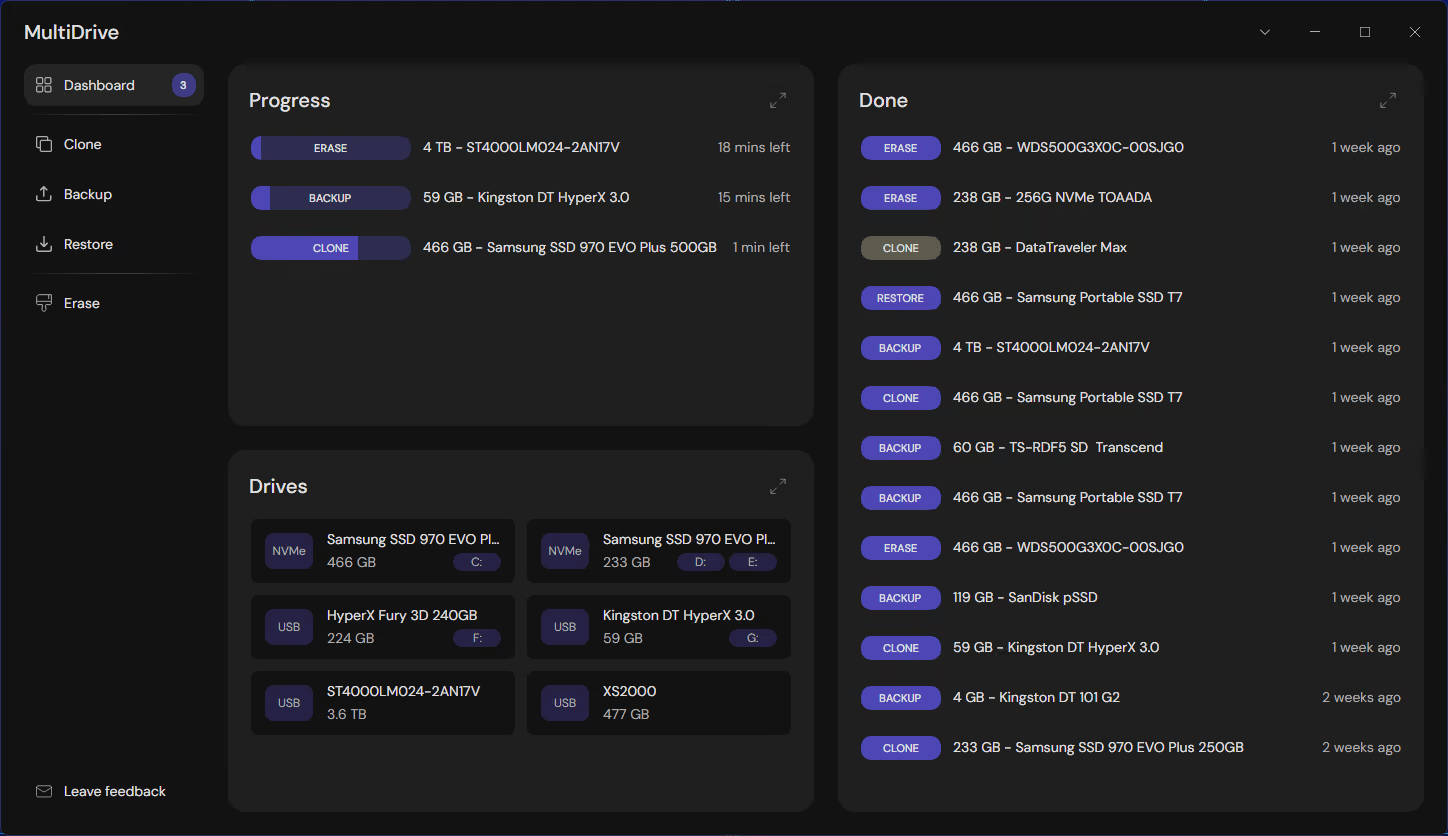
Erase, backup, and clone tasks run in parallel in MultiDrive.
AOMEI Backupper doesn’t have parallel capabilities. The tool locks itself when a drive task is running, so you can’t start any other tasks.
Portable Version
MultiDrive offers a free portable version, which you can unzip to any USB drive and run without installation. The portable version has all the features present in the regular one.
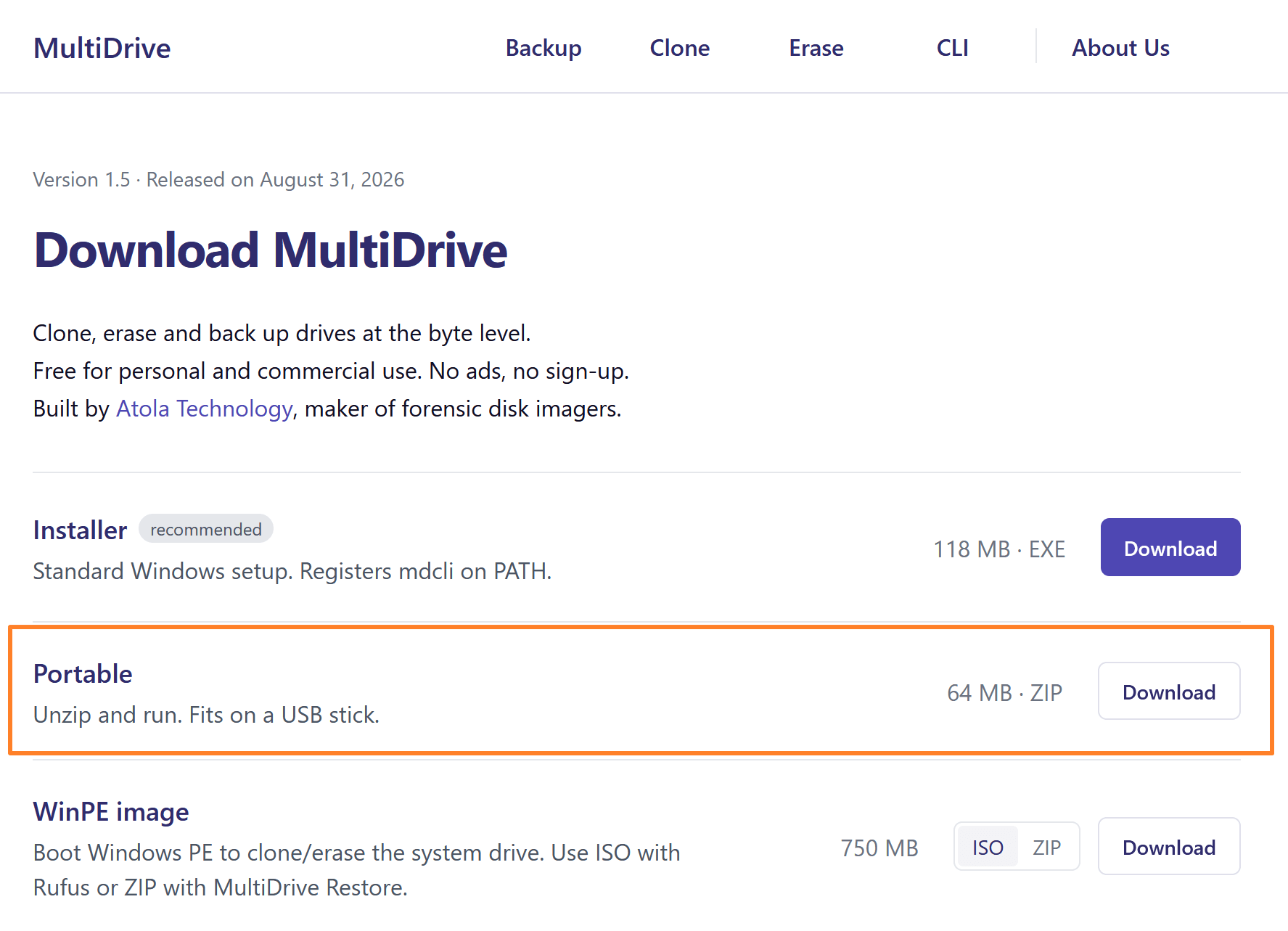
The portable version is available for free download on the MultiDrive website.
AOMEI Backupper limits the use of its portable version to paid tiers Technician and Technician Plus, starting at $499 and $699 respectively.
Command-Line Interface
MultiDrive has a free built-in command-line interface (CLI) with all its features available, including backing up and restoring, cloning, and erasing drives or partitions.
Options supported in the MultiDrive CLI include:
- RAW, ZIP, ZSTD formats for backup and restore
- The option to split the target backup file into segments
- Data integrity checks using various hash algorithms for backup and cloning tasks: MD5, SHA1, SHA256, SHA512
- The starting byte offset for backup, clone, and erase tasks
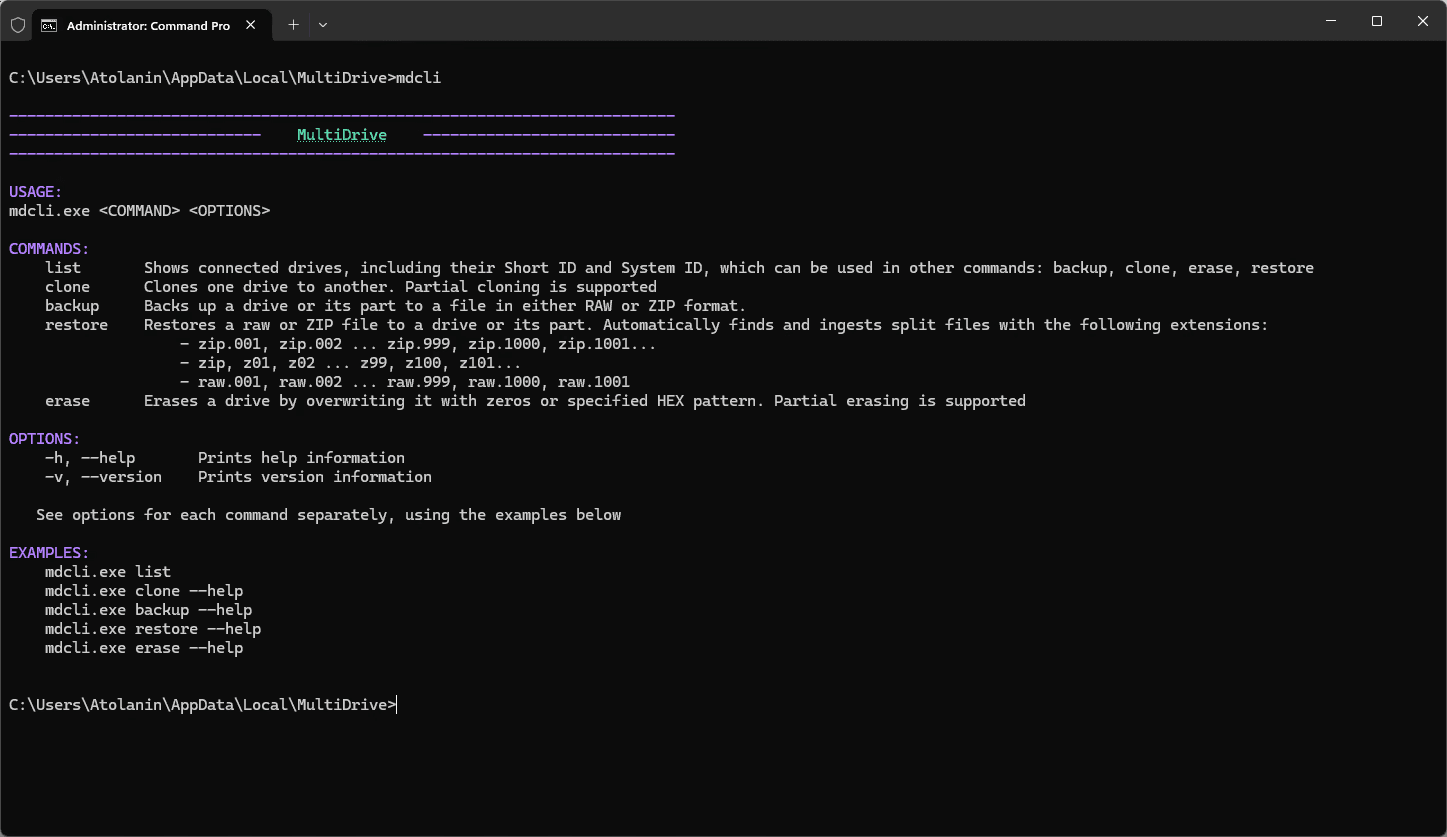
MultiDrive’s command-line interface.
The command-line utility of AOMEI Backupper is available only in paid versions of software, starting at $39.95.
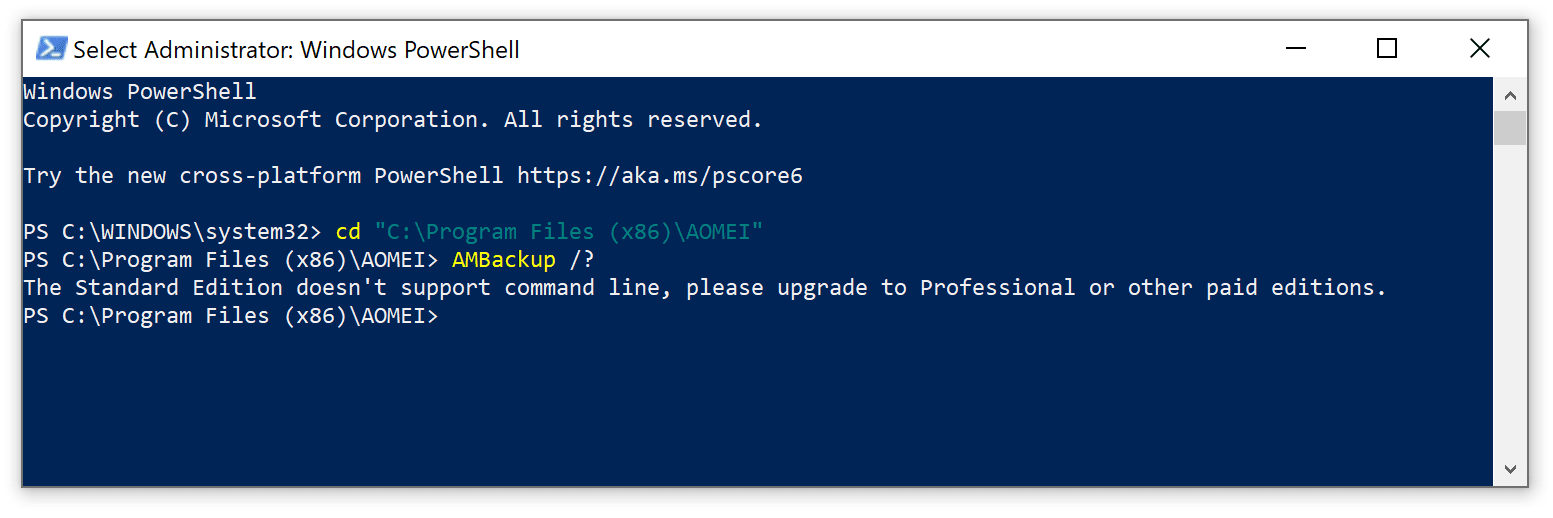
The free version of AOMEI Backupper doesn’t support the command-line interface.
Conclusion
Both MultiDrive and AOMEI Backupper offer a wide range of free features for backing up and cloning your data, but each has its advantages and disadvantages.
MultiDrive’s strong sides are open backup formats with no vendor lock-in, a lot more free features (cloning to larger or smaller drives, drive erasure, portable version, CLI), pause/resume and parallel drive tasks. It’s free for both personal and business use, and Atola Technology has committed publicly that all current functionality will stay free forever.
AOMEI Backupper Standard can back up and synchronize files, has an incremental backup feature, and supports task scheduling and event triggers. It is a quite mature software, but, first of all, it is a commercial tool that constantly tries to upsell you on some advanced or even essential features.
MultiDrive vs AOMEI Backupper FAQ
Yes. MultiDrive is completely free for personal and business use and offers open RAW, ZIP and ZST backups, as well as cloning and wiping functions. It also features a portable build and CLI. AOMEI Backupper Standard is free for personal use, but many extras such as wiping, cloning to a different-size disk and CLI are only available in paid tiers starting from $39.95.
No, Drive Wipe is disabled in AOMEI Backupper Standard and is only available in the paid tiers, starting at $39.95. The Erase feature in MultiDrive is free and allows you to overwrite with zeros or a custom byte pattern. You can also select an optional partition or range and format after wiping.
With MultiDrive, yes - cloning a smaller drive to a larger one is free; you extend partitions afterward. With the free version of AOMEI Backupper, cloning is only possible when the source and destination are the same size. Resizing for a disk of a different size requires a paid tier, starting from $39.95.
Not in the GUI. There is a way to do it via MultiDrive CLI and Windows Task Scheduler. As opposed to that, AOMEI Backupper Standard includes daily/weekly schedules in the free version.
No. MultiDrive focuses on full-drive and partition (drive space) backups. AOMEI Backupper Standard allows you to save selected files as a .afi image and also copy folders with Basic Sync.
Other comparisons
Author