Free Acronis True Image Alternative: MultiDrive
MultiDrive is a free Windows tool for cloning, backing up, and erasing whole drives.
Acronis True Image is a paid subscription suite for file and disk backup with anti-malware and cloud storage.
Choose MultiDrive when you need to migrate Windows to a new SSD, copy a failing drive, wipe several disks at once, or script these tasks. Choose Acronis True Image when you need scheduled file-level backup with incremental/differential versions, encryption, and cloud storage.
| Feature | Acronis True Image | MultiDrive |
|---|---|---|
| Price | $49.99–124.99 / year | Free for personal and commercial use |
| Free trial | 30 days; disk cloning is disabled during trial | Not needed |
| Drive cloning | ✅ | ✅ |
| Drive backup | Yes, proprietary .tibx format | ZIP/ RAW/ZSTD |
| Drive wiping | ✅ | ✅ |
| After wipe | Manual initialize + format | Formatted (NTFS/exFAT) and mounted |
| Handling bad sectors | "Ignore" prompt on each error, retry in backup | Retried, skipped, reported automatically |
| Pause and Resume | Interrupted clone must be restarted | ✅ |
| Parallel jobs | ➖ | ✅ |
| Hash verification | ➖ | ✅ |
| File backup | ✅ | ➖ |
| Incremental / Differential | ✅ | ➖ |
| Backup encryption | ✅ | ➖ |
| Job schedule | ✅ | Via CLI + Windows Task Scheduler |
| Backup splitting | ✅ | ✅ |
| Compression | ✅ | ✅ |
| WinPE (bootable environment) | ✅ | ✅ |
| Command line interface | ➖ | ✅ |
| Core focus | File backup, anti-malware | Drive cloning, backup, wiping |
Pricing: free vs subscription
MultiDrive is free for home users, admins, and commercial use, with no ads or feature upsells. Atola has said that a paid Premium version may be introduced later, but the current core features will remain free, as stated on its website.

To Our Supporters
At Atola, we believe that managing drives should be easy and free. That's why we've created a simple yet powerful solution for everyone: from home users to tech professionals. MultiDrive is free for both personal and commercial use.
And if we ever introduce a Premium version in the future, rest assured that all the current functionality you rely on will stay free forever. Your trust drives our commitment to excellence. This is our way of saying thank you for being part of the MultiDrive family!




























With over 20 years of experience in digital forensics, incident response, and data recovery, Atola Technology has extensive expertise in working with different drive types, including damaged and unstable storage devices.
Acronis True Image is subscription-only. List prices, checked on 22 September 2026, run from $49.99/year for the local-only Essentials plan up to $124.99/year for Premium with 1 TB of cloud storage and blockchain file notarization. The first year is discounted, from about $44.99 to about $87.49. There’s a 30-day trial, but no permanently free version. If you only need to clone a drive once - for example, to move Windows to a new SSD - cloning is not available in the trial version.
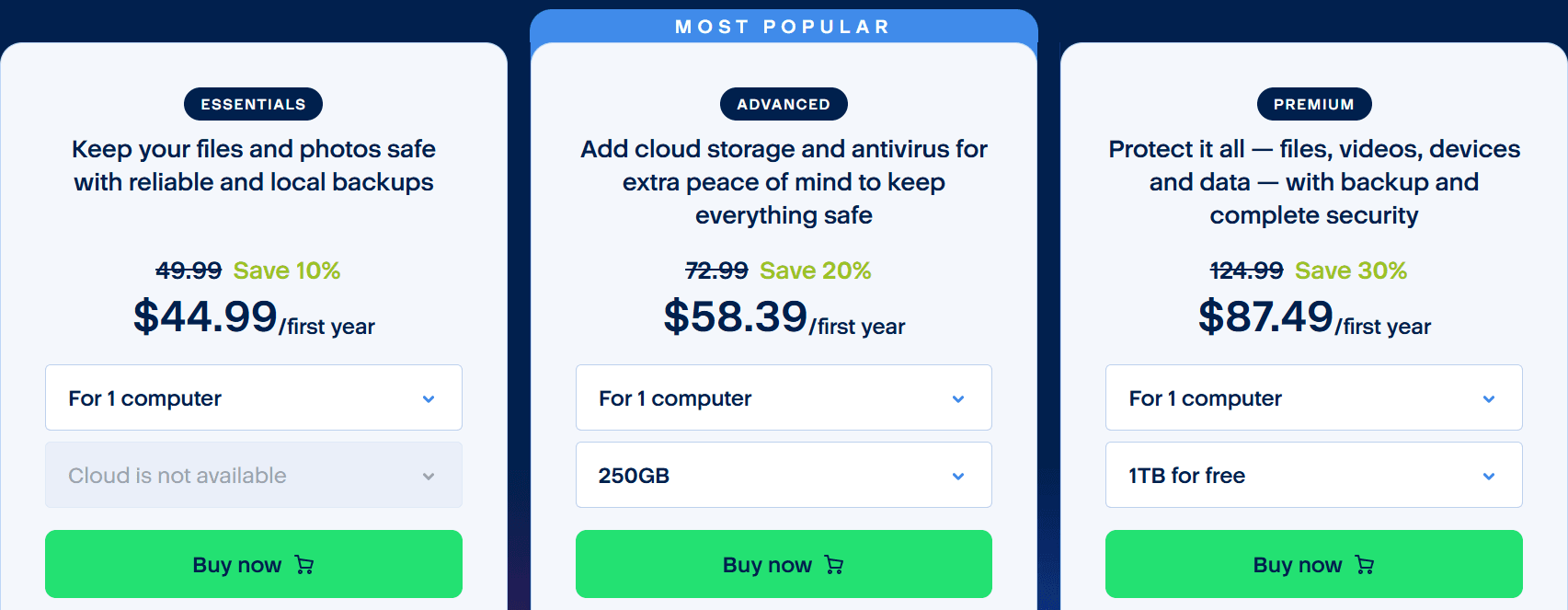
Acronis Premium list price $124.99, first year $87.49
Installation footprint
A default Acronis True Image installation occupies roughly 900 MB on disk. Most of that comes from components a disk-cloning user may not need: the standard installer bundles Acronis's antivirus and anti-ransomware modules along with the backup and cloning tools, and these are installed together unless you deselect them with a custom installation.
MultiDrive installs at about 273 MB and contains only the disk tools - cloning, backup, erase and the command-line interface - with no security suite, background protection service or cloud client attached. The WinPE environment is a separate download: users who clone and erase drives from a running Windows system never have to download or store it, and users who do need offline booting get it as a standalone package rather than as a permanent part of the installation.


Drive cloning
Both tools clone boot drives, including full Windows migrations from HDD to SSD.
MultiDrive copies every block of the source drive to the target, including data, boot sectors, hidden areas, remnants of deleted files and free space, without interpreting the file system. As it never interprets the file system, the result is independent of whether the file system is NTFS, exFAT, ext4, APFS, or an unknown format. A drive with a corrupted MFT, lost partition table or half-finished format clones in the same way as a healthy one. You can verify the copy using a hash calculated during the process to ensure the target matches the source bit for bit.
The trade-off is that the target drive must be at least as large as the copied range.
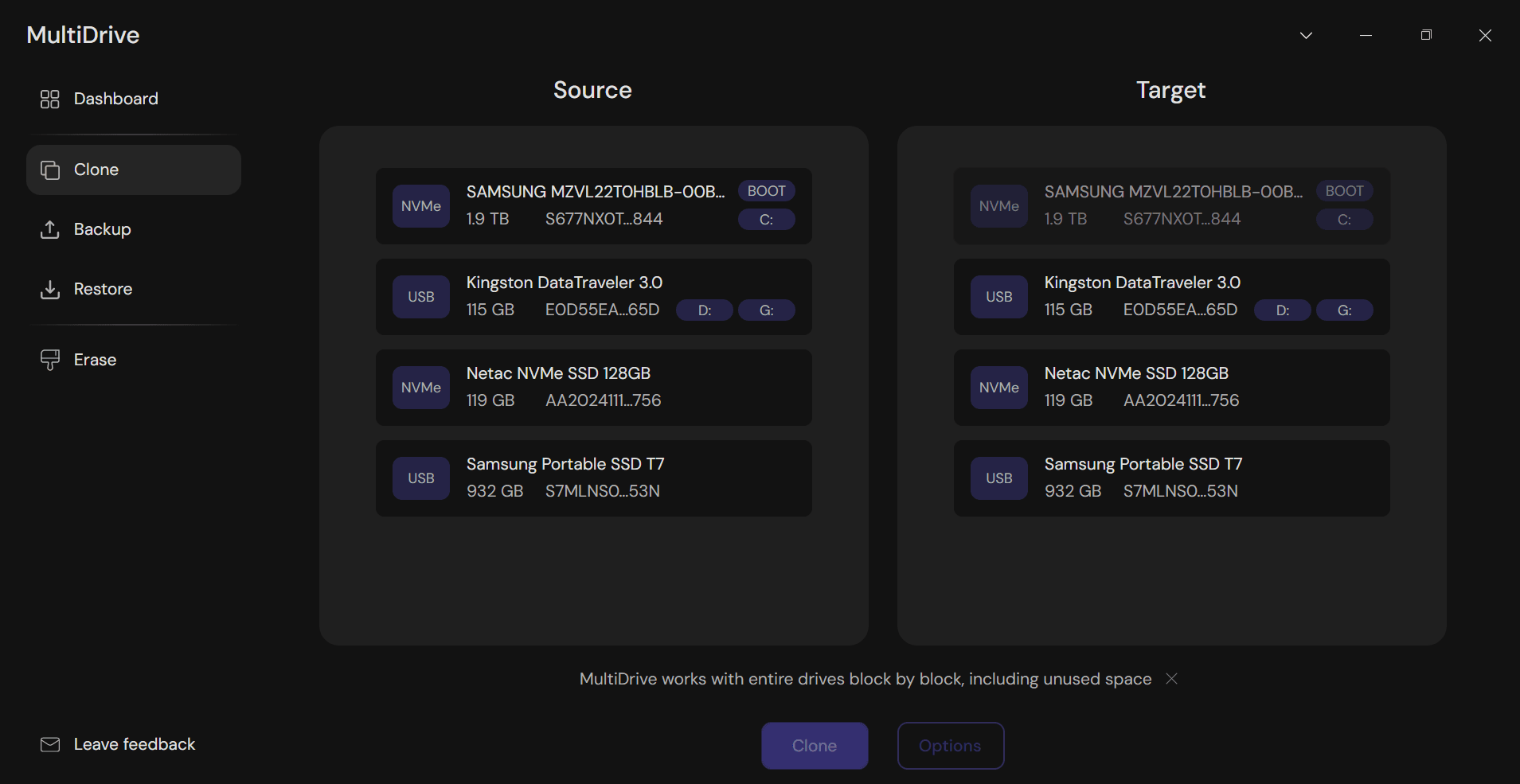
MultiDrive drive selection widget
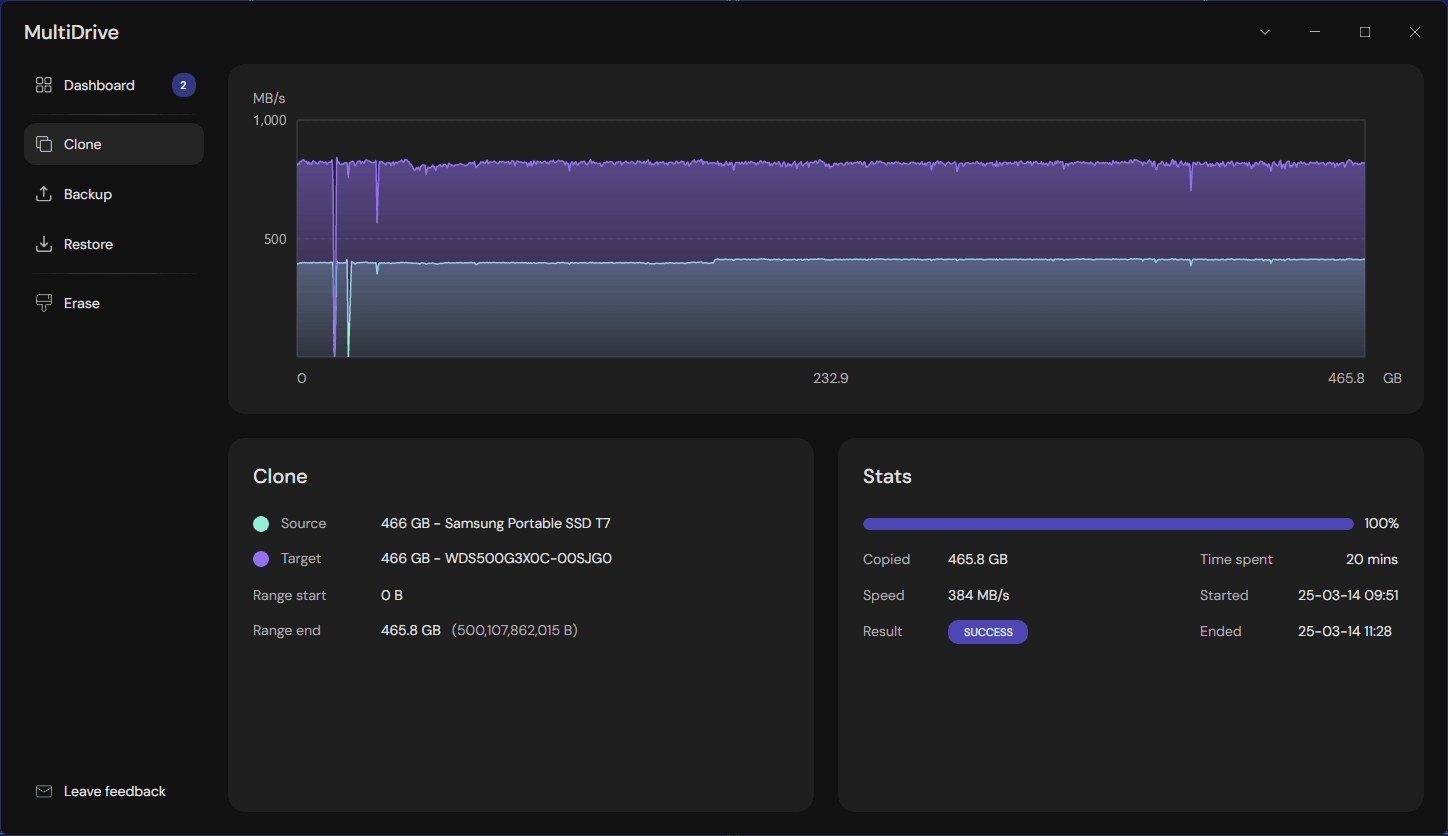
MultiDrive cloning process
Acronis True Image clones at the file-system level.
The Clone Disk Wizard only copies the parts of the file system that are used. It can keep partitions as they are, make them bigger or smaller proportionally, or let you set sizes by hand. On a healthy disk, this is faster and makes it possible to clone to a smaller SSD.
The trade-off is that the clone depends on Acronis understanding the file system: there is no sector-by-sector option in the wizard - the choices are Automatic or Manual mode and how partitions are moved. Acronis documentation says unsupported or corrupted file systems are copied sector by sector as a fallback rather than by choice, without resizing. A Windows-only file-aware clone is the right tool for a routine upgrade, but not for a drive that has a faulty file system.
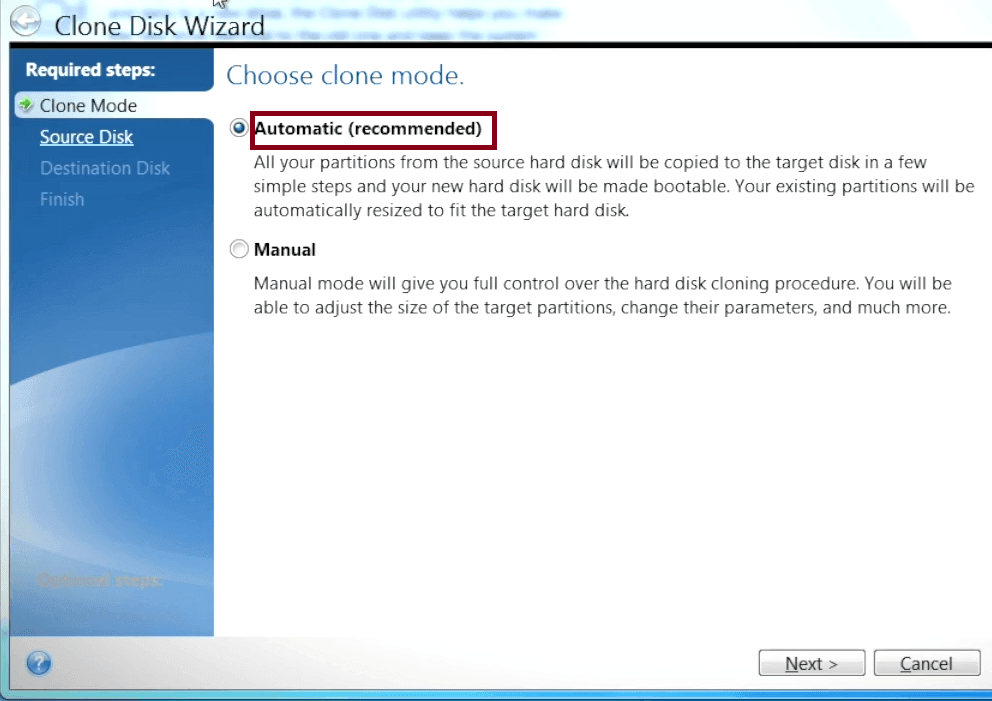
Acronis True Image clone modes
One more limit: cloning is not available in the trial, so you need a paid version to test it.
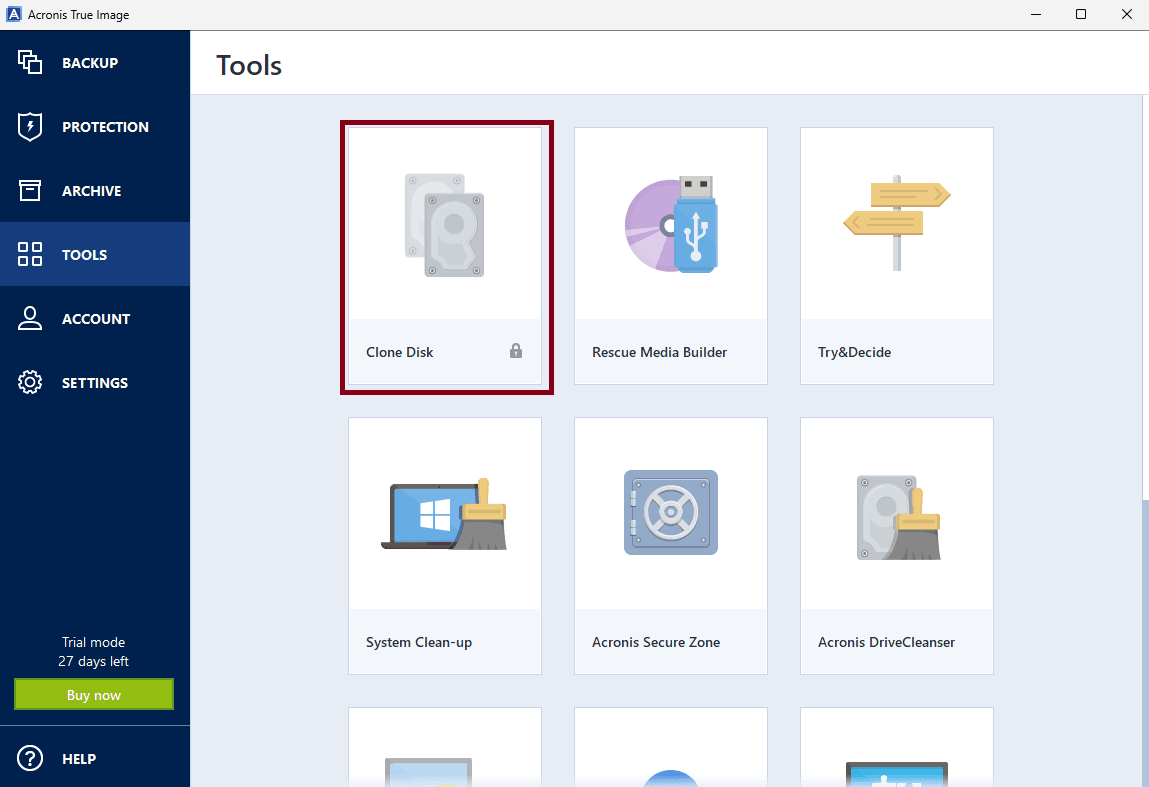
Cloning is disabled in the Acronis True Image trial
Cloning and imaging a failing drive
This is the biggest practical difference between the two tools.
MultiDrive was built by Atola Technology, a maker of forensic disk imagers, and inherits its approach to read errors. When a sector cannot be read, MultiDrive skips the affected 256 KB block, continues the task, and reports the total number of read errors at the end. A backup of a failing drive completes instead of aborting. In the screenshot, 29 GB were copied into a 262 MB ZIP, with 3 source errors, and the task was still running.
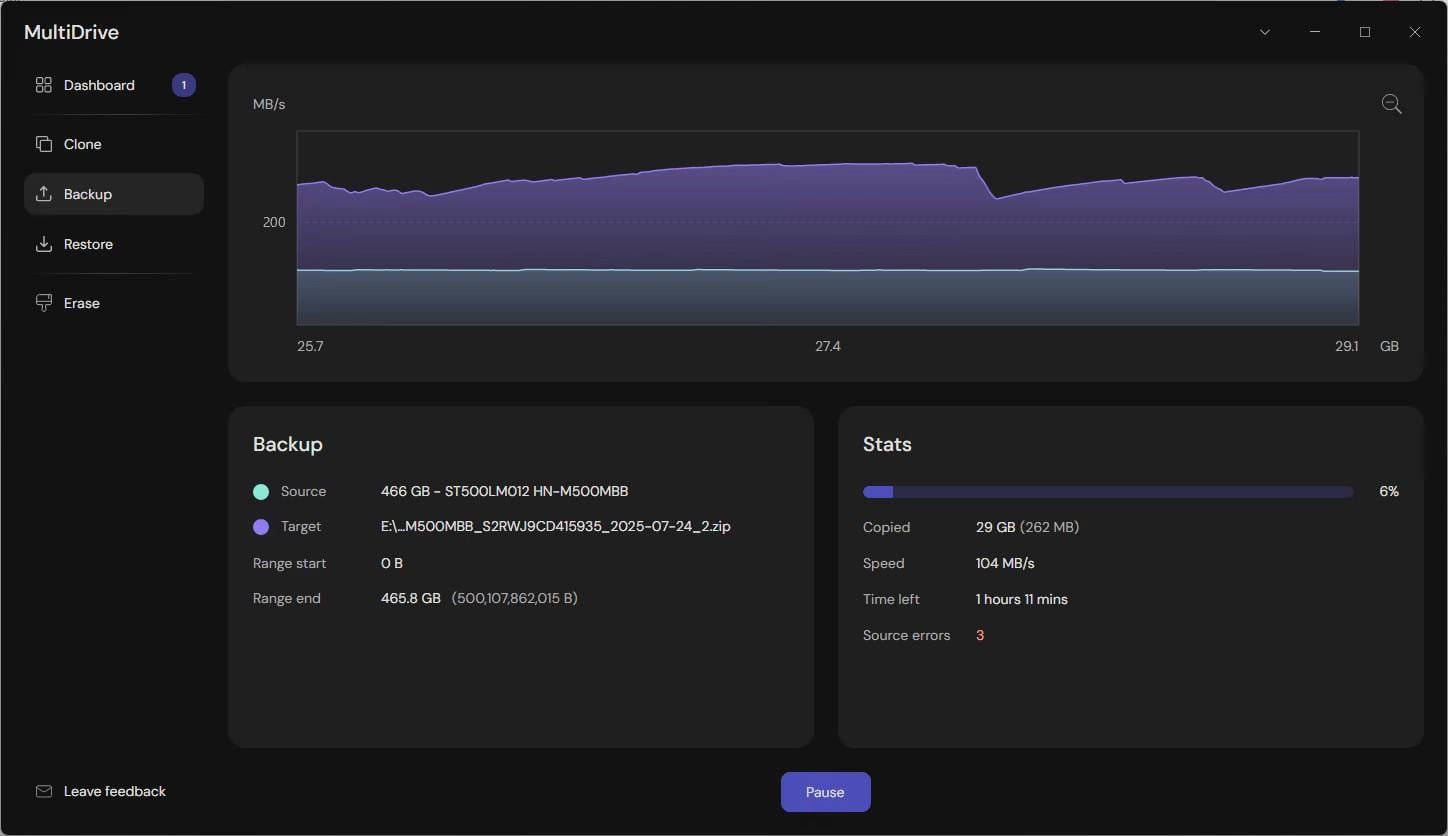
MultiDrive skips bad sectors
It also tolerates loose or dropping USB/SATA connections. Any task can be paused and resumed, and after an interruption it picks up from the point of failure. This matters for laptops, where the second drive is usually attached through a USB adapter or enclosure.
To cope with such errors, see Atola's error message guide
Acronis True Image has an "Ignore bad sectors" option in the backup task settings (Options → Advanced → Error handling). During a clone, each read error raises a prompt that you answer with Ignore or Ignore All.
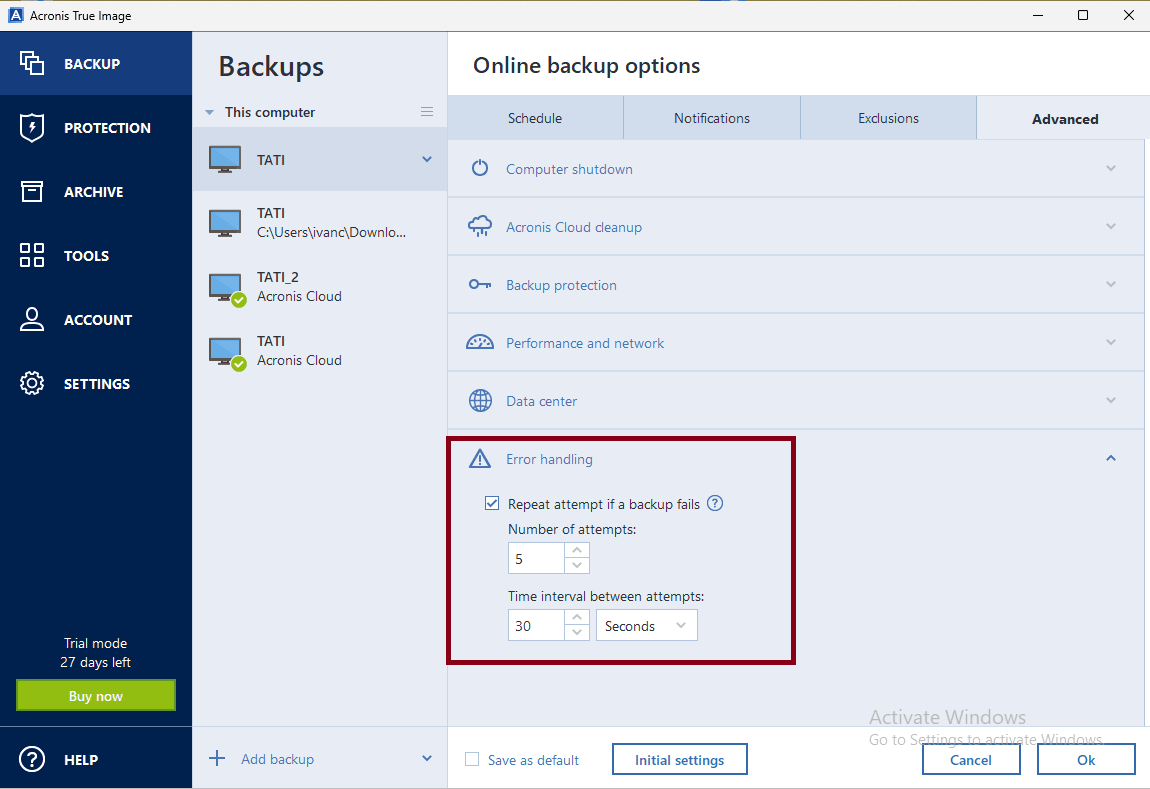
Acronis error handling
Acronis True Image has no pause/resume for cloning. Cloud backups can be paused and resumed; for local disk backups and clone jobs the only control is Stop, and an interrupted clone - from a bad connector to a sleeping USB port - has to be set up and started again from the beginning.
Disk and file backup
Cloning copies one drive to another; backup writes the drive into an image file you can restore later.
MultiDrive creates full images of an entire drive, or of a byte range you set in Options (for example, one partition), in RAW, ZIP or ZSTD format. Every block in the range is copied, used or not, so the image does not depend on the file system and works for a damaged or non-Windows drive.
ZIP and ZSTD compression typically reduce the image size by 40–70 percent, ZSTD in roughly half the time of ZIP; RAW and ZIP images can be split into smaller files for FAT32 media or per-file upload limits. In a MultiDrive test, it took 14 minutes to back up 120 GB of data to a Toshiba 1 TB USB 3.0 HDD (MQ04UBF100) and 5 minutes to back up the same amount of data to a Kingston XS1000 SSD via the same USB 3.0 port.See HDD or SSD for backups.
For more information on choosing between the three formats, with benchmarks, see this article: Backup file formats
The formats are open: a ZIP image opens in any ZIP tool, ZSTD in tools such as 7-Zip, and a RAW image is a byte-for-byte disk dump readable by any imaging tool. You are not locked into MultiDrive to get your data back, unlike Acronis's proprietary .tibx archives, which only Acronis software can restore.
Hash verification (MD5, SHA-1, SHA-256 or SHA-512) is optional and is calculated at backup time and checked on restore. Backups are always full; there are no incremental or differential versions.
Recurring backups can be scheduled with the MultiDrive CLI app and Windows Task Scheduler, but each run creates a new full image of the drive rather than a delta, so plan storage accordingly.
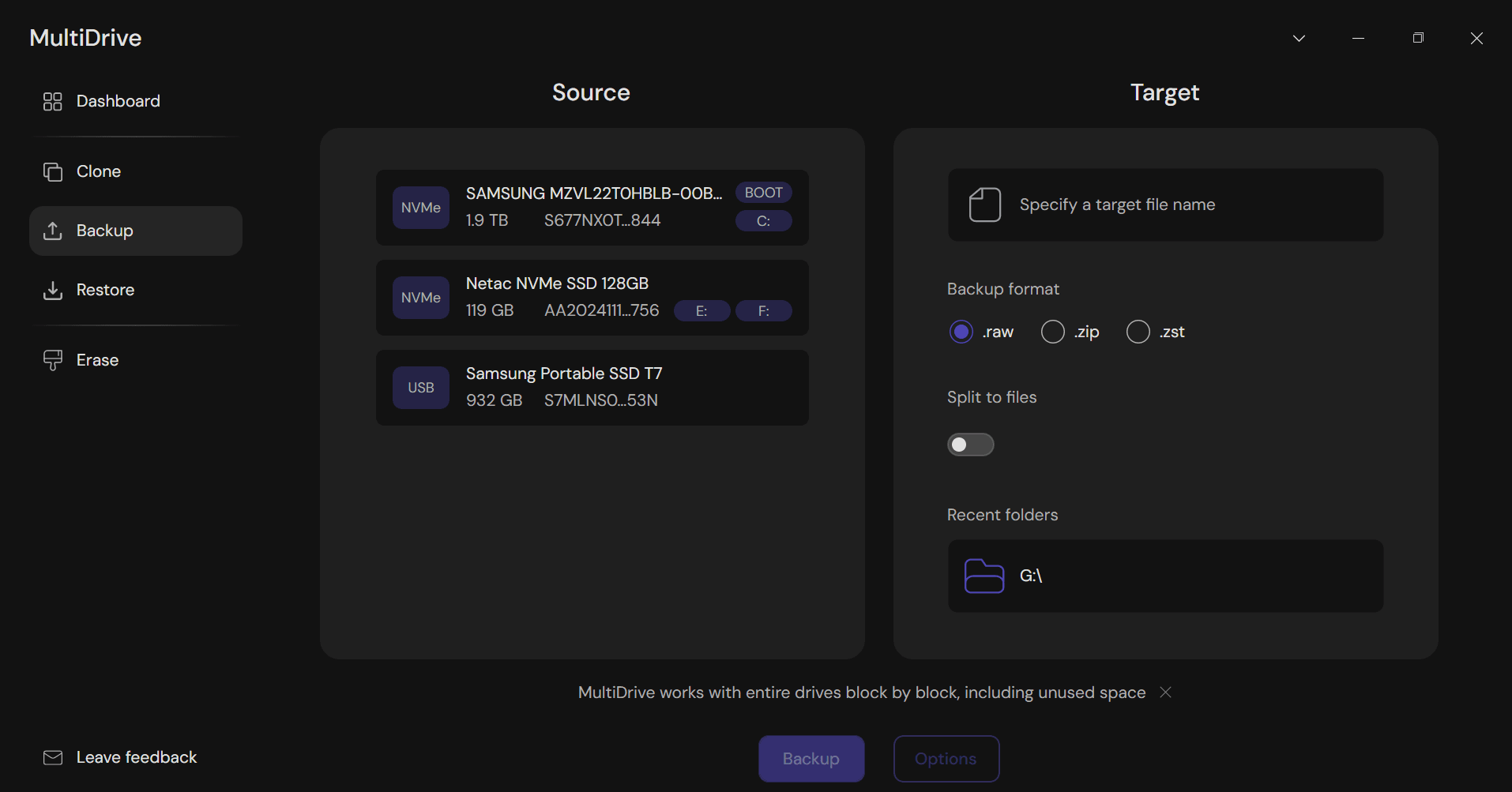
MultiDrive Backup
Acronis True Image backs up entire disks, partitions or selected files and folders to a proprietary .tibx archive. By default it copies only the sectors that contain data, which keeps the image small; a sector-by-sector mode that copies every sector, used or unused, exists but is off by default and enabled in the backup's advanced options.
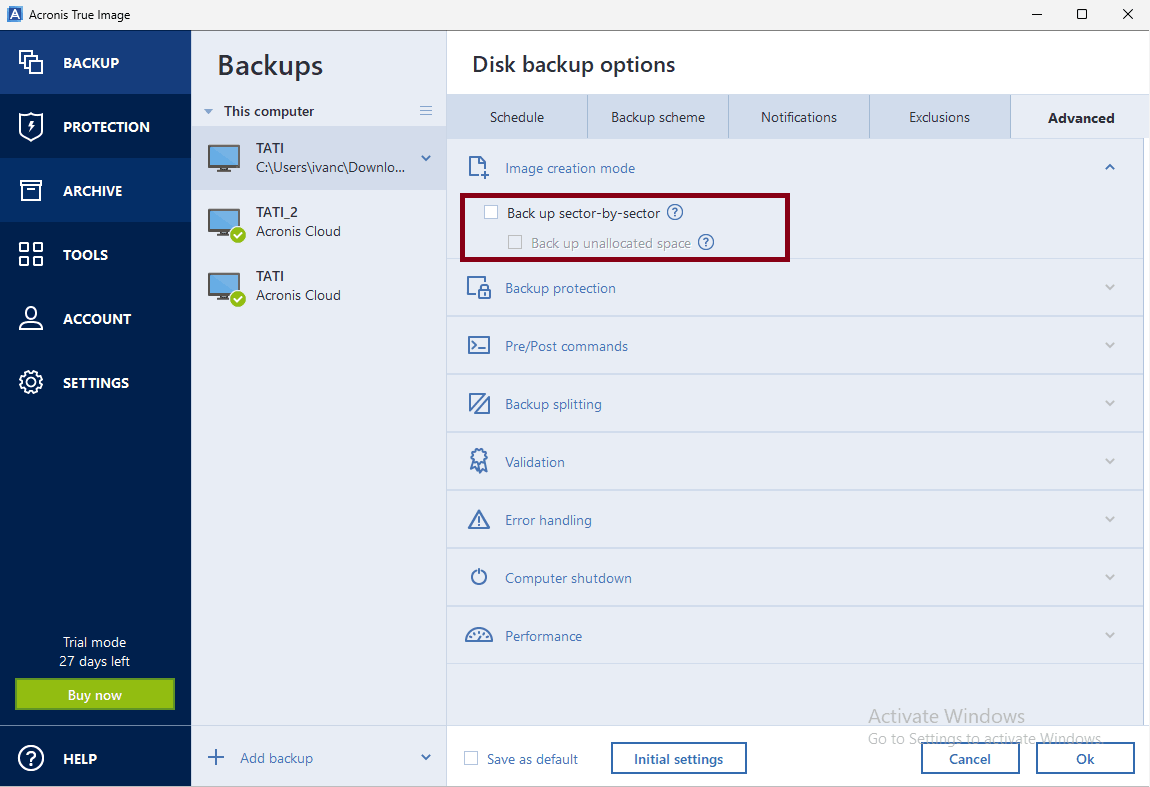
Acronis sector-by-sector setting in backup options
Acronis offers three backup methods, with a built-in scheduler:
- Full: everything, every time. Largest image, simplest restore.
- Incremental: only what changed since the last backup of any kind. Smallest and fastest to create; restore needs the full backup plus every incremental in the chain.
- Differential: everything changed since the last full backup. Larger than incremental; restore needs only the full backup and the latest differential.
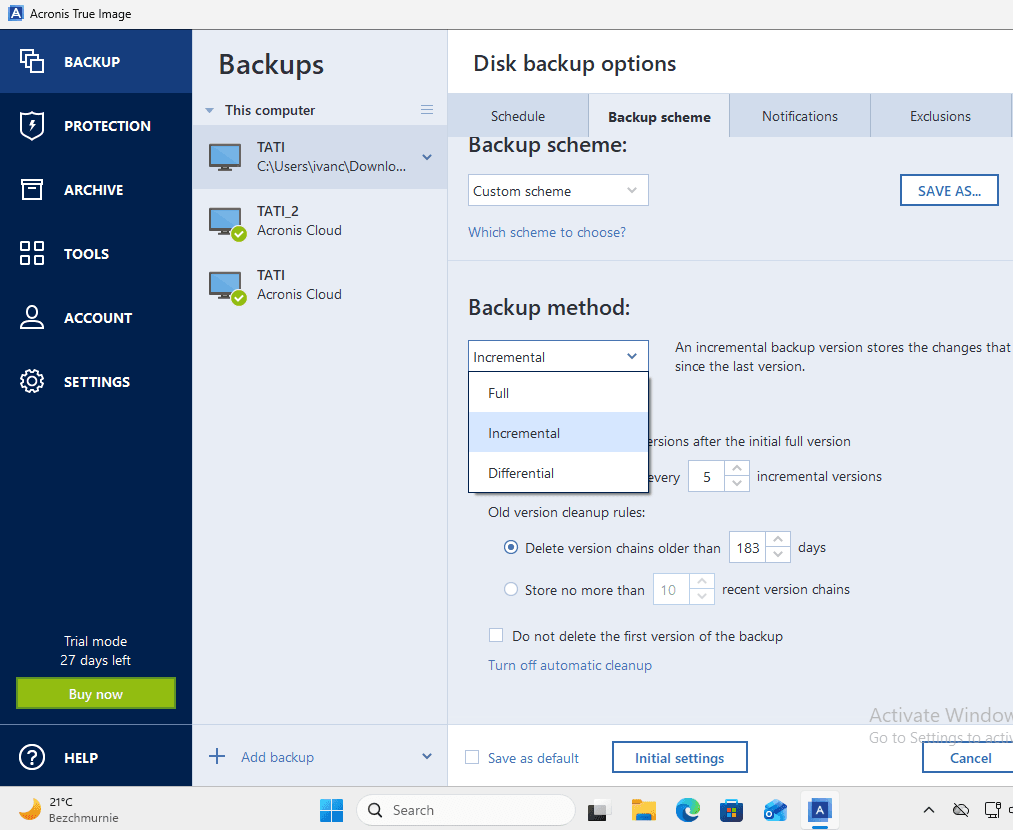
Acronis backup options scheme
Backup files can be password-protected and encrypted, split into volumes, and replicated to Acronis Cloud. Additionally, individual files and folders can be excluded from a backup, and email notifications can be set up for job results.
Who it suits. If you want to back up your PC every day or every week, Acronis's incremental and differential versions and scheduler are the right tool for the job. Making a full image every day would be impractical. For a one-off full image before a repair, a software change, or disposal of an old computer, MultiDrive is the simpler, free option.
Disk wiping
MultiDrive overwrites the whole drive, or a byte range chosen in Options, with 00 or a custom hex pattern such as FF or BADA. After completion, the target can be mounted in Windows so the disk is ready to reuse. A single overwrite pass meets NIST SP 800-88 "Clear" for HDDs; multi-pass sequences such as DoD 5220.22-M can be chained in a script through mdcli.exe. Because tasks run in parallel, several drives can be wiped at once - a real time-saver for batch work.
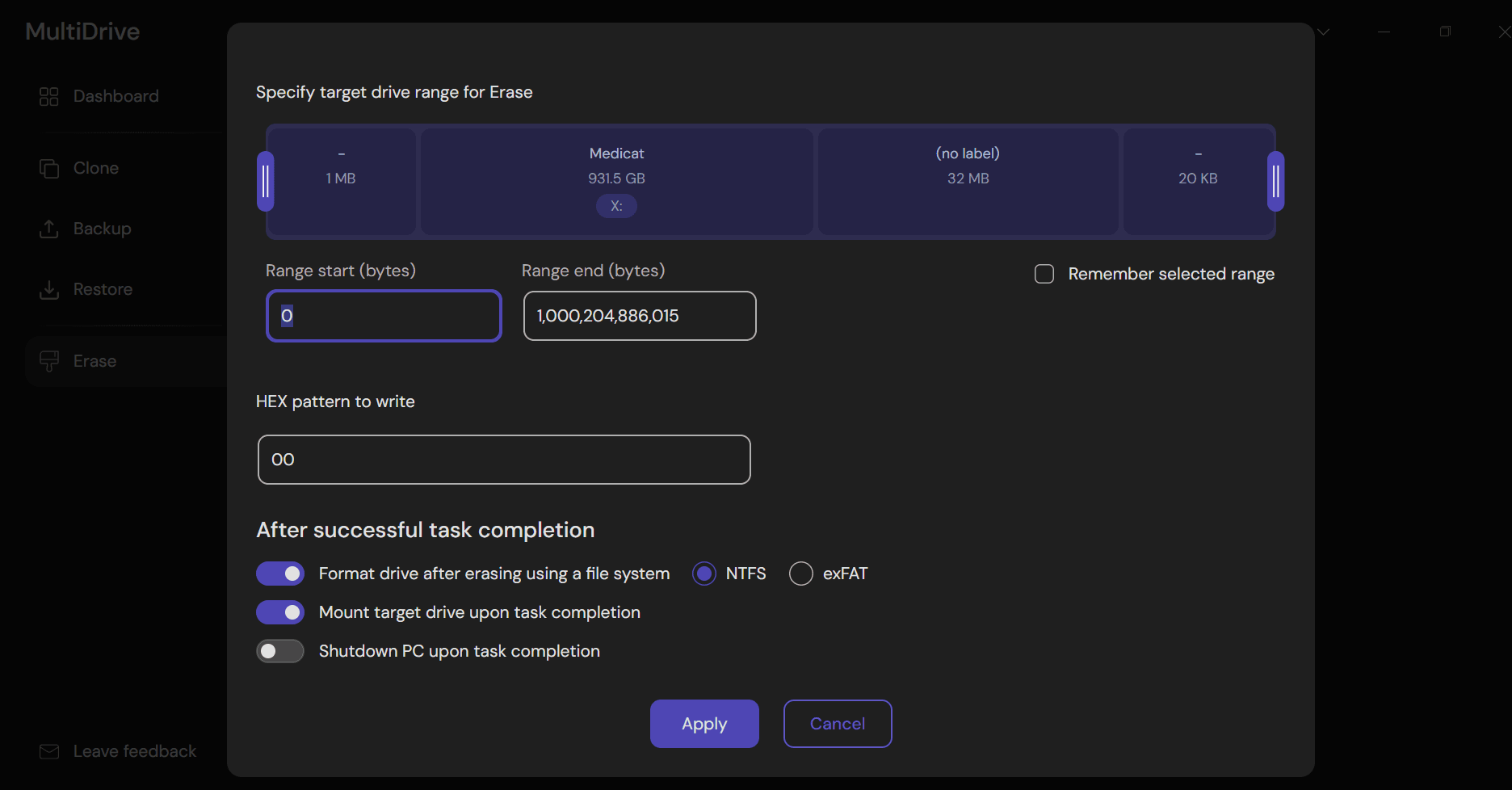
Multidrive Erase options: to choose overwrite pattern and range for wiping
Through the CLI, several drives can be wiped with one script instead of creating a separate erase job for each drive in the GUI and confirming it: the script lists the connected drives, skips the boot drive and erases all the others in parallel, with the -y flag answering the confirmation prompts automatically. Script and instructions: https://multidrive.io/how-to-automatically-wipe-drives
You can access the CLI through Windows Terminal with administrator privileges or directly from the MultiDrive UI. Once the wipe finishes, MultiDrive can partition the drive, format it as NTFS or exFAT and mount it, so you do not need to open Windows Disk Management to make it usable again.
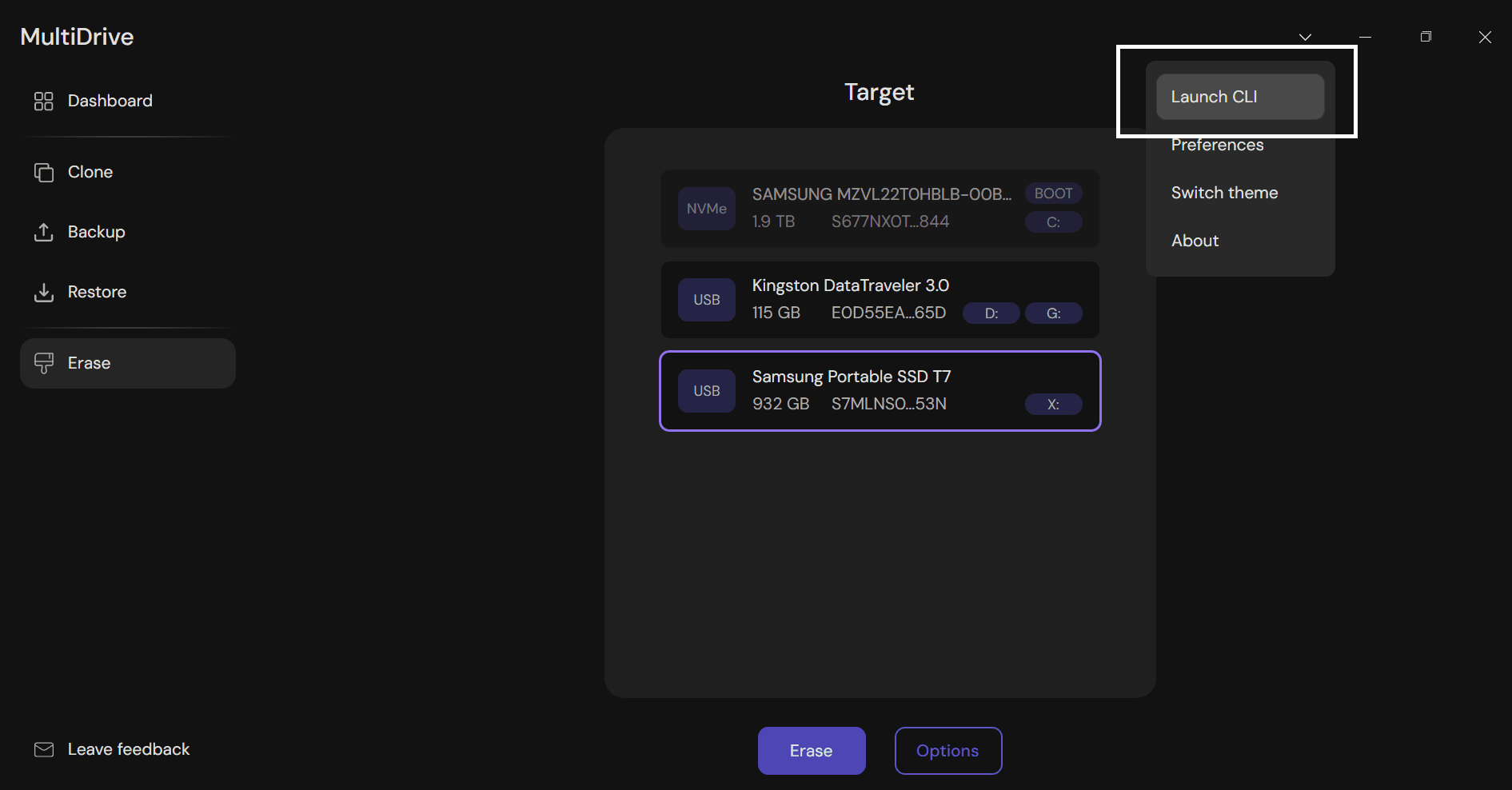
Opening the MultiDrive CLI from the UI
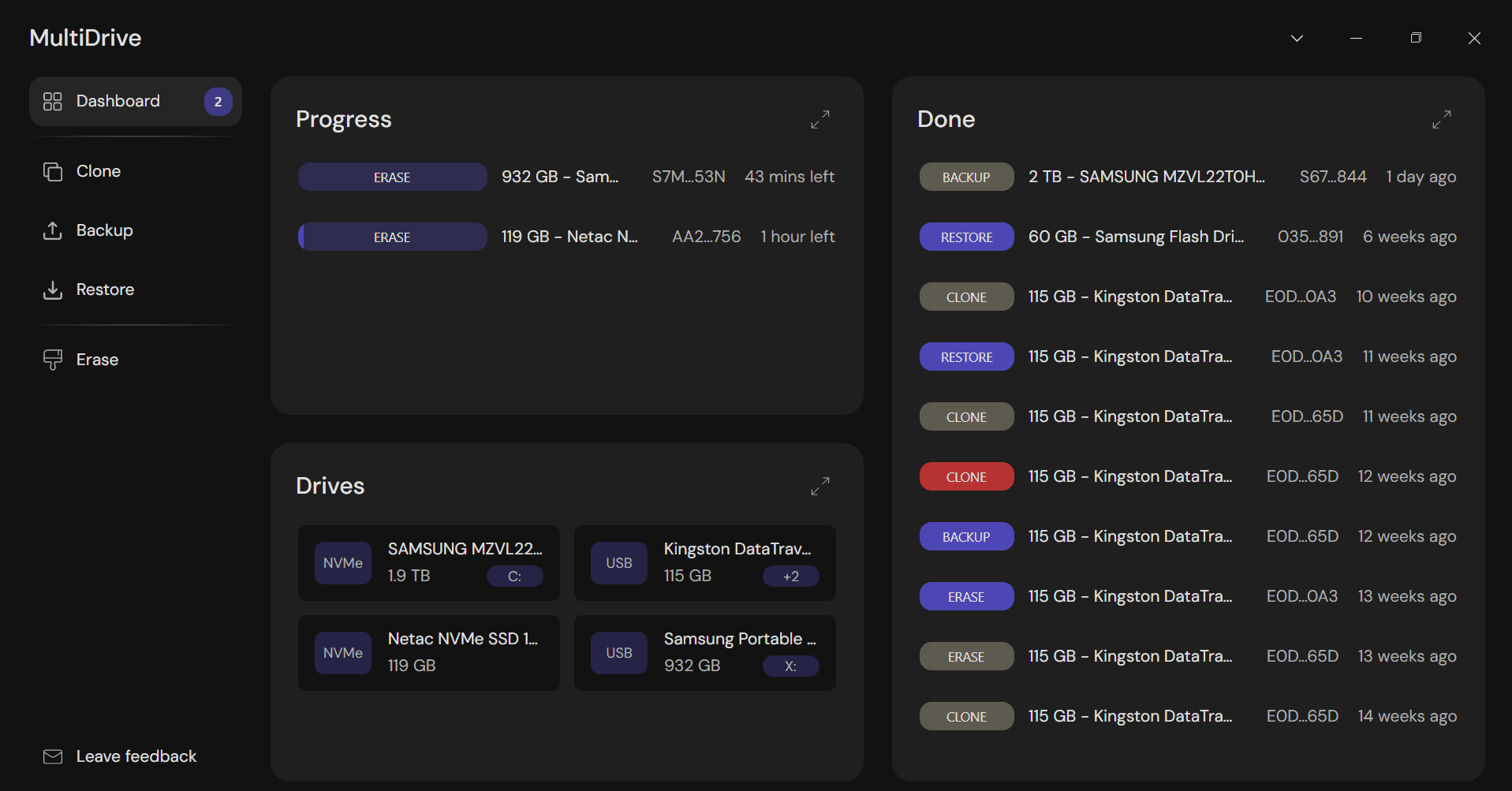
MultiDrive helps you wipe multiple drives at once
Acronis DriveCleanser ships with a fixed list of predefined wiping methods - U.S. DoD 5220.22-M, NAVSO P-5239-26 (RLL and MFM), German VSITR, Russian GOST P50739-95, Gutmann (35 passes), Bruce Schneier (7 passes) and a single-pass "Fast" mode - plus a custom-algorithm editor and the option to load a saved method from a file. Custom algorithms are built pass by pass in a dialog: each pass writes a hex pattern, a random value, the complement of the previous pass, or verifies the previous write. The target is a whole disk or selected partitions; there is no way to limit the wipe to an arbitrary range of the drive.
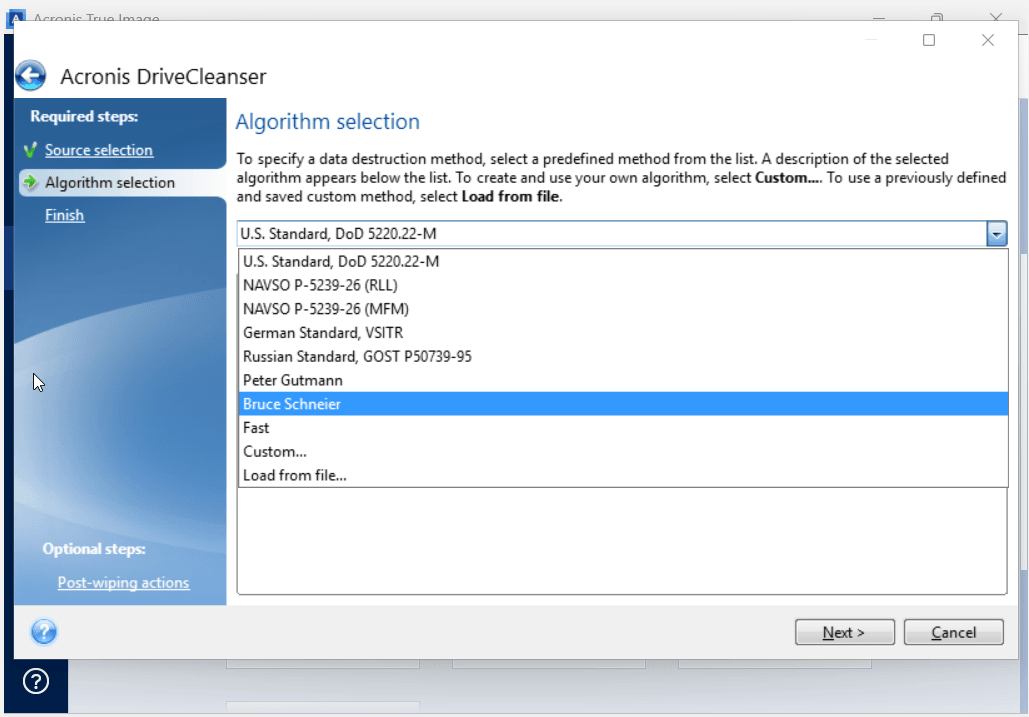
Acronis DriveCleanser wipe methods
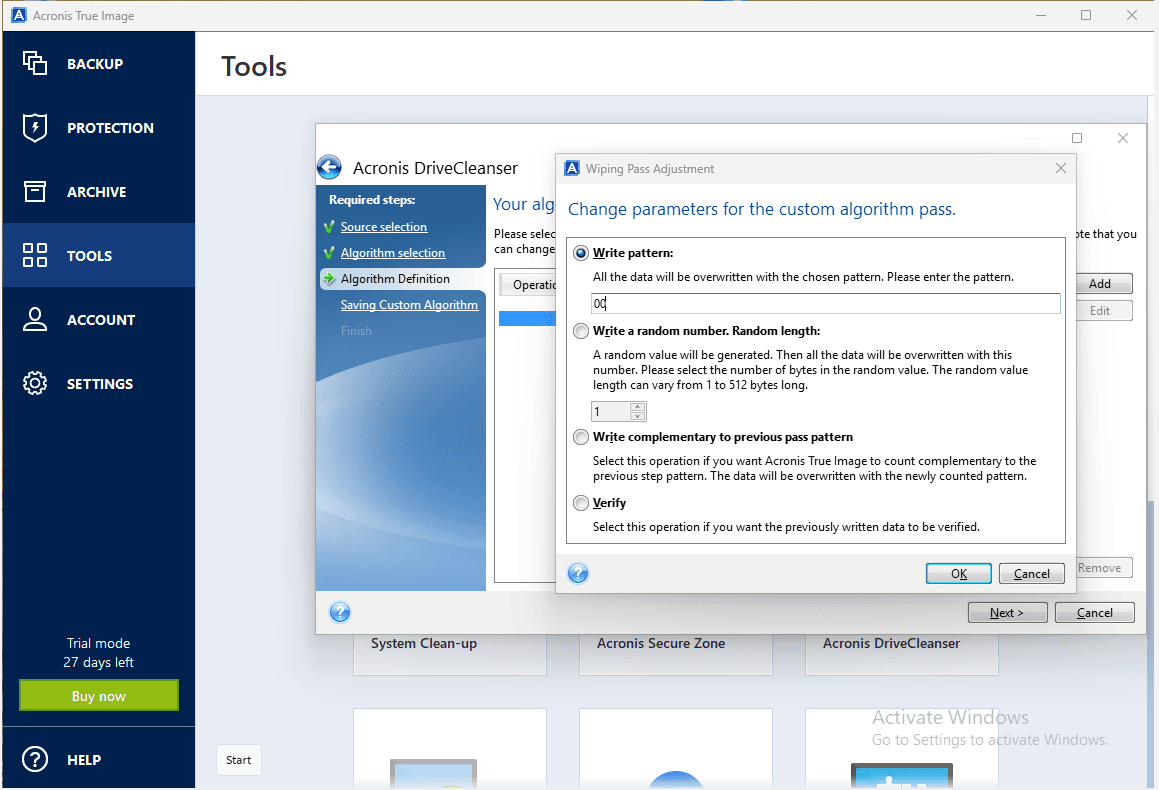
Custom wiping in Acronis True image
Who it suits. For most cases - reselling, donating or reusing a drive - one overwrite pass is enough: NIST SP 800-88 accepts a single pass as "Clear" for HDDs, and the multi-pass DoD and Gutmann methods were designed for drives from the 1990s. Both tools cover that. Acronis is faster to start - pick a preset, click Next - and its list of named standards is useful when a policy requires one. MultiDrive gives more control: the pattern, the byte range, automatic format and mount, and the same wipe across many drives from a script. Multi-pass standards are possible in MultiDrive too, but you write the sequence yourself.
Parallel operations and automation
MultiDrive can run multiple jobs simultaneously - clone one drive while backing up a second and erasing a third - all monitored from a single dashboard.
With Acronis, you create one job at a time; the next one waits in a queue.
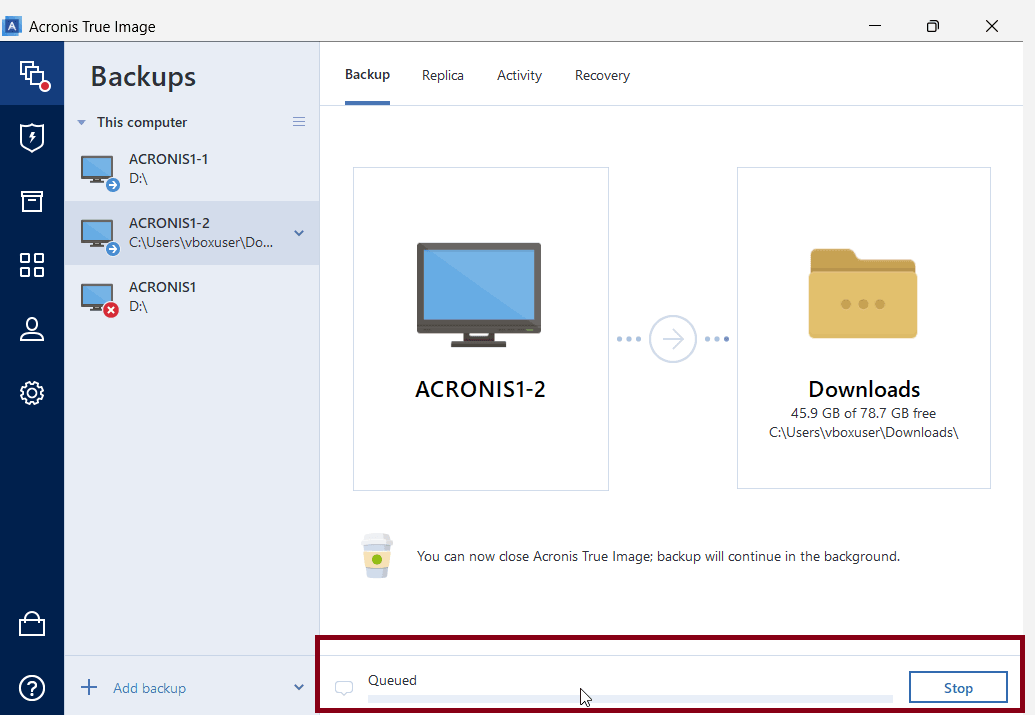
Acronis Task Queue
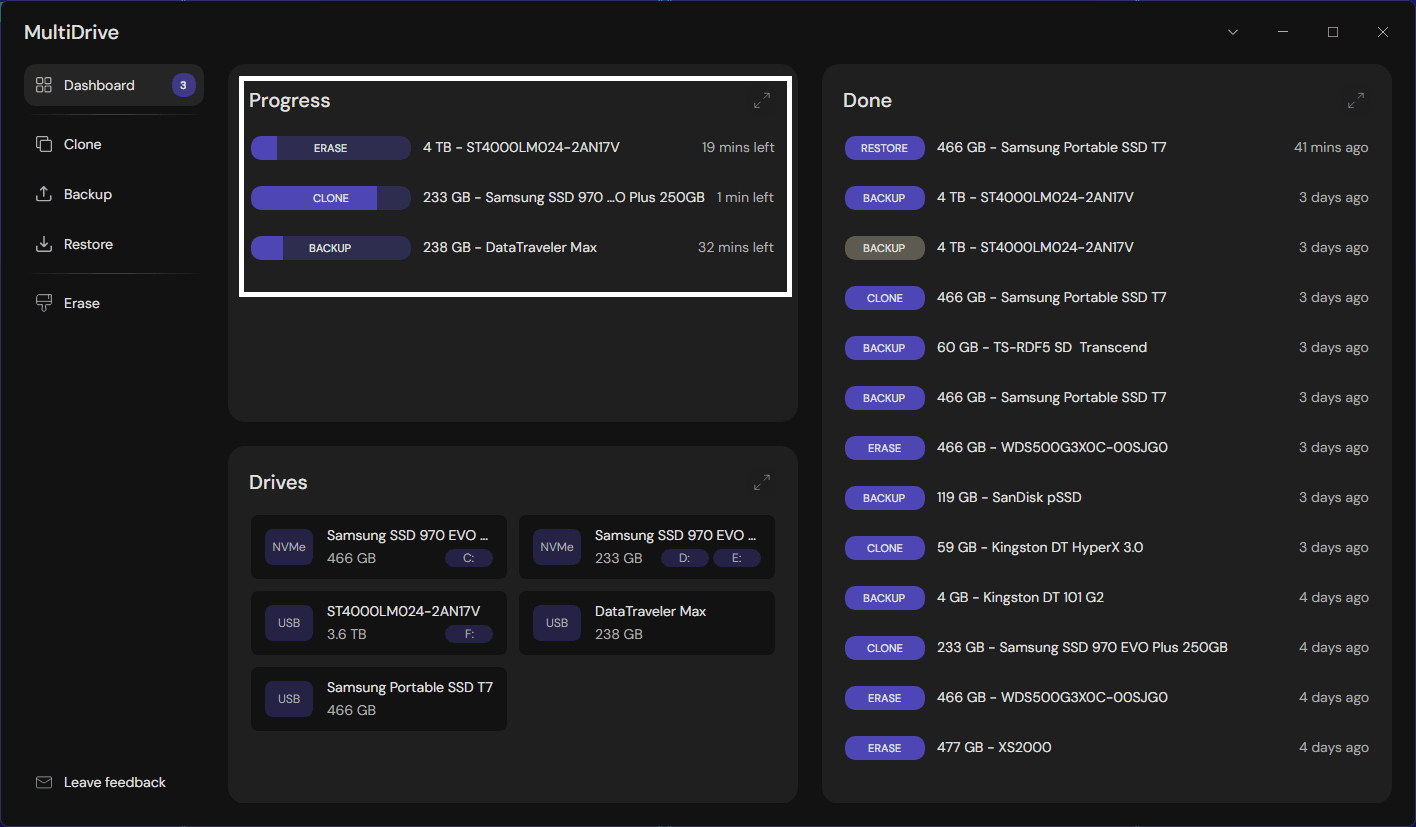
Parallel Tasks in MultiDrive
Do you need WinPE?
A Windows boot drive is hard to copy while Windows is running from it: the OS keeps system files locked and writes to the disk in the background, so a block-level copy taken from a live system may not boot or may contain inconsistent application data.
MultiDrive solves this with a bootable WinPE image (ZIP or ISO, separate download) that opens MultiDrive automatically after boot from a USB stick of 2 GB or more. Windows is fully stopped, so the clone is consistent. You do not need WinPE for data drives, for creating archival images, or for non-Windows boot drives.
Acronis True Image ships a Rescue Media Builder with every installation for recovery outside Windows - but in the trial, bootable media supports recovery only.
Where Acronis True Image is the better choice
- File-level backup and versions. Folders, incremental/differential versions, retention rules, and excluding files. MultiDrive images the whole range only.
- Scheduling and encryption in the GUI. Daily, weekly, and monthly file backups, with encryption in the app. MultiDrive can be scheduled for full images via CLI.
- Cloud and 3-2-1 backup. Advanced and Premium include 500 GB to 1 TB of Acronis Cloud. MultiDrive keeps images on a local/network drive you select.
- Preset wiping standards. DoD, VSITR, GOST, Gutmann, and Schneier are presets. MultiDrive can be scripted for multi-pass sequences.
- System Clean-up. Removes Windows activity traces and wipes free space. MultiDrive does not.
- Anti-malware, ransomware protection, and VPN in the same subscription. MultiDrive is disk tools only.
Where MultiDrive is the better choice
- Price. No subscription, and cloning works without a trial.
- Sector-by-sector cloning. Damaged, encrypted, and non-Windows drives copy the same way. Acronis Clone Disk has no sector-by-sector choice.
- Pause and resume. A failed multi-terabyte clone continues from the failure point. Acronis can pause cloud backups only.
- Parallel jobs. Clone, back up, and erase at the same time.
- Open backup formats. RAW, ZIP, and ZSTD open outside MultiDrive. .tibx does not.
- Command line. mdcli.exe runs every GUI task. Acronis can only start an existing backup task.
- Wiping. Custom pattern and byte range, then format and mount. DriveCleanser leaves the disk unallocated.
- Footprint. About 273 MB of disk tools, with no security suite.
Verdict: which one should you use?
Use MultiDrive if the job is the drive itself: a one-time clone or image, a failing disk, an erase, or several of those at once. Use Acronis True Image if the job is a repeating file backup with versions, encryption, and a cloud copy.
FAQ
Other comparisons
Author