MultiDrive as a free Macrium Reflect alternative
Updated
Last tested with MultiDrive 1.4 (Windows 11 Pro 25H2), June 2026. CLI flags: mdcli reference.
Macrium Reflect Free was discontinued on January 1, 2024. Later in 2025, it even went End of Life (EOL), which means no patches, no security updates, no modern OS support. If you relied on it, you now need a paid subscription to get any updates - or a replacement. MultiDrive is that free replacement.
Quick Comparison
| Feature | Macrium Reflect X | MultiDrive |
|---|---|---|
| Price | See pricing | 100% Free |
| Free version | ✗ Discontinued (2024) | ✓ Full version, no limits |
| When payment stops | ✗ Restore-only mode, can't create new backups | ✓ Fully functional |
| Support status | ✗ Requires paid subscription | ✓ Maintained & free |
| Cloning/Backup method | Intelligent (default) + sector-by-sector (optional) | Sector-by-sector only |
| Disk erasure | ✗ Deletes partition table only, data recoverable | ✓ Sector overwrite, zeros + custom HEX, range selection |
| Parallel operations | ✗ | ✓ |
| Pause/Resume operation | ✓ (partial support) | ✓ |
| CLI | Backup via XML only (no direct drive selection) | ✓ backup, clone, erase, restore |
| WinPE bootable media | ✓ (you create it manually) | ✓ (created by Atola, available for download) |
| Backup formats | Proprietary (.mrimg) | RAW, ZIP, ZSTD |
| Hash verification | MD5 only | MD5, SHA1, SHA256, SHA512 |
| Modern UI | ✗ | ✓ |
| No registration required | ✗ | ✓ |
MultiDrive is a free drive cloning, backup, and erase program for Windows 10 and 11. It is built by Atola Technology - over 20 years in data recovery and forensic drive imaging, with tools used by recovery labs, law enforcement, and IT teams worldwide.
Pricing
Macrium Reflect has no free tier. There is a 30-day trial. After that, the app stops functioning until you purchase a $50/year subscription, which is only valid for as long as it is active. When it ends, Reflect switches to a mode where it can only be used to restore backups.
MultiDrive is completely free - no trial period, no registration, no feature gating. Atola Technology has committed publicly: all current functionality will stay free forever, even if a commercial version is added in the future.
Disk Cloning
Both tools perform full bit-for-bit cloning across SATA, NVMe, SAS, and USB drives.
Where Macrium clone software has an edge: by default it uses intelligent cloning - copying only sectors with data and skipping free space. This makes cloning faster and produces smaller backup files. Sector-by-sector is also available as an option in settings.
MultiDrive cloning always performs sector-by-sector - there is no intelligent mode. This is a deliberate choice, not a limitation.
A sector-by-sector approach is more reliable. It operates at the disk level, copying every sector regardless of what the filesystem says is "used". Intelligent cloning works at the file level - it reads the filesystem, decides what to copy, and skips the rest. That means it will miss deleted files, corrupted filesystem structures, or data in unallocated space.
Sector-by-sector makes no such assumptions. The result is a complete replica that can be checked to make sure it's accurate. This is the same standard used in digital forensic investigations where the integrity of every bit matters.
In general, sector-by-sector cloning has the following advantages:
- Complete copy. Nothing is left behind. Deleted files, filesystem metadata, unallocated space - all preserved exactly as on the source drive.
- No filesystem dependency. MultiDrive doesn't need to understand the filesystem to copy it. Any filesystem - NTFS, FAT32, exFAT, ext4, XFS, ReFS, or an unknown/corrupted one - is copied identically.
- Hash verification is meaningful. With sector-by-sector, a hash covers every bit of the drive, not just the sectors that were copied.
- Predictable behavior. No logic to decide what counts as "used" space - the operation is deterministic and transparent.
See more in the Cloning guide.
Drive Backup
MultiDrive backs up to open formats: RAW, ZIP, and ZSTD.
- RAW - a bit-for-bit drive copy without compression.
- ZIP - a universal compressed format with your drive copy.
- ZSTD - similar to ZIP, but it's 4–5× faster thanks to Zstandard compression.
Backups in RAW or ZIP are accessible with standard tools even without MultiDrive installed.
Macrium Backup uses a proprietary .mrimg format. Restoring those files requires Macrium software. If the product is discontinued or your license expires, recovery becomes complicated.
Hash verification works differently in each tool. Macrium Reflect X calculates an MD5 hash per 64KB block as it reads from the source disk, saves it in the image index, and recalculates on restore to verify the image file wasn't corrupted during the write. This confirms the backup file is intact, but it does not compare source and target drives against each other.
MultiDrive calculates a hash of the target after backup or restore, giving you a verifiable fingerprint of the result. Supported algorithms: MD5, SHA1, SHA256, SHA512. For environments that require SHA-256 or SHA-512 due to policy requirements related to compliance, forensics, or enterprise IT, Macrium's MD5-only approach is limiting.
Learn more about Backup and Restore.
Disk Wiping
This is where the tools differ most significantly.
Macrium Reflect "Erase Drive" is not a secure disk wiping program. It deletes the partition table. The OS immediately sees the drive as uninitialized and empty. But every gigabyte of your data remains physically on the drive. The sectors are untouched. Any standard data recovery tool can retrieve it.
MultiDrive overwrites the actual sectors. Two wipe patterns are available: zeros and custom HEX. A custom HEX pattern writes a specific byte sequence across the entire drive, making recovery significantly harder than a zero-fill alone. You can also specify a sector range - wipe only a partition or a defined portion of the drive rather than the whole thing.
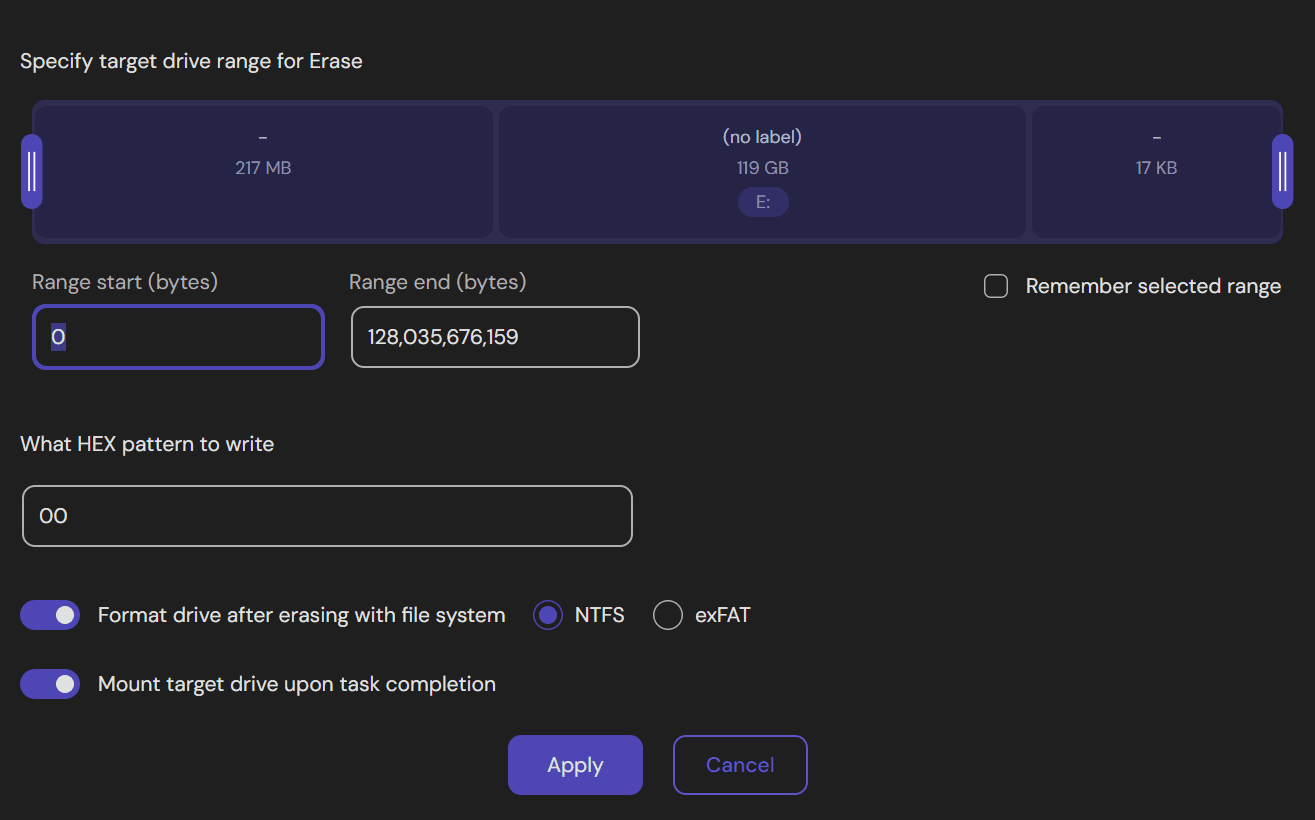
For anyone disposing of, selling, or repurposing a drive, Macrium's "Erase Drive" offers no real data protection. MultiDrive's secure disk wiping does.
Command Line Interface
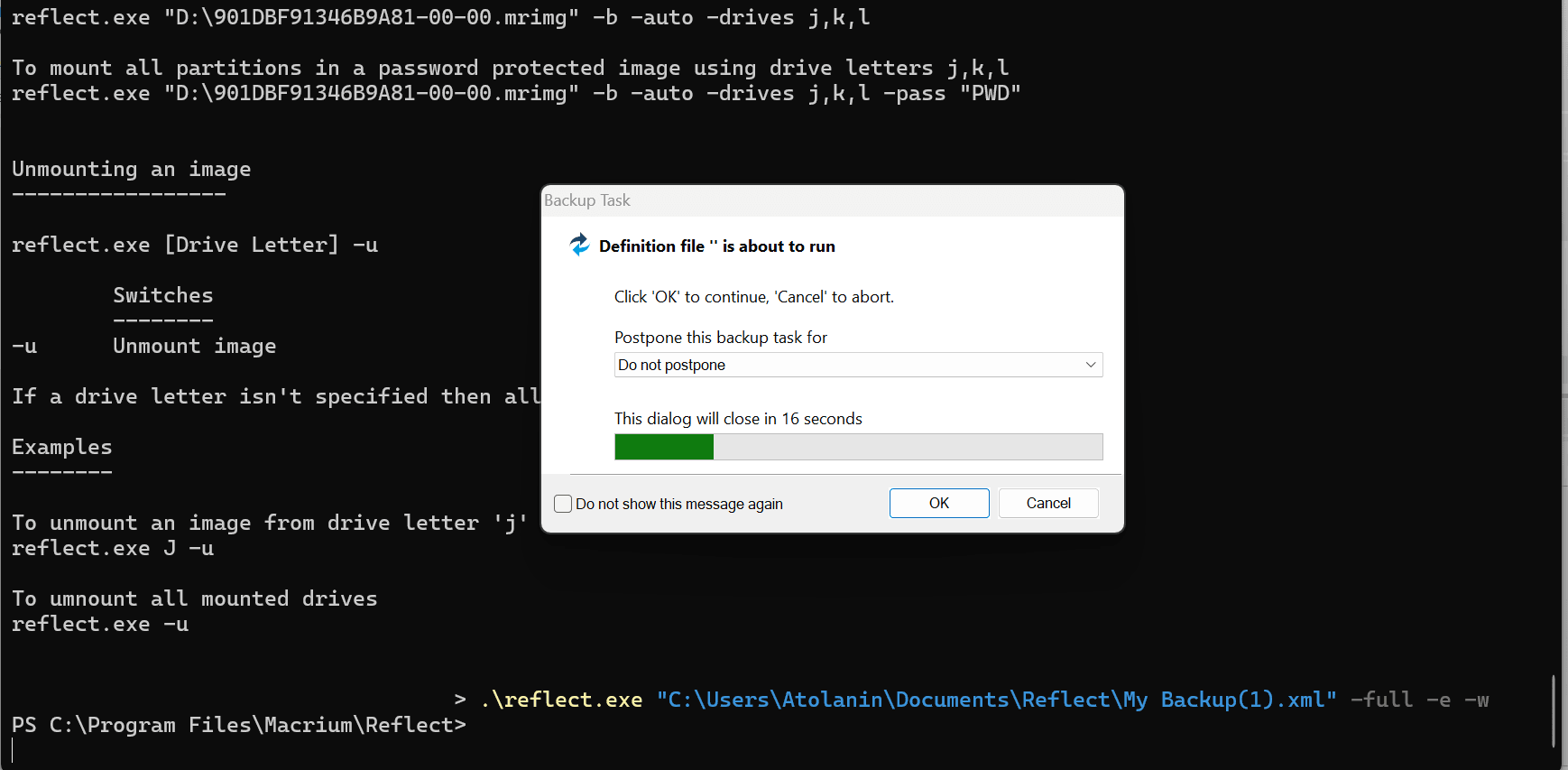
Macrium Reflect CLI is severely limited. You cannot select drives or operations on the fly. The workflow is:
- Create a backup configuration in the GUI - this saves an XML file
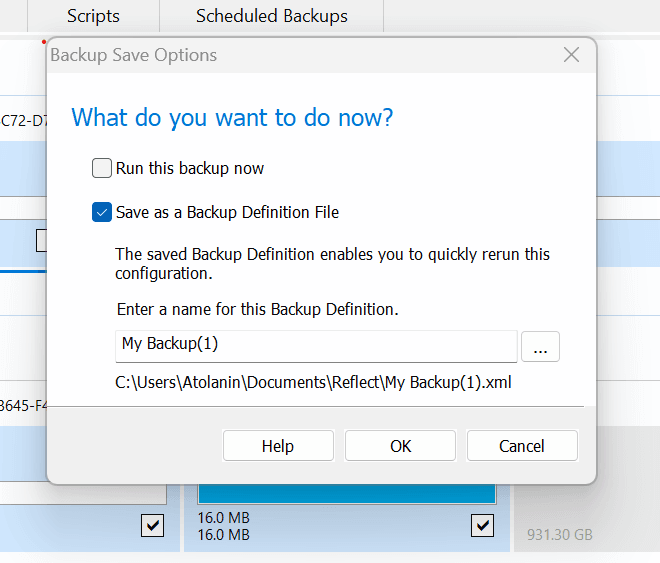
- Run that XML file via
reflect.exe
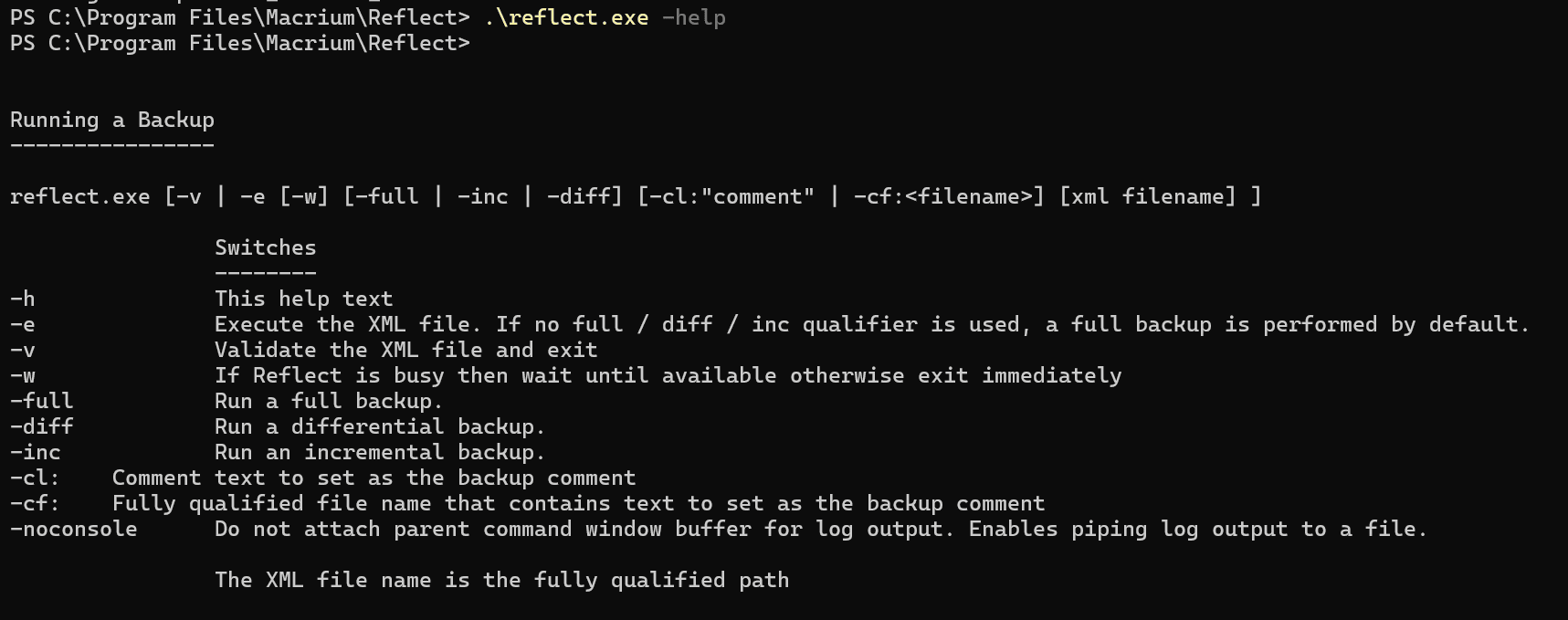
No cloning, no erasure, no restore from CLI. No way to specify a source or target drive directly from the command line.
When you run a backup via CLI, Macrium still pops up a confirmation dialog, so it is not truly headless.
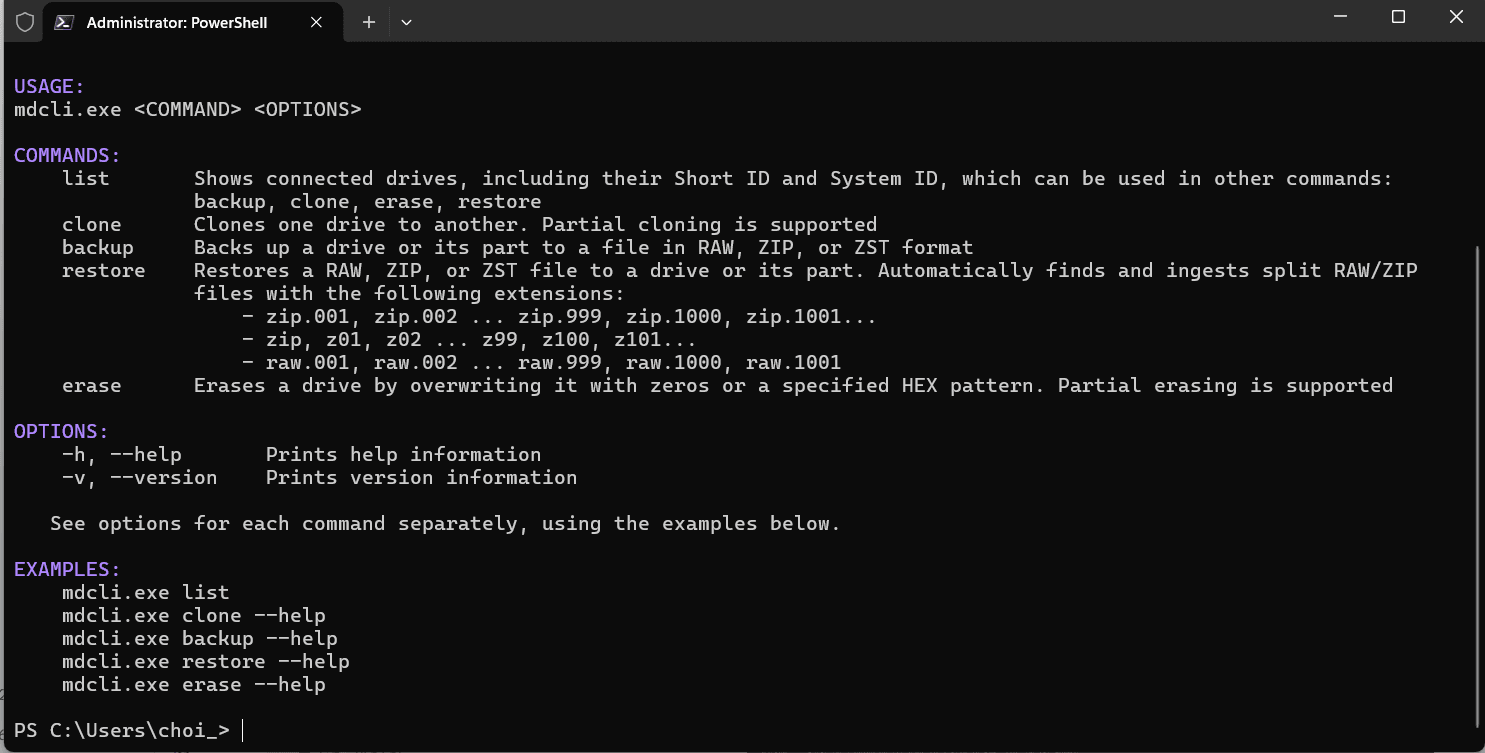
MultiDrive CLI (mdcli.exe) requires no XML files or prior GUI setup. All four operations are available directly from the command line: backup, clone, erase, and restore. Specify drives, formats, and options inline - fully headless, no dialogs.
mdcli.exe list identifies all connected drives including which one is the boot drive. MultiDrive will not allow erasing the boot drive from CLI - preventing accidental data loss during automated workflows.
# Show all connected drives
mdcli list

# Backup a drive to ZIP
mdcli backup d1 E:\backups\backup.zip

# Clone with SHA1 verification
mdcli clone d3 d4 -q SHA1

# Erase with custom HEX pattern
mdcli erase d2 -p BADA

# Restore from backup
mdcli restore E:\backups\backup.zip d3
Hash algorithms supported: MD5, SHA1, SHA256, SHA512. Integrates with Windows Task Scheduler for automated backups.
WinPE Bootable Disk
The most reliable way to clone a Windows boot drive is via WinPE - outside of the running OS, with no open file handles.
Both Macrium Reflect X and MultiDrive provide WinPE bootable images, but the process differs significantly.
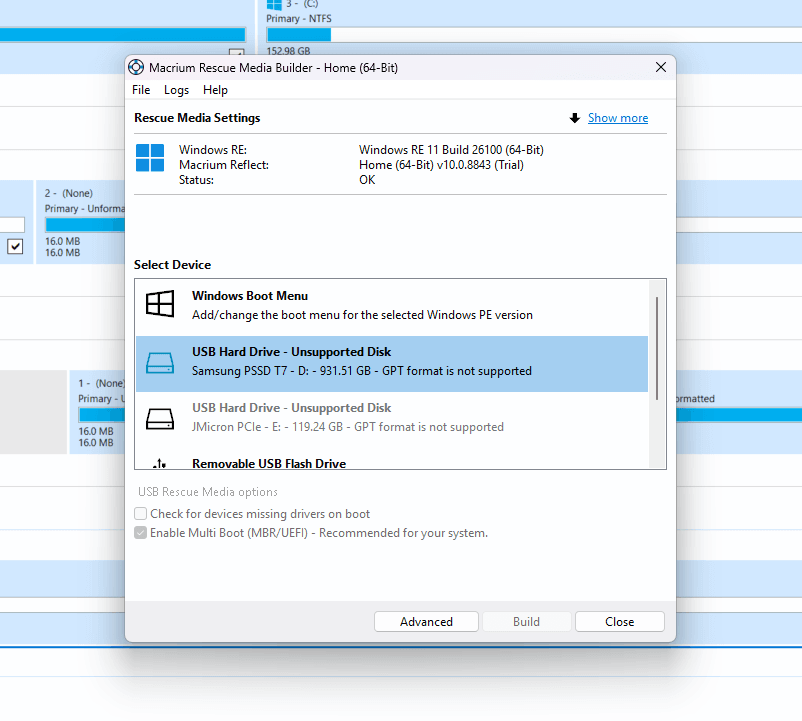
Macrium Reflect X requires you to create a WinPE boot image and write it directly to a USB drive from within the Rescue Media Builder. The USB drive must be MBR-formatted - GPT-partitioned drives are not supported and will show as "Unsupported Disk" in the device list. If your USB drive is GPT, you need to reformat it to MBR before proceeding.
MultiDrive takes a much simpler approach - you download a WinPE image file and restore it to a USB drive using MultiDrive itself. No MBR/GPT restriction. MultiDrive is pre-installed and launches automatically on boot.
Parallel Operations
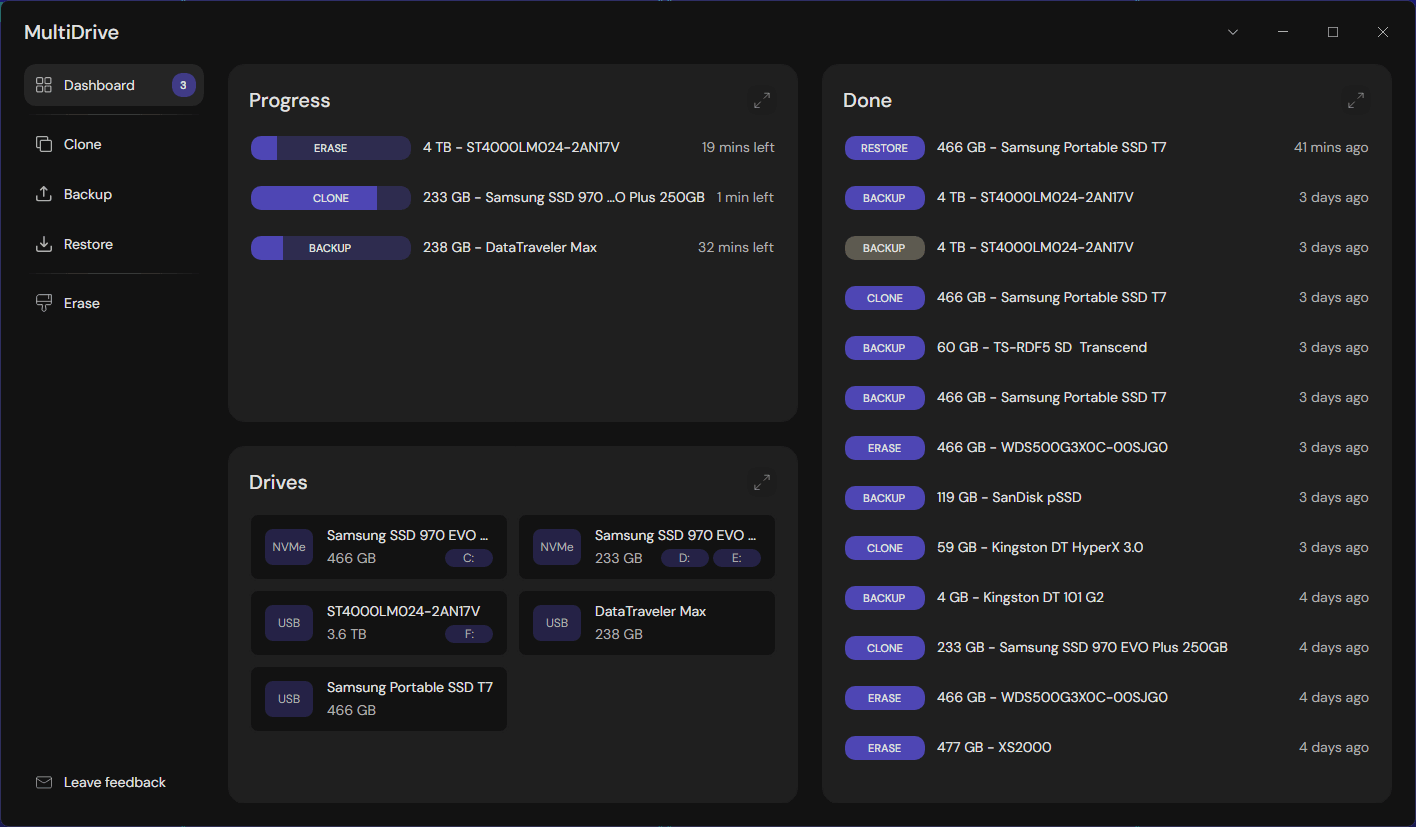
MultiDrive can run multiple disk operations simultaneously - clone one drive, back up another, erase a third, all from a single dashboard.
Progress and status for each running and completed task is visible at a glance. Parallel tasks can also be launched via CLI.
Macrium Reflect does not support this. Operations run sequentially. Even if you schedule multiple tasks at the same time, Macrium runs them one after another. For admins processing multiple drives, this adds up fast.
Pause & Resume
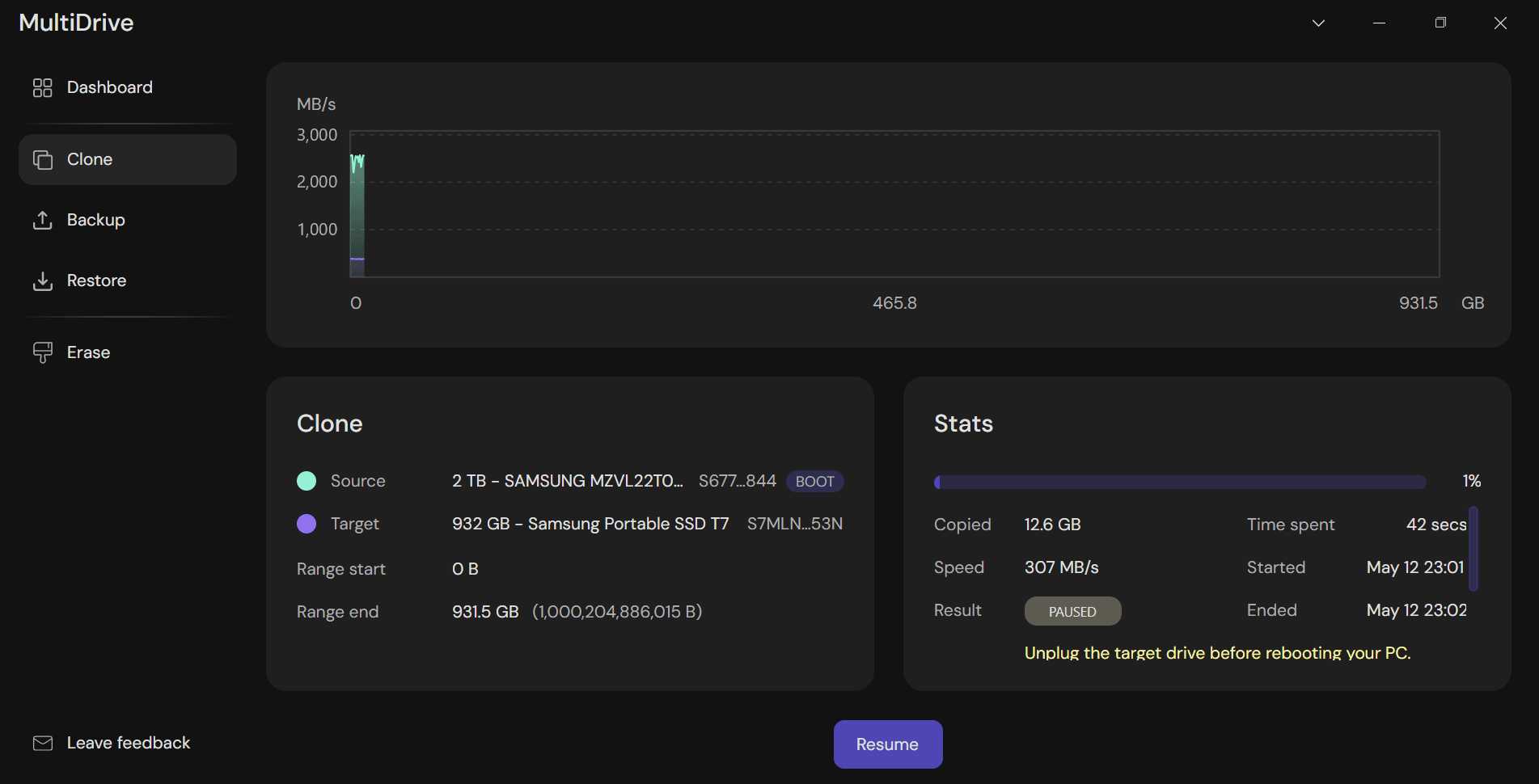
MultiDrive lets you pause any running operation and resume it later - even after a full shutdown. It continues from the point where it stopped, without restarting from scratch. You can also do this for multiple tasks in parallel.
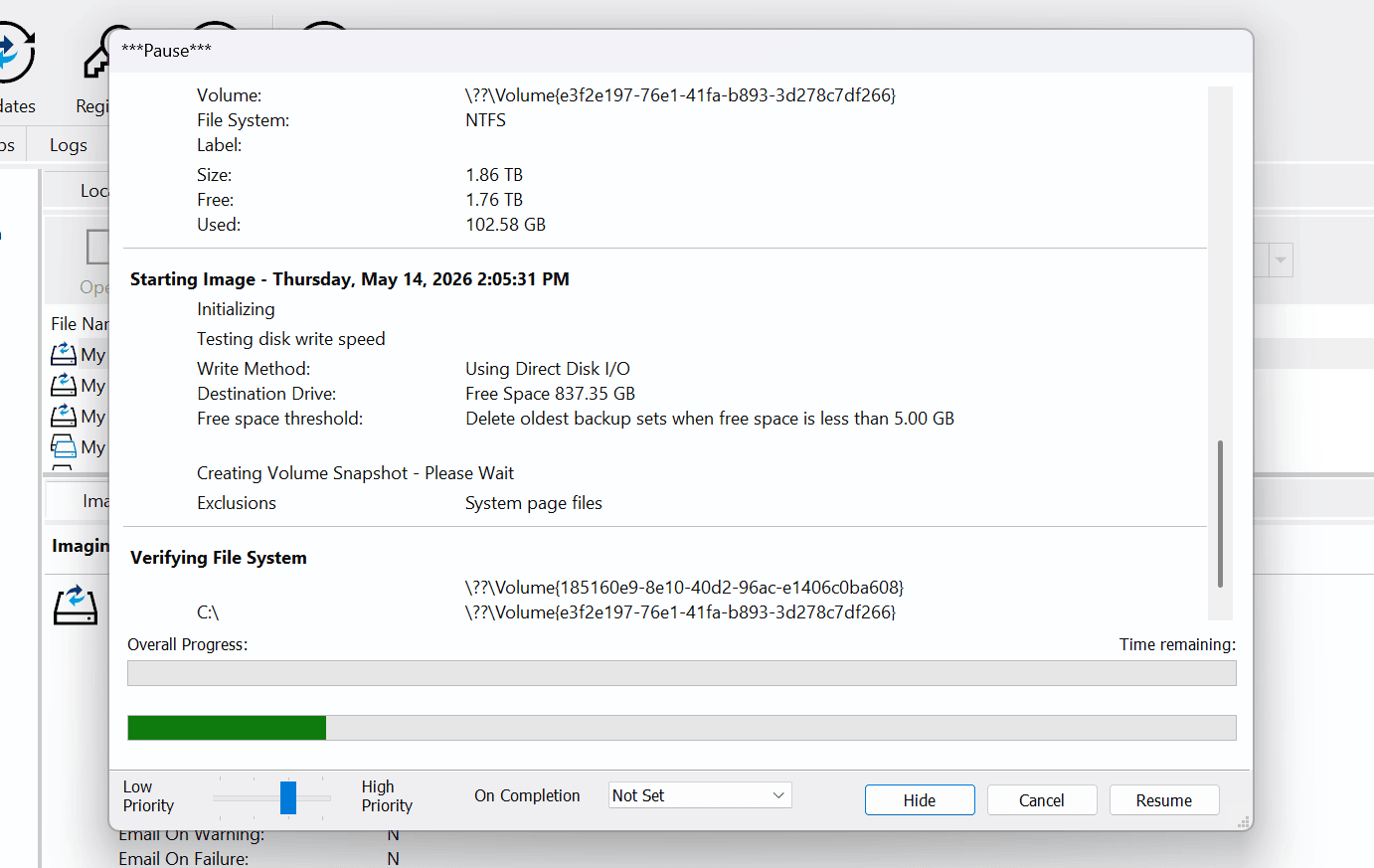
Macrium Reflect X has a Pause button. You can pause an operation and hide the window - but Macrium remains busy. You cannot start a new clone or backup while an operation is paused. When you reopen it, you can either resume or cancel. If you reboot, the paused operation is not saved and cannot be resumed.
In MultiDrive, you can resume operations any time. The same drives must be connected.
When to Choose Each Tool
Choose Macrium Reflect if:
- You need intelligent cloning (file-level copy, skipping free space)
- You need automatic partition resizing after cloning to a larger drive
Choose MultiDrive if:
- You need completely free disk cloning software - no trial, no paywall, no expiry
- You need open backup formats not locked to a vendor
- You want CLI automation and scripting
- You want ZIP or ZSTD compression for smaller or faster full drive backups
- You need to run multiple operations simultaneously
- You need to pause an operation and resume it later - even after a shutdown
MultiDrive vs Macrium Reflect X FAQ
The free version of Macrium was discontinued in January 2024. You can't download it anymore. Old installations don't get updated or supported. MultiDrive is the best free option available for Windows right now.
Yes, MultiDrive. Most tools that call themselves free either limit the features you can use, expire after a trial, or try to sell you more upgrades. MultiDrive doesn't have any of these issues. Everything is free. See our free disk cloning guide →
RAW (sector-by-sector), ZIP (compressed), and ZSTD (Zstandard - 4–5× faster than ZIP). You can restore all formats with MultiDrive or access them independently with standard tools. Details: free backup utility →
Yes. The portable version can easily run from a USB drive without installation, with all features included.
Yes. Use MultiDrive CLI with Windows Task Scheduler to automate backups, cloning, and wiping on a schedule. See our Automation Guide →
Other comparisons
Author